Your connection is slow, but is a weak Wi-Fi signal actually the problem? Check Wi-Fi signal strength with your device's network icons, then use a numeric reading for a closer look. Start with your device below, and measure in the spot where you're having trouble.
Check your signal on Windows
Select the taskbar's Network, Sound, or Battery area to open Quick Settings in Windows 11.
Beside the Wi-Fi control, select Manage Wi-Fi connections.
Inspect the signal icon beside your connected network. The other network icons show the relative strength of available connections.
Select Refresh network list to scan again.
For a numeric reading, open Command Prompt using Run as administrator. This method requires a supported wireless adapter and the WLAN AutoConfig service running.
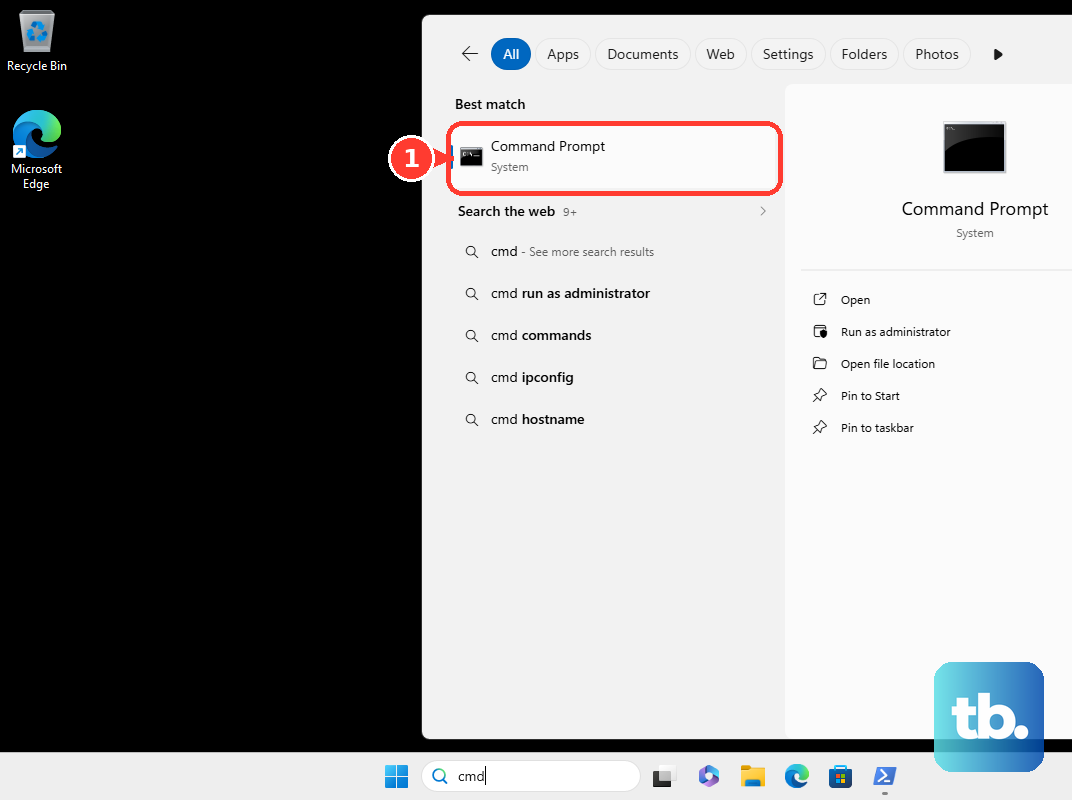
Run netsh wlan show interfaces. PowerShell and Windows Terminal also accept this command.
Read the Signal field for your connected wireless interface.
To compare nearby access points, run netsh wlan show networks mode=bssid. Its output includes Signal readings, channels, and radio types for networks your adapter detects.
Tip: Repeat the command at your usual desk or sofa so the reading reflects where you actually use Wi-Fi.
Start with Android's network panel
Android's Wi-Fi icons give you a quick signal comparison without an extra app. These menu labels follow Google's Android interface; labels differ by manufacturer.
Open Settings > Network & internet > Internet.
Inspect the Wi-Fi icon beside each network. A fuller icon means a stronger signal.
For a shortcut, swipe down from the top of the screen.
Tap Internet to open the network panel.
For a numeric measurement, open Inspector > Networks in NetSpot for Android.
Read Signal for the strength in dBm.
Select Comparison to open the comparison view.
Check the networks you want to compare.
Inspect Signal Strength (Timeline) to follow their readings over time. Android scan throttling affects how frequently those readings update.
Reveal your Mac's connection details
A numeric reading gives you a closer comparison than your Mac's signal bars.
Open the Wi-Fi menu. The bars beside available networks indicate relative connection strength.
If the menu-bar icon is missing in macOS Tahoe 26 or later, open System Settings > Menu Bar.
Select the Wi-Fi checkbox.
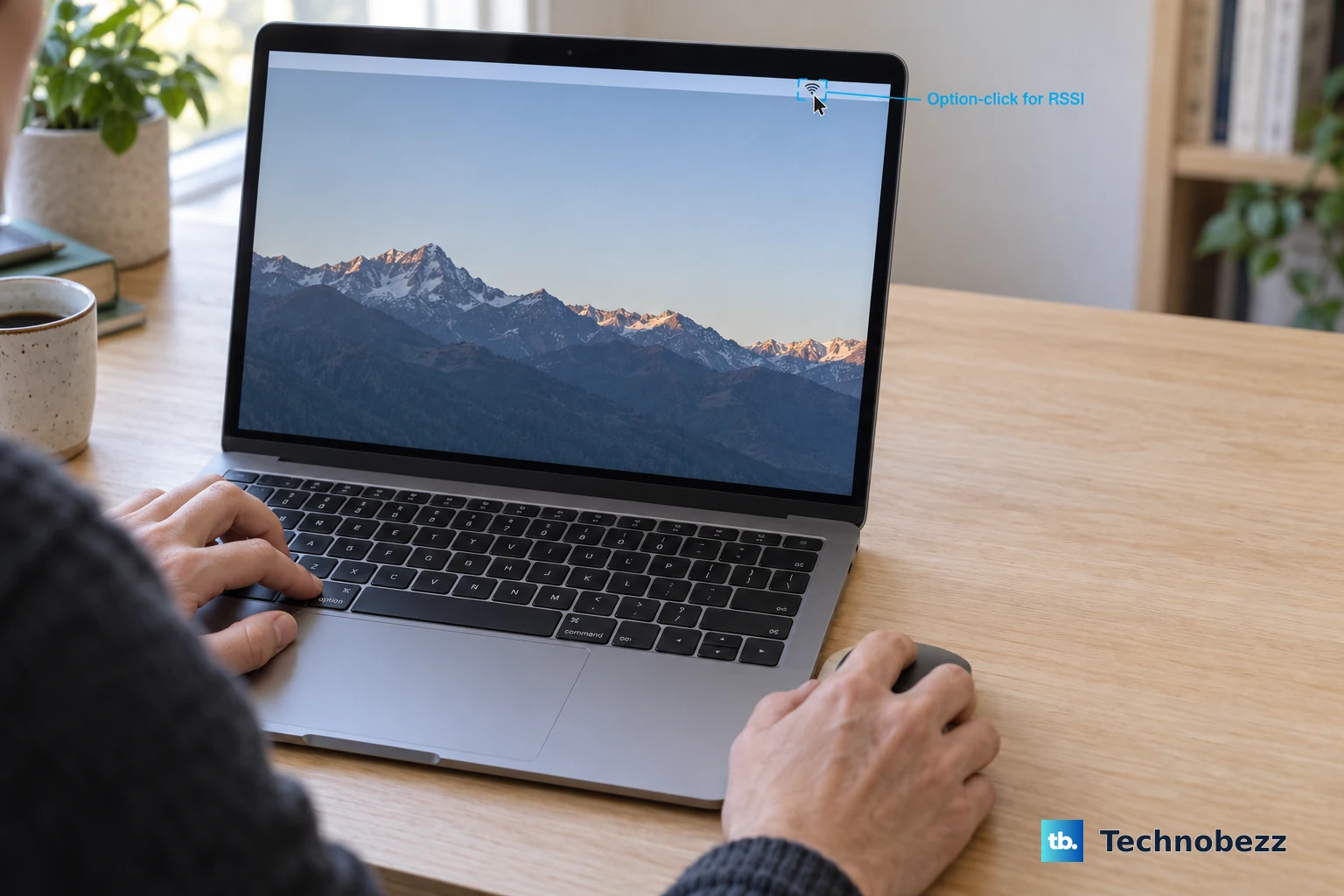
Hold Option while clicking the menu-bar Wi-Fi icon to expand the connection details.
Read RSSI for the connected network. With negative dBm readings, a number closer to zero means a stronger signal.
For a nearby-network scan, Option-click the Wi-Fi menu.
Choose Open Wireless Diagnostics.
Open Window > Scan.
Compare the nearby networks' RSSI readings.
Inspect reception on iPhone and iPad
Inspect your device's Wi-Fi icon for a basic indication of signal strength. It gives you a qualitative reading, not a numeric RSSI value.
For enhanced signal readings through WiFiman, connect your iPhone or iPad to a UniFi network with a UniFi Gateway. This feature requires that UniFi setup.
Open Ubiquiti WiFiman.
Select the Signal tab.
Observe the readings while moving between the locations you want to compare.
Tip: Use your router's companion app to inspect supported connected devices, using the paths below.
Find your Chromebook's signal indicator
Select the time at the bottom right of your Chromebook. The panel shows your connected Wi-Fi network's name and signal strength.
To inspect available networks, open Settings > Network > Wi-Fi.
If the signal indicator doesn't explain the connection problem, try Settings > About ChromeOS > Diagnostics > Connectivity. Its automatic tests investigate the connection; they aren't a numeric RSSI meter.
Measure the device that's having trouble
For an eero network, open the eero app's Devices tab. Each wireless device's connection strength appears beside it, using up to four bars.
Tap the device's name to see which eero and frequency it uses.
For a supported ASUS router and firmware, sign in to the ASUS Router app.
Select Devices.
Select the client you want to check.
Inspect Connection quality. This describes the selected client's connection, which isn't necessarily the phone running the app.
On a Wi-Fi-connected Roku, press Home on the remote.
Open Settings > Network > About.
Read Signal strength. The rating is Poor, Fair, Good, or Excellent.
Use Settings > Network > Check connection to retest.
Tip: Measure with the device having trouble, since your phone's antenna can produce a different reading in the same spot.
Make sense of the readings
These checks separate Wi-Fi reception from internet speed.
Identify the measurement your device reports. Bars use vendor-specific scales, RSSI describes received signal strength, and SNR is a separate signal-to-noise measurement.
Compare negative dBm readings by how close they are to zero. For example, −50 dBm represents a stronger signal than −70 dBm.
Repeat your measurement at the problem location using the same device. Different devices' antennas produce different results.
Check what a router test measures before interpreting its result. A mesh test measures connections between mesh nodes, rather than the signal reaching your phone or laptop.
Keep internet speed-test results and negotiated link rates separate from your signal reading. Neither directly measures Wi-Fi signal strength.
Frequently Asked Questions
Why does a Windows Wi-Fi scanner report access denied?
Windows Wi-Fi privacy controls require location consent for affected scanning functions. Open Settings > Privacy & security > Location and grant the location access your scanner requires. Permission enables measurement; it doesn't strengthen the signal.
Can I watch my Wi-Fi signal change over time on a computer?
Yes. In NetSpot's free Inspector mode on Windows and macOS, open Networks Around You to inspect Level and Signal. Select the networks to compare, then click Signal level and noise graphs.
How do I check Wi-Fi signal strength on Linux?
On a Linux system using NetworkManager with nmcli installed and a supported Wi-Fi adapter, run nmcli device wifi list in a terminal. Compare the SIGNAL and BARS columns. An asterisk marks the active access point.
Where can I check my HomePod's Wi-Fi signal?
Open Home on an iPhone, iPad, or Mac. Select the HomePod, then its Settings button. Scroll to Wi-Fi Network and inspect the indicator beside the network name. Two bars or fewer indicates weak reception. The indicator is unavailable on networks that block peer-to-peer traffic.