You need the exact GPU name, but Windows can show it in more than one place depending on what you are trying to confirm. Settings shows the graphics adapter tied to a display, Device Manager shows installed adapters, and tools like Task Manager, dxdiag, and System Information add memory and driver details. Start with the quickest Windows screen, then use the deeper checks when you need a report, driver help, or vendor-specific details.
Start with Advanced display in Settings
Open Start.
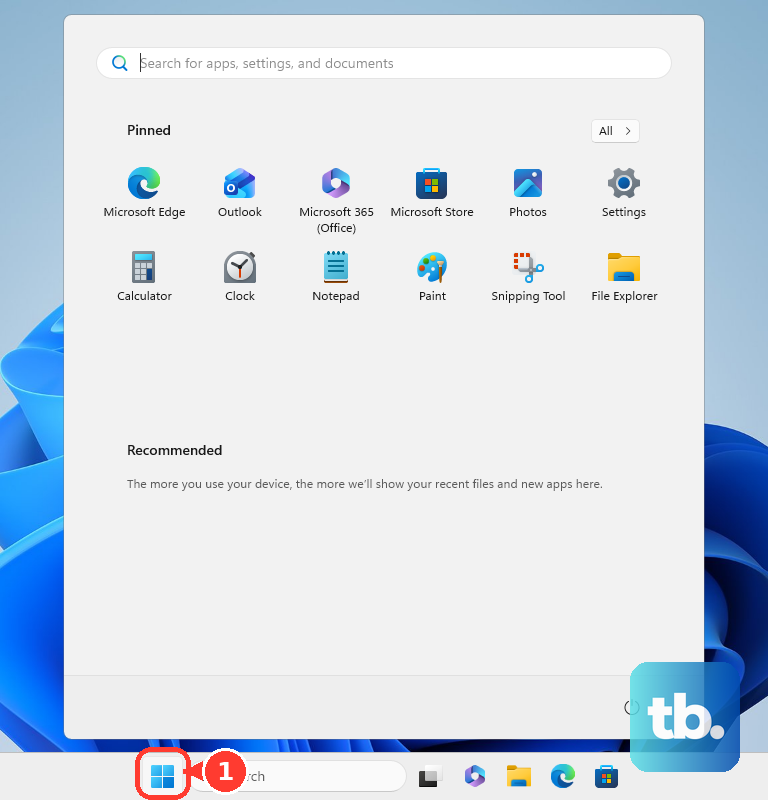
Select Settings. Go to System. Choose Display. Open Advanced display.
If more than one monitor is connected, choose the display you want to check. Read the Display information panel for that screen's details, including its current resolution and refresh rate.
Select Display adapter properties. Read the Adapter tab for more adapter details. Use this first when the question is which GPU is connected to a specific monitor.
Check every installed adapter in Device Manager
Device Manager is the better place when you want the display adapters Windows has installed, not only the adapter attached to one screen. Type device manager in the taskbar search box, select Device Manager, then expand Display adapters.
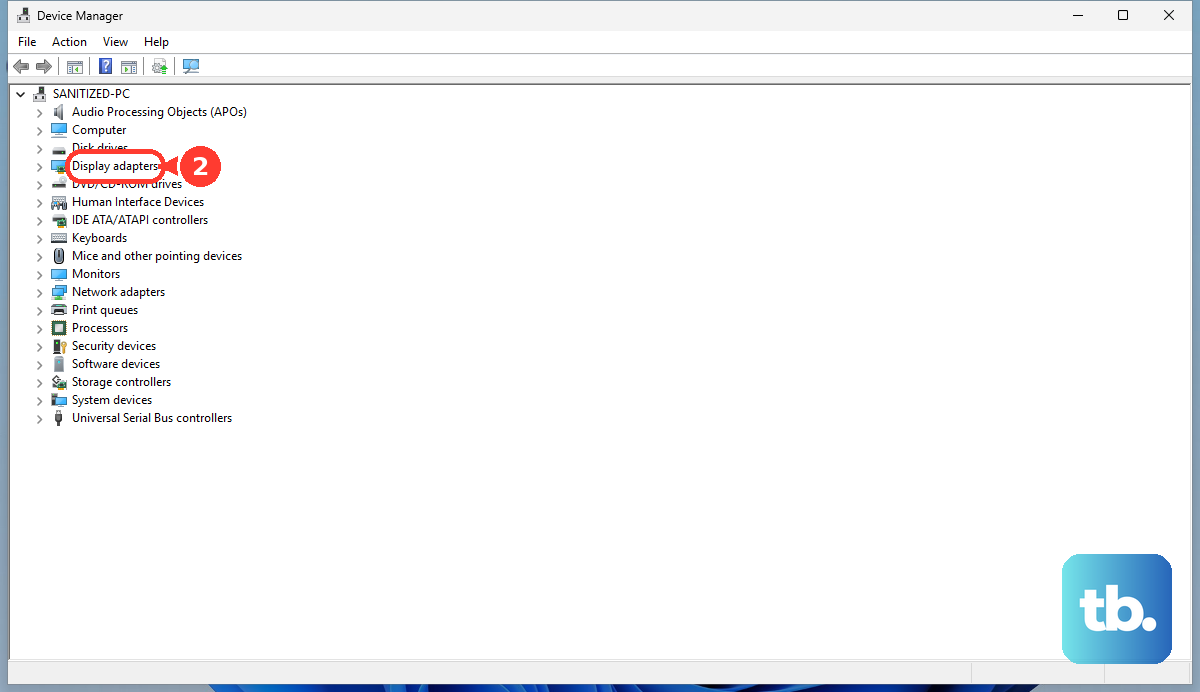
The entries under Display adapters show the installed graphics adapters, including NVIDIA, AMD, Intel, or Microsoft display adapters. If the only entry is Microsoft Basic Display Adapter or Standard VGA adapter, Windows is using a generic basic video driver.
There is also a faster route. Press Windows + X, select Device Manager, then expand Display adapters.
Use Task Manager for a quick GPU memory view
This fixes the quick-check case where you want the GPU name and memory details shown in Windows performance view. Press Ctrl + Shift + Esc. Select Performance.
Choose GPU 0, GPU 1, or another GPU entry. Read the GPU name and memory information in the panel. If a GPU panel or specific metric is missing, the available information depends on compatible WDDM display driver support.
Fix a basic adapter listing
Windows falls back to this generic basic display adapter driver when a driver made specifically for the display adapter by the manufacturer is not available or not installed.
For an NVIDIA PC, go to NVIDIA Drivers and use Get Automatic Driver Updates with NVIDIA App. NVIDIA App needs Windows 10 or Windows 11, the GeForce 551.52 driver or later, and a GeForce RTX 20, 30, 40, or 50 Series GPU; on other NVIDIA hardware, use Manual Driver Search or your PC maker's driver page instead.
For an NVIDIA PC where you already know the product family, use Manual Driver Search by product category, series, product, and operating system.
For an AMD PC, go to AMD Drivers and Support and choose Download Windows Drivers to run the auto-detect tool. AMD builds that tool for Windows 11 and for 64-bit Windows 10 version 1809 and later; on anything older or unsupported, use the product search on the same page or your PC maker's driver page.
For an AMD PC where you already know the product, use Search or Browse Drivers and Support by Product.
For an Intel PC, run Intel Driver & Support Assistant, then expand the Intel graphics entry under Devices and Drivers.
Open DirectX Diagnostic Tool for driver details
DirectX Diagnostic Tool is useful when you need the GPU name with driver model, display memory, and DirectX-related information. Search for dxdiag and select dxdiag from the results.
You can also right-click Start, choose Run, type dxdiag.exe, and select OK. In DirectX Diagnostic Tool, open the Display tab, or each Display tab, then read Device and Name.
When support asks for a file, select Save All Information..., save the text file, open it, and review the Display Devices sections. Look for Card name, Manufacturer, Chip type, Dedicated Memory, Shared Memory, and Driver Model.
Get a fuller view in System Information
Press Windows + R. Type msinfo32. Press Enter. In System Information, expand Components.
Select Display. Read Name, Adapter Type, Adapter RAM, Driver Version, and the related display fields. Use System Information when you want more detail than Settings without moving into PowerShell.
Use PowerShell for a copyable GPU readout
Use this when you want text you can paste into a support ticket or inventory note.
- 1.Open Windows Terminal or PowerShell.
- 2.Run Get-CimInstance Win32_VideoController | Select-Object Name,AdapterCompatibility,AdapterRAM,DriverVersion,DriverDate,PNPDeviceID,VideoProcessor,VideoModeDescription.
- 3.Read Name, AdapterCompatibility, AdapterRAM, DriverVersion, DriverDate, PNPDeviceID, VideoProcessor, and VideoModeDescription.
- 4.For a shorter present-device list, run Get-PnpDevice -Class Display -PresentOnly.
- 5.Review FriendlyName, Status, Class, and InstanceId.
On non-WDDM hardware, Win32_VideoController can return inaccurate values.
Confirm details in NVIDIA AMD or Intel tools
Use these methods when the matching vendor driver or software is installed, or when you are using the vendor's official detection tool. They work best after Windows has already pointed you toward NVIDIA, AMD, or Intel graphics.
On an NVIDIA PC, open NVIDIA Control Panel, select Help, then choose System Information. Read the GPU model in the Items section; NVIDIA also places System Information at the bottom-left of NVIDIA Control Panel.
On an AMD PC, the route depends on which AMD graphics software generation is installed. With Radeon Software, right-click an empty area of the desktop, select AMD Radeon Software, choose the Gear Icon, select System, then click More Details, and read Graphics Chipset, Subsystem Vendor ID, and Device ID.
With current AMD Software: Adrenalin Edition, select Start, type AMD Software and open the app. Enter System in the search box, click the System Settings result, then open the Graphics Hardware category.
On an Intel PC, install Intel Driver & Support Assistant, visit the Support Assistant page in Chrome, Firefox, or Edge, and review the detected Intel hardware, system and device information, and driver or software update list. The assistant covers many Intel products but not all of them, so check Intel's compatibility list first and fall back to Device Manager if yours is excluded.
If Device Manager shows only Intel HD Graphics or Intel UHD Graphics without a numerical identifier, identify the processor and use Intel's Product Specification Page to view detailed graphics specifications.
Skip old WMIC advice on modern Windows
Older tutorials often recommend running wmic path win32_VideoController get name in Command Prompt. Microsoft deprecated WMIC in favor of Windows PowerShell for WMI and has now removed it: WMIC is gone from Windows 11, version 26H1, is removed by the August 2026 preview update for versions 24H2 and 25H2, and is no longer available as a Feature on Demand. Use Get-CimInstance Win32_VideoController instead.
For a work, school, family, or small-office PC you administer, System Information can connect to another computer with msinfo32 /computer <computername> or export a report with msinfo32 /computer <computername> /report <path>. Remote use requires permitted access and the right account permissions.
If a remote or command-based method fails, check the GPU locally with Settings, Device Manager, Task Manager, or DirectX Diagnostic Tool on the Windows PC itself.
Frequently Asked Questions
What does GPU 0 mean in Task Manager?
GPU 0 is one GPU entry in Task Manager's Performance view. If the PC has more than one display adapter, Windows can also show GPU 1 or another GPU entry.
Can I check my GPU without installing NVIDIA AMD or Intel software?
Yes. Use Windows Settings, Device Manager, Task Manager, dxdiag, or System Information to read the GPU name and related display details.
What should I use when I need a text file with GPU details?
Use dxdiag and select Save All Information, or run System Information and create a report with msinfo32 /report.
Why does Intel graphics show without a model number?
Some systems show only Intel HD Graphics or Intel UHD Graphics. In that case, identify the processor and use Intel's Product Specification Page to find the detailed graphics specifications.