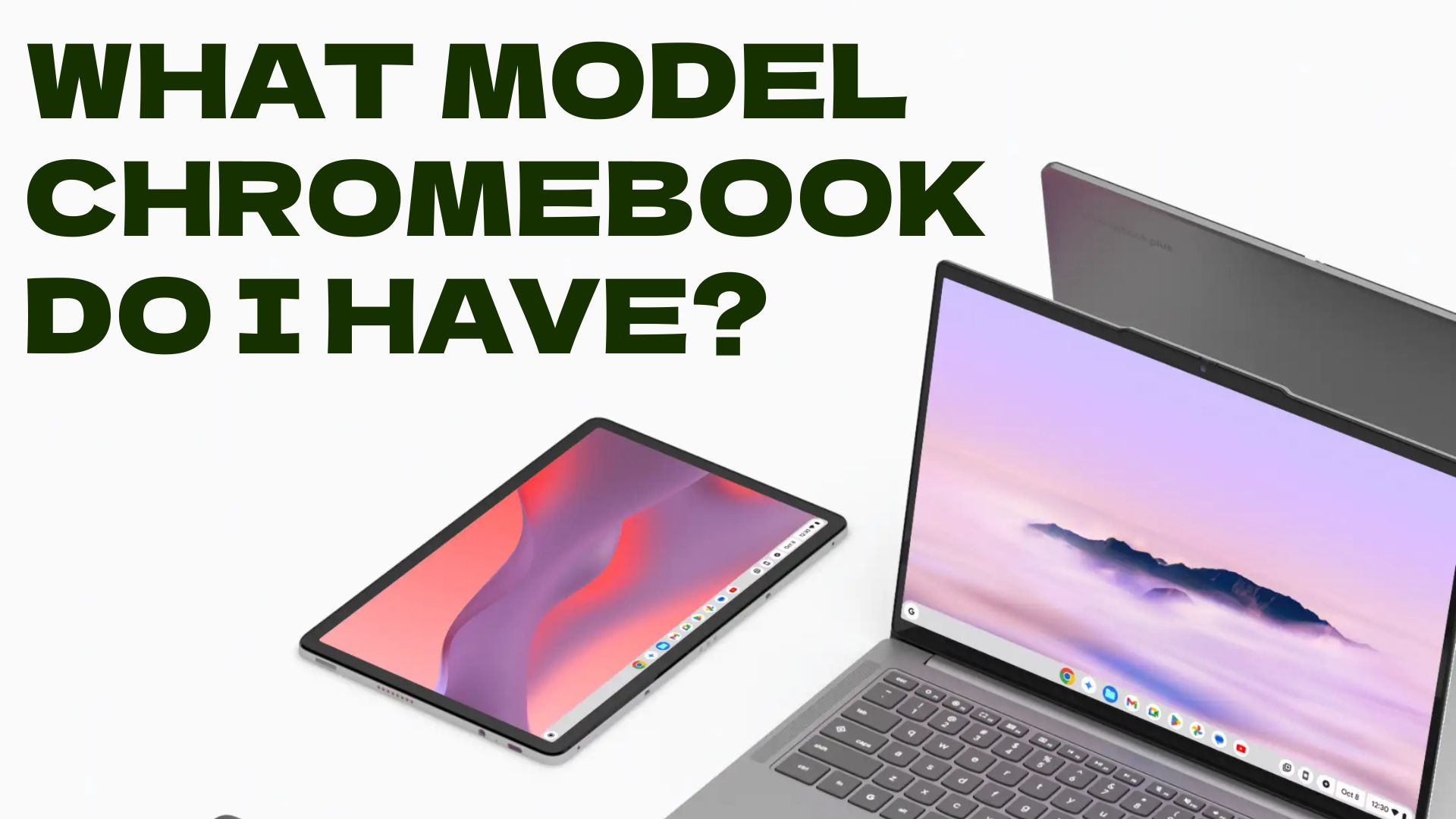
Knowing your exact Chromebook model is the first thing you need when you are buying a charger or case, asking for warranty support, or building recovery media. The model tells you which accessories fit, and the serial number is what support teams ask for first.
Three details often get mixed up. The model is the consumer name and number on the device, the board name (also called the codename) is the internal name Google assigns during development, and the serial number is the unique ID for your specific unit. The methods below cover all three.
Here are seven reliable ways to find your Chromebook model, board name, and serial number in 2026.
Start With the Fastest Check
If your Chromebook turns on and you can sign in, the quickest answer is the built-in Diagnostics app covered just below. If the screen is dead or the device is stuck, flip it over and read the printed label, or use the sign-in screen shortcut further down.
For most people, the printed label and the Diagnostics app together answer every question in under a minute.
Check the Physical Label
The most direct way to identify your Chromebook is to look at the device itself. Most models print a label on the bottom or back that lists the model number, serial number, and manufacturer.
Turn the Chromebook over and look for a printed sticker or etched text.
The model number is usually marked separately from the serial number, and the serial often sits next to a barcode.
The same details are printed on the original box if you still have it.
If the text has worn off over time, move on to one of the on-screen methods below.
Open the Diagnostics App
ChromeOS has a built-in Diagnostics app that shows your model and board name at the top of the window. It is the most reliable on-device method when you can sign in.
Open the launcher, type Diagnostics, and select the app.
You can also reach it from Settings, where it sits under About ChromeOS.
The launcher key is the magnifying glass or circle key where Caps Lock usually sits.
The header shows your processor family followed by a word in parentheses, which is your board codename (for example, voxel), and the ChromeOS version.
Select Save test details at the bottom to export everything to a text file you can send to support.
Use the Chromebook Recovery Utility
The Chromebook Recovery Utility is a Google extension that can read your model directly. It is built for creating recovery media, but the setup screen reveals your model along the way.
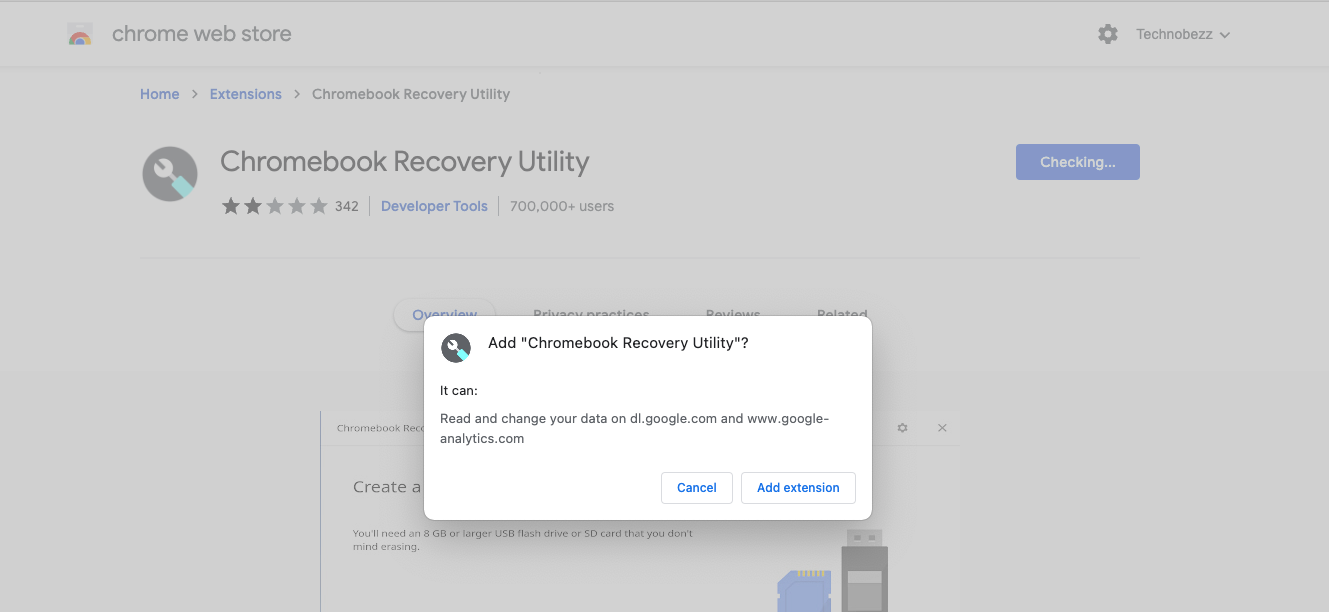
- 1.Install the Chromebook Recovery Utility from the Chrome Web Store
- 2.Click Add to Chrome to install the extension
- 3.Open the extension from your Chrome toolbar
- 4.Click Get Started on the first screen
- 5.Look for the line that reads For this Chromebook, enter, followed by a code
- 6.Click the highlighted link to see your Chromebook model and board name
This method is handy because the utility identifies the device the same way Google does, so the name it shows matches the official recovery images.
Search the chrome://system Page
ChromeOS stores detailed device data on a hidden page you can open in the browser. It lists the model along with dozens of other hardware values.
Open the Chrome browser.
Type chrome://system in the address bar and press Enter.
Press Ctrl + F and search for model_name to jump to your model.
If model_name is not listed, search for hardware_class, which shows the hardware ID and board name.

The model_name field gives the marketing model, while hardware_class is the unique hardware ID that Google uses to match recovery images and updates.
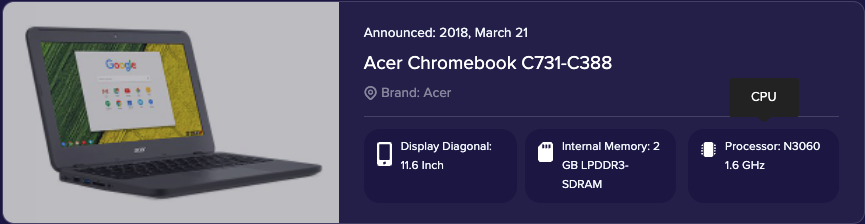
Use Cog System Info Viewer
Cog is a lightweight ChromeOS app that lays out your hardware in a single window. It does not print the marketing model name, but it shows the specifications you need to confirm which model you have.
Install Cog from the Chrome Web Store.
Click Add to Chrome to install the app.
Launch Cog from the launcher.
Read the processor, memory, and storage details it lists.
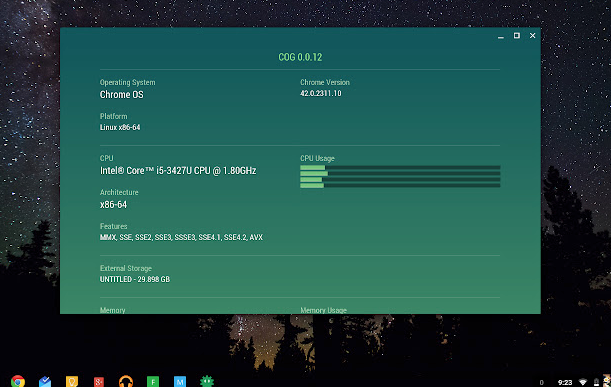
Match those specifications against the manufacturer listing to pin down the exact model when two versions of a Chromebook share the same name.
Find It From the Sign-in Screen
If you cannot sign in, you can still read key details from the sign-in screen. This is the fastest route when a Chromebook is stuck or being set up for someone else.
On the sign-in screen, press Alt + V.
ChromeOS shows the software version, platform, and serial number in a corner of the screen, with the serial listed after the letters SN.
Press Alt + V again to hide it.
On some newer ChromeOS releases this shortcut has changed or been removed. If nothing appears, sign in and use the Diagnostics app instead.
Check Your Purchase Records
If you bought the Chromebook online or kept the paperwork, the model is usually recorded there. This is a dependable backup when you cannot reach the device.
Check your order confirmation email.
Look at the receipt or invoice.
Review any warranty registration documents.
Read the original product box.
Online orders often spell out the full model number in the confirmation and shipping notices, which makes them an easy reference if the printed label is gone.
Model, Board Name, and Serial Number Explained
These three identifiers answer different questions, so it helps to know which one a support page or accessory listing is asking for.
The model number is the consumer name, such as a series and model code on the label.
The board name, or codename, is the internal project name Google assigns, and it controls which ChromeOS recovery image and updates your device receives.
The serial number is unique to your single unit.
Accessory shopping usually needs the model number.
Recovery media needs the board name or model.
Warranty claims and theft reports need the serial number.
Frequently Asked Questions
How do I find my Chromebook model without turning it on?
Flip the device over and read the printed label on the bottom or back, which lists both the model and serial number. The original box shows the same details. If you only need the serial and the device powers on, the sign-in screen shortcut Alt + V can show it without signing in.
What is the difference between the model and the board name?
The model is the consumer name and number printed on the device, like the one you shop for. The board name, or codename, is the internal name Google assigns during development, and it decides which recovery image and ChromeOS updates your device gets. Both can appear in the Diagnostics app and on the chrome://system page.
Where is the serial number on a Chromebook?
The serial number is printed on the label on the bottom of the device, usually next to a barcode. You can also read it in the Diagnostics app, or on the sign-in screen by pressing Alt + V and looking for the value after SN.
My Chromebook label is worn off, what now?
Use an on-screen method instead. Open the Diagnostics app from the launcher, check the chrome://system page for model_name and hardware_class, or run the Chromebook Recovery Utility, which reads the model directly.
Why do I need to know my Chromebook model?
The model decides which charger, case, and replacement parts fit, and support teams use the model and serial to look up your warranty. You also need the board name or model to download the correct recovery image if ChromeOS needs reinstalling.