Messenger can break on Android in several ways: messages stop sending, the app will not open, calls fail, notifications go quiet, or chats look missing after a reset. Start by separating a Meta service problem from a phone problem. Then work through the Android settings that most often block Messenger, from updates and cache to permissions, data, and battery limits.
1. Check whether Messenger is down today
Open metastatus.com/messenger and check the Messenger Platform status for an active outage or degraded service. If the page reports a problem, wait and try Messenger again before reinstalling, clearing storage, or changing Android settings. If the page shows no listed issue, continue with the phone-side fixes below.
Meta Status mainly tracks Messenger Platform and business/API status, so it may not show every consumer app incident.
2. Restart Messenger and your Android phone
- 1.Close Messenger.
- 2.Open Settings > Apps > See all apps > Messenger > Force stop.
- 3.Reopen Messenger and test sending or loading messages.
- 4.If Messenger still fails, press your phone's Power button for about 30 seconds or until the phone restarts.
- 5.If your phone shows a restart prompt, tap Restart > Restart.
3. Update Messenger from Google Play
This fixes crashes, login issues, missing features, and known bugs already fixed by Meta. Open Google Play Store, tap your profile icon, and go to Manage apps & device > Updates available > See details. Find Messenger and tap Update.
You can also search for Messenger, select Messenger by Meta Platforms, Inc., and tap Update when the button appears. To keep Messenger current, open Google Play Store > profile picture > Manage apps & device > Manage > Messenger > More, then turn on Enable auto update.
4. Clear Messenger cache before wiping app data
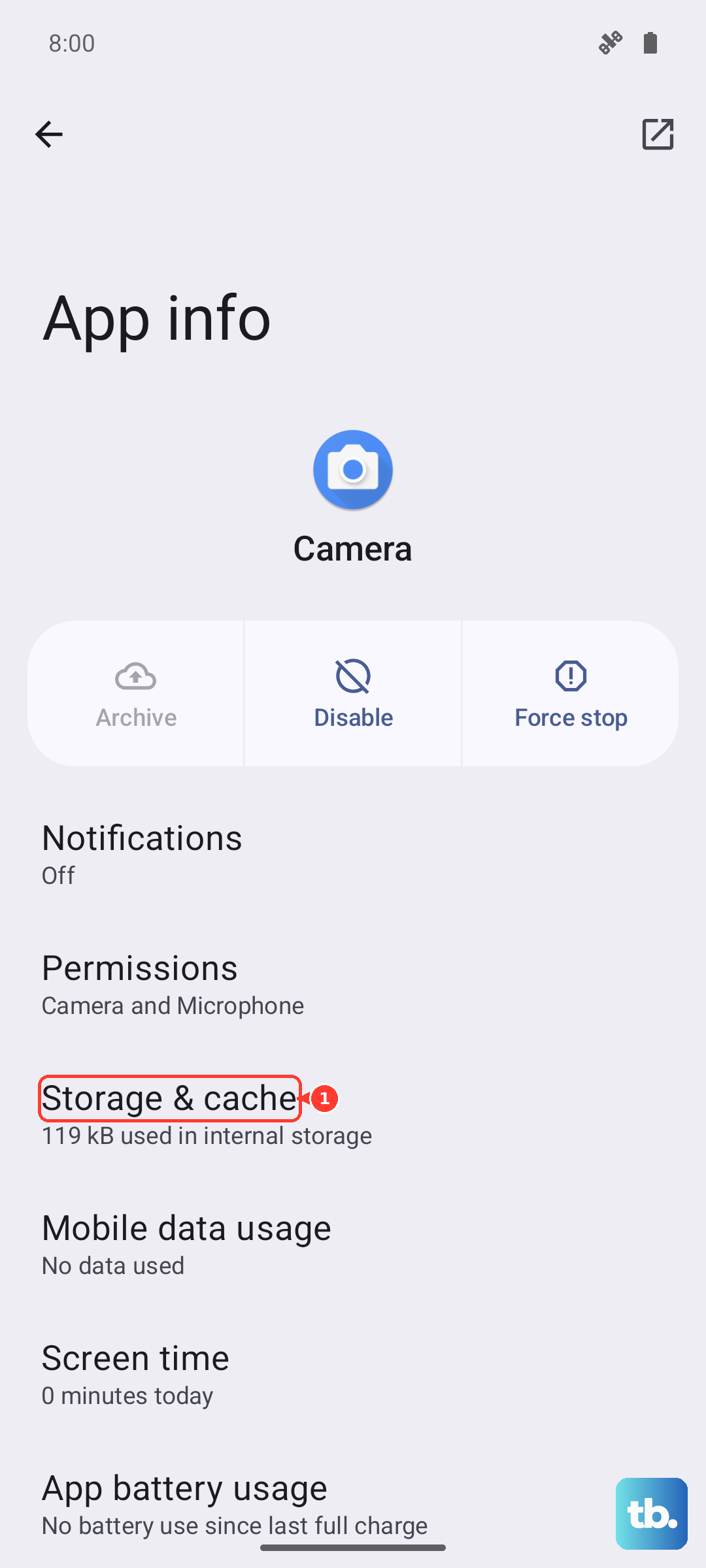
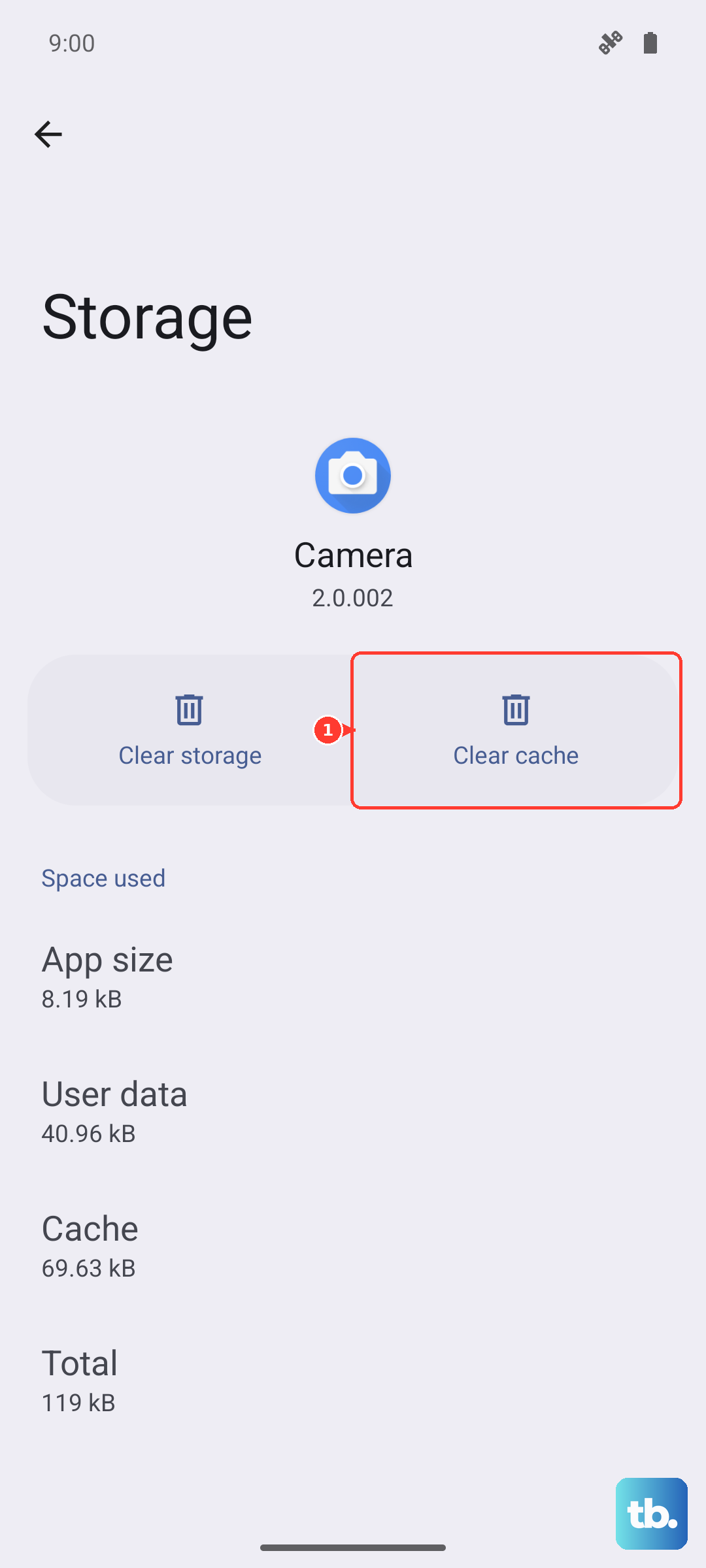
Open Settings > Apps > See all apps > Messenger, then tap Storage & cache. Tap Clear cache, reopen Messenger, and test it again.
If the app still will not work, return to Storage & cache and tap Clear storage. If you use end-to-end encrypted chats, turn on Save key in Google Drive first (Section 8), because Clear storage wipes local app data. After that, open Messenger and sign in again.
5. Free storage and update Android
Open Settings > Storage > Free up space, then review the suggested categories or files. Delete unneeded files or apps, then reopen Messenger.
Check your Android version in Settings > About phone or About tablet > Android version. If the phone is below Android 5 Lollipop, update Android or use another supported device.
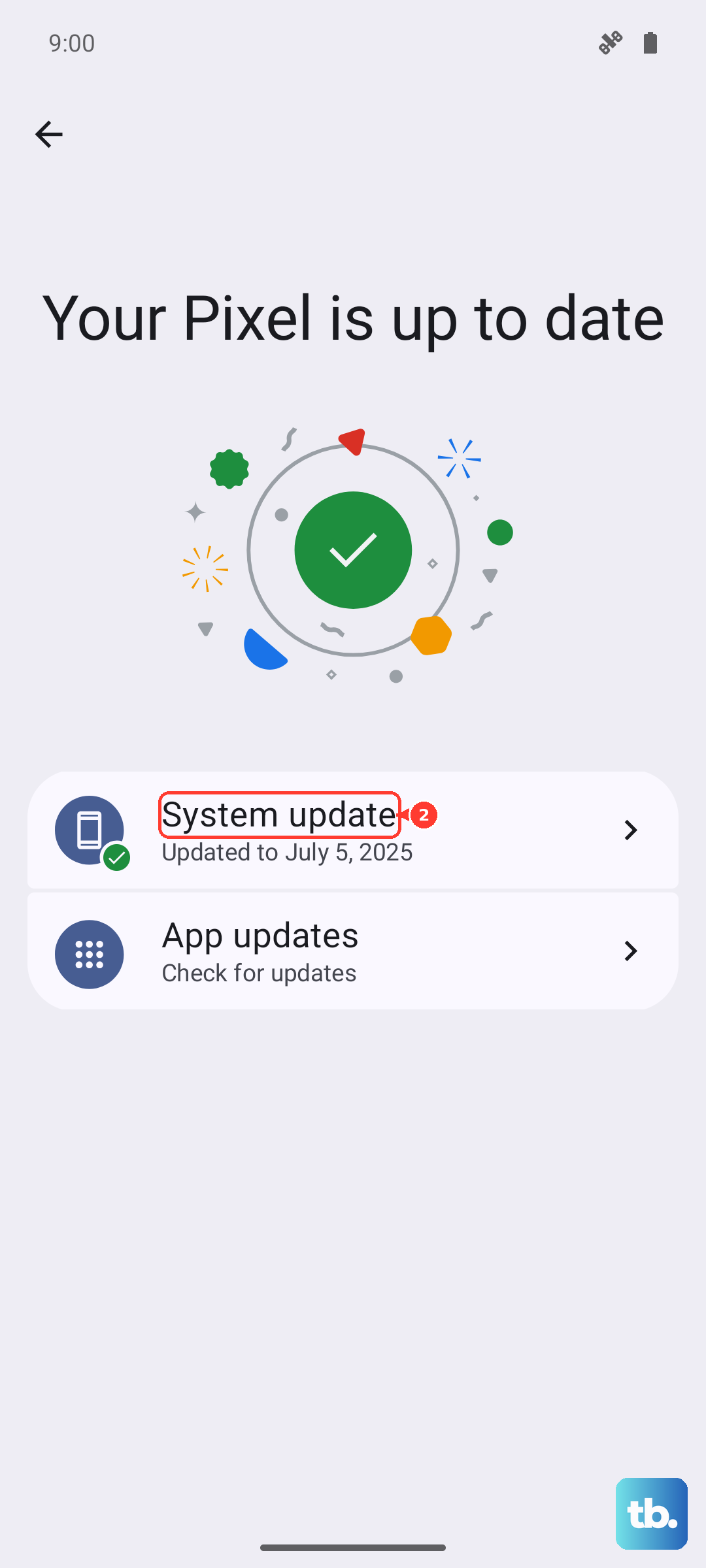
To check for an update, open Settings > System > Advanced > System update, then follow the on-screen steps. On some devices, open About phone or About tablet > Software update.
Low storage can make apps crash, so handle storage before treating Messenger as an account problem.
6. Fix permissions, notifications, data, and battery limits
This fixes Messenger when calls, photos, voice messages, notifications, or mobile-data syncing are the only parts broken. For camera, microphone, contacts, photos, files, or notifications, open Settings > Apps > Messenger > Permissions, tap the needed permission, then choose the setting that allows it.
To check by permission type, open Settings > Security & Privacy > Privacy > Permission manager, select Camera, Microphone, Contacts, Photos and videos, or Notifications, then choose Messenger. If Messenger voice or video calls fail, open Settings > Security & privacy > Privacy > Privacy controls, then turn on Camera access or Microphone access.
For missing alerts, open Settings > Notifications > App notifications, use the dropdown to show All apps, choose Messenger, and turn notifications on. Inside Messenger, open Menu > Settings > Notifications & sounds, then turn notifications on.
When messages or notifications fail on mobile data, open Settings > Network & internet > Data Saver > Unrestricted data, then turn on Messenger. For delayed background alerts, open Settings > Apps > Messenger > App battery usage or Battery, then choose Unrestricted.
7. Know when a phone is managed
On a child device, Messenger can be blocked through Family Link, and the parent needs to use Family Link > select child > Screen time > Time limits > App limits > Messenger, then tap the Blocked toggle so the status changes to Allowed and tap Done. On a work profile or company-managed Android device, Messenger can be missing or marked not approved because of organization policy. Contact the admin, because you usually cannot override that policy from the phone.
8. Reinstall Messenger only after the basics fail
Before uninstalling, protect your encrypted chats: open Messenger > Menu > Settings > Privacy & safety > End-to-end encrypted chats > Message storage, tap the switch next to Save key in Google Drive, and continue with your Google Account.
Touch and hold Messenger, choose the remove or uninstall option shown on your Android phone, and confirm the uninstall. Open Google Play Store, search for Messenger, and select Messenger by Meta Platforms, Inc. Tap Install, then open Messenger and sign in again.
After you log back in, tap Restore now, select the primary Google Account you used to set up the device, then tap Allow. This only works if the key was already saved before you uninstalled, and after December 2026 Meta replaces the Google Drive key with a PIN you create in Messenger.
Skip old fixes like Messenger Lite, clearing all app caches, uninstalling Messenger updates, or reinstalling the discontinued desktop app; use the official Messenger app from Google Play and messenger.com instead.
9. Use account and chat checks when only some messages fail
This fixes cases where Messenger opens, but a specific conversation or message route is the problem. If one person's messages or calls do not work, open Messenger > Menu > Settings > Privacy & safety > Blocked Accounts, tap the person's name, then tap Unblock.
If messages go somewhere unexpected, open Messenger > Menu > Settings > Privacy & safety > Message delivery, then choose where messages from each connection or audience should go. To check whether the Android app is the problem, open messenger.com or facebook.com/messages in a browser and sign in.
If sending or seeing messages still fails after closing Messenger and restarting your device, report the issue to Meta. From the screen with the problem, shake your phone, tap Report problem, choose whether to include details, and follow the prompts.
Frequently Asked Questions
Why is Messenger not working today on my Android phone?
It can be a Meta service issue, an outdated app, low Android storage, blocked permissions, Data Saver, battery limits, or damaged local app data. Check Meta Status first, then update Messenger and restart the phone.
Will clearing Messenger cache delete my chats?
Clearing cache removes temporary files. Clearing storage is a deeper reset that erases local app data and settings, so you need to sign in again afterward.
What should I do if Messenger notifications are late or missing?
Turn on Android notifications for Messenger, check Messenger's Notifications & sounds menu, allow Messenger through Data Saver, and set Messenger battery usage to Unrestricted.
Can I use Messenger if the Android app still will not work?
Yes. Sign in at messenger.com or facebook.com/messages in a browser while you troubleshoot the Android app.