Windows 10 is showing the wrong account name, and the right place to change it depends on how you sign in. Use Control Panel for a local account or Microsoft’s website for a personal Microsoft account. Here’s how to update that name, change a local sign-in username, and handle a profile folder that still has the old name.
Change your local account name in Control Panel
Start here if you use a local account and want to change the name Windows displays. This works on Windows 10 22H2 Home, Pro, Enterprise and Education.
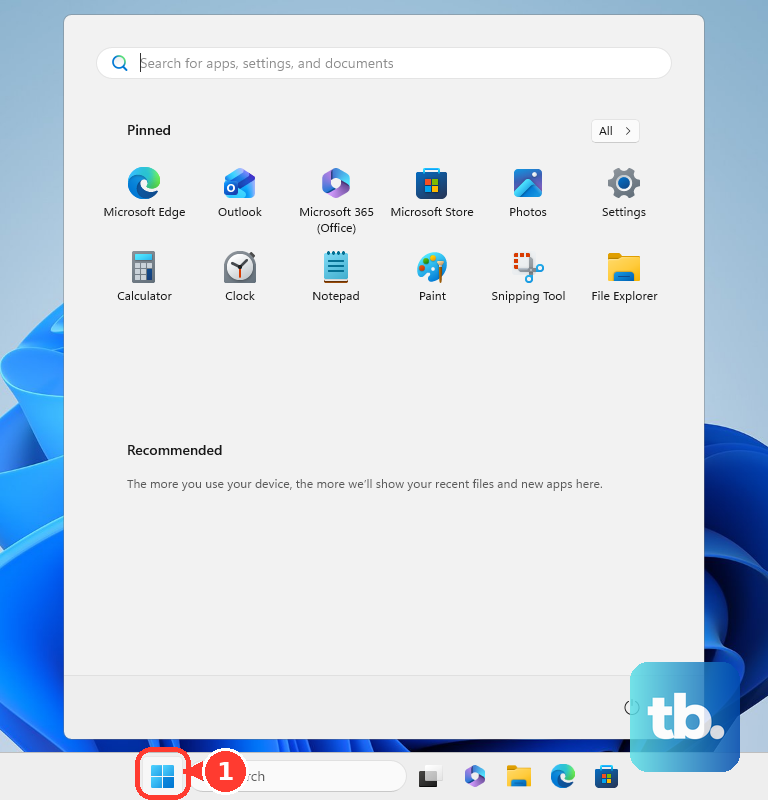
Open Start.
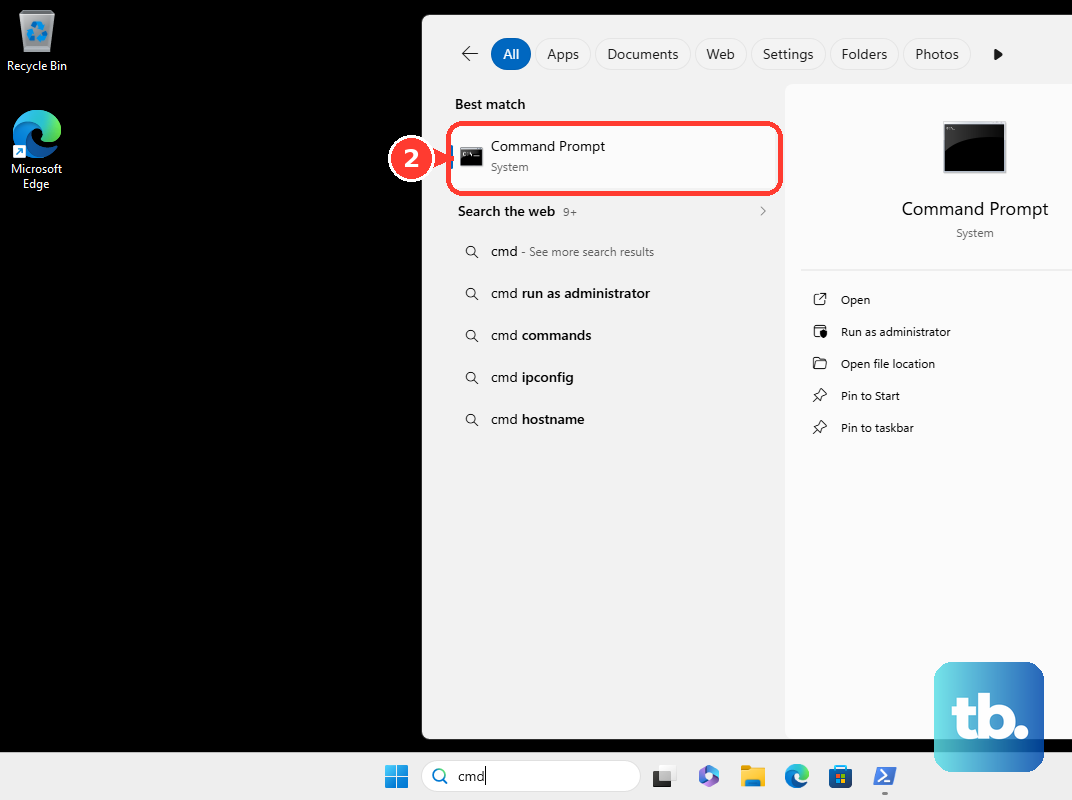
Type Control Panel. Select Open for Control Panel. In Category view, go to User Accounts > User Accounts > Change your account name. Enter the replacement name.
Select Change Name, then sign out of Windows. Sign back in to check the result. Your Microsoft account name and profile folder stay unchanged.
If this route fails because you use a Microsoft account, use the online editor below. To rename someone else’s local account, follow the administrator steps further down.
If you sign in with a Microsoft account
For a personal Microsoft account, Windows uses your online display name. Editing it changes the shared Microsoft account name beyond this PC.
Visit account.microsoft.com on this PC, another computer or your phone. Sign in with the Microsoft account you use for Windows. Open Your info, then select Edit name.
Enter your replacement name and complete the CAPTCHA. Select Save. Allow up to 24 hours for the change to appear.
For another entrance to the same editor, open the dashboard’s account manager. Select My profile to reach Your info. Select Edit name to use the same name editor.
Rename another local account as an administrator
This changes another local account’s displayed name on the same PC, including on Windows 10 Home. Sign in with an administrator account. Go to Control Panel > User Accounts > User Accounts > Manage another account.
Select the local account you want to rename. Choose Change the account name. Type the replacement name, then select Change Name.
Change the actual local username with PowerShell
Use Windows PowerShell with the Microsoft.PowerShell.LocalAccounts module to change the local sign-in username, including on Home. Open Windows PowerShell using Run as administrator. On a 64-bit system, use 64-bit Windows PowerShell; the module is unavailable in its 32-bit version.
Run Get-LocalUser to identify the account’s existing username. Run Rename-LocalUser -Name "OldName" -NewName "NewName", replacing the example names with the existing and desired usernames. Use this command instead of WMIC, which Microsoft deprecated beginning with Windows 10 version 21H1.
Sign out of Windows, then sign back in using the renamed account. Its separate full name and profile-folder path stay unchanged, so an unchanged display name does not mean the username change failed.
Switch to a local account for a separate name
Go to Settings > Accounts > Your info to replace your personal Microsoft-account sign-in with a local account. Select Sign in with a local account instead. This changes how you sign in to Windows without editing your online Microsoft account name.
Complete identity verification if prompted. Enter your desired username. It must not duplicate another account name on the device. Enter your password.
Enter your password hint. Select Next, then select Sign out and finish.
Sign in with your local account. For a different profile-folder name, use the separate-account approach below.
When you also need a different profile folder
Use a separate account and migrate your files for a new profile; Microsoft warns that manually renaming the folder and editing its registry path on Windows 10 can break winget.
- 1.Create a separate local account with your desired username. This creates a different account, rather than renaming the existing profile.
- 2.Configure the new account as an administrator.
- 3.Sign in to the new account to initialize its profile.
- 4.Check the resulting folder name in File Explorer instead of assuming it exactly matches the username.
- 5.Use File Explorer to copy your personal files from
C:\Users\OldNameto the new profile. Do not expose and copy hidden protected profile files. - 6.Reconfigure applications and account-specific preferences as needed. This uses Microsoft’s profile-repair migration procedure to move into a newly named profile.
For a work or school account
If your Windows identity comes from a work or school account, your organization controls whether you can change its name yourself. There is no universal name-edit menu across organizations.
Sign in at myaccount.microsoft.com with your work or school account to access your organization’s account portal. Contact your IT administrator if the portal does not offer a name change or your organization does not permit one. Allow up to 24 hours for name changes to appear.
Frequently Asked Questions
How do I change only a local account’s display name with PowerShell?
Open Windows PowerShell using Run as administrator. Run Set-LocalUser -Name "ExistingUsername" -FullName "New Display Name", replacing the examples with the existing local username and desired display name. This leaves the username unchanged. It requires Microsoft.PowerShell.LocalAccounts, including on Home; use 64-bit Windows PowerShell on a 64-bit system.
Does changing my Microsoft account name change my sign-in email?
No. To change the primary email address, open Your info > Manage how you sign in to Microsoft on the Microsoft account website. Select Make primary beside an existing alias. For a new address, select Add email, complete verification, then make that alias primary. You do not need to remove the previous alias.
Why can't I find Local Users and Groups on Windows 10 Home?
The Local Users and Groups snap-in is available in Pro, Enterprise and Education, but not Home. On those editions, an administrator can open Computer Management > System Tools > Local Users and Groups > Users, right-click an account and select Rename. Enter the new username and press Enter. Its separate full name remains unchanged.
Can I rename a local username with Command Prompt?
The net user command has no username-rename switch, but it does change the full display name. Open Command Prompt using Run as administrator. Run net user to list local usernames. Then run net user "ExistingUsername" /fullname:"New Display Name", replacing the example values.