Tired of the plain background in Messages? On compatible iPhones running iOS 26 or 27, you can give individual and group iMessage conversations a built-in style, a personal photo, or an AI-generated image. Here’s how to choose a background, remove it for everyone, or hide it just on your iPhone.
Choose a built-in conversation background
Start with an Apple style, which becomes the shared background for the conversation.
- 1.Open Messages and select an iMessage conversation.
- 2.Tap the contact or group icon at the top.
- 3.Tap Backgrounds, then choose Color, Sky, Water, or Aurora.
- 4.Swipe left to browse variations. For Color, tap either bottom-corner color swatch to adjust its color.
- 5.Tap Done to apply the background.
Make a personal photo your background
This replaces the conversation’s backdrop with a photo you choose. Open your conversation in Messages, tap the contact or group icon at the top, and select Backgrounds.
Tap Photo, select an image, and pinch the image to crop it. For a different look, swipe left to choose Black & White, Duotone, or Color Wash. If you choose Duotone or Color Wash, tap the color swatch to change its palette.
Tap Done to apply your photo. For a photo already shared in the conversation, touch and hold that photo, then tap Set as Background to use it directly.
Create a background with Apple Intelligence
AI background creation requires an iPhone 15 Pro, iPhone 15 Pro Max, or iPhone 16 model or later running iOS 26 or 27, with Apple Intelligence enabled in a supported language and region. Built-in styles and personal photos don’t require Apple Intelligence.
Open your iMessage conversation in Messages, tap the contact or group icon, choose Backgrounds, and tap Playground. On iOS 27, follow the image-creation prompts in the redesigned Playground interface. On iOS 26, choose suggested concepts for your image.
To use a written prompt instead on iOS 26, tap Describe an image and enter a description of the image you want. Tap the Send button to submit your description. Once the image is finished, tap Done, then tap Done again to apply it to the conversation.
Return the conversation to a plain background
Open the conversation in Messages, tap the contact or group icon at the top, and select Backgrounds. Choose None to remove the shared background. Removal affects every participant, so use the local display switch below to hide backgrounds only for yourself.
Hide backgrounds only on your iPhone
This hides backgrounds on your phone while other participants continue to see them. Open Settings, tap Apps, select Messages, and turn off Conversation Backgrounds.
To display backgrounds again, turn Conversation Backgrounds back on. To showcase backgrounds when reopening conversations, turn on Start with Photos Visible on the same settings screen.
Update your iPhone if Backgrounds is missing
Conversation backgrounds require iMessage and iOS 26 or later; update an eligible iPhone running an older version.
- 1.Back up your iPhone.
- 2.Connect it to power and Wi-Fi.
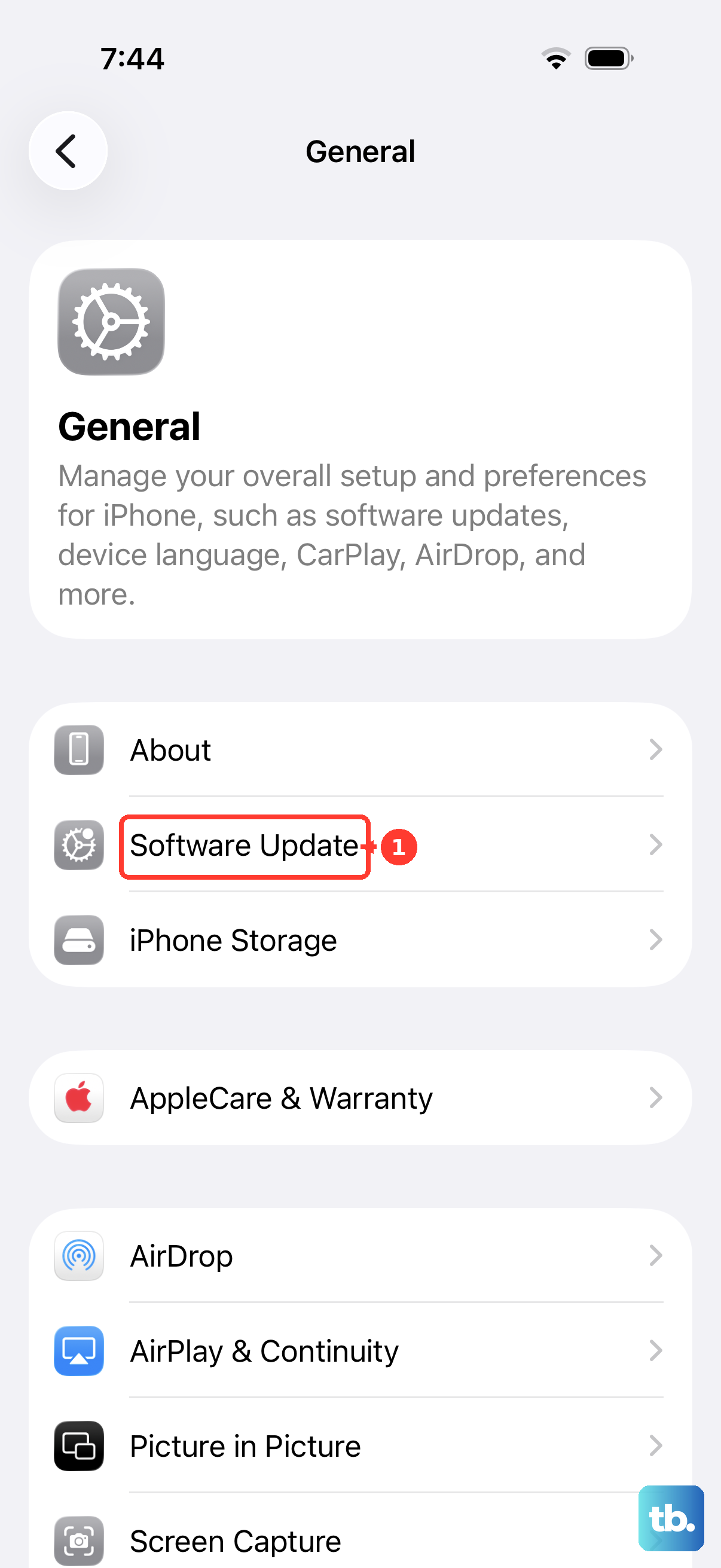
- 3.Open Settings > General > Software Update.
- 4.Tap Download and Install when an eligible update is offered.
Switch the plain Messages interface to Dark Mode
Dark Mode changes the plain Messages interface along with your device’s appearance. It doesn’t select a photo or custom conversation wallpaper. Conversation backgrounds aren’t supported for SMS, MMS, or RCS chats.
On iOS 27, open Settings > Appearance and select Dark or Light. On iOS 26 and earlier, select either option under Settings > Display & Brightness.
For a quick toggle, open Control Center, touch and hold the brightness bar, and tap Dark Mode.
To schedule the change, open Settings > Appearance on iOS 27, or Settings > Display & Brightness on iOS 26. Enable Automatic, then tap Options to configure the schedule.
Frequently Asked Questions
Can I set one custom background for every Messages conversation?
Apple’s guides describe adding a background within an individual iMessage conversation, and the Messages setting only turns Conversation Backgrounds on or off. Choose a background separately within each iMessage conversation.
Does changing my iPhone wallpaper change my Messages background?
No. Apple’s Wallpaper settings apply to the Home Screen and Lock Screen, not your Messages conversations.
Can I set a shared photo as the background from my Mac?
Yes. In the same iMessage conversation on macOS Tahoe 26 or macOS 27, Control-click the shared photo and choose Set as Background. Your iPhone needs iOS 26 or later to display it.
Do I need to install Messages separately to get backgrounds?
No. Update an eligible iPhone to iOS 26 or later. A separate Messages installation isn’t required.