Changing your Windows background gets confusing when desktop images, lock screen images, themes, Spotlight, and backup sync all live in different Windows settings. The fix is to start with the exact background type you want, then use the matching menu. The steps below cover Picture, Solid Color, Slideshow, Windows spotlight, themes, multiple monitors, virtual desktops, and automatic wallpaper changes.
Make One Picture Your Desktop Background
The most common cause is the wrong background mode: Personalize your background is set to Solid Color, Slideshow, or Windows spotlight instead of Picture.
Open Start > Settings > Personalization > Background.
Select Personalize your background, choose Picture, then select Browse and pick the image you want.
After the picture is selected, open Choose a fit for your desktop image and choose Fill, Fit, Stretch, Tile, Center, or Span.
Pick A Plain Color Or Rotating Slideshow
For a clean desktop without a photo, open Start > Settings > Personalization > Background, select Personalize your background, choose Solid Color, and pick a color.
For rotating images, stay on Background, open Personalize your background, choose Slideshow, then select the folder of images you want Windows to rotate.
Use the interval and shuffle controls on that page to set how the slideshow changes. To move forward manually, right-click the desktop and select Next desktop background.
Use An Image From File Explorer Or Photos
File Explorer is the fastest route when the image is already saved on your PC. In File Explorer, right-click the image file and select Set as desktop background.
Photos works when you are already viewing the picture. Open the image in Photos, select the three-dot menu, choose Set as, then select Background.
If either shortcut fails, use Start > Settings > Personalization > Background, set Personalize your background to Picture, and choose the same image with Browse.
Turn On Windows Spotlight
Use Windows spotlight when you want Windows to supply the desktop background instead of choosing your own files. It sits on the same Background page as Picture, Solid Color, and Slideshow.
Open Start > Settings > Personalization > Background. Select Personalize your background, then choose Windows spotlight.
Change The Lock Screen Background
The usual reason your old image still appears before sign-in is that the lock screen uses a separate background setting.
Open Start > Settings > Personalization > Lock screen.
Select Personalize your lock screen, then choose Windows spotlight, Picture, or Slideshow.
To use the lock screen image on the sign-in screen, set Show the lock screen background picture on the sign-in screen to On. On Windows 10, use Background on the same lock screen page.
Apply A Windows Theme
Use a theme when you want the background bundled with Windows colors, sounds, and the mouse cursor. Windows also lets you adjust those pieces after the theme is applied.
Open Start > Settings > Personalization > Themes. Choose a default theme, or select Browse themes to get new ones from the Microsoft Store, then select the theme you want to apply.
To customize the theme, select Background, Color, Sounds, or Mouse cursor. Use Save to keep your custom theme, or right-click a saved theme and choose Save theme for sharing to create a .deskthemepack file.
Set Different Pictures On Multiple Monitors
Open Start > Settings > Personalization > Background.
Set Personalize your background to Picture.
Under recent images, right-click the image you want.
Select the display-specific option shown for your monitors.
Use the virtual desktop method below when you want separate backgrounds for Windows desktops instead of physical monitors.
Give Each Virtual Desktop Its Own Picture
Windows 11 lets each virtual desktop use its own Picture background, not a separate Slideshow or different Solid Color.
- 1.Hover over the Task view icon on the taskbar, or press Windows key + Tab.
- 2.Right-click the desktop you want to customize.
- 3.Select Choose background.
- 4.Set Personalize your background to Picture.
- 5.Choose the image you want for that desktop.
Stop Automatic Or Managed Background Changes
Use this section when the background changes by itself, follows you to another PC, or belongs to a work-managed device. Start with the app or sync setting that controls the wallpaper.
To use Bing Wallpaper, open the official Bing Wallpaper page and select Download Bing Wallpaper. After installation, Bing Wallpaper automatically updates the desktop background with the Bing image of the day and lets you choose image themes from the app experience.
To sync personalization across personal PCs, open Start > Settings > Accounts > Windows backup > Remember my preferences, then turn on Personalization. In the Windows Backup app, open Start, type backup, select Windows Backup, expand settings or preferences, turn Personalization on, and select Back up.
To clear synced personalization, turn off the matching backup setting in Start > Settings > Accounts > Windows backup, then open the Microsoft Account Devices page, go to Cloud synced settings, and select Clear stored settings.
To remove a wallpaper app, open Start > Settings > Apps > Installed apps, find the app, select More, then choose Uninstall. You can also open Start > All apps, right-click the app, and select Uninstall.
Classic desktop programs use Control Panel > Programs > Programs and Features. Right-click the program, then select Uninstall or Uninstall/Change.
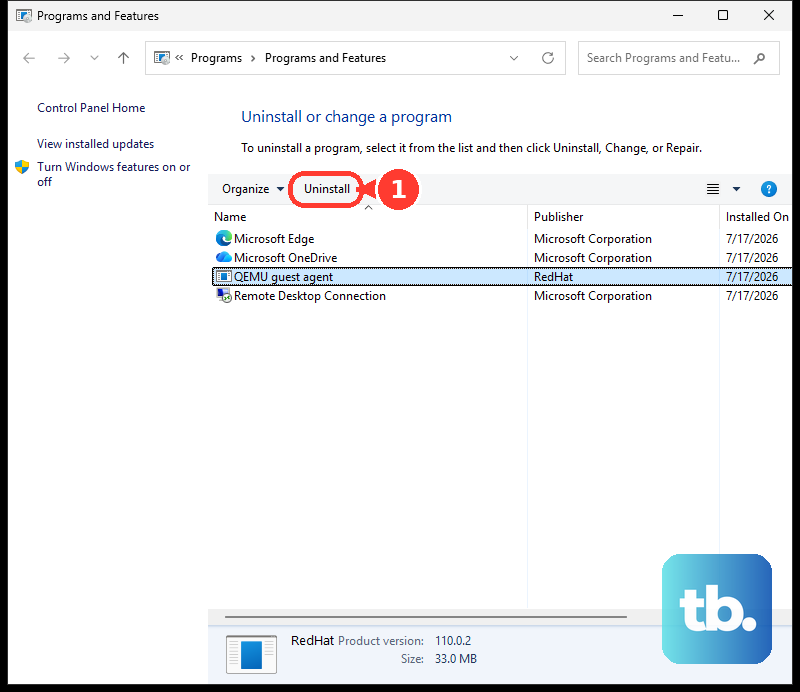
On a work or school PC, your organization controls assigned desktop and lock screen images through device management. Use the normal Personalization settings on personal devices, and ask your workplace admin about organization-assigned backgrounds.
Frequently Asked Questions
Does this work on Windows 10?
Yes. The desktop background steps still work on Windows 10, but Microsoft free support for Windows 10 ended on October 14, 2025. On the lock screen page, Windows 10 uses Background instead of Personalize your lock screen.
Where can I get more Windows themes?
Open Start > Settings > Personalization > Themes, select Browse themes, then choose a theme from the Microsoft Store. Microsoft also provides an official Windows Themes collection in Microsoft Apps.
Can I delete a Windows theme I saved?
Yes. Open Start > Settings > Personalization > Themes, right-click your saved theme, and select Delete. Default Windows themes cannot be deleted.
How do I clear synced wallpaper settings from my Microsoft account?
Turn off the backup setting in Start > Settings > Accounts > Windows backup, then open the Microsoft Account Devices page, go to Cloud synced settings, and select Clear stored settings.
Can my workplace force a desktop or lock screen background?
Yes. Admins can assign desktop images with Intune or Group Policy on supported Windows editions, and lock screen images on the editions Microsoft lists for that policy.