Wrong time, the wrong keyboard, or Windows menus in the wrong language can make a PC feel off immediately. In Windows 11, the clock, language, keyboard, and region controls sit in Settings under Time & language, and the cross-PC sync switches sit in Settings > Accounts > Windows backup. Start with the clock, then move through language, keyboard, region, and sync settings in the order that fixes the most common problems first.
Fix the Windows clock first
Open Start, then choose Settings.
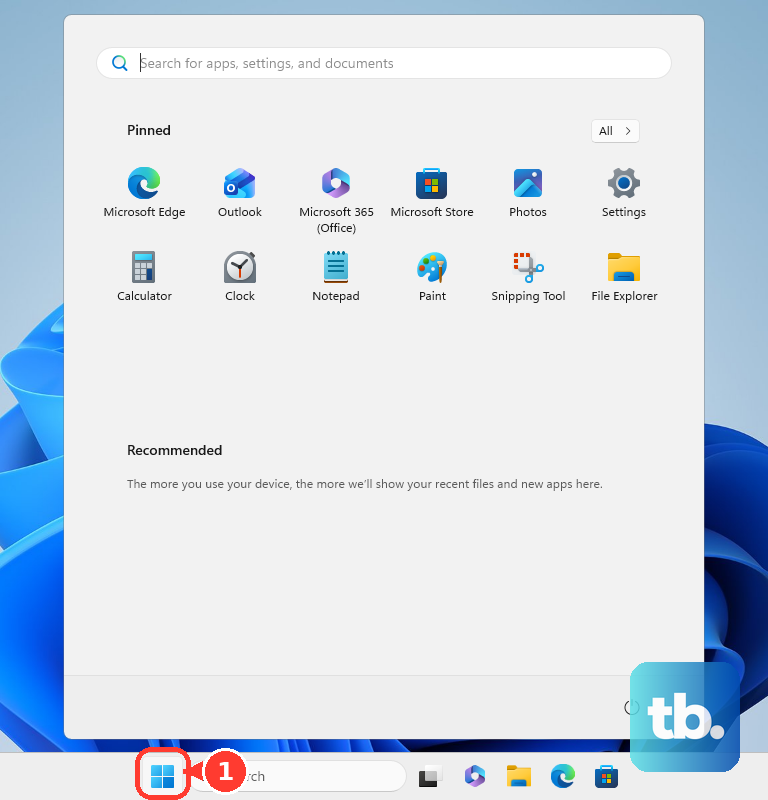
Select Time & language, then open Date & time.
Turn Set time automatically on to let Windows keep the clock current.
To set it yourself, turn Set time automatically off.
Select Change next to Set the date and time.
Enter the correct Date and Time, then select Change.
Use automatic time unless you have a specific reason to set the clock manually.
Correct the time zone
This fixes a clock that is hours off because Windows is using the wrong location.
Open Start, then go to Settings.
Choose Time & language, then select Date & time.
Turn Set time zone automatically on if you want Windows to choose the time zone.
For manual control, turn Set time zone automatically off.
Open the Time zone drop-down menu and select the correct time zone.
When automatic time zone is on, daylight saving time is handled automatically. When it is off, use Adjust for daylight saving time automatically.
Show the taskbar clock your way
Windows 11 can show or hide the date and time in the taskbar system tray. Go to Start > Settings > Time & language > Date & time, then use Show time and date in the System tray.
To show seconds, turn on Show seconds in system tray clock. Microsoft notes that this uses more power, so leave it off when you do not need seconds visible.
Windows 10 paths still appear in Microsoft documentation, but Windows 10 support ended on October 14, 2025. On a current consumer PC, use the Windows 11 Settings path.
Add a new Windows language
Open Start, then select Settings.
Go to Time & language, then choose Language & region.
Look under Language to see what is already installed.
Select Add a language next to Preferred languages.
Choose or type the language you want to install, then select Next.
In Install language features, select Language pack and any optional features you want.
Select Set as my Windows display language if you want Windows menus and system text to use that language.
Select Install, then sign out if Windows asks.
Sign back in to apply the display language change.
Change the display language that will not switch
The most common cause is that the language has not been installed as a Windows display language.
Go to Start > Settings > Time & language > Language & region and check the installed languages in the Language section.
Add the language first if it is missing.
After the language is installed, open the Windows display language drop-down and choose it.
Sign out, then sign back in.
Single Language editions of Windows allow only one display language, so that drop-down will not offer the same choices as a multi-language edition.
Move your preferred language to the top
Windows uses this order for Microsoft Store apps and websites.
- 1.Open Start > Settings > Time & language > Language & region.
- 2.Find Preferred languages.
- 3.Drag the language you want to the top of the list.
- 4.Reopen the app or website so it can read the new preference.
Add keyboards and switch typing layouts
A display language changes Windows menus and system text. A keyboard layout controls what appears when you type.
To add one, go to Start > Settings > Time & language > Language & region, select the ellipses next to the current Windows display language, then choose Language options.
Under Keyboards, select Add a keyboard next to Installed keyboards, then choose the layout you want.
To switch later, select the input language icon in the taskbar system tray and choose the layout. You can also hold the Windows logo key and press Spacebar repeatedly.
If the input language icon is missing, go to Start > Settings > Time & language > Typing > Advanced keyboard settings and clear Use the desktop language bar when it's available.
Change country and regional format
This fixes store region, app behavior, dates, and number formatting that do not match your location or preference.
Open Start, then select Settings.
Go to Time & language, then open Language & region.
Under Region, open Country or region.
Select your country or region.
Open Regional format.
Choose the format you want Windows to use.
Keep these settings across PCs
Windows Backup can remember language preferences when you use Microsoft account backup.
- 1.Open Start > Settings > Accounts > Windows backup.
- 2.Open Remember my preferences.
- 3.Turn on Language preferences.
- 4.Enable the preference group that includes Other Windows settings to back up time zone settings.
Frequently Asked Questions
Why is my Windows clock still wrong after I set the time?
Set the time zone next. Open Settings > Time & language > Date & time, then use Set time zone automatically or choose the correct Time zone manually.
Does changing the Windows display language change my keyboard?
Not always, but it can. Display language changes Windows menus and system text, and keyboard layouts are added separately from Language options. Microsoft notes that when the Windows display language is changed, it might also change the keyboard layout to match that language. Check the input language icon before you type, especially at the sign-in screen, where an unexpected layout can make a correct password look wrong.
Can I remove a language or keyboard later?
Yes. In Language & region, use the ellipses next to a language to remove it, or open Language options to remove a keyboard. Windows blocks removal of the current display language until another display language is selected.
Why can’t I change these settings on a work PC?
Managed PCs can have language, location, backup, or time zone settings controlled by an organization. Use the visible Settings options first, then contact IT if a control is blocked.