YouTube text is too small, but changing the right setting depends on what you're trying to read. Titles and comments use your device or browser settings, while captions have their own controls. Pick your device below to make the text larger or smaller.
Make YouTube text bigger on Android
Open your phone or tablet's Settings. Search for Font size. Select the Font size result.
Move the slider toward a larger or smaller size. YouTube recommends device font settings for interface text; only labels that support system font scaling respond. On Samsung Galaxy devices, open Settings > Display > Font size and style instead. Adjust the Font size slider.
Tip: To enlarge buttons and other interface elements too, adjust the slider under Display size in your device settings, or under Settings > Display > Screen zoom on Galaxy models with that menu.
Enlarge supported text on iPhone or iPad
Open Settings > Display & Brightness > Text Size. Drag the slider to your preferred size. This changes text that supports Apple's Dynamic Type, not every YouTube element.
For additional sizes on iPhone, open Settings > Accessibility > Display & Text Size > Larger Text. Enable Larger Accessibility Sizes. Adjust the slider to enlarge supported text.
If too much of YouTube stays small, try Display Zoom to enlarge the overall interface. On an iPhone that offers it, follow Settings > Display & Brightness > Display Zoom > Larger Text > Done > Use Zoomed.
Use browser zoom for titles and comments
Watching on a computer? Page zoom enlarges text, images, and other page content together, and works more dependably than default font settings that website styling overrides.
Open YouTube in Chrome, Edge, or Firefox. Press Ctrl + + to enlarge the page on Windows, or Command + + on a Mac. Chrome and Firefox also support Ctrl + + on Linux. Press Ctrl + − to reduce the page size, or Command + − on a Mac.
For mouse controls in Chrome, open More. Click + or − beside Zoom. In Edge, open Settings and more. Use the + or − zoom control.
In Firefox, open the browser menu. Use its + or − zoom control.
In Safari on a Mac, open the Page menu in the Smart Search field. Choose a zoom level. Safari remembers this site setting.
For text alone in Safari, hold Option while choosing View > Make Text Bigger. For text alone in Firefox, select View > Zoom > Zoom Text Only. Use Firefox's + or − zoom control to adjust the text.
Resize captions in the desktop player
This changes video captions without resizing titles, comments, or navigation. Start a YouTube video with selectable captions. Enable Closed captions in the player. Click the player's Settings button.
Select Subtitles/CC. Open Options. Adjust the font-size control to make captions larger or smaller. To undo your changes, select Reset to restore the default caption settings.
Fix phone captions that stay too small
Captions carry their own appearance settings on Android and iPhone, separate from your phone's general font size. Adjust those caption controls to resize them.
In the Android YouTube app, tap your profile picture. Open Settings > Captions > Caption size and style. Adjust the caption size.
If your app menu differs, open the device's Settings > Accessibility > Caption preferences > Caption size and style > Text size instead. Manufacturer labels vary. Select the size you want.
On iPhone or iPad, open the device's Settings > Accessibility > Subtitles & Captioning > Style.
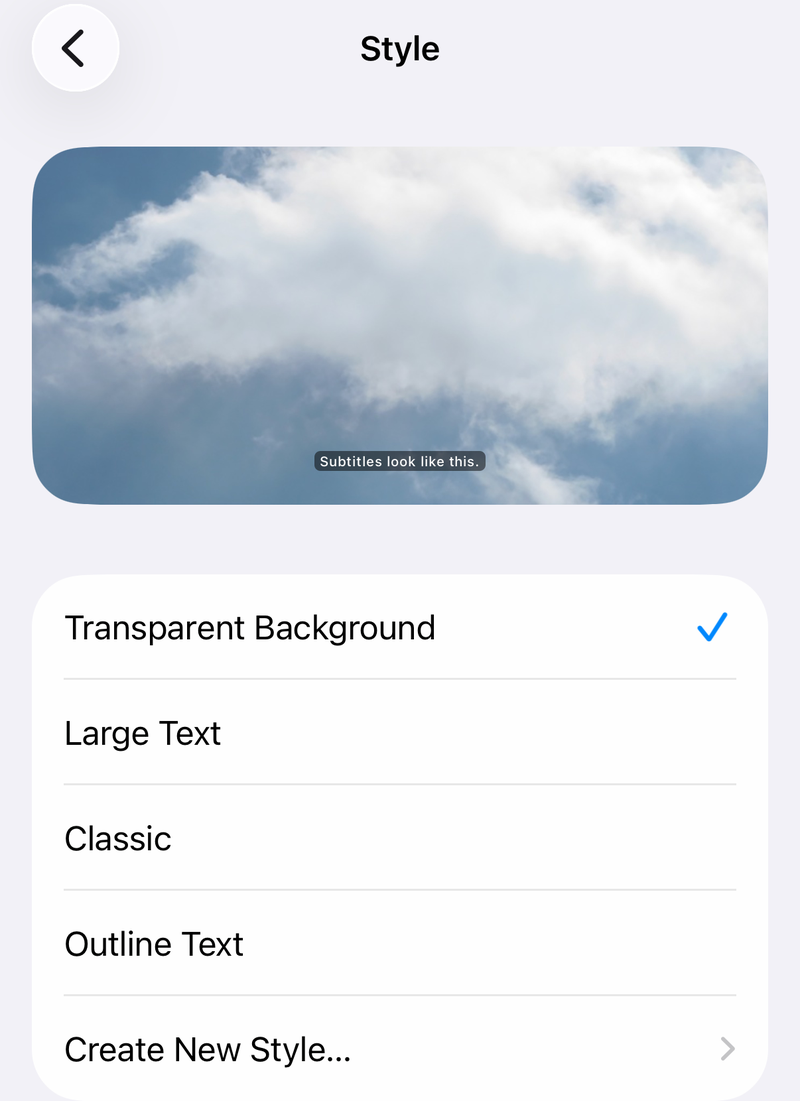
Choose a preset style, or select Create New Style for custom caption sizing and appearance. These controls apply to selectable captions. Text permanently embedded in the video's image cannot be resized separately with caption settings.
Adjust caption appearance on a TV
This changes selectable captions on supported TVs, streaming devices, and game consoles. Pause the YouTube video. Open Captions. Select a caption language.
Choose Caption style. Select the font-appearance setting you want to customize. Available controls depend on the device; there is no single size-control label across every TV or console.
Change text size in a mobile browser
Use these controls when you watch at youtube.com on your phone or tablet. They affect the website, not the separate YouTube app.
In Safari on iPhone, tap the Page Menu button beside the search field. Tap the large A to enlarge text, or the small A to reduce it.
In Chrome on Android, open More > Zoom on the YouTube webpage. Adjust the zoom slider. Chrome saves that level for youtube.com. If Zoom isn't in the menu, open More > Settings > Accessibility, turn on Show zoom option in main menu, then reopen More.
If a page prevents zooming, open More > Settings > Accessibility. Enable Force enable zoom. In Chrome on iPhone or iPad, select More > Zoom text....
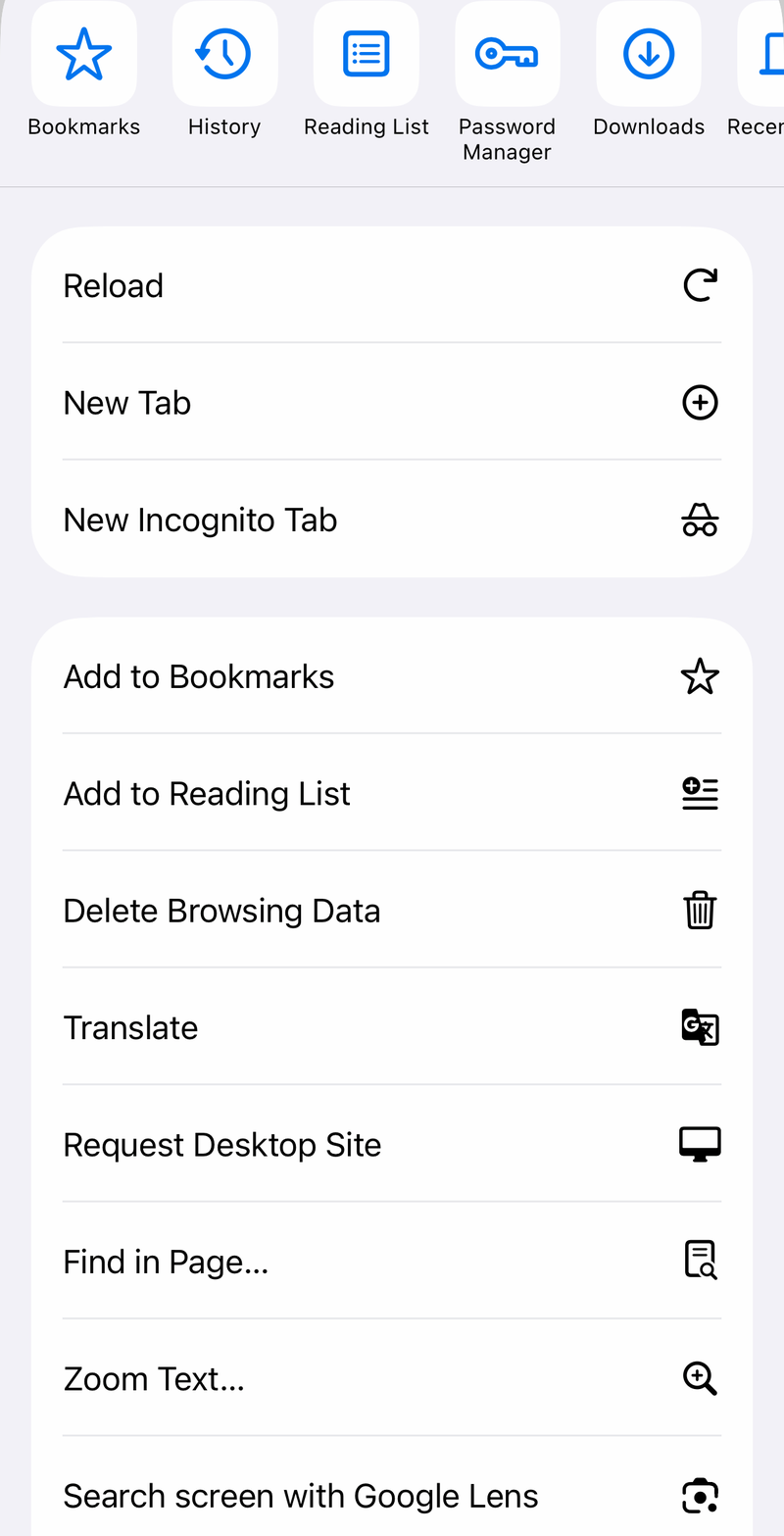
Use Zoom in or Zoom out at the top of the screen to set a comfortable reading size.
Frequently Asked Questions
Can I change the YouTube font style instead of its size?
Caption appearance settings offer styling controls. For webpage text, Stylebot provides local styling overrides in desktop Chrome, Firefox, and Edge. YouTube does not guarantee those overrides, and changes to the site's selectors can break them.
Can I change text size only for YouTube on my iPhone?
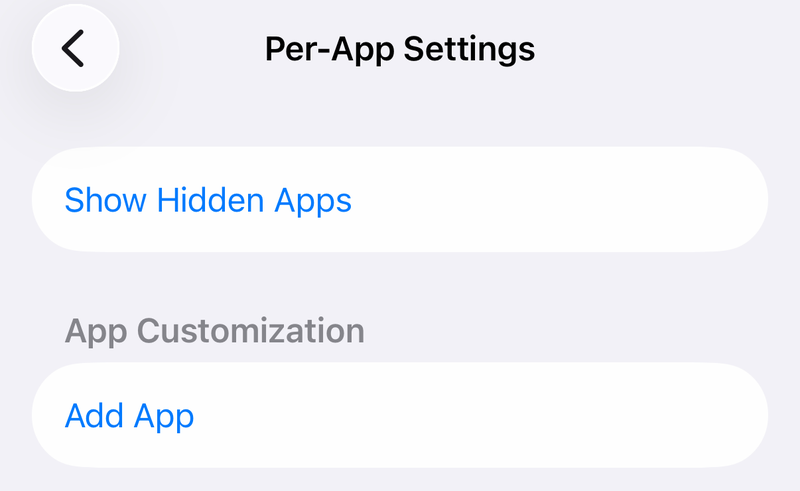
Open Settings > Accessibility > Per-App Settings > Add App > YouTube. Tap YouTube in the list to access its text-size settings. Only supported text responds.
How do I magnify YouTube text that ignores font-size settings on iPhone?
Open Settings > Accessibility > Zoom. Enable Zoom. Double-tap with three fingers to toggle magnification. Double-tap and drag with three fingers to adjust it. This magnifies the displayed interface rather than changing its underlying font.
Can I get adjustable captions without using YouTube's caption track?
Yes. Supported devices and browsers offer Live Caption or Live Captions, which transcribe the video's audio separately. On a supported iPhone 11 or later, open Settings > Accessibility > Live Captions. Enable Live Captions. Open Appearance to adjust caption size. In the caption window, choose iPhone Audio to transcribe YouTube playback. Availability depends on software, language, and region.