Your iPhone alarm goes off again, but the snooze interval doesn't suit you. On iOS 26 and iOS 27, you can change it directly in Clock, including for your Sleep/Wake Up alarm. Start with your alarm below, or use separately timed alerts if you're running an older version.
Change a regular alarm’s snooze time
Your alarm keeps using its saved snooze interval until you change that alarm’s own Snooze Duration setting.
Open Clock > Alarms, then tap the alarm time you want to change. The alternative route is Edit > alarm time. Turn on Snooze and open Snooze Duration.
Choose your interval. Apple introduced the 1-to-15-minute range in iOS 26; iOS 27 also includes the duration control. Tap the Done checkmark, or Save if that label appears when you edit an existing alarm. Repeat for each alarm you want to adjust.
There's no need to recreate an existing alarm. For a new alarm, start with Add (+), then set its Snooze Duration before tapping the Done checkmark.
Adjust your Sleep or Wake Up alarm
With a sleep schedule already set up in Health, choose whether to change just the next alarm or the recurring schedule.
- 1.Open Clock > Alarms.
- 2.Tap Change for your wake-up alarm.
- 3.Scroll to Alarm Options and enable Alarm and Snooze.
- 4.Open Snooze Duration and choose your interval.
- 5.Tap the Done checkmark.
- 6.Select Change Next Alarm Only for a one-time adjustment, or Change This Schedule to update the recurring schedule.
Find a missing Snooze Duration setting
Turn on Snooze in the alarm’s settings first. If you're running an older iOS version without custom snooze, back up your iPhone before upgrading. Connect your iPhone to power, then connect to Wi-Fi. Open Settings > General > Software Update.
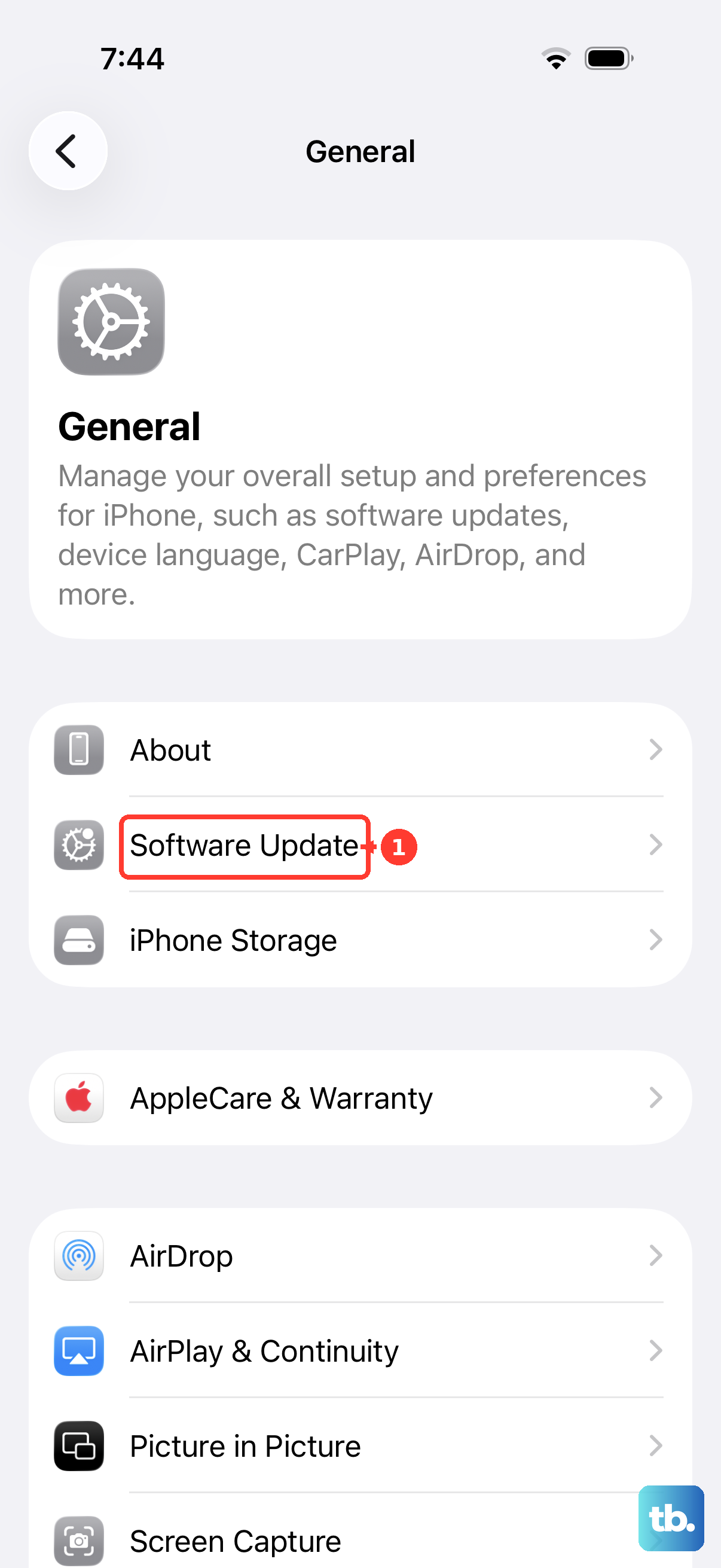
Select the available upgrade to iOS 26 or iOS 27 on a compatible iPhone, then tap Download and Install. After installation, open Clock > Alarms and tap the alarm time. Turn on Snooze and open Snooze Duration. Choose your interval.
Tap the Done checkmark, or Save if that label appears when you edit an existing alarm. Remember, updating adds the control; you still choose the interval yourself.
Set separate alarms for fixed wake-up times
Want alerts at 7:00, 7:05, and 7:10? Separate alarms each ring at the time you set for them. This approach also works on older iOS versions.
Open Clock > Alarms, then tap Add (+). Set the first alarm’s time and turn off Snooze to prevent extra snooze alerts. Set Repeat for the days you want, if needed, then tap Done.
Create the remaining alarms the same way, with Snooze off for each. These are separate alerts, so they don't change your saved snooze duration.
If fixed alarm times don't solve the problem, dismiss the alarm, then ask Siri, “Set the timer for 3 minutes,” using your preferred interval. That starts a separate countdown for a one-off snooze substitute.
Remove the snooze option entirely
Your alarm still offers snoozing because its Snooze switch is on. For a regular alarm, open Clock > Alarms, then tap the alarm time. Turn off Snooze and tap the Done checkmark, or Save if that label appears when you edit an existing alarm.
For a Sleep/Wake Up alarm, open Clock > Alarms > Change. Scroll to Alarm Options, then turn off Snooze. Tap the Done checkmark.
Choose Change Next Alarm Only for the next alarm, or Change This Schedule for the recurring schedule. Turning snooze off removes the option; it doesn't create a zero-minute interval.
Get longer intervals with Alarmy
Alarmy gives you longer snooze options, from 1 to 60 minutes, for its own alarms. Install Alarmy by Delight Room Co., Ltd. from the App Store. It requires iOS 17.0 or later and is free to download with in-app purchases.
Open Alarmy and tap the round + button. Select Alarm. If Snooze is hidden, tap See more options. Open Snooze.
Select an available interval from 1min to 60min, then tap Done. This setting affects Alarmy alarms only; your Apple Clock alarms keep their own settings.
Frequently Asked Questions
Can I set one snooze duration for every iPhone alarm?
Snooze Duration is set per alarm. Each regular alarm has its own Snooze Duration setting, and the Sleep/Wake Up schedule has a separate one under Alarm Options, so set the same interval on each alarm you want to match.
Can Siri change my alarm’s snooze duration?
Change Snooze Duration in Clock > Alarms by tapping the alarm time. Siri can create separate alarms: say “Set an alarm for 7 a.m.” and then “Set an alarm for 7:05 a.m.” Check them in Clock > Alarms.
Does changing Snooze Duration on Apple Watch change my iPhone alarm?
No. The Snooze Duration control for a watch-created alarm changes that watch alarm. Watch-created alarms do not alert your iPhone.
Can a Shortcuts automation change snooze duration?
Set the interval on the alarm itself in Clock > Alarms. The Is Snoozed automation trigger starts an automation when you snooze an alarm; it does not set the interval.