
Getting the audio just right in Sims 4 can make your gaming experience much more immersive. Whether you're switching between stereo speakers and headphones or setting up a surround sound system, the game makes it easy to configure your audio output.
Changing your speaker setup only takes a few seconds and can be done anytime during gameplay. Here's how to do it.
Steps to Change Speaker Setup
- 1.While playing Sims 4, click on the three dots in the top-right corner of the screen to open the game menu
- 2.Select "Game Options" from the menu
- 3.Click on the "Audio" tab located on the left side of the window
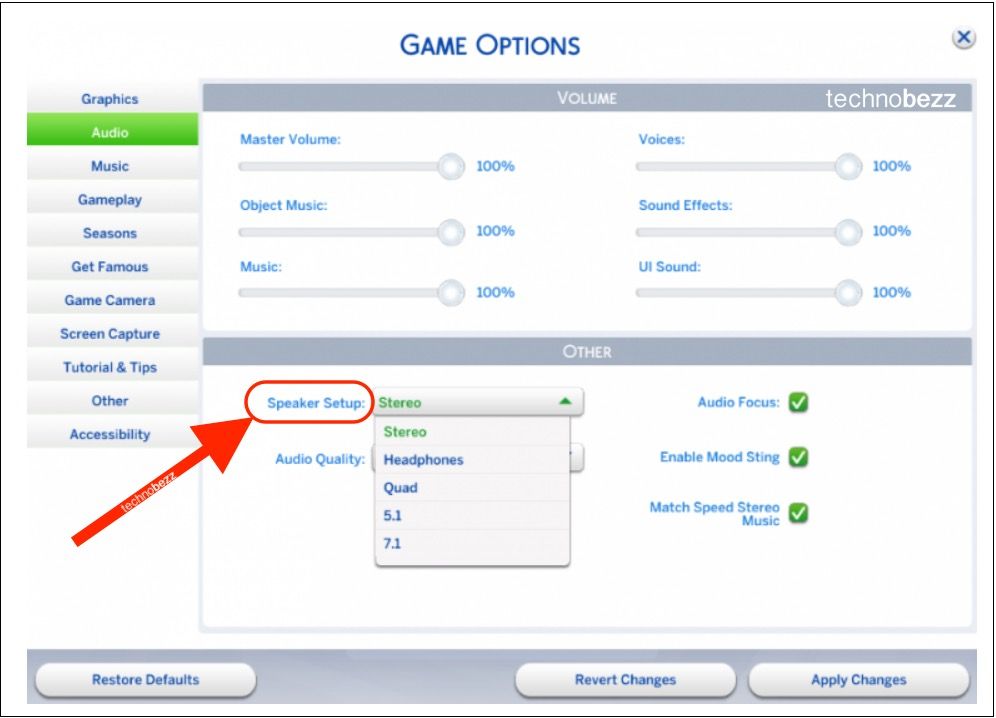
- 4.Find the "Speaker setup" dropdown menu and click on it
Click to expand
- Choose from the available audio output options:
Stereo is the standard two-speaker setup, while Headphones is optimized for headphone use. Quad is four-speaker surround sound.
5.1 is a five-speaker plus subwoofer setup, and 7.1 is a seven-speaker plus subwoofer setup.
- Click "Apply Changes" at the top of the window to save your settings
That's all there is to it. Your new speaker setup will take effect immediately, letting you enjoy Sims 4 with the perfect audio configuration for your hardware.