Printing preferences decide whether your printer uses color, draft mode, two-sided printing, the right paper tray, or higher quality output. Windows keeps the main defaults under each printer, while apps like Word, Edge, Chrome, and Acrobat also have print choices for the job in front of you. Start with the Windows 11 printer setting, then use the app-specific controls when one document needs different output.
1. Set Windows 11 printing preferences
Open Start, select Settings, then choose Bluetooth & devices. Open Printers & scanners, select your printer, and choose Printing preferences.
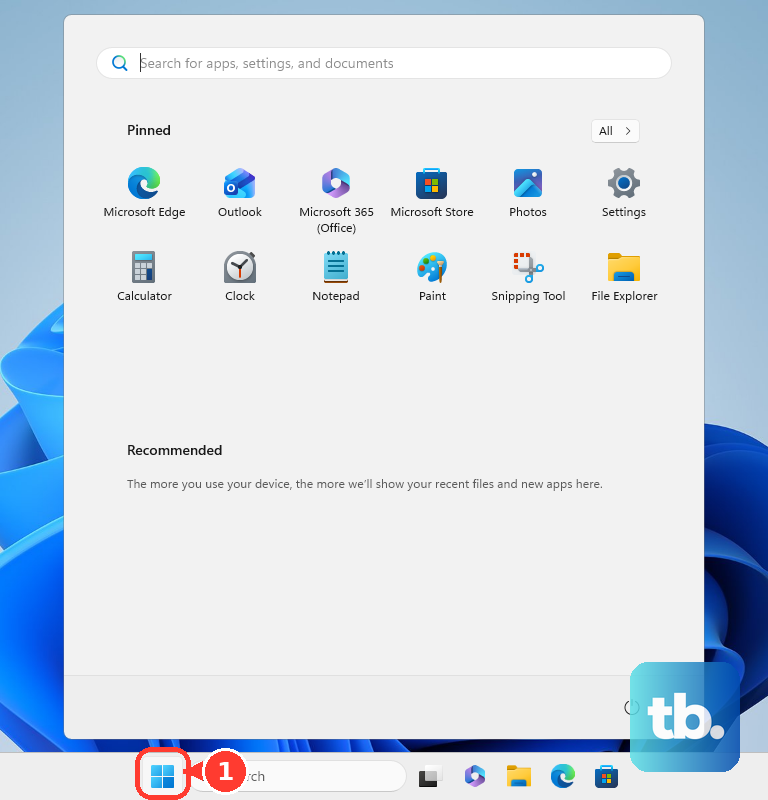
Change the settings you need, including Print quality, Resolution, Economy, Draft, Toner saver, or paper type. Select Apply.
Tip: The available controls come from your printer model, driver, and app support.
2. Change Office print settings
This fixes print settings you only want for the current Office job or document. Open the file in Word, Excel, PowerPoint, Outlook, Project, or another supported Microsoft 365 desktop app.
Select File, then select Print, or press Ctrl+P. In Word, select Printer Properties under Printer, then choose printer-specific options such as Color, Grayscale, or Black and White.
In Excel or PowerPoint, adjust the available Settings before printing. Select Print.
3. Use classic printer properties
Some full-feature printer drivers expose more controls in the classic Windows printer screen. Open Start > All apps > Windows Tools > Control Panel > Hardware and Sound > View devices and printers > your printer > Printer properties > General > Printing Preferences.
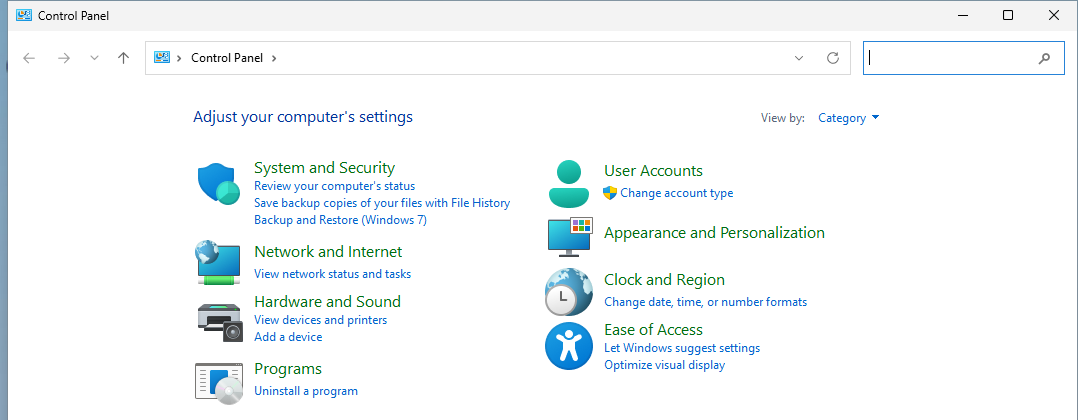
Choose the print settings you need, select OK, then close Printer properties.
4. Open preferences with Run
Hold the Windows key and press R. Type control printers in Open, then select OK.
Right-click your printer and select Printer properties. Open the General tab, then choose Printing Preferences or Preferences.
Change the settings and select OK. Tip: Use this shortcut when you want the classic printer folder quickly.
5. Adjust browser print options
In Microsoft Edge, open the page. Select Settings and more, choose Print, pick your settings, and select Print.
In Edge, choose Print using system dialog or press Ctrl+Shift+P. Select your printer in the Select Printer list, then choose Preferences. Use the Layout and Paper/Quality tabs for driver options such as paper source, media, or print quality.
In Google Chrome, open the page, image, or file. Select File, choose Print, or press Ctrl+P. Select the destination, change the preferred print settings, and choose Print.
In Firefox, select Menu, open Help, and choose More Troubleshooting Information. Go to Printing, then select Clear saved print settings to remove print settings Firefox saved.
6. Pick PDF print settings in Adobe apps
In Acrobat Reader, choose File > Print. Select your printer, then click Properties to reach printer properties.
Set the range under Pages to Print. Click Page Setup to change paper size, paper source, or orientation. Use the Print dialog's Print on both sides of paper and Print in grayscale options.
Acrobat Pro keeps PDF print controls under File > Print, including comments and forms, pages to print, more print options, and orientation. These Acrobat choices apply to PDF printing in Acrobat, not the global Windows printer default.
7. Restore missing printer options
Identify your exact printer model, then go to the official printer manufacturer website. Open the Support or Drivers section, enter or select your printer model, and select your Windows version when prompted.
Download the latest printer software and drivers. For HP, Canon, Brother, or Epson printers, use that brand's official printer driver and support page for your model.
Tip: Manufacturer software restores printer-specific controls that the built-in Windows driver does not expose, and Microsoft still allows vendor-supplied printer drivers to be installed from the manufacturer's own installation package. Since July 2026, though, new printer installations default to Windows Ready Print where the printer supports it, so check Settings > Bluetooth & devices > Printers & scanners > Default install printer using Windows Ready Print if you want the manufacturer driver used instead.
If Windows protected print mode is turned on, printers using third-party drivers are uninstalled and those drivers stay blocked while it is active, so turn it off first or look for a Print Support App from your printer brand.
8. Refresh wrong printer capabilities
This fixes stale or broken printer capabilities after driver or default setting problems. Open Settings, go to Bluetooth & devices, and select Printers & scanners.
Choose the printer, select Remove, and confirm with Yes. Add the printer again from Printers & scanners.
9. Skip outdated printing advice
Skip Windows 10-only printer preference instructions on current Windows 11 PCs. Windows 10 support ended on October 14, 2025.
Skip Google Cloud Print instructions. Google Cloud Print was discontinued after 2020 and is not a supported way to manage Windows printing preferences.
For work or school printers, check whether your organization manages defaults through shared printers, Universal Print, or policy controls before changing local settings.
Frequently Asked Questions
Why do my printing preferences look different from someone else's?
Printer preferences come from the printer model, driver, app, and supported features. One printer can show duplex, paper source, toner saver, or media type controls while another shows a shorter list.
Are app print settings the same as Windows printer defaults?
No. Settings changed inside Word, Edge, Chrome, or Acrobat apply to that print job, app, or document. Windows printer preferences are the per-printer defaults.
How do I print in black and white from Word?
Open File > Print, select Printer Properties under Printer, then choose the printer-specific color, grayscale, or black-and-white option.
What should I do when Windows only shows basic print options?
Install the latest printer software and drivers from the official manufacturer support page for your exact printer model.