User Account Control prompts interrupt you when apps request permission to change your PC. You can adjust those notifications or stop them with a slider in Windows 11 and Windows 10. The slider controls traditional UAC prompts.
On Windows 11 PCs with the optional Administrator protection feature turned on, every administrator elevation still requires your authorization and uses that feature's separate prompt settings, so Never notify won't silence those requests. Here's how to change the setting, fully disable UAC, and restore it afterward. Stopping prompts and disabling the underlying protection are different changes, and Microsoft recommends keeping UAC enabled.
Stop UAC prompts through Control Panel
Open Control Panel. Select System and Security, then choose Change User Account Control settings. Move the slider to Never notify to suppress UAC prompts.
Select OK, then approve any administrator prompt. Tip: These steps also work on Windows Home, but changing the setting requires administrator authorization.
Reach the same slider faster on Windows 11
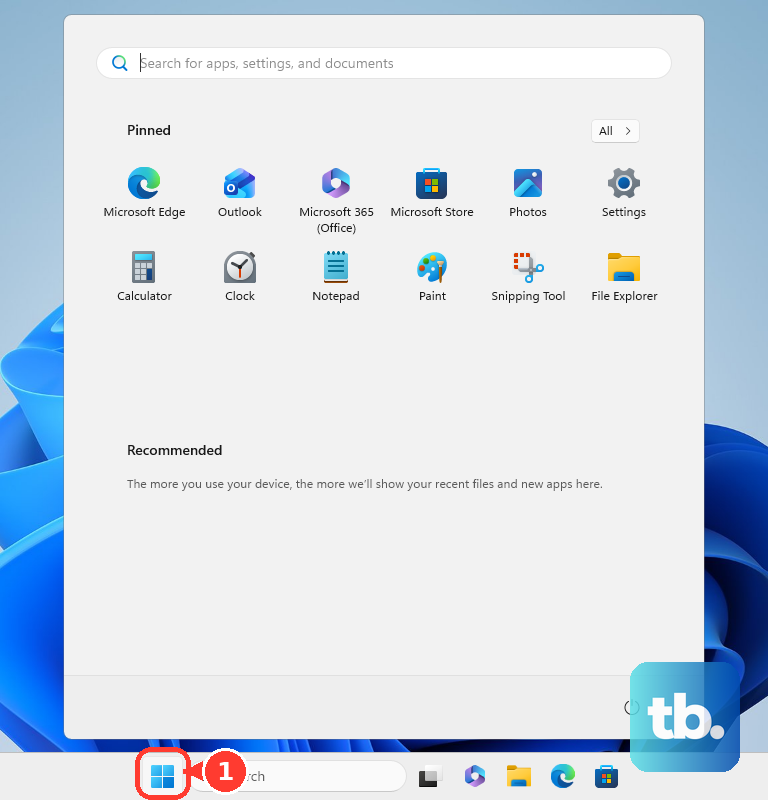
Windows search takes you straight to the same notification control.
- 1.Select Start.
- 2.Search for UAC.
- 3.Open Change User Account Control settings.
- 4.Move the slider to your preferred notification level.
- 5.Select OK.
- 6.Select Yes when prompted.
Keep prompts without dimming the screen
If the darkened desktop is what bothers you, there's a separate slider option for that. It keeps UAC prompts while removing desktop dimming.
Open Control Panel > System and Security > Change User Account Control settings, then choose the slider option ending in (do not dim my desktop). Select OK and approve any administrator prompt.
Understand what the notification levels change
The slider has four positions. Always notify is the highest notification level, while Notify me only when apps try to make changes to my computer (default) is the default setting.
The option ending in (do not dim my desktop) retains notifications without desktop dimming. At the bottom, Never notify suppresses prompts.
Here's the distinction that matters: Never notify leaves the underlying UAC mechanism enabled on Windows 10 and Windows 11. Microsoft's consumer instructions call it “Disable UAC,” but its technical documentation distinguishes stopping prompts from disabling the feature.
Older Windows 7 instructions treated Never notify as fully disabling UAC. On Windows 10 and Windows 11, fully disabling it requires a separate configuration change.
Resolve restrictions on a work or school PC
Organization policy is a source of UAC setting restrictions on managed work or school PCs. Ask your IT administrator to change the setting if your organization blocks it. Get administrator authorization to make the change if you're using a standard account; that account alone cannot authorize it.
Fully disable UAC through the registry
Open Registry Editor (regedit) with administrator authorization to disable the underlying UAC feature. Navigate to HKEY_LOCAL_MACHINE\SOFTWARE\Microsoft\Windows\CurrentVersion\Policies\System, then open EnableLUA. Set Value data to 0, select OK, and restart Windows to apply the change. Tip: This method works on Windows 11 and Windows 10, including Home, and restoring the value to 1 requires another restart.
Bring back UAC protection and prompts
If you only lowered the notification slider, go straight to the notification settings below. If you changed the registry, reenable UAC there first.
Open Registry Editor (regedit) with administrator authorization. Navigate to HKEY_LOCAL_MACHINE\SOFTWARE\Microsoft\Windows\CurrentVersion\Policies\System, then open EnableLUA. Set Value data to 1, select OK, and restart Windows.
To restore notifications, open Control Panel > System and Security > Change User Account Control settings. Move the slider to Notify me only when apps try to make changes to my computer (default), or choose Always notify for the highest notification level. Select OK, then approve any administrator prompt.
Frequently Asked Questions
Do I need to download anything to change UAC?
No. The notification slider and Registry Editor are built into Windows.
Does turning off Administrator protection also disable UAC?
No. Turning off Administrator protection returns Windows to traditional administrator elevation behavior. It does not disable UAC. The Windows Security toggle remains labeled as an Insider preview with a gradual rollout, so it is not available on every Windows 11 PC.
Why doesn't Windows Home include the Local Security Policy method?
Windows Home does not include the Local Security Policy or Group Policy editors. Those methods require Windows Pro, Enterprise or Education.
Is Windows 10 still supported?
Normal Windows 10 support ended October 14, 2025. Continued servicing depends on Extended Security Updates (ESU) or an applicable Long-Term Servicing Channel (LTSC) lifecycle.