Your DUALSHOCK 4 is drifting, missing inputs, or acting wrong after switching devices. The fix depends on where you play, because Sony does not provide a PS4 analog-stick calibration menu for the controller. Start with the official reset, then use the right platform settings for PS4, Windows, Steam, Apple devices, or DS4Windows.
1. Reset the DUALSHOCK 4 with Sony's official button method
Start here when the controller drifts, pairs badly, or sends strange inputs; this is Sony's official controller-side reset path for a DUALSHOCK 4.
- 1.Turn off and unplug the PlayStation 4 console.
- 2.Disconnect the DUALSHOCK 4 from the USB cable.
- 3.Find the tiny reset-button hole on the back of the controller near L2.
- 4.Press and hold the reset button with a small unfolded paper clip or similar tool for at least five seconds.
- 5.Connect the controller to the PS4 with a USB cable.
- 6.Press the PS button to pair it again.
This reset can clear controller behavior and pairing problems. It is not an analog-stick dead-zone calibration menu.
2. Check the PS4 controller options that actually exist
On PS4, open Settings > Devices > Controllers. That menu supports Volume Control (Speaker for Controller), Enable Vibration, Brightness of DUALSHOCK 4 Light Bar, and Communication Method.
Communication Method appears only when a CUH-ZCT2 series controller is connected by USB cable. Sony does not document stick, trigger, gyro, or dead-zone calibration in this PS4 menu.
3. Pair the controller again after a reset or device switch
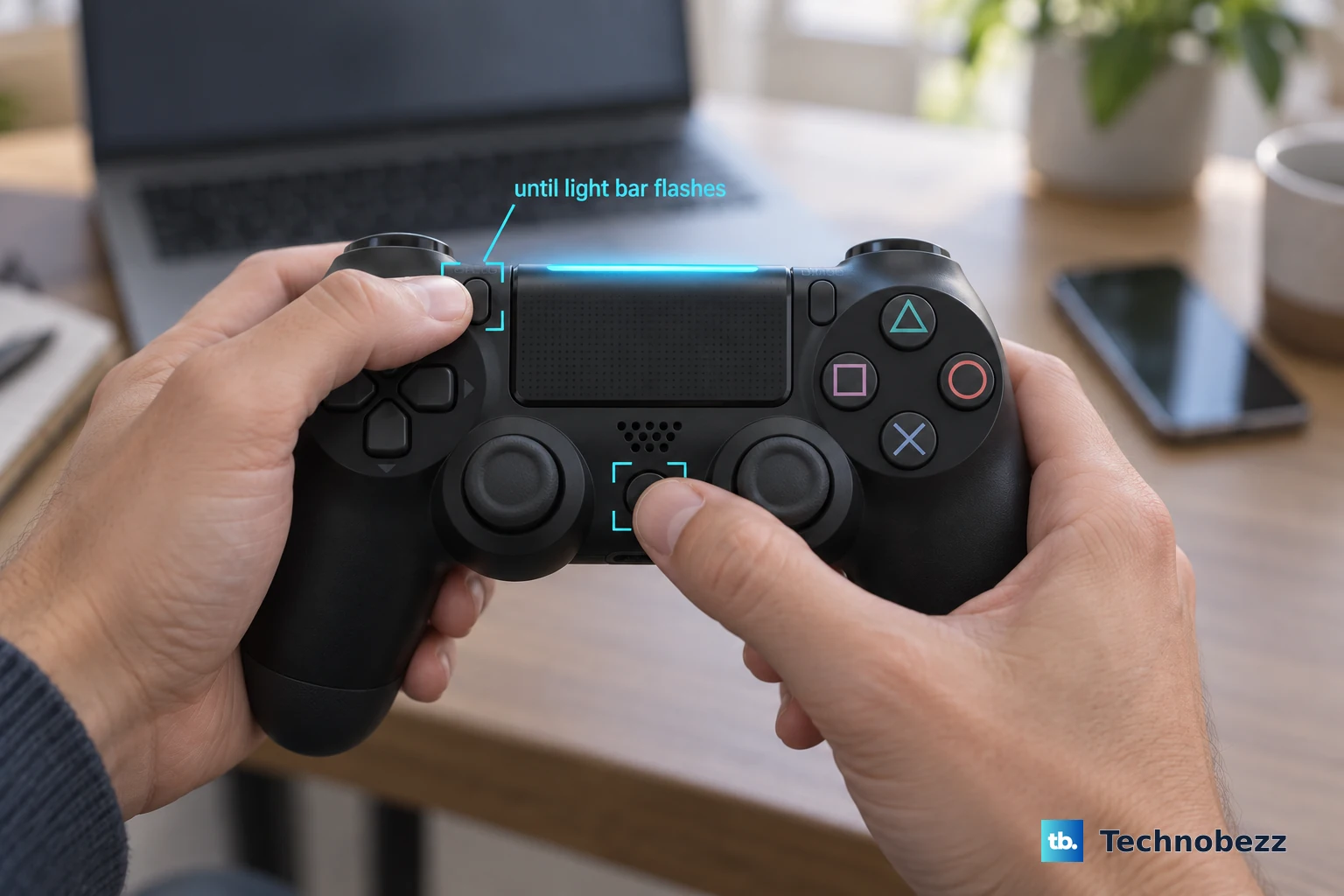
Make sure the player indicator is off. If it is on, press and hold PS until it turns off. Next, disconnect the USB cable. Hold SHARE, then hold PS until the light bar flashes.
Then enable Bluetooth on the target device and select the controller from the Bluetooth device list. Use these SHARE + PS steps to pair the controller with a separate Bluetooth device Sony supports: an Android 10 phone, an iOS 13 or iPadOS 13 device, a macOS Catalina Mac, or a tvOS 13 Apple TV (or later versions).
To reconnect to a PS4 or PS5 console instead, connect the controller with a USB cable and press the PS button; Sony documents connecting to a Windows PC with a DUALSHOCK 4 USB wireless adaptor or a compatible micro USB cable.
Re-pairing fixes recognition and connection problems. It does not repair worn analog sticks.
4. Calibrate Windows controller readings with joy.cpl
Windows 10 and Windows 11 include a Game Controllers dialog for a DUALSHOCK 4 that appears as a calibratable DirectInput or HID controller.
Press Windows key + R, type joy.cpl, and press Enter. Select the controller, then open Properties > Settings > Calibrate.
To clear stored Windows calibration data, use Reset to default in the same Settings tab. This Windows setting does not control Steam Input, DS4Windows virtual controllers, or XInput paths.
5. Tune Steam Input for Steam games
Open Steam, then go to Settings > Controller > Calibration & Advanced Settings. Use the joystick calibration and dead-zone controls shown for the controller.
For gyro drift, open Gyro Calibration. If the drift shows up in Steam games, adjust Steam Input instead of searching PS4 for a hidden calibration screen.
For one game only, open Steam > Library, select the game, open Controller or Controller Layout, choose Edit Layout, open Joysticks, choose the stick, then adjust Deadzone Type, Deadzone Inner, Deadzone Outer, or the related stick settings shown there.
Steam dead-zone changes mask drift for Steam-launched games. They do not rewrite Sony controller firmware calibration.
6. Adjust DS4Windows dead zones for DS4Windows profiles
Use DS4Windows only when you play through DS4Windows on Windows 10 or Windows 11. Open DS4Windows and load the current default profile or create a new profile.
Open Controller Readings > Axis Config. Adjust dead zone, anti-dead zone, maxzone, or related LS and RS axis options.
Download it from the maintained project page, then change the active profile. This is software mapping, not Sony firmware calibration. Skip old Jays2Kings DS4Windows download links because that repository is archived and read-only.
7. Use Apple controller settings for customization and re-pairing
On iPhone or iPad, open Settings > General > Game Controller, tap the controller name, then use Default Controls.
On Apple TV, open Settings > General > Remotes and Devices > Bluetooth, select the controller, then use Customization.
On Mac, open the Apple menu > System Settings > Game Controllers, then click the controller name.
Apple devices provide controller customization and forget-and-pair-again controls. Apple does not document DUALSHOCK 4 analog-stick calibration in these settings.
When the controller does not work as expected, open Bluetooth settings, select the controller or the More Info button next to its name, choose Forget This Device, and pair it again.
8. Reserve browser calibration tools for advanced repairs
The DualShock Calibration GUI at dualshock-tools.github.io can use WebHID in Chrome or Microsoft Edge on PC or Mac. It is third-party, open source, and not Sony-supported.
Connect the DUALSHOCK 4 by USB. Open https://dualshock-tools.github.io/ in Chrome or Microsoft Edge. Select Connect, then choose the controller in the browser permission dialog.
Use the tool's Quick Test, Calibrate stick center, and Calibrate stick range controls, and open Joystick Info to read raw stick values. To watch inputs separately, use an external gamepad tester.
The project warns that this utility cannot fix stick drift on its own: worn joystick parts must be replaced first, and calibrating a worn stick may only help temporarily or make it worse with no way to undo it. Treat it as advanced calibration, best used after a joystick replacement.
This tool uses WebHID and undocumented controller behavior. It is not supported on phones or tablets.
9. Send the controller for repair when drift stays
Persistent stick drift, button failure, or repeated pairing failure after reset and re-pairing points to a hardware fault. Sony's supported next step is PlayStation Repairs from the DUALSHOCK 4 support path.
Follow the diagnostic prompts for button or analog-stick issues. Use current Steam Calibration & Advanced Settings and the maintained DS4Windows project page instead of old tutorial paths.
Frequently Asked Questions
Does PS4 have a built-in DualShock stick calibration menu?
No. Sony documents reset, pairing, and supported controller settings for DUALSHOCK 4, but not a PS4 analog-stick or dead-zone calibration menu.
Can Steam calibration fix DUALSHOCK 4 drift on PS4?
No. Steam Input dead-zone changes apply to Steam-launched games and do not carry over as a Sony PS4 controller calibration.
Can I calibrate a DUALSHOCK 4 on iPhone, iPad, or Mac?
In Apple's built-in settings, no — iPhone, iPad, and Mac document controller customization and forget-and-pair-again steps, not DUALSHOCK 4 analog-stick calibration. On a Mac, though, you can calibrate with a third-party WebHID browser tool such as the DualShock Calibration GUI in Chrome or Microsoft Edge; note its warning that calibration cannot fix worn-stick drift and may make it worse. iPhone and iPad do not support that tool.
Should I use the old Jays2Kings DS4Windows download?
No. That DS4Windows repository is archived and read-only. Use the maintained DS4Windows project page when you choose DS4Windows.