Ads are not one problem. A Chrome pop-up, a Safari banner, a browser redirect, and an app overlay all need different fixes. Start with the built-in blockers, then move to extensions, content blockers, DNS filtering, or adware removal when the ads keep coming back.
1. Start with Chrome built-in blockers
Chrome blocks pop-ups, redirects, and intrusive ads from sites that violate Better Ads Standards, but it is not a full ad blocker.
On desktop, open More > Settings > Privacy and security > Site settings > Pop-ups and redirects and keep blocking on.
Then open More > Settings > Privacy and security > Site settings > Additional content settings > Intrusive ads and keep intrusive ads blocked.
On Android, use More > Settings > Site settings > Pop-ups and redirects and turn blocking on.
2. Install a desktop ad-blocking extension
In Chrome desktop, open the Chrome Web Store listing for a Manifest V3 blocker such as uBlock Origin Lite, then choose Add to Chrome.
Review the permissions prompt, then choose Add extension.
In Microsoft Edge desktop, open the Microsoft Edge Add-ons listing for an ad blocker such as Adblock Plus, choose Get, then choose Add extension.
In Firefox desktop, open the Firefox Add-ons listing for an ad blocker such as uBlock Origin, choose Add to Firefox, review permissions, then choose Add.
Skip older Chrome advice about re-enabling classic Manifest V2 blockers because Chrome 138 was the last version that could run classic Manifest V2 extensions, and only for organizations using an enterprise policy; Chrome 139 removed that policy and Manifest V2 support for every user.
3. Enable Safari blockers on iPhone and iPad
Safari on iPhone and iPad uses App Store content blockers for stronger web ad blocking.
After installing a content blocker, open Settings > Apps > Safari > Extensions, tap the listed blocker, and turn it on.
For pop-ups only, open Settings > Apps > Safari and turn Block Pop-ups on.
4. Use mobile browsers with blocker support
In Microsoft Edge for Android, open the menu, then go to Settings > Privacy and security > Content blockers and turn on Block ads; to block all ads, also turn off Allow acceptable ads.
In Microsoft Edge for iOS, open the menu, then go to Settings > Content blockers, turn on Block ads, and tap Done.
To block all ads in Edge for iOS, tap Advanced settings, turn off Allow acceptable ads, then tap Done.
In Samsung Internet, open the Tools icon, choose Ad blockers, tap Install next to the blocker you want, then use its switch to enable it.
In Firefox for Android, open the menu, choose Add-ons, find uBlock Origin, then tap + or Add and confirm.
Google Chrome on Android and iOS does not support Chrome Web Store extensions, so choose built-in Chrome controls, DNS filtering, or a mobile browser with blocker support.
5. Switch to browsers with ad blocking built in
Install or open Brave Browser.
Use the Shields icon in the address bar to see blocked items or turn Shields on or off for a site.
In Opera desktop, open Settings > Privacy protection > Block ads and turn it on.
Use Easy Setup in Opera desktop when you want the quick switch instead.
Open Settings > Privacy protection > Block ads > Manage lists in Opera desktop to manage filter lists.
Brave also offers main menu > Settings > Shields > Adblock-Only Mode, an opt-in experimental mode for advanced users.
6. Tighten Edge and Firefox privacy controls
Edge and Firefox privacy controls cut down tracking and nuisance windows, but they do not replace a full ad blocker.
In Edge desktop, open Settings and more > Settings > Privacy, search, and services > Tracking prevention, turn it on, and choose Strict.
For pop-ups, open Settings and more > Settings > Privacy, search, and services > Site permissions > All permissions > Pop-ups and redirects and turn on Blocked (recommended).
In Firefox desktop, use the shield icon > Protection Settings > Enhanced Tracking Protection, then choose Strict or open Advanced settings > Custom.
7. Block ads across apps with DNS filtering
On Android 9 or later, open Settings > Network & Internet > Advanced > Private DNS.
Choose Private DNS provider hostname, enter dns.adguard-dns.com, then tap Save.
On iPhone or iPad, use the AdGuard DNS page to select a server and download the configuration profile.
Open Settings > Profile Downloaded > Install and follow the onscreen instructions.
For your home network, open your router admin page, find DNS settings, replace the DNS addresses with AdGuard DNS IPv4 addresses 94.140.14.14 and 94.140.15.15, then save and reconnect devices.
DNS-level blocking covers browsers and many apps, but it does not remove first-party or in-stream ads served from the same domains as app content.
8. Remove adware from Android
Ads on the Android home screen, over other apps, or right after a new install point to a bad app.
Run Google Play Store > profile icon > Play Protect > Scan, then remove suspicious apps through Android Settings > Apps > Uninstall.
If Chrome for Android is still flooded, press and hold the device power button, touch and hold Power off, confirm Safe mode, then uninstall recently downloaded apps one by one and restart normally after each check.
9. Reset hijacked desktop browsers
In Chrome desktop, go to More > Settings > Reset settings.
Choose Restore settings to their original defaults, then choose Reset settings.
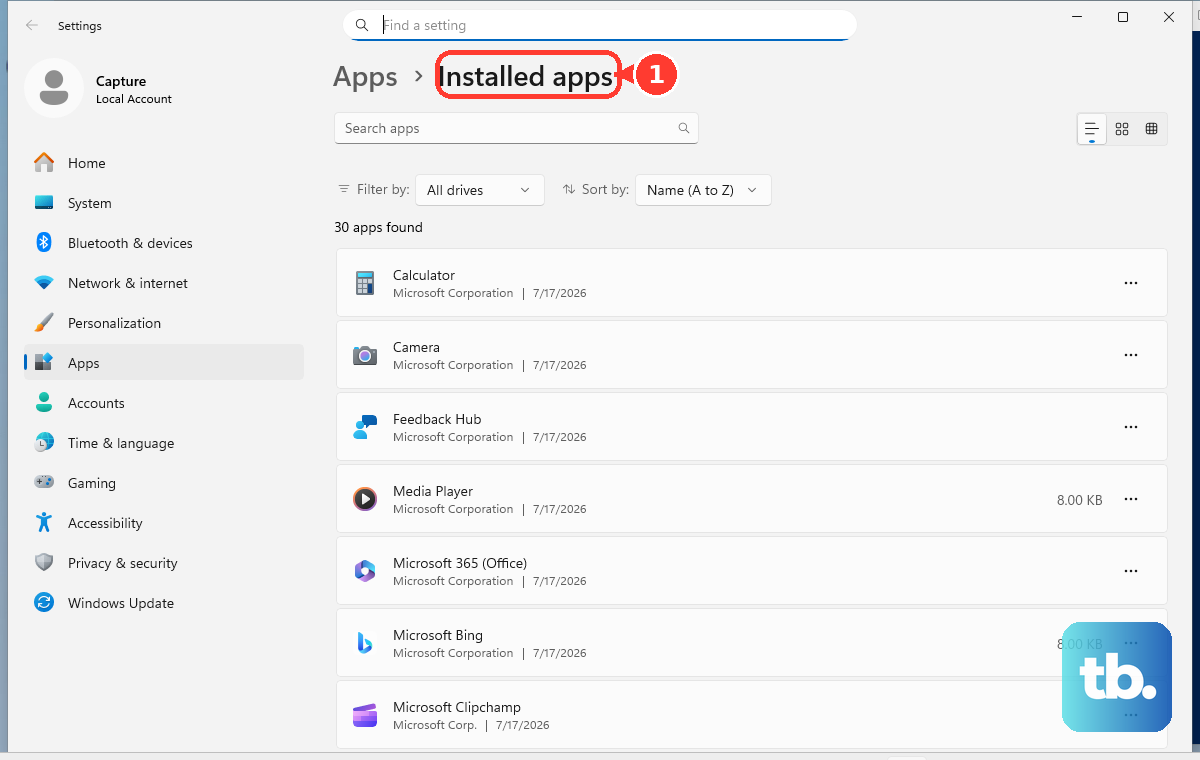
On Windows 11, open Start > Settings > Apps > Installed apps, find the suspicious app, then select More > Uninstall.
In Edge desktop, open edge://apps, choose Details on the unwanted app card, then choose Uninstall.
On Mac, if Safari keeps reopening the same pop-up or ad page, quit Safari, then press and hold Shift while opening Safari again.
Do not use older Chrome Cleanup Tool steps; Google retired that Windows tool starting with Chrome 111.
Frequently Asked Questions
Can I block every ad on my phone?
No. Browser blockers, content blockers, and DNS filtering remove many ads, but DNS-level filtering does not block first-party or in-stream ads served from the same domains as app content.
Why do ads still appear after I turned on pop-up blocking?
Pop-up blockers stop pop-up windows and redirects, not normal in-page display ads. Use a browser extension, Safari content blocker, built-in ad-blocking browser, or DNS filtering for broader blocking.
Does Chrome mobile support ad-blocking extensions?
No. Google Chrome on Android and iOS does not support Chrome Web Store extensions. Use Chrome’s built-in controls, DNS filtering, or a mobile browser with blocker support.
What should I do if ads appear outside my browser?
On Android, scan with Play Protect and uninstall suspicious or recently downloaded apps. On Windows 11, remove suspicious programs from Installed apps and reset Chrome if browser settings were hijacked.