Google Meet makes it easy to connect with colleagues, friends, and family through video calls. While the platform offers excellent audio quality, you might need to adjust the volume for a better experience. Here's how to manage audio levels in your Google Meet sessions.
Understanding Google Meet Volume Controls
Unlike some video conferencing platforms, Google Meet doesn't have built-in volume controls for individual participants. This means you can't directly adjust how loud or quiet specific people sound during a call. However, there are several effective ways to manage your audio experience.
Adjust Volume Using Device Controls
The most straightforward way to control volume in Google Meet is through your device's physical or software controls.
On computers: Use your keyboard's volume keys. Then click the speaker icon in your system tray (Windows) or menu bar (Mac), and adjust the master volume slider.
On mobile devices: Press the physical volume buttons on your phone or tablet. During calls, use the on-screen volume slider.
Mute Participants in Google Meet
While you can't adjust individual participant volumes, you can mute people to control who you hear during meetings.
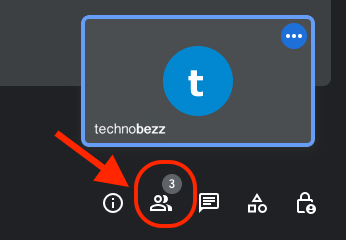
Mute a single participant:
- 1.Click the People icon in the bottom right corner
- 2.Hover over the participant's name
- 3.Click the three-dot menu icon
- 4.Select "Mute" from the options
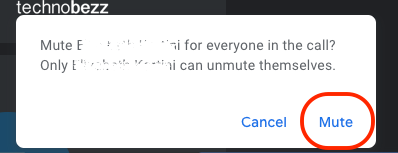
Mute all participants (hosts only): Meeting hosts in Google Workspace for Education and Business editions can mute everyone at once. This feature helps prevent disruptions from unmuted participants. Once muted, participants can unmute themselves when needed.
Check Google Meet Audio Settings
If you're experiencing audio issues, check Google Meet's built-in audio settings.
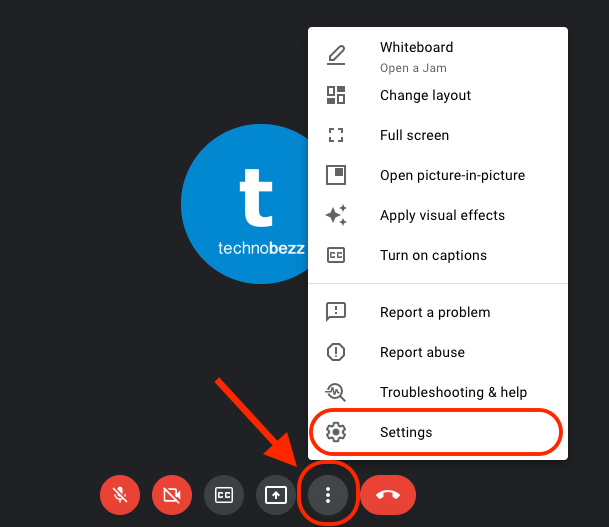
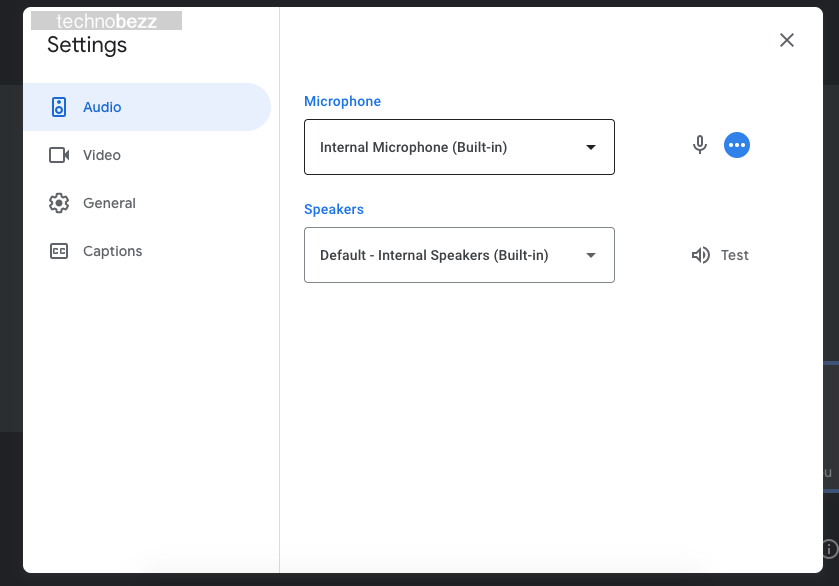
Click the three-dot menu in the bottom right corner, then select "Settings". Navigate to the "Audio" tab. Test your microphone and speakers, and choose the correct input and output devices.
Adjust Browser Audio Settings
Sometimes the issue lies with your browser's audio settings rather than Google Meet itself.
In Chrome: Click the three-dot menu in the top right corner. Go to "Settings", then navigate to "Privacy and security". Click "Site settings", select "Sound", and ensure Google Meet has permission to play sound.
Check Device Audio Settings
If Google Meet settings appear correct but audio still isn't working properly, check your device's audio settings.
Windows: Right-click the speaker icon in the system tray. Select "Open Sound settings", then test your output and input devices.
Mac: Go to System Preferences > Sound. Check output and input settings, then test your microphone and speakers.
Mobile devices: Go to Settings > Sound. Ensure media volume is turned up, and check app permissions for microphone and speaker access.
Advanced Volume Control Options
For more granular control over Google Meet audio, consider these options.
Chrome extensions: Install volume control extensions from the Chrome Web Store. These can provide client-side volume adjustment for all participants.
Third-party audio software: Use audio routing software like OBS Studio. Combine multiple audio sources for better control, then route audio through virtual audio devices.
Troubleshooting Common Audio Issues
If you're still having trouble with Google Meet audio, restart your device.
Restart your device - This often resolves temporary audio glitches. Check internet connection - Poor connectivity can affect audio quality. Update your browser - Ensure you're using the latest version.
Clear browser cache - Remove temporary files that might interfere. Test with headphones - Isolate whether the issue is with speakers or the app.
Remember to grant Google Meet permission to access your microphone and speakers when prompted. Without these permissions, the app won't be able to capture or play audio during your meetings.
Google Meet automatically applies echo cancellation to reduce feedback and improve audio clarity during calls. If you notice echo issues, the platform will typically adjust settings automatically to minimize these problems.