You want Google Drive to show up in File Explorer so your cloud files sit right next to the ones on your PC. Google's Drive for desktop creates that virtual drive for you as soon as you install it and sign in. After that, you can pick its drive letter and choose which files stay available offline.
Add Google Drive to File Explorer
Start on Google's official Google Drive product page at workspace.google.com/intl/en/products/drive/. Under Sync your desktop with Drive, select Download Drive for desktop.
Run GoogleDriveSetup.exe and finish the installation. If your PC needs Microsoft WebView2, the installer downloads it. Drive for desktop supports Windows 10 or later on x64 PCs and Windows 11 or later on ARM64 PCs. It does not support 32-bit Windows or beta operating systems.
Open Google Drive, select Get started, then select Sign in and authenticate in your browser. The app then creates the virtual drive automatically.
Open File Explorer and go to Google Drive > My Drive. Streaming is the default, so your cloud files open on demand as long as Drive for desktop keeps running. Organizational shared drives you can access appear under Shared drives.
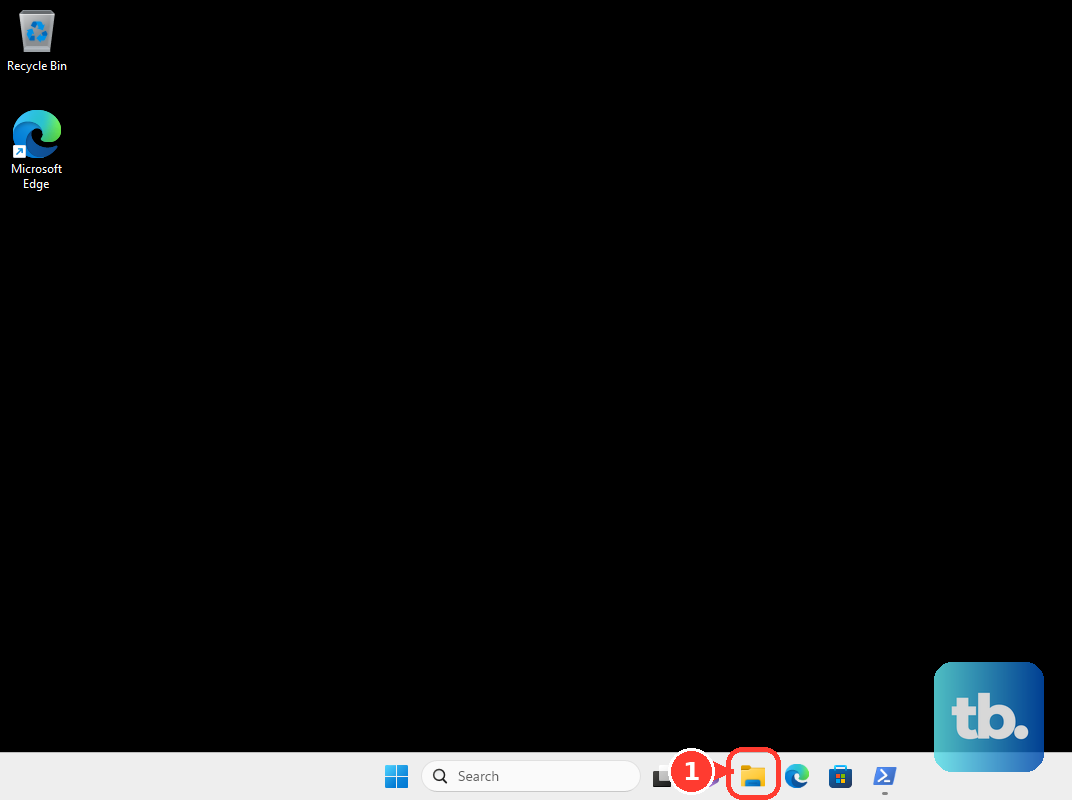
If the download won't start from the product page, open Google Drive in your browser and choose Settings > Get drive for desktop. If installation and sign-in finish but the drive is missing, jump to the startup steps below.
Choose the drive letter you want
You don't need Windows' Map network drive command for Google's desktop app. That Windows feature can't connect directly to drive.google.com, and Drive for desktop creates its own virtual drive anyway.
Click the Google Drive tray icon, then open Settings > Preferences > Advanced Settings. Under Google Drive streaming location, select Change.
Select Drive letter, pick an available letter, and click OK. To place the streaming storage inside a folder instead, choose Folder, select the location, and click OK.
Keep selected files available offline
For files you need without an internet connection, keep an offline copy from the streamed drive.
- 1.Open File Explorer and go to Google Drive > My Drive.
- 2.Select the files or folders you want to keep on your PC.
- 3.Right-click the selection and choose Offline access > Available offline.
- 4.Leave Drive for desktop running whenever you open those streamed offline files.
Get the drive back after restarting Windows
A streamed drive disappears whenever Drive for desktop isn't running.
Open Google Drive from the Windows Start menu to bring the virtual drive back.
To stop it happening again, click the Google Drive tray icon and open Settings > Preferences > Advanced Settings.
Turn on Launch Google Drive when you login to your computer. The app now starts every time you sign in to Windows.
If the drive is there but synchronization is paused, open the tray icon's Settings menu and select Resume syncing.
Mirror My Drive for a full local copy
Mirroring is the right choice when you want all of My Drive downloaded into a local folder. Unlike the streamed virtual drive, that folder stays accessible even when Drive for desktop is closed.
Click the Google Drive tray icon and open Settings > Preferences.
Under My Drive syncing options, select Mirror files, then choose the local folder for My Drive. Because mirroring downloads everything, leave room on your PC for those files.
Shared drives support streaming, not mirroring. If you mainly want to browse cloud storage through a virtual drive without downloading all of My Drive, stick with streaming.
Bring shared files into My Drive
A shortcut puts an item someone shared with you inside My Drive, where File Explorer can reach it.
Open Google Drive in your browser and select Shared with me.
Right-click the item you want to open from Windows.
Select Organize > Add shortcut.
Choose a destination inside My Drive and add the shortcut.
Open that destination under My Drive in File Explorer. The shortcut relies on your existing permission to the shared item and does not create another Windows drive.
Use RaiDrive for an alternative mount
RaiDrive is another Windows client that can mount My Drive, Shared with me, or shared drives you can access.
- 1.Go to the official download page at raidrive.com/download and grab the Windows GUI installer that matches your PC's architecture.
- 2.Install and open RaiDrive, then select Add > Personal > Google Drive.
- 3.Choose the storage scope, an available Drive letter, and a Name.
- 4.Select Connect, then authenticate with Google and grant access.
Frequently Asked Questions
Can I map drive.google.com with Windows Map network drive?
No. Windows can't map drive.google.com directly. Use Drive for desktop for an automatic virtual drive. Windows network-drive mapping needs a configured network endpoint, such as a Google Drive-backed NAS share.
Can I connect more than one Google account?
Yes. Drive for desktop supports up to four accounts at once. Click its tray icon, select your profile picture, choose the option to add an account, authenticate in your browser, and restart the app.
Will Google Docs, Sheets, and Slides work offline through the drive?
Those files need their own separate browser offline setup. Marking streamed files Available offline doesn't replace it.
Can I keep Google Drive in Quick access?
Yes. In File Explorer, right-click the existing Google Drive folder and select Pin to Quick access. This adds a navigation shortcut to the mounted or synchronized folder.