
When your Google Pixel 9a gets stuck on an update, it's a common roadblock. You might see a download that won't start, an error message like "Couldn't download update," or an installation that fails and reboots your phone. The good news is there are several straightforward ways to get past this.
Free Up Storage Space on Your Pixel
Android updates need room to download and unpack. Go to Settings > Storage and check your available space. A major update like Android 15 can require several gigabytes free. The quickest way to clear space is to use the built-in cleanup tool right there in the Storage menu, which can delete cached data and old files. You can also offload apps you don't use often or move photos to Google Photos cloud storage.
Check Your Wi-Fi Connection
Pixel updates require a stable Wi-Fi connection and won't download over cellular data. Make sure you're properly connected and test the speed by opening a webpage in Chrome. If it's slow, try restarting your router. I've seen updates fail on public or corporate Wi-Fi networks that block large downloads, so a home network is your best bet.
Force Restart Your Pixel 9a
This is often the quickest fix. Simply press and hold the Power button for about 30 seconds. Keep holding it even after you see the Google logo, until the phone fully restarts. This clears out any temporary glitch in the system that might be preventing the update check or installation from proceeding.
Delete the Downloaded Update File
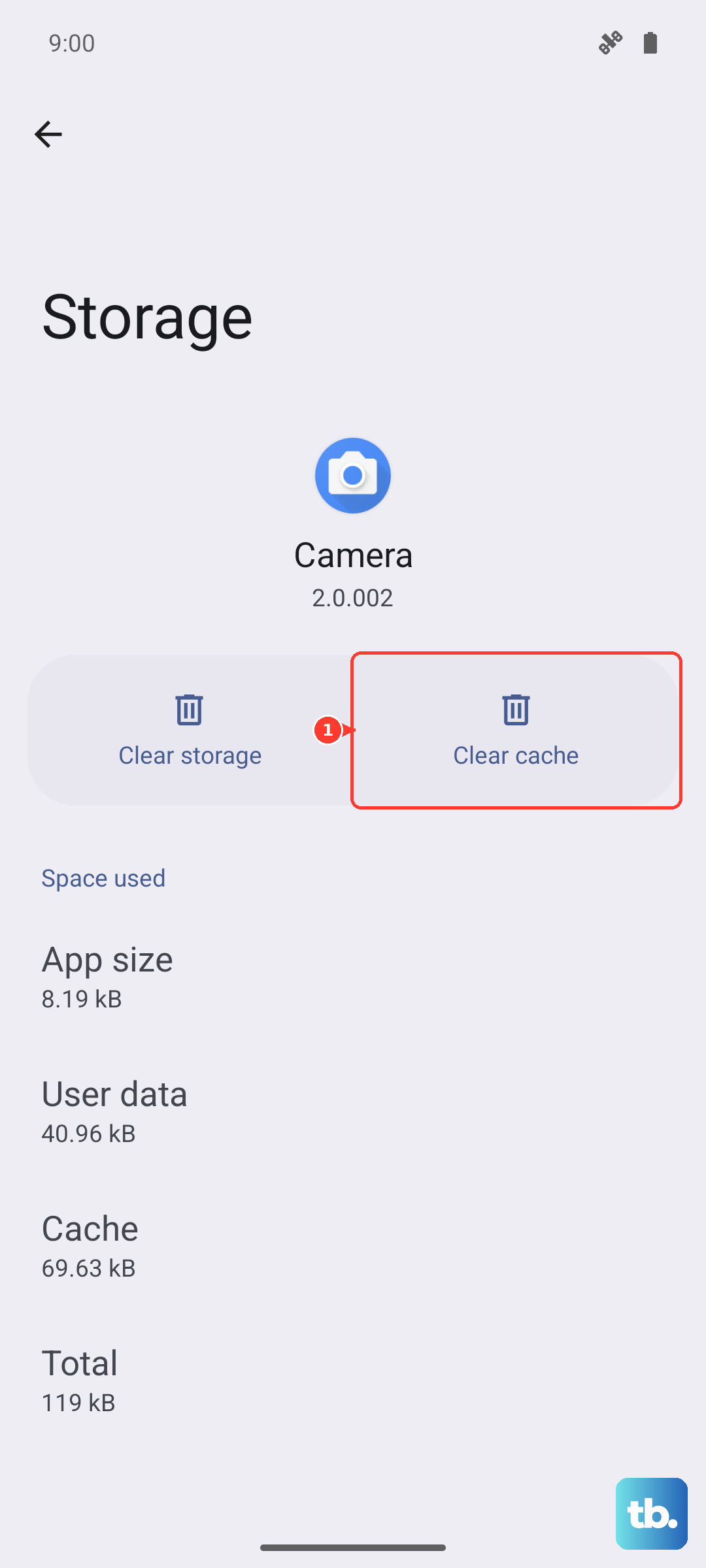
If a previous update download was interrupted or corrupted, it can block new attempts. You'll need to clear the data for the Google Play Services app. Go to Settings > Apps > See all apps, then find and tap Google Play Services. Tap Storage & cache and then Clear cache. Do not clear storage data. Afterward, go back to Settings > System > System update and try checking for the update again.
Check for Server Issues
Sometimes the problem isn't on your end. During the rollout of a major Android update, Google's servers can get overwhelmed. You can check the status of Google services by searching for "Google Workspace Status" in your browser. If there's an issue with the update servers, you'll just need to wait a few hours and try again later, ideally during off-peak times like late at night.
Reset Your Network Settings
Network configuration errors are a frequent culprit. This reset will erase all saved Wi-Fi networks, Bluetooth pairings, and cellular settings. Go to Settings > System > Reset options and tap Reset Wi-Fi, mobile & Bluetooth. Confirm the reset, then reconnect to your Wi-Fi network and immediately try the system update again.
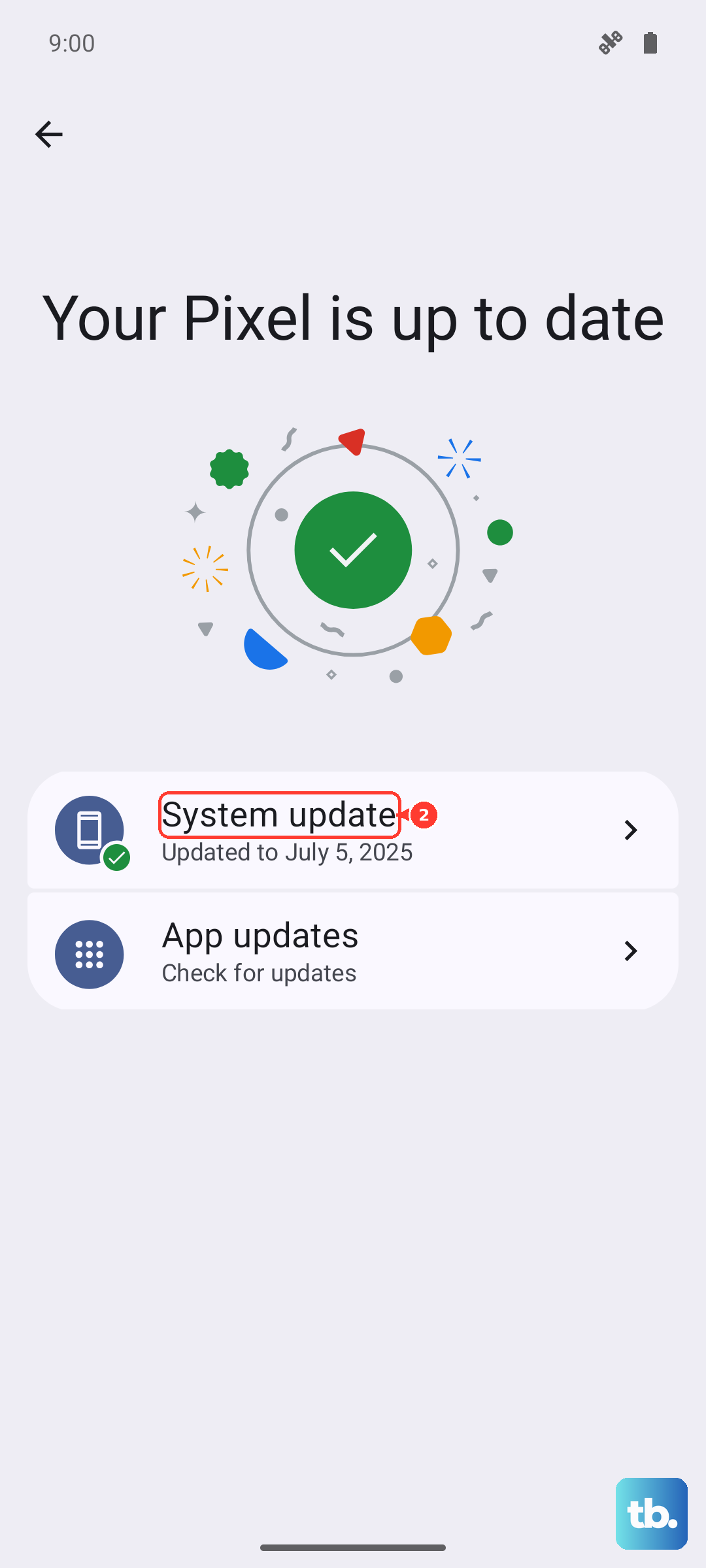
Update Using a Computer and USB Cable
If the over-the-air update repeatedly fails, using a computer is a reliable bypass. You'll need a USB-C cable and a computer with the Chrome browser installed. Visit the official Android Flash Tool website (developer.android.com) in Chrome. Follow the instructions to put your Pixel 9a into flash mode and connect it. The web tool can sideload the update directly, which often works when the standard method doesn't.
It's important to ensure your phone stays charged during this process. Using a USB-PD charger rated for 30W or more will give you the fastest charging speed, which is helpful since the Pixel 9a's 23W wired charging can be slow. Keep it plugged in or make sure you have at least a 50% charge before starting.
Check for Device Compatibility and Known Issues
While the Pixel 9a launched with Android 15, it's worth confirming the update you're seeing is intended for your specific device. In rare cases, a buggy early rollout can be paused by Google. You can search online for "Pixel 9a Android [version number] update issues" to see if other users are reporting the same problem, which would indicate a wider server-side issue.
Also, ensure no accessibility services or VPN apps are running, as they can sometimes interfere with the download process. Try disabling any VPN temporarily and then checking for the update.