When your Google Assistant stops responding to "Hey Google" on your Pixel 9a, it can feel like you've lost a helpful sidekick. The voice assistant that's supposed to simplify tasks suddenly isn't listening. Let's walk through the most effective ways to get it working again.
Verify Google Assistant is Enabled
First, let's make sure the core feature is actually turned on. Head to your phone's Settings app and tap on Apps, then find and select Google. Inside the Google app settings, tap on Settings for Google apps, then Search, Assistant & Voice, and finally Google Assistant. On this main Assistant screen, ensure the Google Assistant toggle at the top is switched on.
While you're here, scroll down to the Hey Google & Voice Match section. Tap on it and make sure the "Hey Google" toggle is enabled. This is the setting that allows your phone to listen for the wake phrase. I'd start with this check, as it's the most common oversight.
Retrain Your Voice Model
If Assistant is enabled but still not recognizing you, retraining your voice model can often fix it. Go back into the Hey Google & Voice Match settings. You'll see an option to retrain the voice model or delete it and start over.
Tap to retrain and follow the prompts, speaking the four phrases clearly. Do this in a quiet room. This process helps the Assistant relearn the nuances of your voice, which can be especially helpful if you've had a cold or your voice has changed slightly.
Check for Audio Interference and Settings
Your Pixel 9a has multiple microphones, and if they're blocked, the Assistant can't hear you. Check the small microphone ports at the top and bottom of the phone for any lint or debris. A soft-bristled brush or a quick blast of compressed air can clear them out.
Also, take a look at your case. Some thicker cases can partially muffle the microphones. Try removing the case temporarily and see if "Hey Google" starts working. It's a simple test that can rule out a physical obstruction.
Review Digital Wellbeing and Focus Modes
Android's Focus modes, part of Digital Wellbeing, can sometimes interfere with background listening. Open Settings and go to Digital Wellbeing & parental controls. Look at any active Focus modes or schedules.
If you have a Work or Sleep focus mode enabled, it might be restricting Assistant access. Try turning off any active Focus modes to see if that resolves the listening issue. You can always reconfigure them later to allow Assistant if needed.
Ensure the Google App is Updated
The Google Assistant functionality is tied directly to the main Google app. An outdated app can cause voice recognition to fail. Open the Google Play Store, tap your profile icon, and go to Manage apps & device.
Look under Updates available to see if the Google app is listed. If it is, update it. After the update, restart your Pixel 9a by holding the power button for about 30 seconds until it reboots. This clears the system cache and lets the new app version load properly.
Check Your Network Connection
While many basic "Hey Google" commands are processed on-device using the Tensor G4 chip, more complex queries or actions that pull information from the web require a stable internet connection. If you're on Wi-Fi, try toggling it off and using mobile data, or vice versa.
A weak signal, which can occasionally happen with the Tensor G4 modem in poor coverage areas, might prevent Assistant from responding fully. Test the command again after moving to a location with a stronger signal.
Clear the Google App's Cache
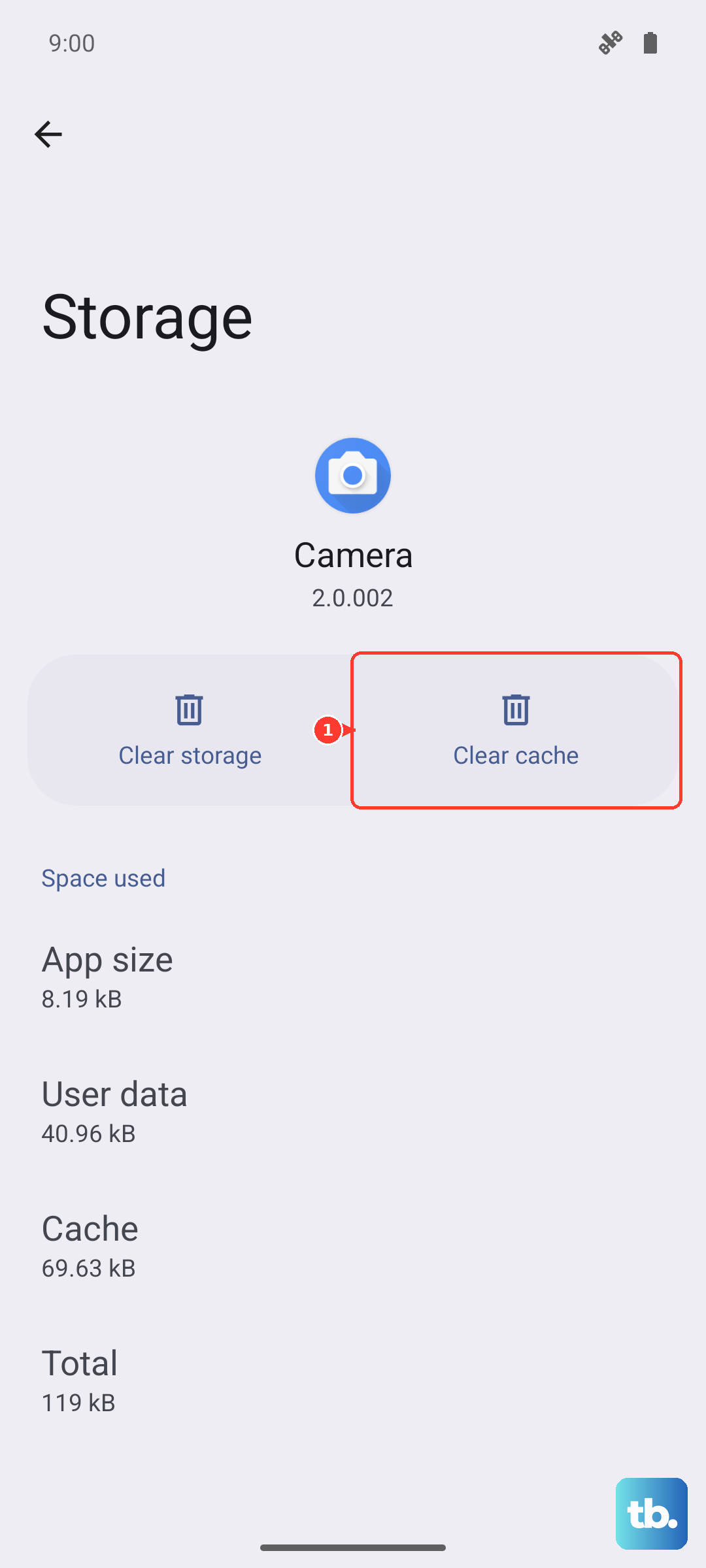
Corrupted temporary data in the Google app can cause all sorts of glitches. Go to Settings > Apps > See all apps. Find and select the Google app from the list. Tap on Storage & cache.
First, tap Clear cache. This removes temporary files without affecting your personal data. Test the Assistant. If it's still not working, you can go back and tap Clear storage (on Android 15, this might be labeled "Manage space" then "Clear all data"). Be aware this will reset the app's preferences, so you'll need to sign back in.
Review Microphone Permissions
It sounds basic, but the Google app needs explicit permission to use your microphone. Go to Settings > Privacy & security > Permission manager. Find and tap on Microphone.
Look for the Google app in the list. Make sure it's set to "Allow only while using the app" or "Allow all the time" for the "Hey Google" feature to work from any screen, including the lock screen. If it's denied, change the permission and try again.
Disable Battery Optimization for the Google App
Android's aggressive battery optimization can sometimes put the Google app to sleep, preventing it from listening in the background. In your Settings, go to Apps > Google. Tap on Battery.
Change the battery setting from "Optimized" to "Unrestricted." This tells your Pixel 9a not to restrict the app's background activity, which is crucial for the always-on listening feature of "Hey Google."
Reset All App Preferences (Last Software Step)
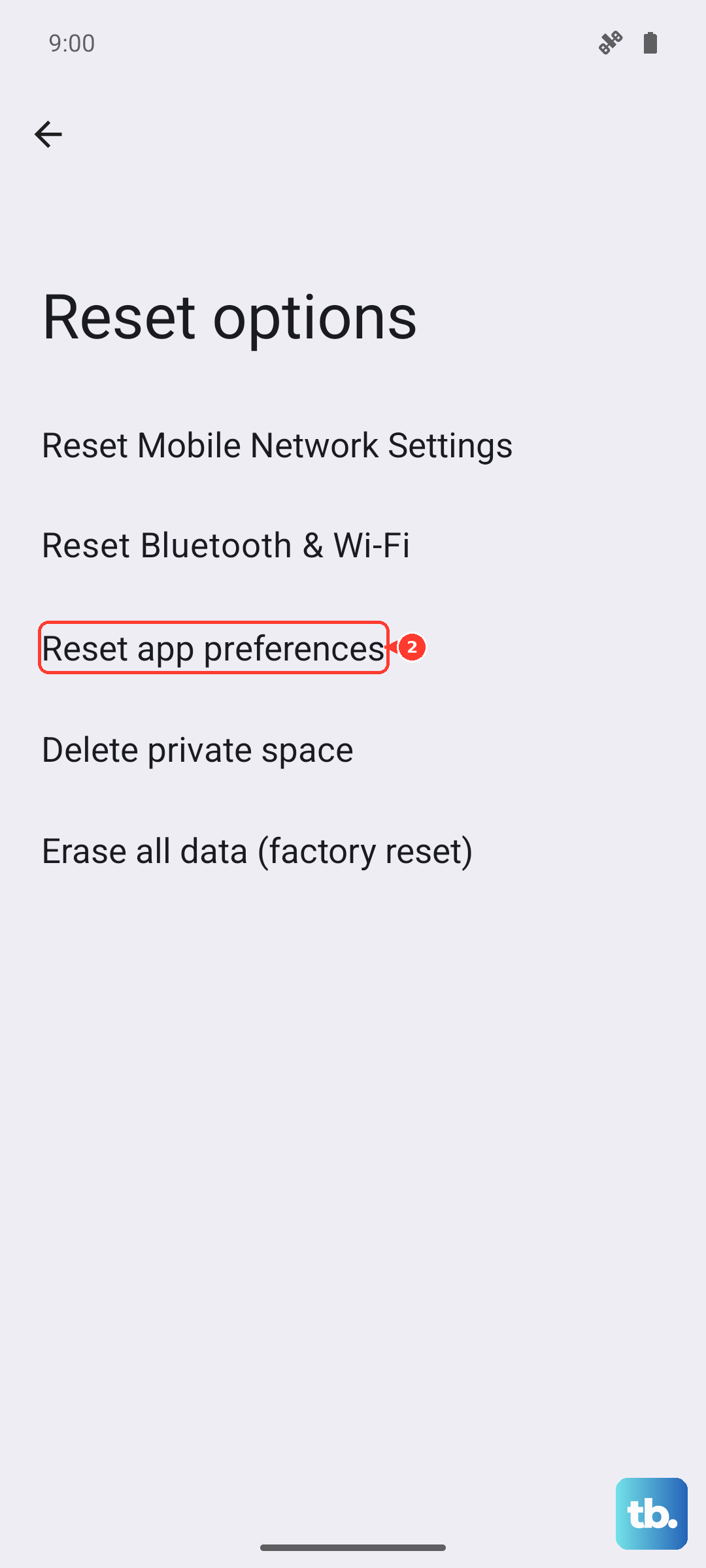
If you've tried everything else, resetting app preferences can resolve deeper conflicts without deleting any personal app data. This resets permissions, background restrictions, and default app assignments system-wide.
Go to Settings > System > Reset options. Tap on Reset app preferences and confirm. You'll then need to re-grant microphone permission to the Google app and any other apps you use, but it often clears up persistent background service issues that affect the Assistant.