Running out of space on your Google Pixel 9a can be a real headache, stopping you from taking new photos, updating apps, or even installing the latest security patch. The good news is Android 15 gives you some powerful tools to see exactly what's eating up your storage and clear it out quickly. Let's get your phone breathing easy again.
Check Your Storage Breakdown
Head to Settings > Storage. This screen is your command center, showing a color-coded breakdown of what's filling your phone. Give it a moment to calculate the totals. You'll immediately see the biggest culprits, which are almost always Photos & videos, Apps, and System files. Tapping on any category gives you a more detailed look.
Use the Built-in Cleanup Tool
Right on that main Storage screen, look for the Clean or Free up space button. This is a fantastic starting point. The Pixel's smart cleanup will suggest things like deleting downloaded files you no longer need, clearing app caches, and removing backed-up photos from your device. It's a quick way to reclaim a few gigabytes without much thought.
Manage Your Photos and Videos
This is almost always the number one storage hog. Open the Google Photos app and tap your profile picture in the top right. Go to Photos settings > Backup & sync. Make sure backup is turned on. Then, go to Photos settings > Manage storage. Here, you can use the "Free up space" tool, which safely removes photos and videos already backed up to the cloud from your phone's local storage. Also, take a few minutes to delete old screenshots, blurry shots, and duplicate videos directly in the app.
Clear App Caches and Data
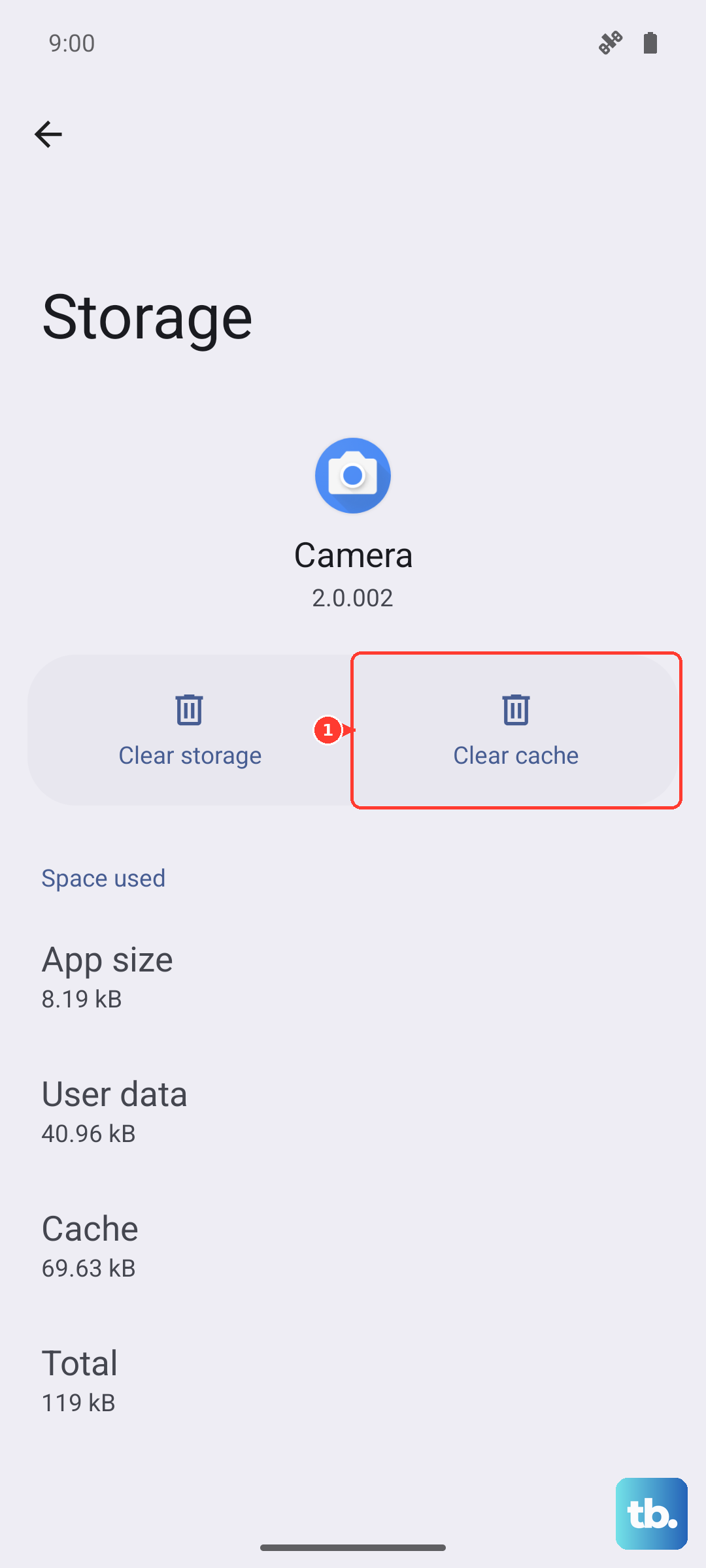
Go back to Settings > Storage and tap on Apps. You'll see a list sorted by how much space each app uses. Tap on a large app like Instagram, TikTok, or Chrome. You'll see two numbers: the app size and the data/cache. Tapping Clear cache is safe and can free up hundreds of megabytes per app. Clear storage or Clear data is more nuclear, it resets the app to a fresh install, so only use this if you're sure your data is saved to an account.
Review Downloads and Files
Over time, PDFs, APK files, and other downloads pile up. Open the Files by Google app and tap on the Clean tab at the bottom. It will scan for large, duplicate, and unused files. You can also manually browse your Downloads folder and delete anything you don't need anymore. I've found old installation files and work documents here taking up surprising amounts of space.
Manage Offline Content in Streaming Apps
Apps like Spotify, Netflix, and YouTube Music store songs, shows, and podcasts for offline listening. These downloads don't always auto-delete. Open each app and check your downloads library. In Spotify, go to Settings > Storage and tap "Remove all downloads." For YouTube Music, go to Library > Downloads to manage. Clearing these can instantly free up 5-10GB if you travel or commute a lot.
Check for System Updates
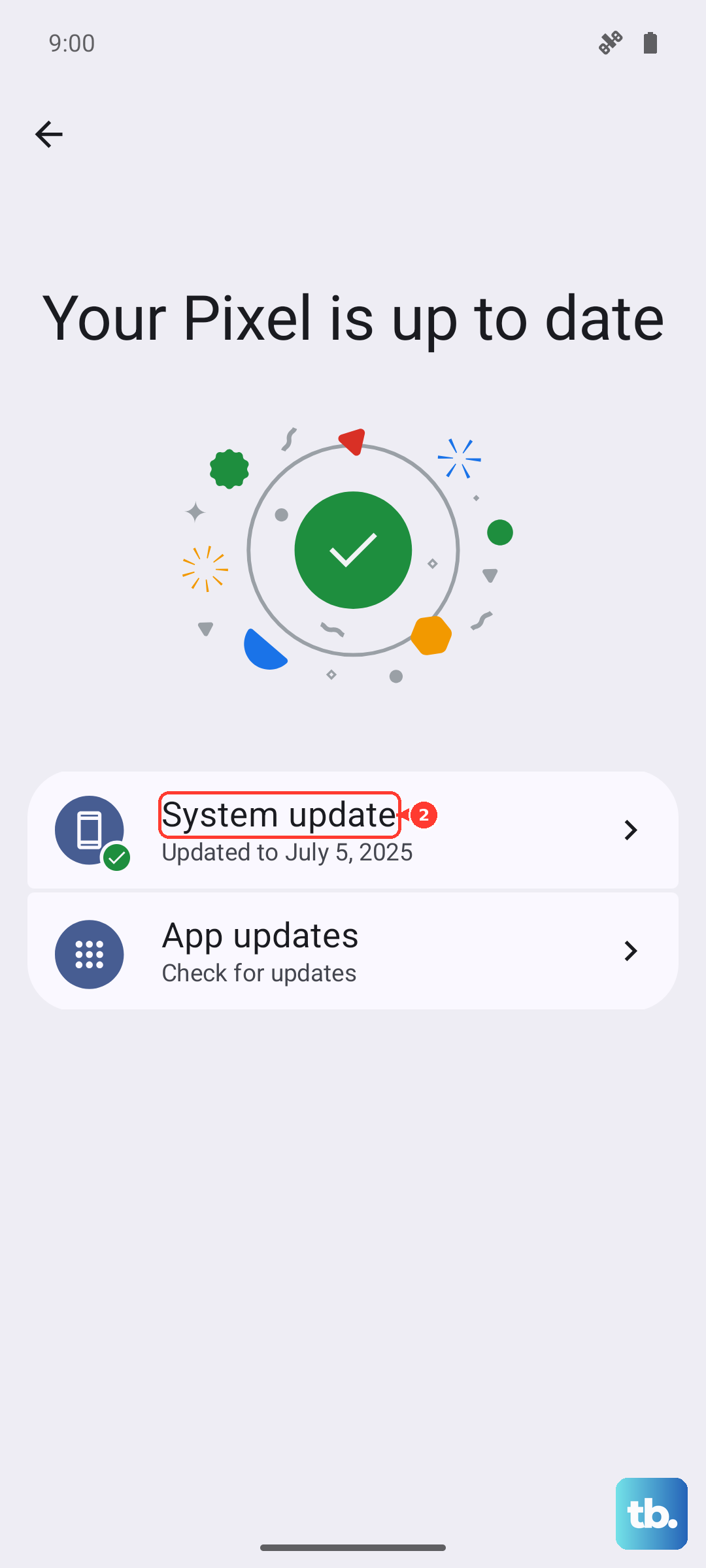
Sometimes, pending system updates can temporarily inflate the "System" storage category as they download. Go to Settings > System > Software update (labeled System update on some phones, including Nothing devices) to check for and install any available updates. After a major update, it's also a good idea to restart your phone, which can help the system clean up residual update files and re-index storage properly.
Use Google One for Deeper Insights
If you have a Google One subscription (which often comes with extra storage for your photos and Drive), its storage manager is excellent. Open the Google One app and go to the Storage section. It provides an even more detailed breakdown than the system settings and offers personalized cleanup suggestions across Photos, Gmail, and Drive, all from one place.
Consider a Factory Reset (Last Resort)
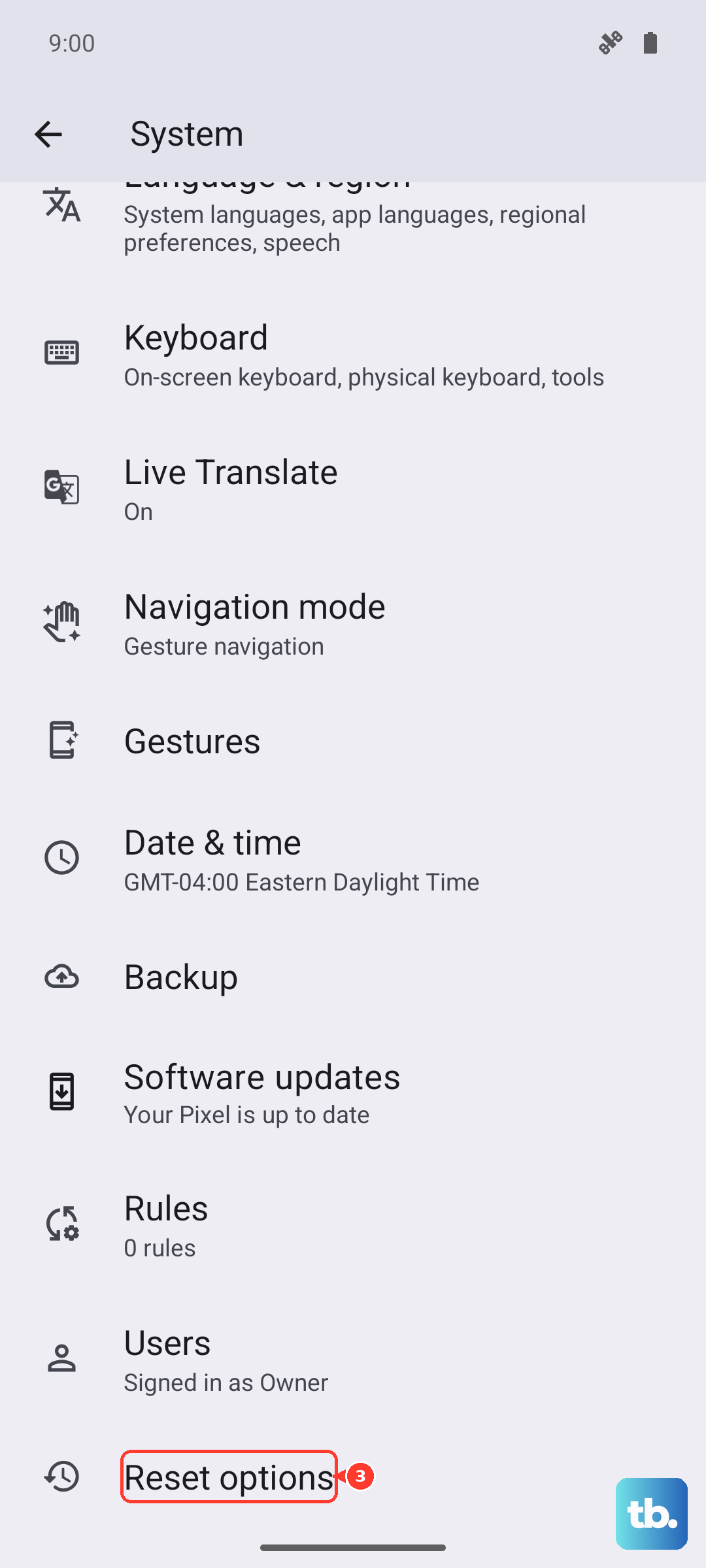
If your storage is mysteriously full and you can't account for it, or if the "System" section is taking up a bizarrely large amount of space (like 30GB+), a backup and factory reset can help. This is a last resort. First, use Google's backup feature in Settings > System > Backup. Once confirmed, go to Settings > System > Reset options > Erase all data (factory reset). After the reset, restore your backup. This process often clears out deep-seated junk files and resets storage reporting.