
When your Google Pixel 9a goes silent, it can stop you from taking calls, listening to music, or hearing notifications. This is usually a quick software hiccup or a simple setting that got changed. I'd start by checking the most common causes first, as they often solve the problem in under a minute.
Before changing anything, play a quick speaker test in your browser. It sends a tone to the left and right channels separately, so you immediately know whether the speakers produce any sound at all.
Check Your Volume and Sound Mode
First, press the volume up button on the side of your Pixel. If you see a volume slider on screen, you know the hardware buttons are working. Make sure the media volume slider is all the way up, not just the ring volume.
Next, pull down the quick settings panel from the top of your screen twice. Look for the sound mode icon, which might say "Vibrate" or show a bell with a line through it. Tap it to switch back to "Sound" mode. Sometimes a long press on the power button can also activate "Do Not Disturb" by accident.
Disconnect Bluetooth and Accessories
Your Pixel might be trying to send audio to a paired device. Swipe down and check if the Bluetooth tile is blue, indicating it's on and connected. Tap it to turn Bluetooth off completely for now.
Also, unplug any USB-C headphones, dongles, or chargers. Even a charging cable can sometimes cause the audio system to get confused about where to output sound. If you use a case, try removing it briefly to see if it's accidentally covering the bottom speaker grill.
Clean the Speaker Grills
The Pixel 9a's speaker openings at the bottom of the frame can easily collect pocket lint. Take a close look with your phone's flashlight. Use a soft, dry toothbrush or a clean, dry paintbrush to gently sweep away any visible debris.
You can also try blowing lightly across the grill, not directly into it. Never use compressed air or poke the grill with a pin, as you could damage the speaker diaphragm. This simple clean fixes more sound issues than you might think.
Restart Your Pixel 9a
A simple reboot clears out temporary glitches in Android 15 that can mute audio. Just hold the power button until the power menu appears, then tap "Restart." Wait for the phone to fully boot back up.
If the screen is unresponsive or the reboot doesn't help, you can force a restart. Press and hold the power button for about 30 seconds. Keep holding it even after you see the Google logo, until the screen goes black and the phone starts booting up again. This is the Pixel 9a's equivalent of a force reboot.
Check App-Specific Sound Settings
Sometimes the problem is isolated to one app, like YouTube or Spotify. Open the app that's having no sound. While media is playing, press the volume button and look for the app icon next to the slider. Make sure that specific volume is turned up.
You can also check the app's own settings. For example, in YouTube, tap your profile picture, go to Settings > General, and make sure "Mute sounds" is off. Some apps have internal mute switches that override the system.
Review Accessibility and System Settings
Go to Settings > Sound & vibration. Look for anything unusual. Tap "Volume" to see all sliders, media, call, alarm, and ring, and ensure they're up. Under "Advanced," make sure "Separate app sound" is not enabled, as this can route audio unexpectedly.
Next, visit Settings > Accessibility. Scroll to "Audio & on-screen text." Here, ensure "Mute all sounds" is switched off. Also, check "Hearing aids" to make sure no compatibility modes are active that could be interfering with normal speaker output.
Clear the Cache for Key Apps
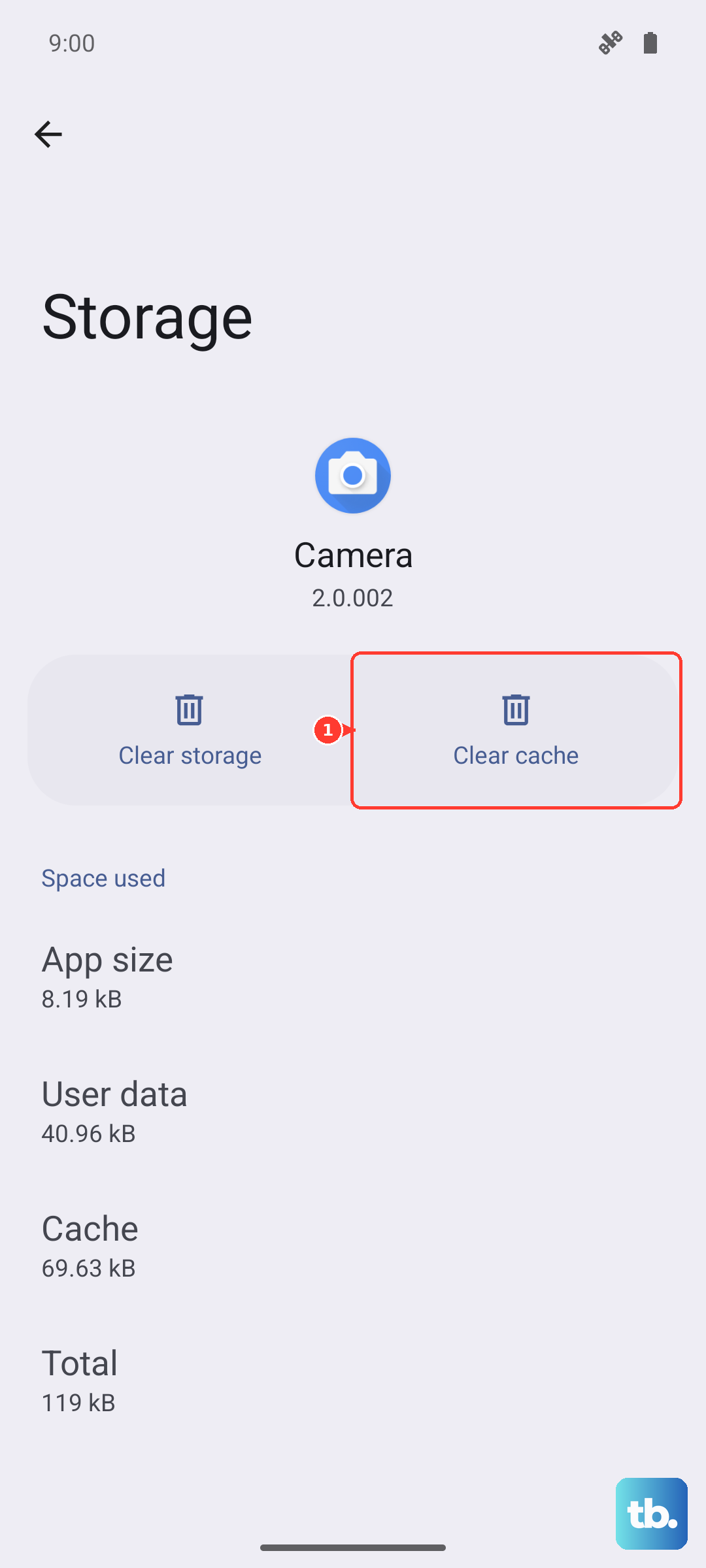
Corrupted app data can cause sound to cut out. Go to Settings > Apps and select "See all apps." Find the app where you're having sound issues, like Google Play Movies or your music player.
Tap on the app, then select "Storage & cache." Tap "Clear cache." This won't delete your personal data, just temporary files. Do this for the problematic app, and consider doing it for "Android System" if the issue is system-wide, though you'll need to search for it in the all apps list.
Update Your Software
Google frequently releases updates that fix bugs, including audio problems. Connect to Wi-Fi and go to Settings > System > System update. Tap "Check for update." If an update is available, install it.
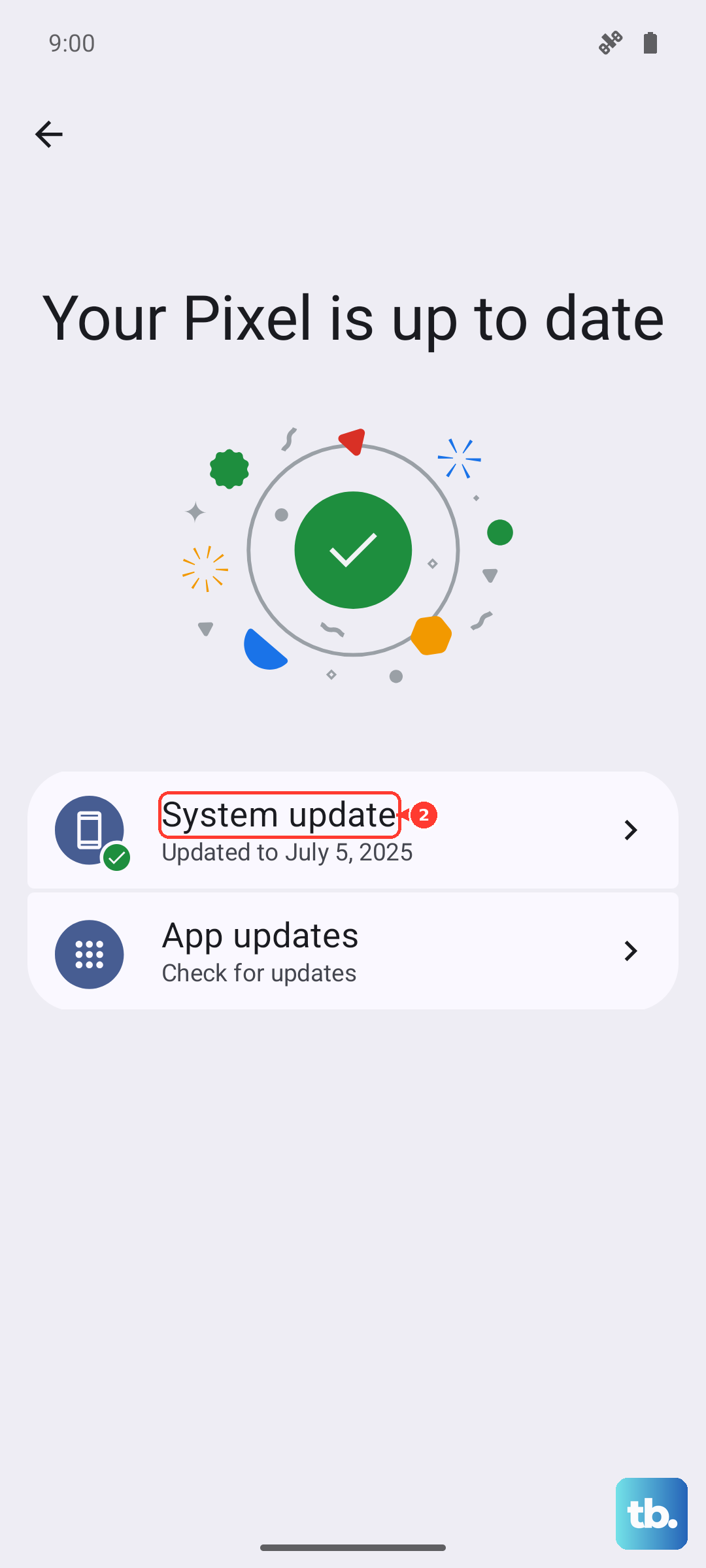
It's a good idea to plug your Pixel 9a into its charger during this process. Since the 23W charging isn't the fastest, you don't want the phone to die mid-update. A software update is one of the most reliable fixes for persistent glitches.
Boot Into Safe Mode
This tests if a third-party app you installed is causing the conflict. Press and hold the power button on screen until the power menu appears. Then, tap and hold the "Power off" option. A prompt will ask if you want to reboot into Safe Mode. Tap "OK."
If sound works normally in Safe Mode, a recently downloaded app is the culprit. Restart your phone to exit Safe Mode, then uninstall apps one by one, starting with the most recent, to find the offender. Sound-related utilities or equalizer apps are common suspects.