You tap a link on your Pixel 9a and watch the page crawl, or a video stalls on its loading wheel even though the signal bars look fine. Slow internet on a phone this capable feels especially frustrating, because the Pixel 9a runs on the Tensor G4 chip and supports both 5G Sub-6 GHz mobile data and Wi-Fi 6E across the 2.4, 5, and 6 GHz bands. The good news is that most slowdowns trace back to a radio that needs a nudge, a setting that quietly throttles your data, or a network that needs resetting. Work through the fixes below in order, starting with the quickest and safest, and stop as soon as your speed returns.
Reset the Radios With Two Quick Toggles
Before changing any deeper settings, give the phone's wireless radios a fresh start. This clears a stale connection that may be stuck handing off between towers or struggling to reconnect to your router. Google lists these toggles among the first steps for fixing Wi-Fi connection problems, and they help mobile data re-register on the network too.
- 1.Open Settings > Network & internet.
- 2.Turn Wi-Fi off, then turn it back on.
- 3.Turn Airplane mode on, wait a few seconds, then turn it off again.
Give the phone a moment to find your network again after the toggles, then load a page or run a quick test to see whether the speed has improved.
Give the Pixel 9a a Proper Restart
A simple restart clears temporary glitches that build up while the phone runs for days at a time, and it often fixes a connection that has gone sluggish for no obvious reason. The Pixel 9a follows Google's "Pixel 6 and later" instructions, so the button sequence differs from older Pixels.
Press and hold the Power button and the Volume up button together for a few seconds.
Then tap Restart.
If the phone is frozen and will not respond, force a restart instead.
Press and hold the Power button for up to 60 seconds.
Release it once the phone reboots and the "G" logo appears.
The older method of holding Power for 30 seconds applies only to the Pixel 5a and earlier, so do not use it on the 9a.
Confirm Mobile Data and the Correct SIM Are Switched On
If the slowdown happens on cellular rather than Wi-Fi, the first thing to verify is that mobile data is actually enabled and pointed at the right SIM. This matters especially on the Pixel 9a because it supports both eSIM and dual-SIM, so it is easy to have data running on the wrong line. This is Google's first official check for mobile connectivity problems.
Go to Settings > Network & Internet > SIMs.
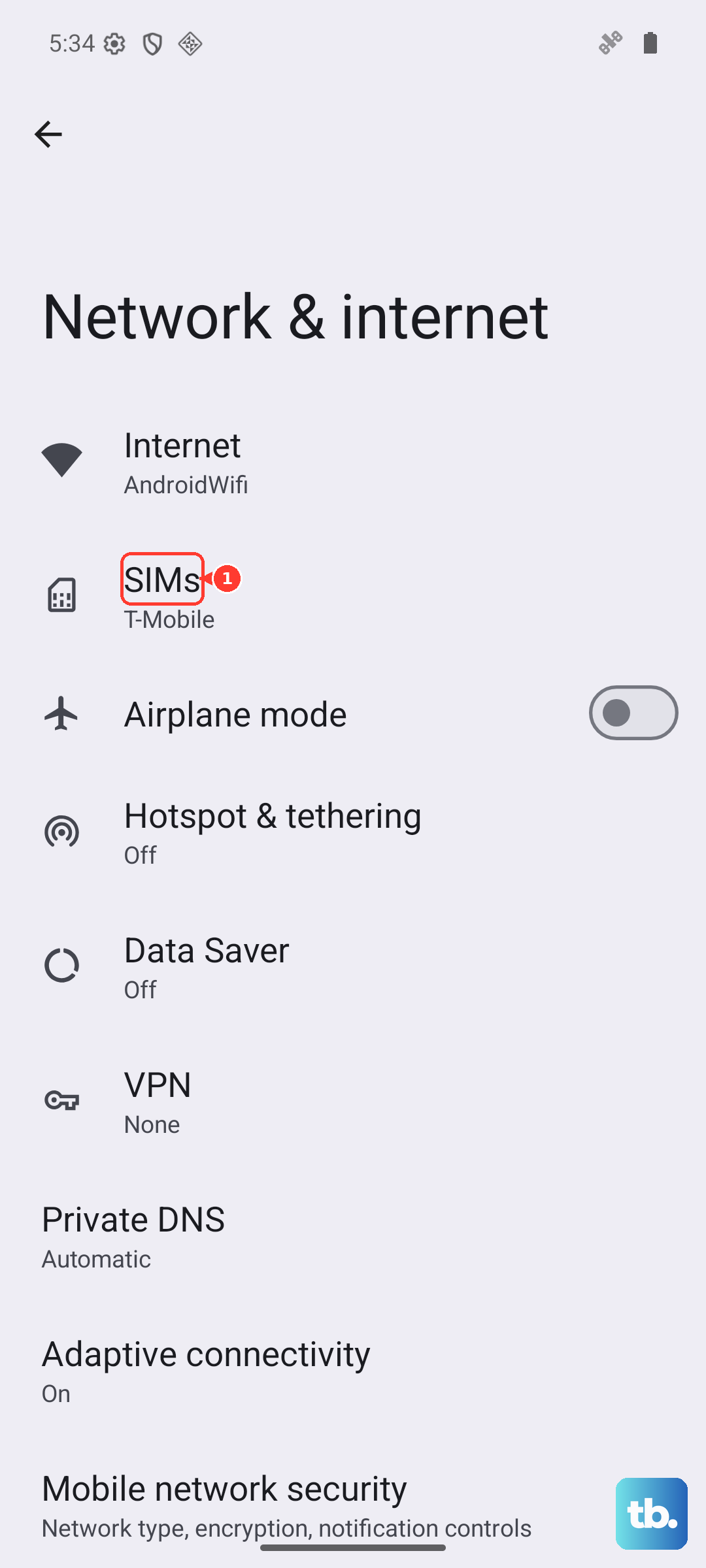
Make sure Mobile data is on.
Tap your carrier's name and confirm Use SIM is turned on.
Choose the Right Network Type and Check Your Signal
Forcing the phone onto a slower network mode, or sitting in a weak-coverage spot, will both feel like a slow connection. The Pixel 9a supports 5G Sub-6 GHz, so the recommended setting gives you the fastest available data where coverage allows.
Open Settings > Network & Internet > SIMs and select your carrier.
Tap Preferred network type and choose 5G (recommended). LTE, 3G, and 2G are also available if needed.
Turn Wi-Fi off in Settings > Network & Internet > Internet, then check the signal-strength indicator in the top-right corner.
If the signal looks weak, move to a spot with better reception.
If it stays weak in places where it should be strong, contact your carrier about coverage in your area.
Switch Off Data Saver
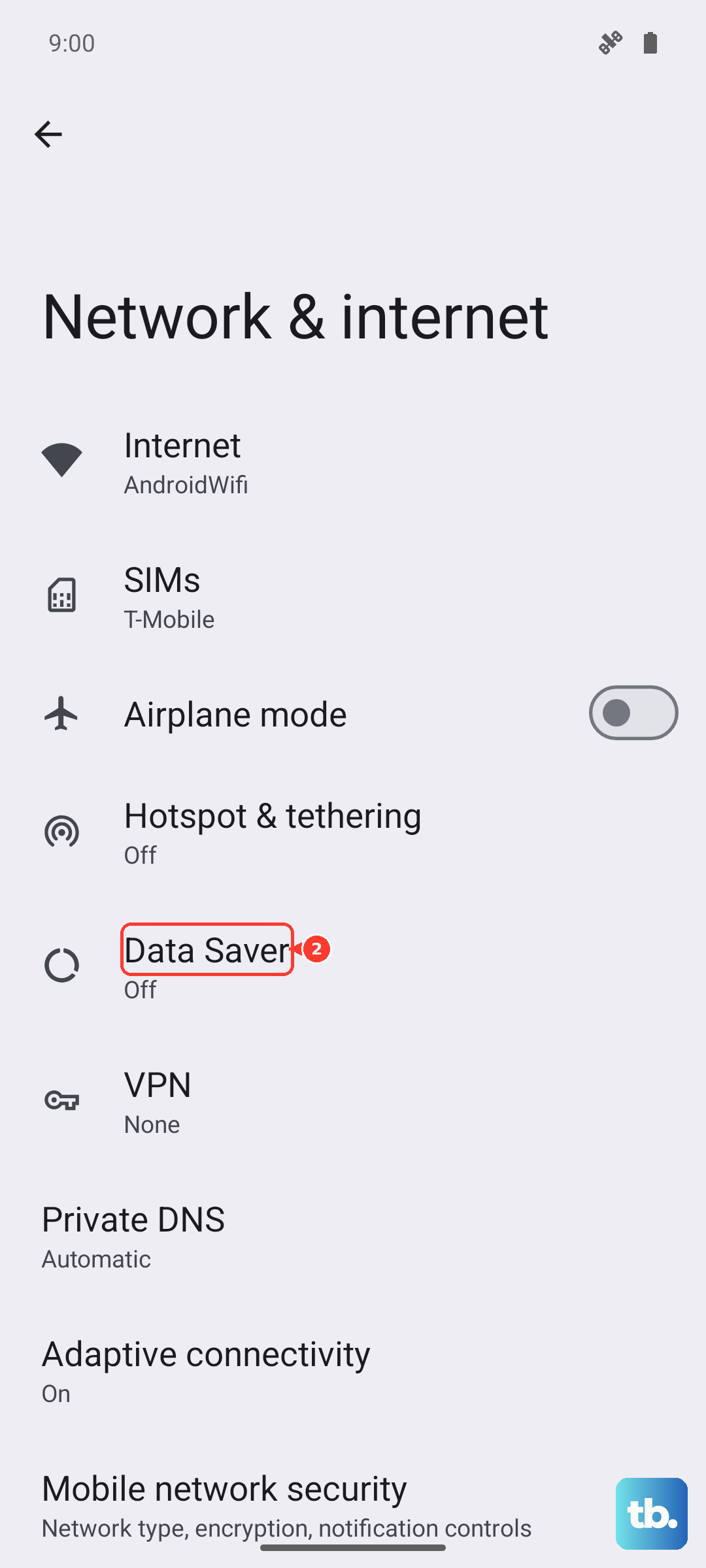
Data Saver limits background data to reduce your usage, but a side effect is that connections can feel slow as the phone holds back traffic. If you turned it on at some point and forgot, this alone can explain a sluggish experience. When it is active you will see a Data Saver icon in the status bar.
Open Settings > Network & internet > Data Saver.
Fix the Date and Time, Then Rejoin Your Wi-Fi Network
An incorrect date or time can quietly break Wi-Fi, because secure connections rely on the clock being accurate. Setting the time automatically is the safe fix, and following it with a clean reconnection to your network clears any corrupted saved settings.
Go to Settings > System > Date & time and turn on Set time automatically.
Next, go to Settings > Network & internet > Internet > Saved networks.
Select your network and tap Forget.
Choose Add network and re-enter the password.
Reconnecting from scratch forces the phone to negotiate a fresh link with your router, which often clears up a slowdown that only affects one specific network.
If the trouble shows up only on this network while other connections work fine, restart your home networking gear too.
Unplug the power cords from both the router and the modem.
Wait 15 seconds.
Plug them back in with the cable connections seated.
Wait for the normal lights to return before reconnecting.
Rule Out a Misbehaving App With Safe Mode
A downloaded app can interfere with your connection in the background, and safe mode is the cleanest way to test for that, because it temporarily loads the phone without any apps you installed yourself.
Press and hold the Power and Volume Up buttons for a few seconds.
After that, tap and hold either Power off or Restart.
Tap OK to enter safe mode.
Try your connection again in Settings > Network & internet > Internet.
If the internet behaves normally in safe mode, a downloaded app is the cause.
Restart the phone to exit safe mode (Power and Volume up, then Restart).
Then uninstall recently added apps one at a time until the slowdown disappears.
Install the Latest Software Update
Connectivity bugs are frequently fixed in software, and the Pixel 9a is well supported on this front. It launched with Android 15 and is eligible for 7 years of OS and security updates, so keeping it current is one of the most reliable ways to clear a lingering network problem.
Open Settings > System > Software update.
Check for an available update and install it if one is offered.
Reset the Network Settings
If the connection is still slow after everything above, resetting the network configuration wipes out misconfigured settings without touching your photos, apps, or other personal data. There are two separate resets depending on whether the trouble is on Wi-Fi or cellular.
For Wi-Fi and Bluetooth, go to Settings > System > Reset options > Reset Bluetooth & Wi-Fi > Reset settings.
For mobile data, go to Settings > System > Reset options > Reset mobile network settings.
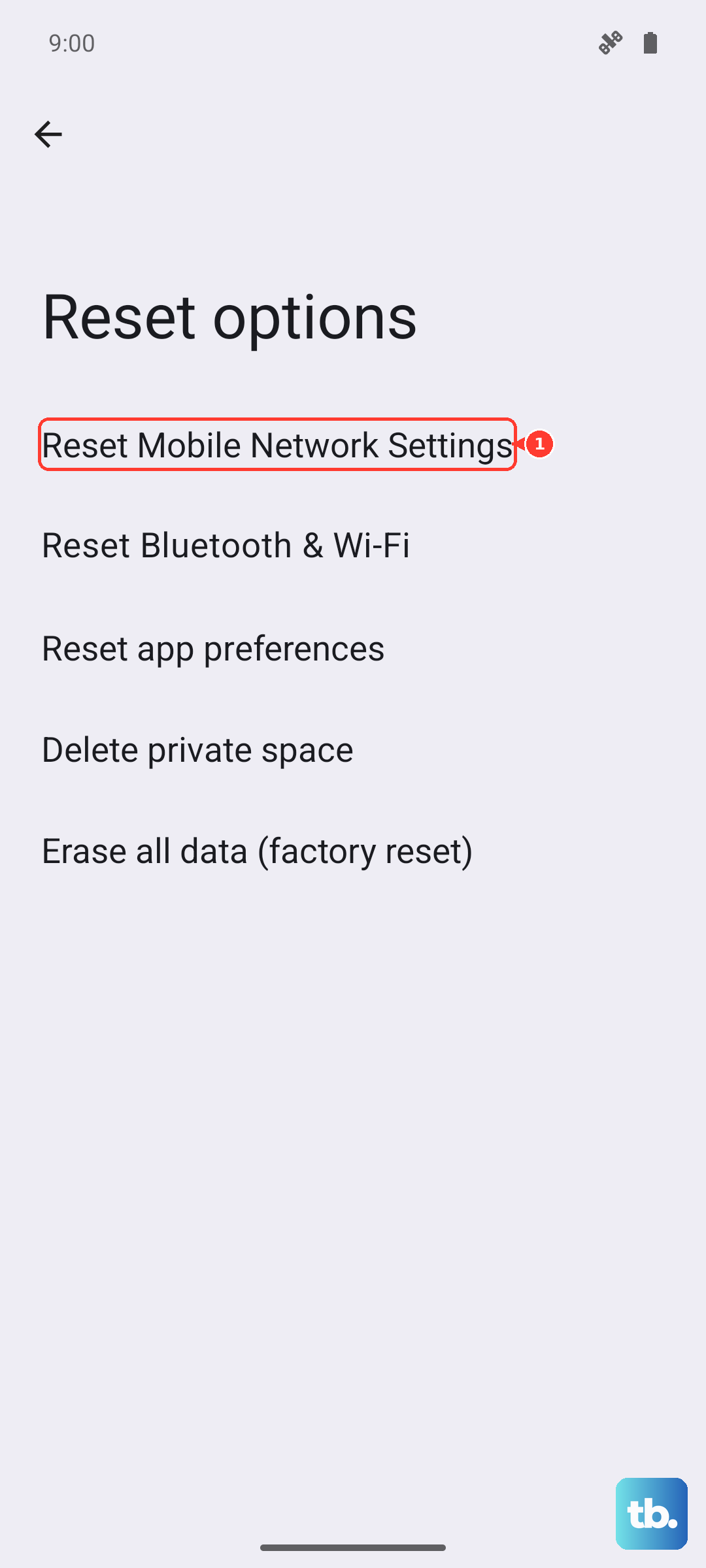
This clears saved networks and your network configuration, so you will need to rejoin Wi-Fi networks and re-enter their passwords afterward.
When Nothing Else Works, Reset the Phone or Call for Help
A factory reset is the last resort, because it removes everything, so only reach for it once the steps above have failed. Back up your data first, since this cannot be undone. Google warns that "A factory reset erases all your data from your phone."
Charge the phone to at least 70 percent first; the process can take up to an hour.
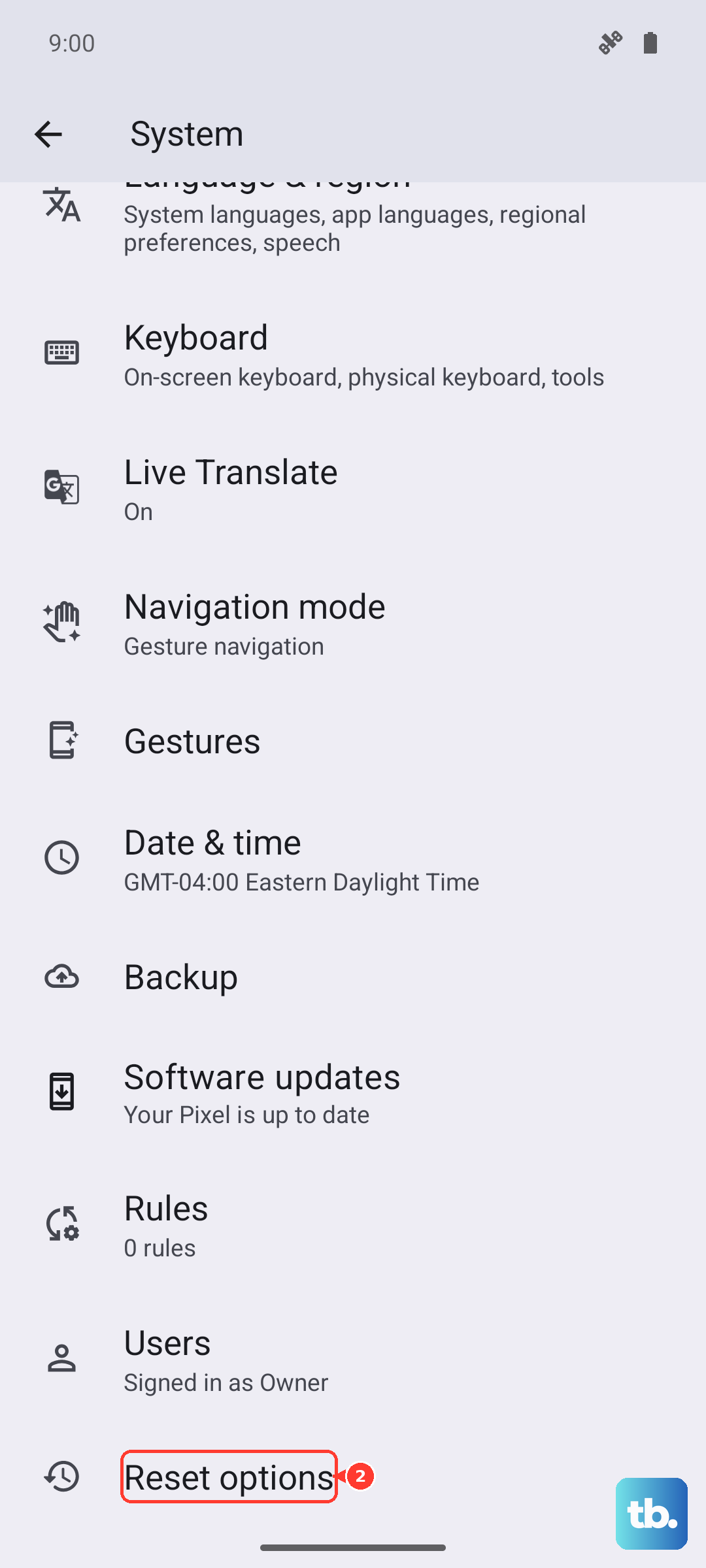
Go to Settings > System > Reset options > Erase all data (factory reset).
If the slow internet continues even after a reset, the issue is likely outside the phone. Contact your carrier to ask about outages in your area or a problem with your plan.
Frequently Asked Questions
Why is my Pixel 9a internet slow even though the signal looks strong?
Full signal bars only mean the phone has a connection, not that data is flowing quickly. A stuck radio, an enabled Data Saver, the wrong preferred network type, or a router problem can all slow things down despite a strong-looking signal. Start with the Wi-Fi and Airplane mode toggles, then check Data Saver and your preferred network type.
Will resetting network settings on the Pixel 9a delete my photos or apps?
No. Resetting Bluetooth and Wi-Fi or resetting mobile network settings only clears saved networks and your network configuration, not your personal data. You will need to rejoin your Wi-Fi networks and re-enter their passwords afterward.
How do I force restart a frozen Pixel 9a?
Press and hold the Power button for up to 60 seconds, then release it once the phone reboots and the "G" logo appears. The 30-second Power-only method does not apply to the Pixel 9a; it is only for the Pixel 5a and earlier.
Should I use 5G or LTE on the Pixel 9a for the fastest internet?
The Pixel 9a supports 5G Sub-6 GHz, and Google marks 5G as the recommended preferred network type. You can set it under Settings > Network & Internet > SIMs > your carrier > Preferred network type. LTE, 3G, and 2G remain available if you need to fall back in an area with poor 5G coverage.
Could an app be slowing down my Pixel 9a's connection?
Yes. Restart into safe mode and test your connection; if it works normally there, a downloaded app is likely the cause. Exit safe mode by restarting, then uninstall recently added apps one at a time until the slowdown stops.