
Seeing the "Settings keeps stopping" pop-up on your Google Pixel 9a can stop you in your tracks. It's a common Android hiccup, often tied to a bit of corrupted data or a temporary system glitch. The good news is you can almost always fix it yourself without losing any of your stuff.
Restart Your Pixel 9a
This is the universal first step for a reason. A simple restart clears out the phone's working memory and stops any minor processes that might be tripping up the Settings app. Just press and hold the Power button and Volume Up button together until the power menu appears, then tap "Restart."
If the Settings app is crashing so badly you can't even get to that menu, you'll need to force a restart. Press and hold the power button for about 30 seconds, and don't let go when you see the Google logo. Keep holding until the screen goes black and the phone starts booting up again.
Clear the Settings App Cache and Data
Cache files help apps load quickly, but they can get corrupted. Clearing them forces the app to rebuild those files from scratch. Since Settings is a system app, you can't uninstall it, but you can clear its stored data.
Go to Settings > Apps > See all apps. Find and tap on "Settings" in the list. Then, tap Storage & cache. Tap "Clear cache" first. If that doesn't work, come back here and tap "Clear storage" (this is sometimes labeled "Clear data" on other Android phones).
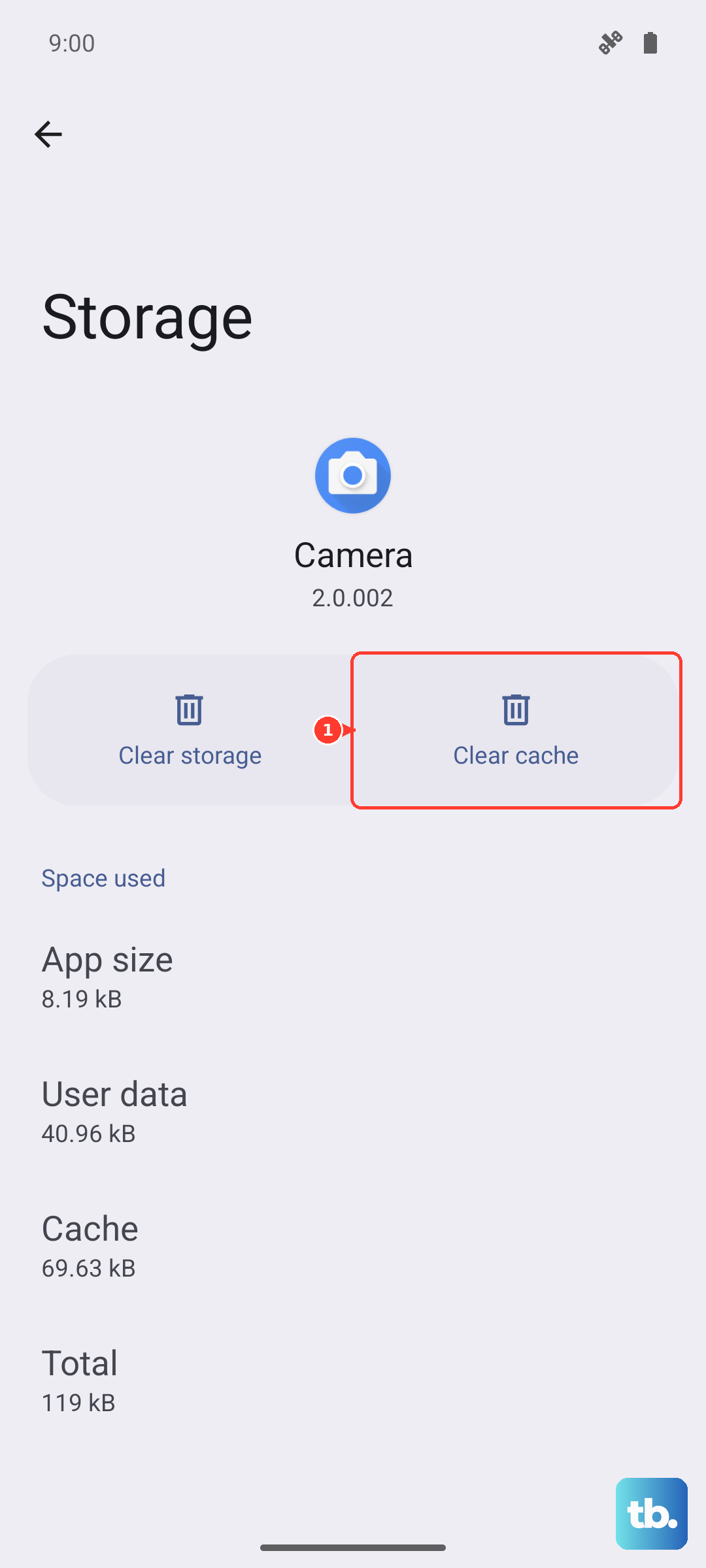
Clearing the storage will reset the Settings app to its default state, so you might lose some customizations like your saved Wi-Fi passwords or paired Bluetooth devices. It won't delete your photos, messages, or other personal data.
Check for a System Update
Google frequently releases updates that fix bugs. An outdated version of Android 15 could be the culprit behind your crashing Settings. To check, you need to get into Settings, so if it's crashing immediately, try using the force restart method above first.
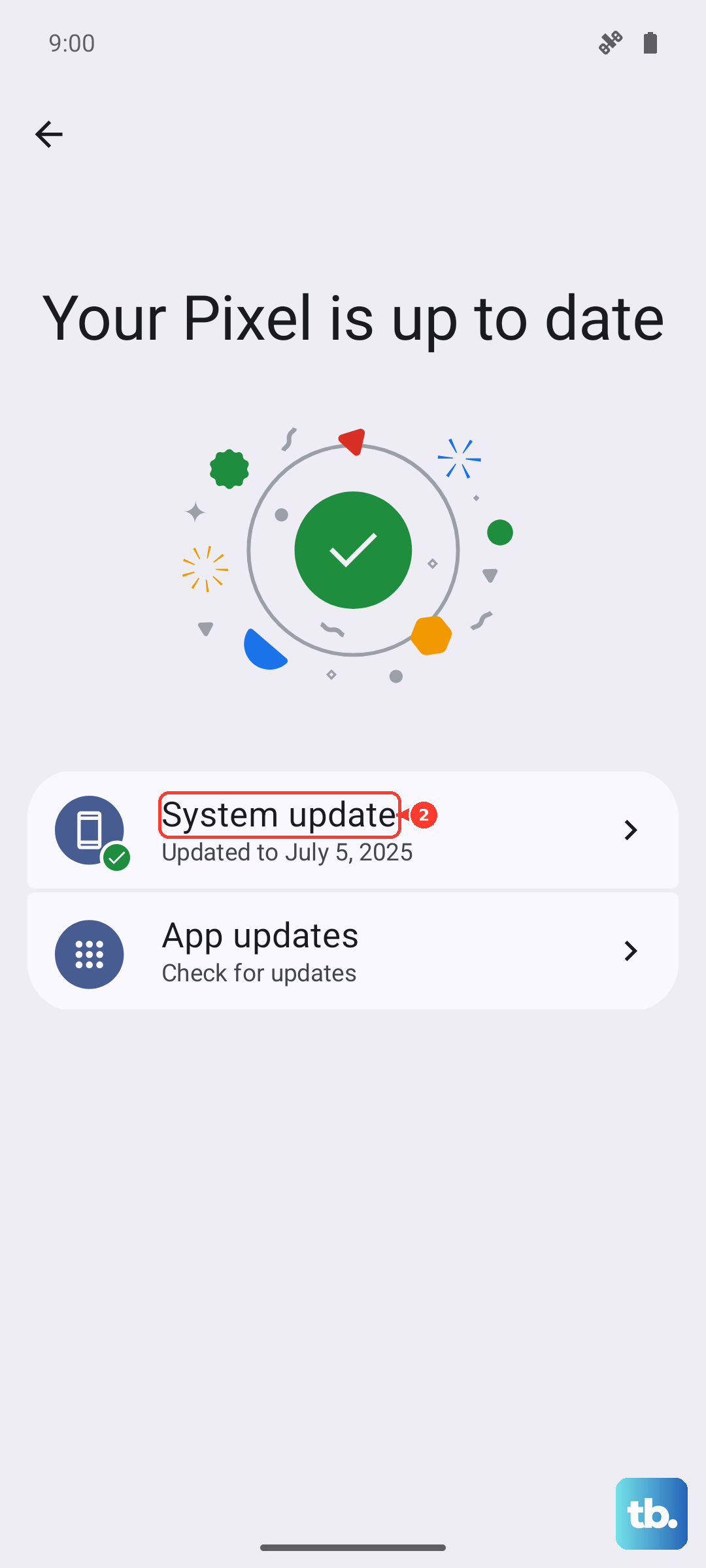
Once you're in, go to Settings > System > System update. Tap "Check for update." If an update is available, install it. I'd recommend plugging your phone into a charger first, as the Tensor G4 chip can drain the battery during an update, especially if your signal is weak.
Update Google Play System
This is different from the regular Android system update. Google Play system updates deliver critical security patches and core platform fixes that can resolve app stability issues. It's a common fix for system app crashes on Pixels.
Navigate to Settings > Security & privacy > System & updates > Google Play system update. Tap "Check for update" and install anything available. After it installs, your phone will likely need a quick restart.
Boot Into Safe Mode
Safe Mode temporarily disables all third-party apps you've downloaded. If Settings works perfectly in Safe Mode, you know a recently installed app is causing the conflict. To enter Safe Mode, press and hold the Power button and Volume Up button together until the power menu appears.
Then, press and hold the "Power off" option on your screen. A prompt will appear asking if you want to reboot to Safe Mode. Tap "OK." Your phone will restart, and you'll see "Safe mode" in the bottom corner. Test the Settings app now.
If it's stable, you'll need to identify the problematic app. Think about what you installed or updated just before the crashes started. You can uninstall apps one by one from Settings > Apps while in normal mode until the problem stops.
Reset App Preferences
This is a less nuclear option than a factory reset. It resets all your app permissions, default apps, and background data restrictions back to their original settings. It won't delete any app data or personal files.
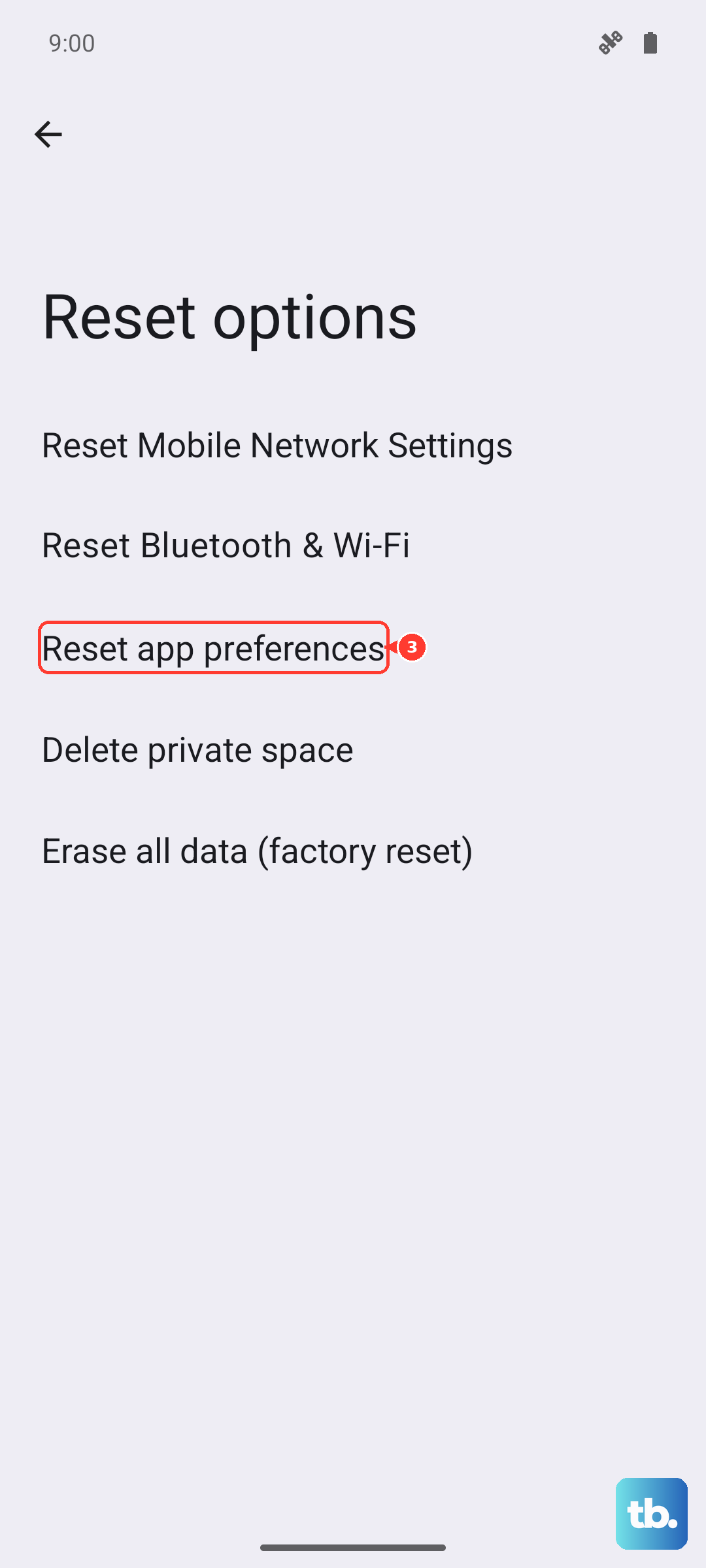
Go to Settings > System > Reset options. Tap "Reset app preferences." Confirm your choice. Afterward, you'll need to re-grant permissions to apps when you use them next, but it can clear up conflicts that cause system apps to fail.
Perform a Factory Reset
If nothing else has worked, a factory reset is the final step. This will erase everything on your phone and return it to its out-of-the-box state. You must back up your data first using Google One or by manually transferring files to a computer.
Since the Settings app might be inaccessible, you can trigger the reset from the recovery menu. First, power off your Pixel 9a completely. Then, press and hold the power button and volume down button together until you see the Android recovery screen.
Use the volume buttons to highlight "Wipe data/factory reset" and press the power button to select it. Confirm your choice on the next screen. After the reset is complete, select "Reboot system now." Set up your phone as new to see if the issue is resolved.