
Missing notifications on your Pixel 9a means you could be missing messages, emails, or alerts without even knowing it. It's a common hiccup with Android, but it's usually something you can fix yourself. Let's get those alerts showing up again.
I'd start with the simplest fix first. Just restart your phone. Press and hold the power button, then tap "Restart." This clears out any temporary software glitches that might be blocking notifications. It takes about a minute and solves the problem more often than you'd think.
Check Your Notification Settings for Each App
Android 15 gives you very granular control over notifications. The first place to look is in the settings for the specific app that's not alerting you. Go to Settings > Apps > [App Name] > Notifications.
Make sure notifications are turned on for that app. You can also check the different notification categories here. For an app like Gmail, you might have alerts for "Primary" turned on but "Promotions" turned off.
Disable Battery Optimization for Key Apps
Android's battery optimization is great for longevity, but it can sometimes be too aggressive and stop apps from checking for new messages in the background. To fix this, go to Settings > Apps > [App Name] > Battery.
Change the battery setting from "Optimized" to "Unrestricted." This tells your Pixel 9a to let that app run more freely in the background, which is crucial for timely notifications. I'd only do this for your most important messaging and email apps.
Ensure Do Not Disturb and Focus Modes Are Off
Swipe down from the top of your screen twice to open the full Quick Settings panel. Look for the "Do Not Disturb" icon (a circle with a line through it). If it's highlighted, tap it to turn it off.
Also, check if any scheduled "Focus" modes are active. You can find these in Settings > Digital Wellbeing & parental controls > Focus mode. These modes can silence notifications from selected apps.
Clear the Cache for the Problem App
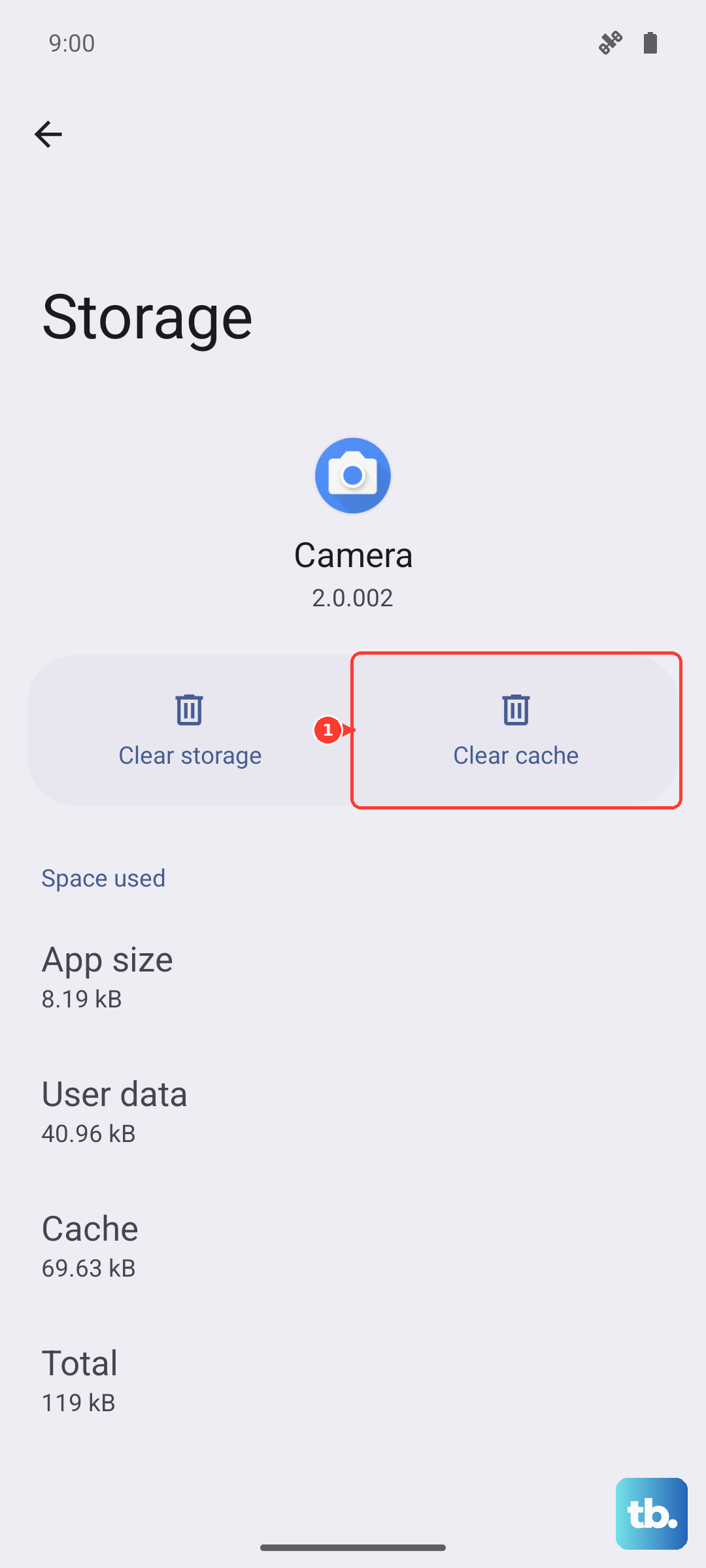
Corrupted temporary files in an app's cache can break its notification function. Clearing it is safe and won't delete your login info or data. Head to Settings > Apps > [App Name] > Storage & cache.
Tap "Clear cache." After doing this, force close the app by swiping it away from your recent apps overview, then open it again. This gives it a fresh start.
Update the App and Your Android System
An outdated app might have a bug that breaks notifications. Open the Google Play Store, tap your profile icon, and go to "Manage apps & device." Install any pending updates, especially for the app giving you trouble.
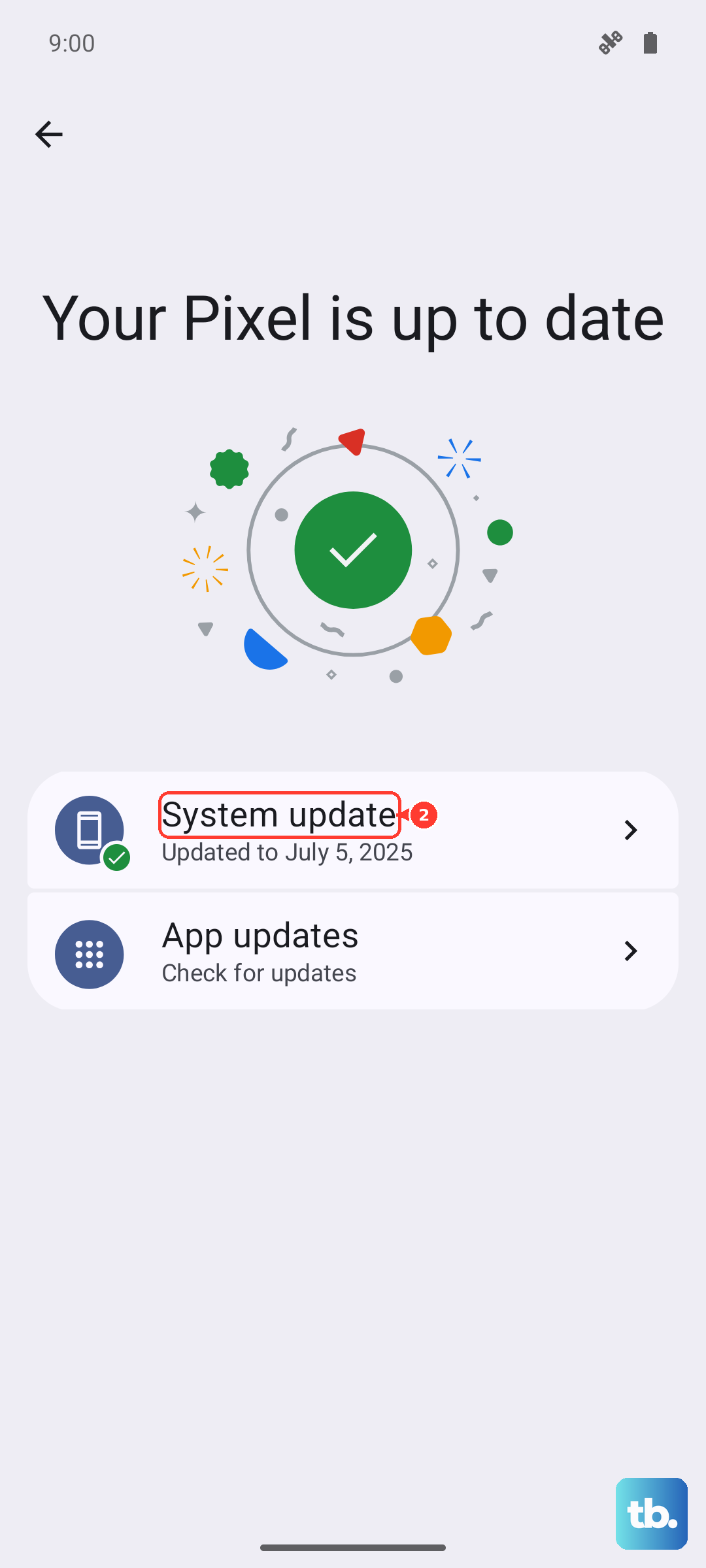
Next, check for a system update. Google frequently patches issues with Pixel devices. Go to Settings > System > System update to see if Android 15 has a newer security patch or bug fix waiting for you.
Review Notification Permissions and Special App Access
Some apps need special permission to pop up notifications on your screen. Go to Settings > Apps > Special app access > Notification access.
See if the app in question is listed and has permission granted. Also, in the main Settings > Notifications menu, look for an option called "Notification history" and make sure it's enabled. This lets you see a log of recent alerts, which is useful for troubleshooting.
Reset App Preferences (This Won't Delete Your Data)
This is a broader fix that resets all your app-related system settings to default without touching your personal data. It will reset permissions, background restrictions, and notification settings for all apps.
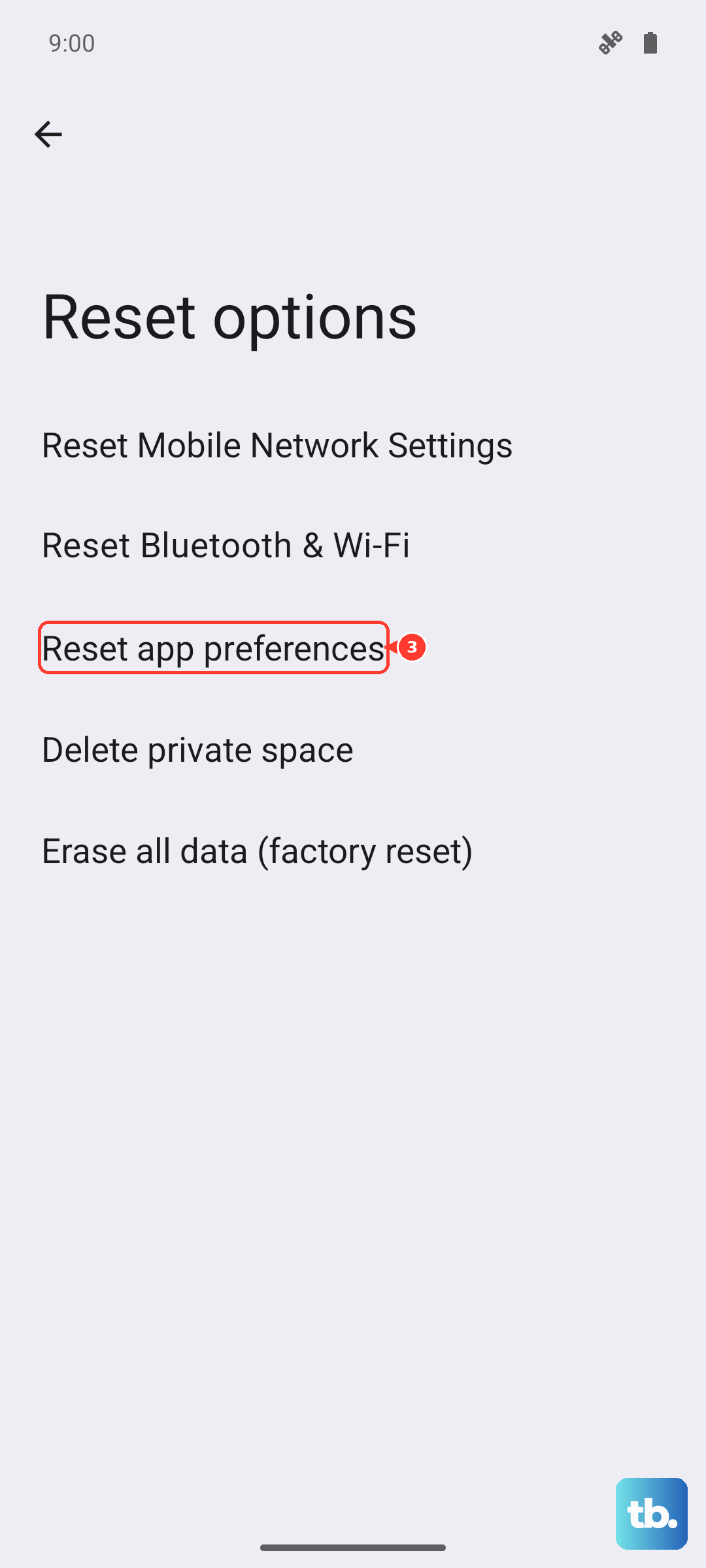
You'll need to re-allow notifications for your apps afterward, but it can clear up weird conflicts. Go to Settings > System > Reset options > Reset app preferences and tap "Reset."
Check for Network and Signal Issues
If you're only missing notifications on mobile data, it could be a connectivity problem. The Tensor G4 modem in the Pixel 9a can sometimes struggle in weak coverage areas.
Try toggling Airplane mode on and off from the Quick Settings panel. This resets your cellular radio. You can also try switching between 5G and LTE in Settings > Network & internet > Internet > (tap the gear next to your carrier) to see if one is more reliable.
Disable Any Third-Party Battery Savers or Cleaners
Apps from other developers that promise to boost battery life or clean your phone can interfere with Android's normal notification system. They might force-stop apps running in the background.
If you have any such apps installed, try uninstalling them temporarily to see if your notifications return. Your Pixel 9a has excellent built-in battery management with features like Adaptive Battery, so these third-party tools are usually unnecessary.
As a Last Resort, Perform a Force Restart
If the phone is feeling sluggish and notifications are stuck, a standard restart might not be enough. A force restart can clear deeper system processes. On the Pixel 9a, you just press and hold the power button for about 30 seconds.
Keep holding it until you see the Google logo appear on the screen, then release. The phone will reboot. This is different from a normal restart and can resolve temporary system freezes that affect all functions, including alerts.