
If your Google Pixel 9a shows a persistent "Not registered on network" error, you're stuck without calls, texts, or mobile data. This means your phone can't properly identify itself to your carrier's towers. On Pixel phones, this can sometimes be linked to the modem software, especially in areas with weak signal where the Tensor G4 modem can struggle.
Before diving deep, the quickest thing to try is toggling Airplane Mode. Swipe down twice from the top of your screen to open the Quick Settings panel and tap the Airplane Mode icon. Wait about 15 seconds, then tap it again to turn it off. This forces your phone's radio to reconnect to the network from scratch and often resolves a temporary glitch.
Restart Your Pixel 9a
A full restart clears out temporary software bugs that can interfere with network registration. Just press and hold the power button, then tap "Restart" on the screen. Wait for the phone to completely boot up before checking your signal.
If your phone is frozen and won't respond to the screen, you'll need to force a restart. Press and hold the power button for 30 seconds or more, until you feel a vibration and see the Google logo appear. This is the equivalent of pulling the battery and can kick-start a stuck radio process.
Check Your SIM Card
A loose or dirty SIM card is a common culprit. Power off your Pixel 9a first. Then, use the SIM eject tool (or a small paperclip) to pop open the SIM tray on the bottom edge of the phone.
Carefully remove the SIM card and give both the gold contacts on the card and the inside of the tray slot a gentle wipe with a soft, dry cloth. Blow out any dust, reseat the card firmly, and push the tray back in until it clicks. Power the phone back on and see if it finds the network.
Verify Your Carrier Account
Sometimes the issue is on your carrier's end, not your phone. An unpaid bill, expired prepaid plan, or a service suspension will block registration. I'd recommend checking your account status using your carrier's app on Wi-Fi, or by calling customer service from another phone.
It's also worth confirming that your Pixel 9a is actually compatible with your carrier's network bands, though this is rarely an issue with major providers.
Update Your Software
Google frequently releases updates that fix connectivity bugs. An outdated version of Android 15 could have a known issue that's already been patched. Go to Settings > System > System update and tap "Check for update."
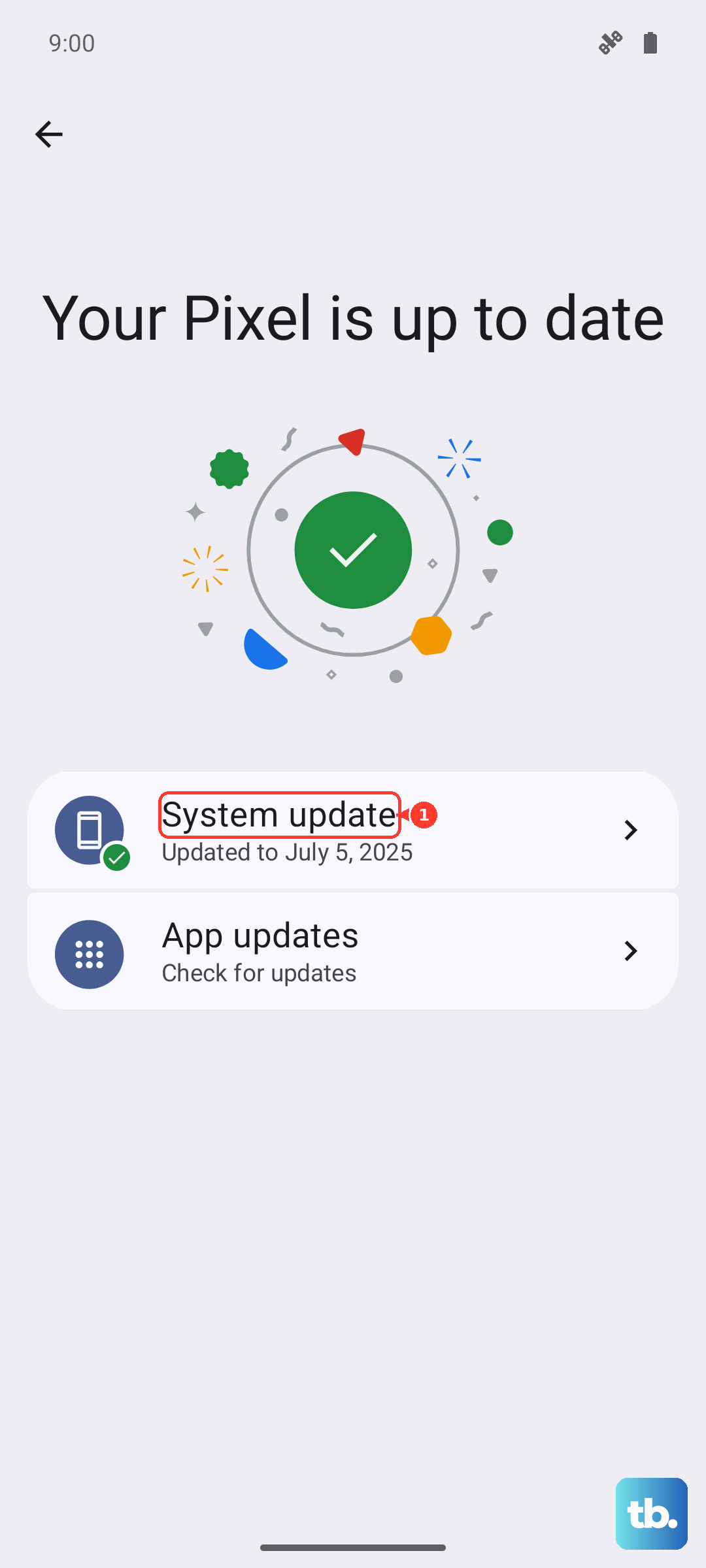
If an update is available, install it. Make sure your phone is connected to Wi-Fi and has at least a 50% charge, or better yet, plug it into a USB-PD charger. These updates can take 15-20 minutes and will restart your phone when complete.
Reset Your Network Settings
This clears all your saved Wi-Fi networks, Bluetooth pairings, and cellular configurations, forcing your phone to rebuild them fresh. It's a very effective fix for persistent network problems.
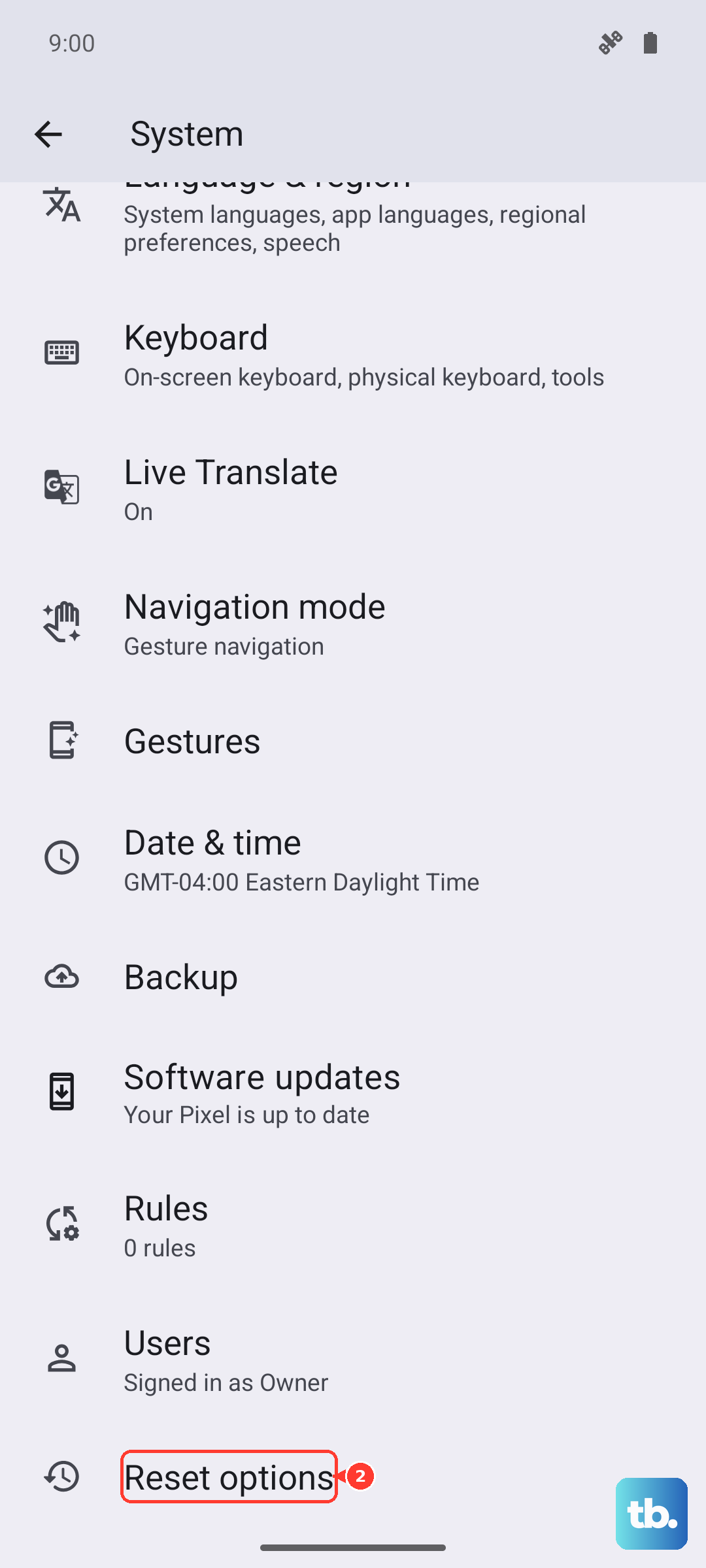
Go to Settings > System > Reset options. Tap "Reset Wi-Fi, mobile & Bluetooth." You'll need to confirm your PIN or pattern, and then tap "Reset settings." Your phone will restart. Afterward, you'll have to reconnect to Wi-Fi and re-pair Bluetooth devices, but it often solves the registration error.
Manually Select Your Network
Your phone might be trying to latch onto a specific network tower or band that's having issues. You can tell it to search for all available options. Go to Settings > Network & internet > SIMs.
Tap on your active SIM, then tap "Network operators." Turn off the "Choose automatically" toggle. Your phone will search for a moment, then show a list. Select your carrier's name from the list. If it connects, turn "Choose automatically" back on afterward.
Change Your Preferred Network Type
In some locations, 5G coverage can be spotty. If your Pixel 9a is stubbornly trying to connect to a weak 5G signal, it might fail to register. You can temporarily switch it to use 4G/LTE, which is more universally stable.
Go back to Settings > Network & internet > SIMs and tap on your active SIM. Look for "Preferred network type." Tap it and change the selection from "5G" to "LTE." See if your phone registers on the network. You can always switch it back later.
Clear the Phone Services Cache
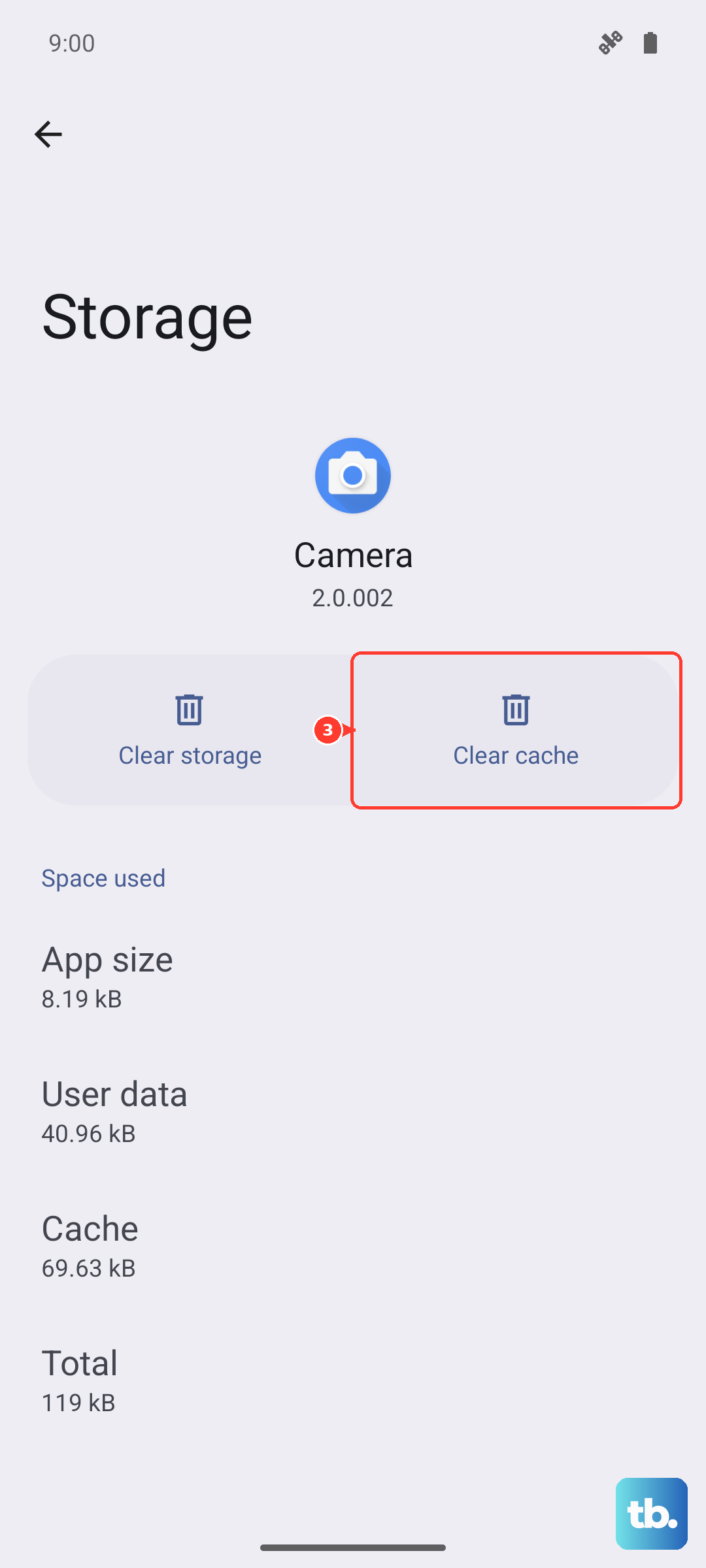
The system app that manages your connection can accumulate corrupted temporary data. Clearing its cache is safe and doesn't delete any personal information. Go to Settings > Apps > See all apps.
Tap the three-dot menu in the top right and select "Show system." Now, scroll down and find "Phone Services." Tap it, then go to Storage & cache. Tap "Clear cache." Do not tap "Clear storage" or "Clear data," as that can cause other issues. Restart your phone after this step.
Test With a Different SIM Card
This step helps isolate the problem. If you can borrow a known-working SIM card from a friend on the same carrier (or even a different one), pop it into your Pixel 9a. If the new SIM card registers on the network immediately, then your original SIM is likely damaged or deactivated.
You'd need to contact your carrier for a replacement SIM. If the borrowed SIM also fails with the "not registered" error, the problem is almost certainly within your phone's hardware or software.
Perform a Factory Reset
This is your last resort software fix. A factory reset will erase all apps, data, and settings from your Pixel 9a, returning it to its out-of-the-box state. You must back up everything important first using Google One or another method.
Once backed up, go to Settings > System > Reset options > Erase all data (factory reset). Follow the prompts to confirm. After the reset, set up the phone as new without restoring a backup initially, just to test the network connection. If the error is still there after a clean setup, the issue is likely a hardware fault with the internal modem or antenna, and professional repair would be the next step.