
When your Google Pixel 9a starts missing calls, it's a problem that needs fixing right away. You might not get a notification, or your phone could ring once and go silent. I've found this is usually a software or settings hiccup, not a broken phone.
Let's jump straight into the most common fix. Open your Phone app, tap the three dots in the top right, and go to Settings > Spam and Call Screen. Make sure "See caller and spam ID" is turned on, but also check that "Call Screen" isn't set to automatically screen every single call, which can sometimes delay or block them.
Check Your Do Not Disturb and Focus Modes
Android's Focus modes are powerful, but they can silently silence calls. Swipe down from the top of your screen twice to open your Quick Settings tiles. Look for the "Do Not Disturb" or "Work profile" icon, if it's highlighted, tap it to turn it off.
For more control, go to Settings > Sound & vibration > Do Not Disturb. Here, you can see which exceptions are allowed. Make sure "Calls" or "Messages" aren't being blocked, and check any scheduled times that might be activating automatically.
Restart Your Pixel and Check for Updates
A simple restart clears out temporary glitches that can affect the modem or phone services. Just press and hold the Power button for about 30 seconds until you see the Google logo. This forces a full reboot.
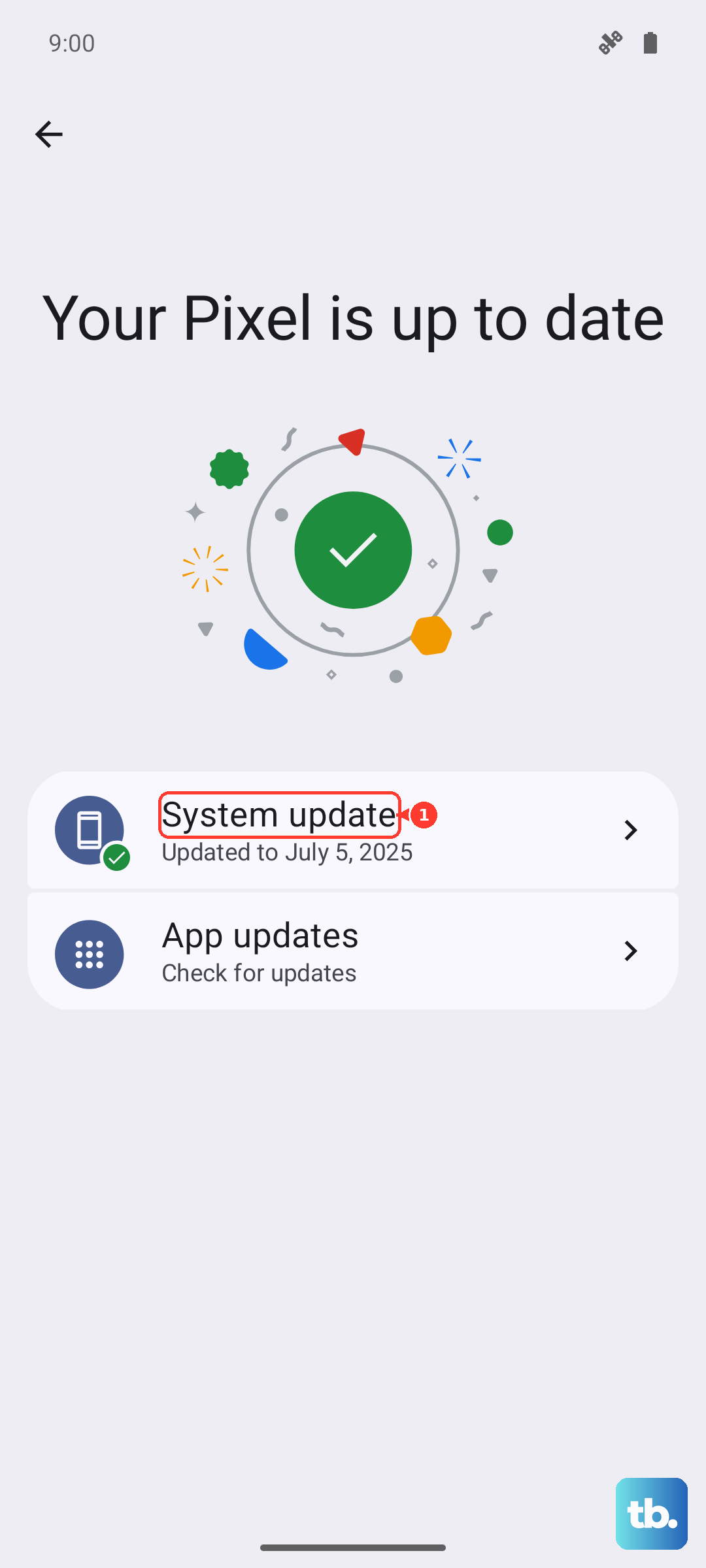
Once it's back on, check for a system update. Google frequently releases patches that improve network stability. Go to Settings > System > System update and tap "Check for update." Installing the latest Android 15 update can resolve known connectivity bugs.
Review Your SIM Card and Network Signal
The Pixel 9a uses a Tensor G4 modem, which some users report can be finicky in weak signal areas. First, check your signal bars. If they're low, try moving to a window or stepping outside.
If the signal seems fine, the SIM card itself might be the issue. Power off your phone, pop out the SIM tray with the included tool, and carefully remove the card. Gently clean the gold contacts with a soft, dry cloth and reseat it firmly. Turn your phone back on and see if it reconnects to the network properly.
Reset Your Network Settings
This is a more thorough step that resets all your cellular, Wi-Fi, and Bluetooth connections back to default. It won't delete your personal data, but you will need to re-enter Wi-Fi passwords and re-pair Bluetooth devices.
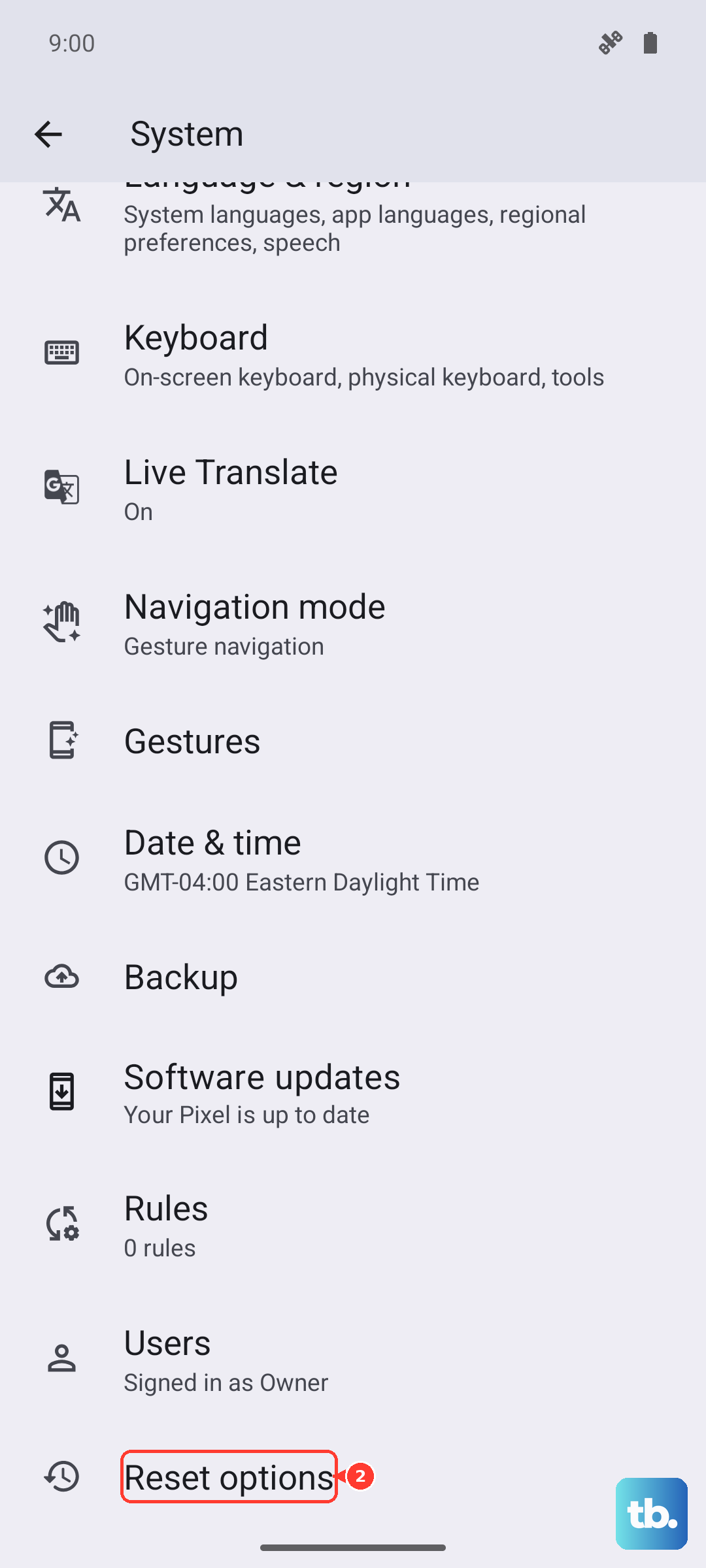
To do this, navigate to Settings > System > Reset options. Tap "Reset Wi-Fi, mobile & Bluetooth" and confirm. After the phone restarts, give it a minute to reconnect to your cellular network before testing a call.
Inspect Call Blocking and Screening Settings
Google's call screening and blocking features are advanced, but they can be overly aggressive. Open your Phone app and go to Settings > Blocked numbers. See if any important numbers have been accidentally added here.
Next, go back and look at Settings > Assisted dialing or "Call forwarding." Ensure call forwarding is turned off unless you intentionally set it up. An active forward would send all your calls directly to another number without ringing your Pixel.
Clear the Phone App's Cache and Data
Sometimes the Phone app's stored data gets corrupted. Clearing it gives the app a fresh start. Go to Settings > Apps > See all apps. Find and tap "Phone."
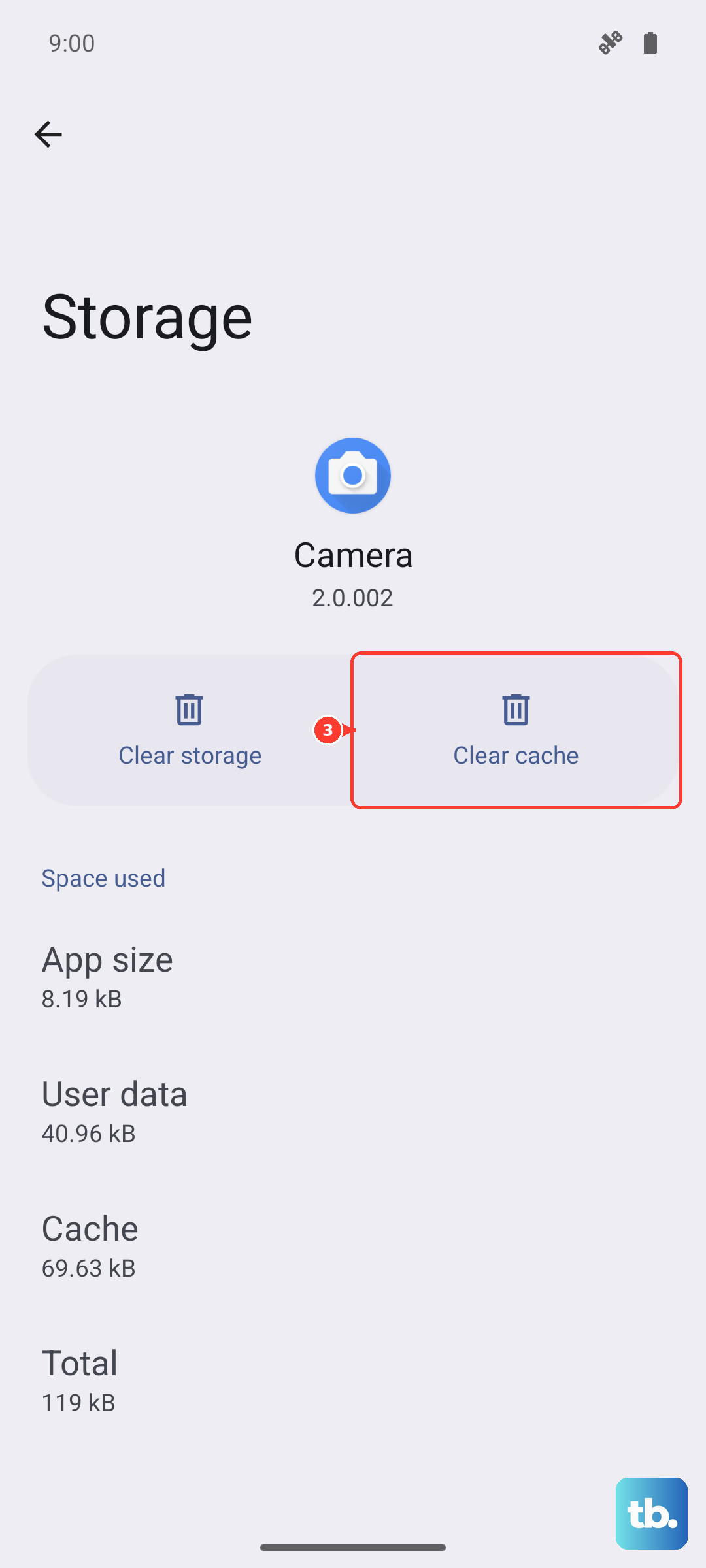
Select Storage & cache. Tap "Clear cache" first and test if calls work. If the problem persists, go back and tap "Clear storage" or "Manage space," then "Clear all data." Don't worry, this won't delete your call history or contacts stored in your Google account, but it will reset the app's preferences.
Disable Problematic Third-Party Apps
An app with permission to manage calls could be interfering. Think about any dialer, call recorder, or security apps you've installed recently. To test, reboot your phone into Safe Mode.
Press and hold the Power button and Volume Up button together until the power menu appears. Then, touch and hold the "Power off" option on your screen. You'll get a prompt to reboot to Safe Mode, tap "OK." In Safe Mode, all third-party apps are disabled. If your calls work normally here, a downloaded app is the culprit. Restart normally and uninstall apps one by one to find the offender.
Check for Carrier Services Updates
Your carrier pushes configuration updates through the Carrier Services app. If it's out of date, your connection can suffer. Open the Google Play Store, tap your profile icon, and go to Manage apps & device > Manage.
Find "Carrier Services" in the list of installed apps. If an update is available, install it. You can also try going to Settings > Network & internet > Mobile network and looking for a "Carrier settings" or "Access Point Names" (APN) option. Your carrier's correct APN settings are often listed on their support website.
Verify Account Status and Contact Your Carrier
It's worth a quick check to ensure there's no issue with your mobile account. Use another phone to call your carrier, or check their website/app. Confirm your line is active, paid up, and that there are no outages in your area.
You can also ask them to reprovision your line, which is a refresh signal sent from their end to your SIM card. While you have them on the line, you can inquire if they have any known issues with the Pixel 9a on their network, as settings can vary between providers.