
When your headphones stop working with your Google Pixel 9a, it can be incredibly frustrating. Whether you're using wired earbuds, a Bluetooth headset, or wireless earbuds, the issue might be that the phone doesn't detect them, audio plays from the speaker instead, or the sound is crackly and distorted. Let's get it sorted.
A browser based online headphone test makes this easy to confirm. If both sides play test tones correctly there, the headphones are fine and the problem is in the device or app.
Restart Your Pixel 9a
This is the quickest fix for a lot of weird audio glitches. Press and hold the Power button for about 30 seconds, or until you feel the phone vibrate and see the Google logo appear on the screen. This force restart clears out any temporary software bugs that might be messing with the audio routing.
Check the Simple Stuff First
Make sure your Bluetooth headphones are charged and in pairing mode. For wired headphones, ensure they're plugged all the way into the USB-C port. It sounds obvious, but I've seen this solve the problem more times than I can count. Try the headphones with another phone or computer to confirm they're actually working.
Clean the USB-C Port
If you're using wired headphones, pocket lint and debris can get packed into the port and block the connection. Gently use a wooden toothpick or a soft-bristled brush to clean it out. Avoid using anything metal. A clean port is often the solution for headphones that keep disconnecting or aren't recognized at all.
Forget and Re-Pair Your Bluetooth Headphones
Go to Settings > Connected devices. Tap on the name of your headphones, then tap the gear icon or Settings next to them. Select Forget or Unpair. Now, put your headphones back into pairing mode and reconnect them fresh from the Bluetooth menu. This clears any corrupted connection data.
Check Your Volume and Output
Press the volume up button on the side of your Pixel 9a while something is playing. Make sure the volume slider isn't all the way down. Also, pull down your notification shade twice and tap the media player card. It should show your headphones' name as the output device. If it says "Phone speaker," tap it and select your headphones from the list.
Toggle Bluetooth Off and On
Swipe down from the top of your screen to open Quick Settings and tap the Bluetooth icon to turn it off. Wait about ten seconds, then tap it again to turn it back on. This simple refresh of the Bluetooth radio can often re-establish a stable connection with your headphones and fix choppy audio.
Check for Software Updates
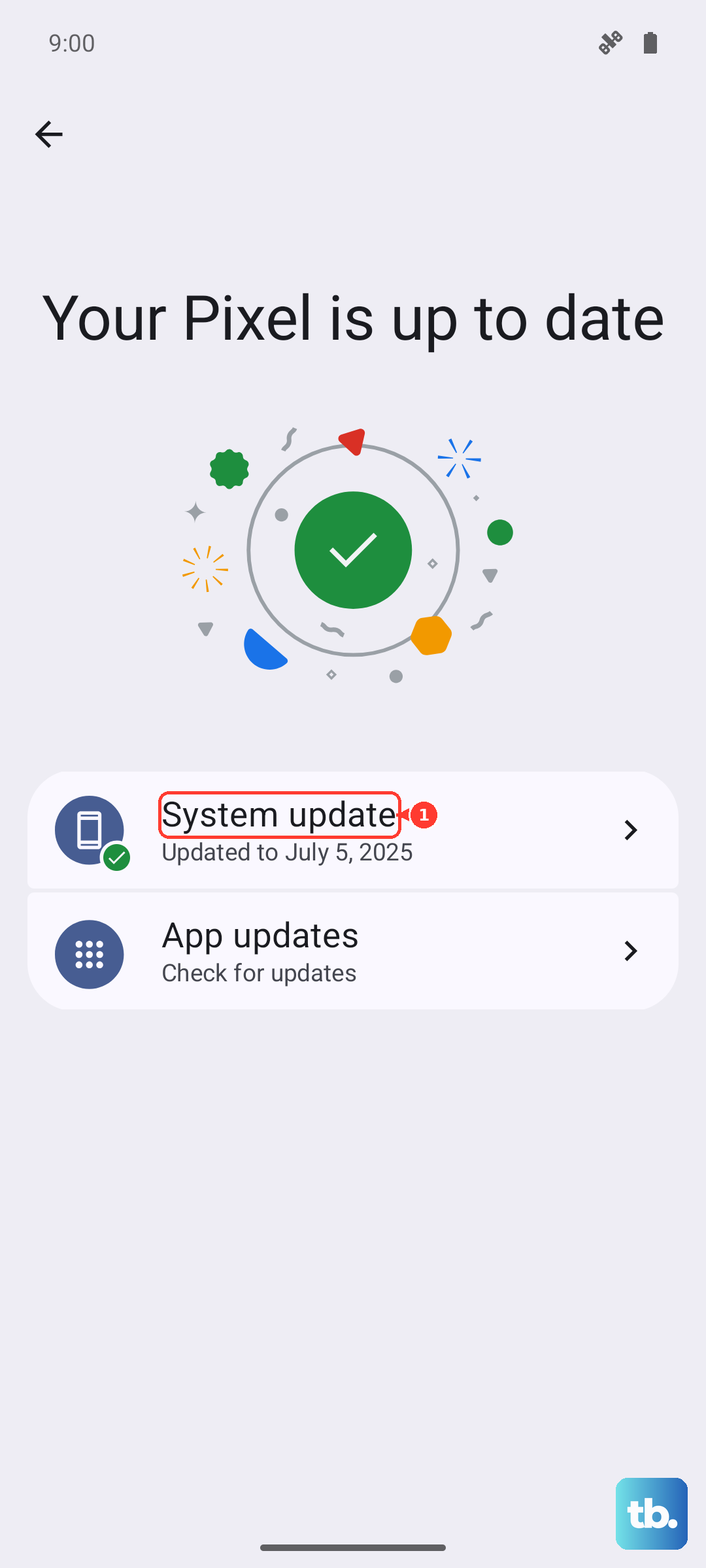
Google frequently releases updates that fix bugs, including audio and Bluetooth issues. Go to Settings > System > System update and check for an update. If you're on Android 15, make sure you have the latest security patch. Installing an update has resolved headphone detection problems for many users.
Reset Your Phone's Network Settings
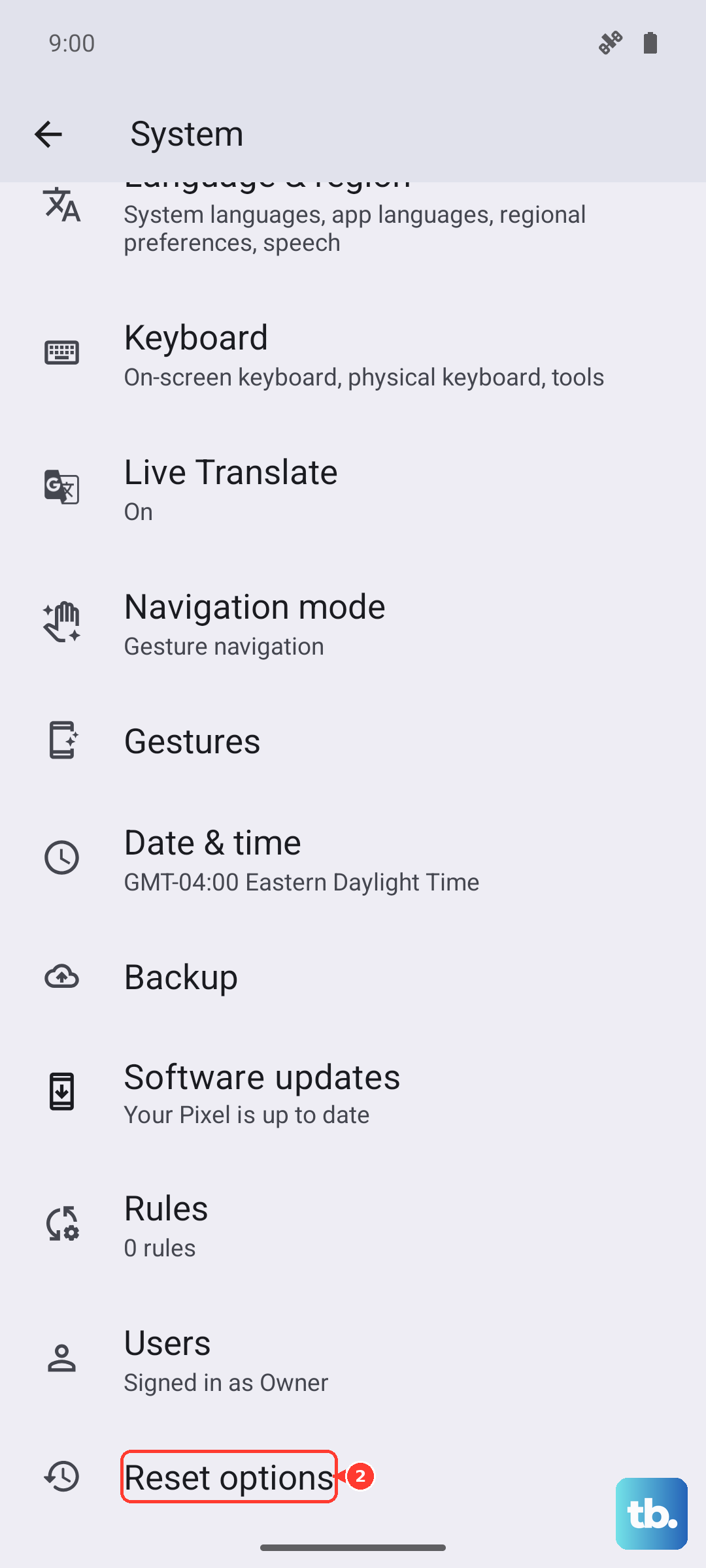
This resets Wi-Fi, mobile data, and Bluetooth without touching your personal data. Go to Settings > System > Reset options. Tap Reset Wi-Fi, mobile & Bluetooth and confirm. After the phone reboots, you'll need to re-pair all your Bluetooth devices, but it can clear deep-seated connection problems.
Check for App-Specific Issues
If the headphones only fail in one app, like Spotify or YouTube, the problem might be there. Try playing audio from a different app or a video from your gallery. Also, force close the problematic app by swiping it away from the recent apps view, then reopen it. Check the app's own settings for any audio output options.
Try Safe Mode
Booting into Safe Mode disables all third-party apps. If your headphones work perfectly in Safe Mode, a recently installed app is likely causing the conflict. To enter Safe Mode, press and hold the Power button, then press and hold the "Power off" option on your screen until you see the Safe Mode prompt. Tap OK to reboot.