When your Google Pixel 9a's email stops syncing or sending, it can leave you feeling disconnected. Whether you use Gmail, Outlook, or another client, these problems usually have a simple fix. Let's start with the most common solution that often gets things moving again.
First, force close the email app you're using. Swipe up from the bottom of your screen and hold to enter the app overview. Find your email app, like Gmail, and swipe it all the way up to close it. Wait a few seconds, then tap the app icon to reopen it. This clears any temporary glitch that might be hanging up the process.
Check Your Internet Connection
Email needs a live data connection to work. Pull down the notification shade twice and look at the top. Make sure you're connected to Wi-Fi or that your mobile data is on. Sometimes, switching between the two can help.
Try turning on Airplane mode for about 30 seconds. You can do this from the quick settings tiles in the notification shade. This resets all the phone's radios. Turn Airplane mode off and see if your email starts flowing.
Verify Account Sync is Enabled
Android can sometimes pause syncing for an account to save battery. Go to Settings > Accounts. Tap on your email account, like your Google account. Make sure the toggle next to "Mail" or "Gmail" is switched on. If it's off, tap it to re-enable automatic syncing.
Review App-Specific Sync Settings
If you're using the Gmail app, it has its own sync schedule. Open the Gmail app, tap your profile picture in the top right, and select All accounts. Tap on the account having issues. Go to Sync settings and ensure "Sync Gmail" is enabled. You can also adjust how many days of mail to sync here.
For other email apps like Outlook or Yahoo Mail, check within the app's own settings menu for sync or fetch frequency options. Set it to "Push" if available, or to check every 15 or 30 minutes.
Check for App Updates
An outdated app can cause all sorts of problems. Open the Google Play Store, tap your profile icon, and go to Manage apps & device. Under "Updates available," see if your email app is listed. If it is, tap Update next to it. I've seen updates specifically fix sync issues on Pixel devices.
Clear the App's Cache and Data
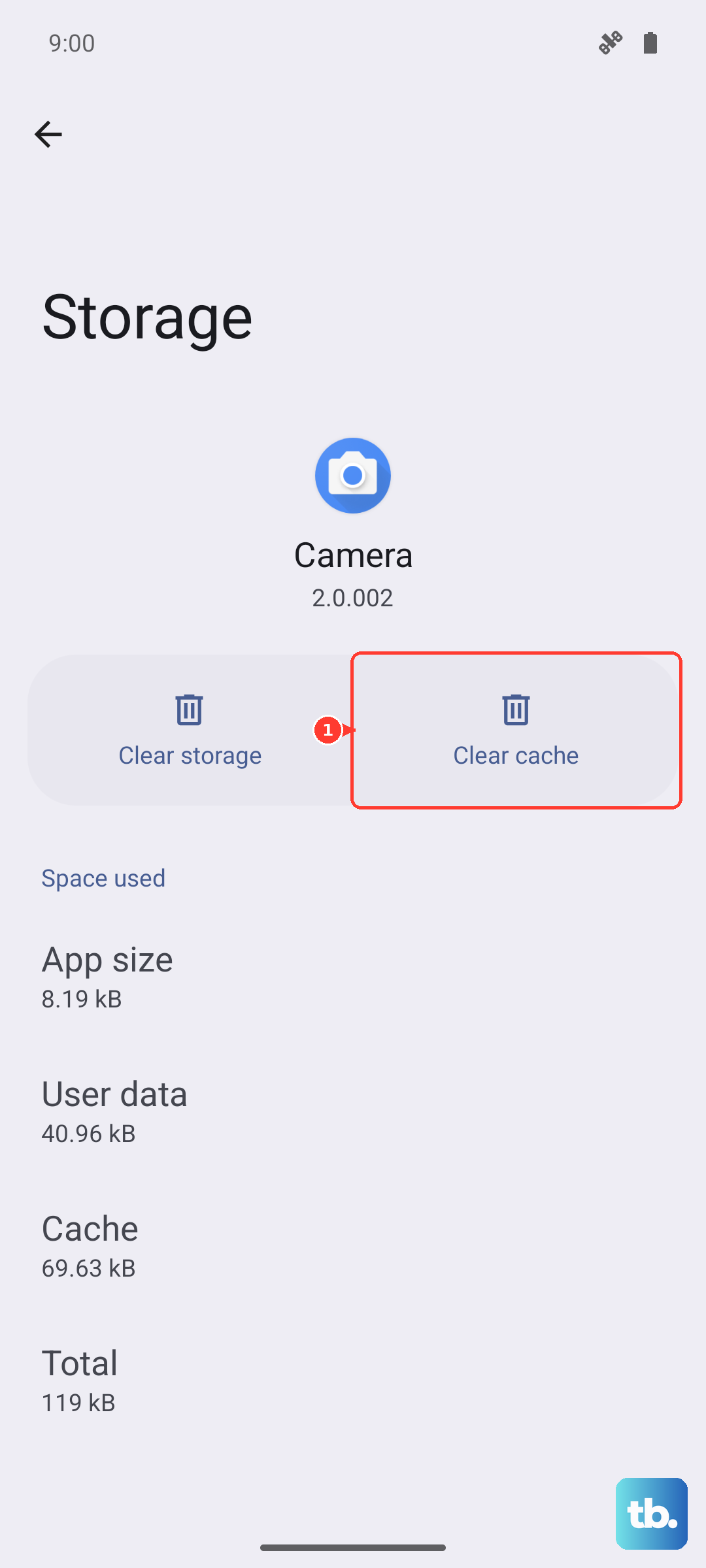
This is a stronger reset for the app itself. Go to Settings > Apps > See all apps. Find and tap your email app, then select Storage & cache. Tap Clear cache first. This won't delete your emails. If that doesn't work, you can try Clear storage or Clear data. Just know this will remove the app's settings and you'll need to log back in.
Remove and Re-add Your Email Account
Sometimes the account configuration gets corrupted. The steps differ slightly depending on the account type. For a Google account, go to Settings > Accounts, tap the account, then tap Remove account. Don't worry, this just removes it from the phone. You can immediately add it back by going to Add account.
For other accounts (like IMAP or POP3), you might manage them within the specific email app. Remove the account from the app's settings, then go through the setup process again, double-checking the incoming and outgoing server details.
Check Your Mobile Data Settings
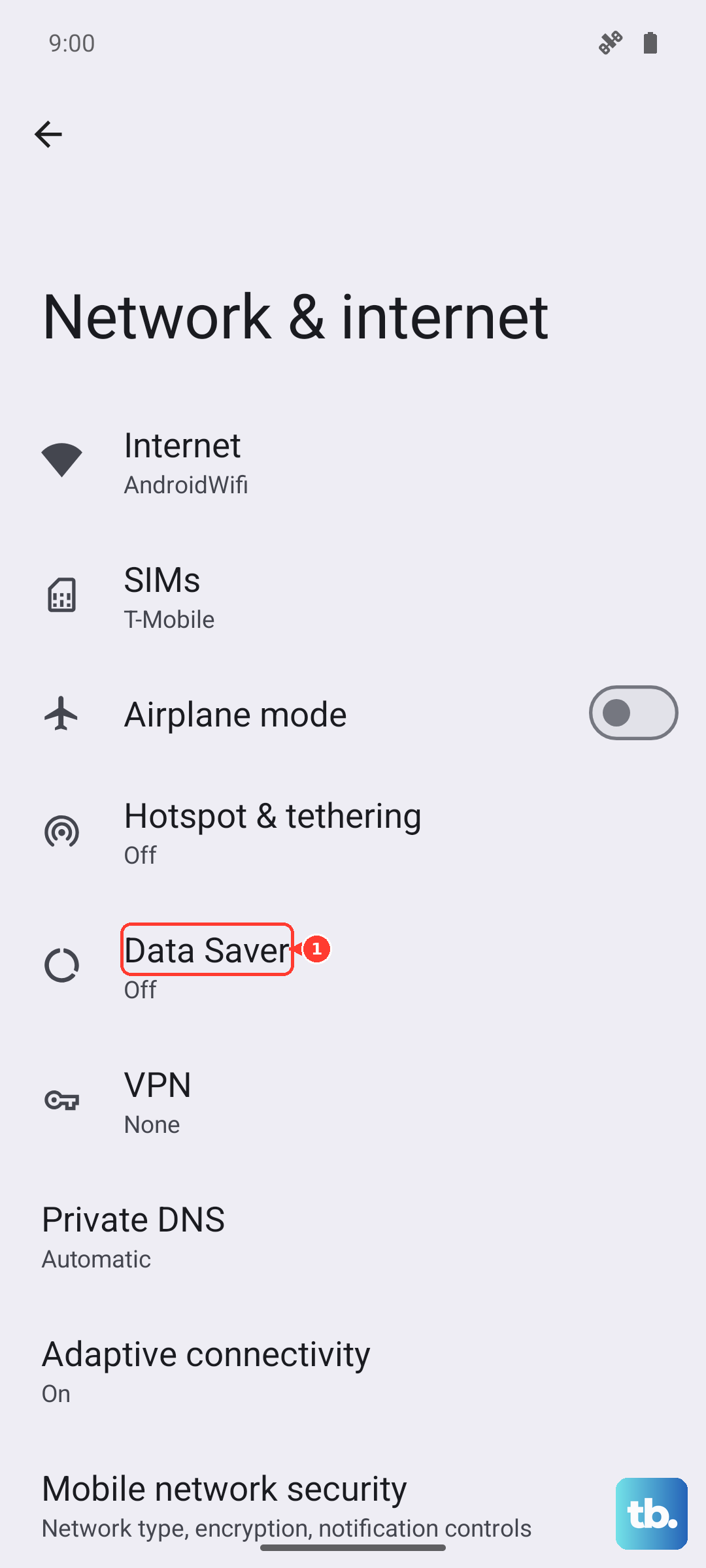
If emails only fail when you're not on Wi-Fi, the app might be restricted. Go to Settings > Network & internet > Data Saver. If Data Saver is on, tap Unrestricted data and make sure your email app is allowed to use data in the background.
Also, in Settings > Apps, select your email app, then tap Mobile data & Wi-Fi. Ensure "Background data" is allowed.
Disable Any Active VPN
A VPN can sometimes interfere with the connection to your email provider. Swipe down your notification shade and look for a VPN key icon or a specific VPN app notification. Tap it to disconnect. You can also go to Settings > Network & internet > VPN to manage active connections.
Ensure Correct Date and Time
An incorrect system time can break secure connections to email servers. Go to Settings > System > Date & time. Make sure "Set time automatically" and "Set time zone automatically" are both turned on. This ensures your Pixel 9a is perfectly in sync.
Restart Your Pixel 9a
A full reboot clears out system memory and stops any errant processes. Press and hold the Power button and Volume Up button together until the power menu appears, then tap Restart. If the screen is unresponsive, you can force a restart by pressing and holding the Power button for about 30 seconds until you feel it vibrate and see the Google logo.
Update Android
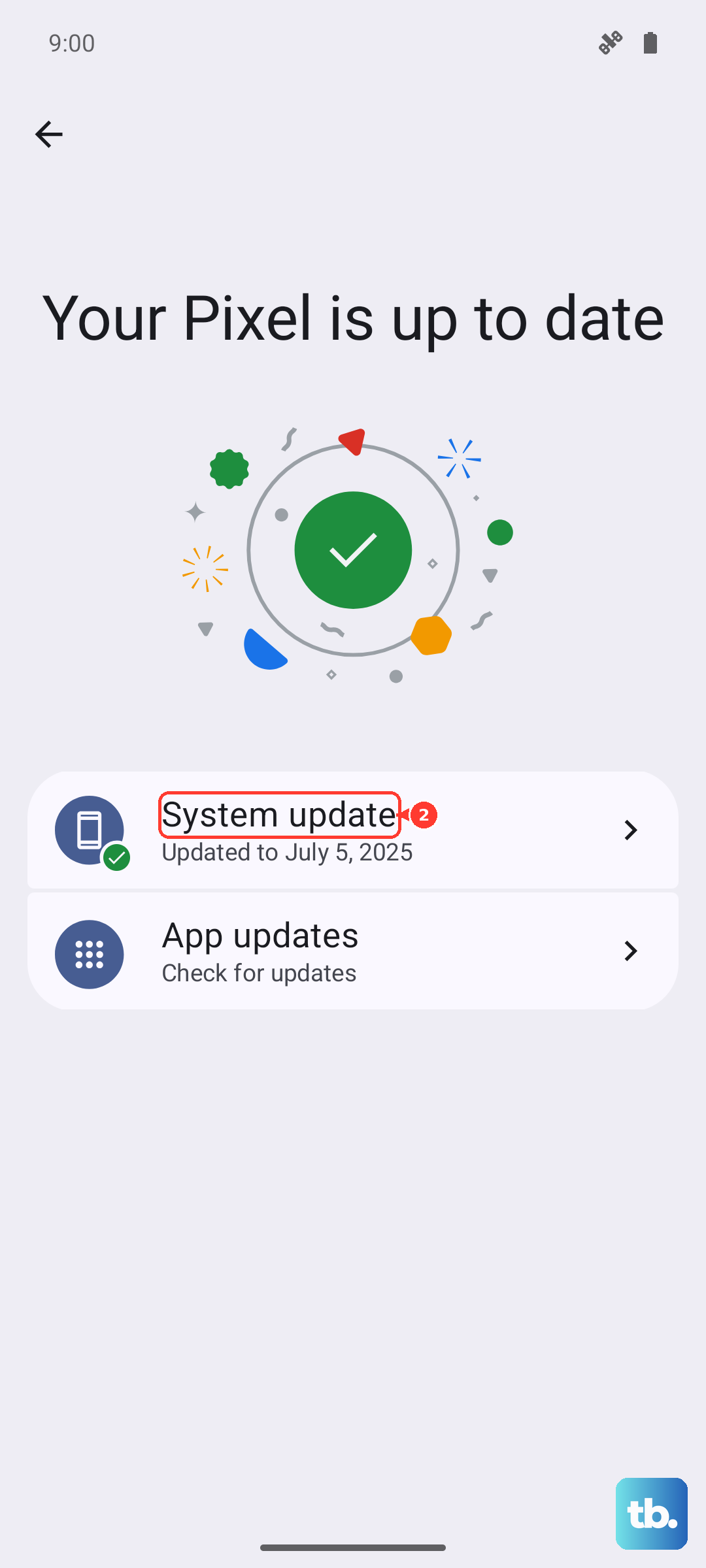
Google frequently releases system updates that include bug fixes. Go to Settings > System > System update. Tap "Check for update." If one is available, install it. It's a good idea to be on a strong Wi-Fi connection and have your phone plugged in, as the 23W charging will handle it faster.
Check for Service Outages
The problem might not be with your phone at all. If you use Gmail, Outlook, Yahoo, or another major service, they occasionally have outages. Try logging into your email account on a computer's web browser. You can also search for "[Your Email Service] status" on the web to see if others are reporting issues.
Reset Network Settings
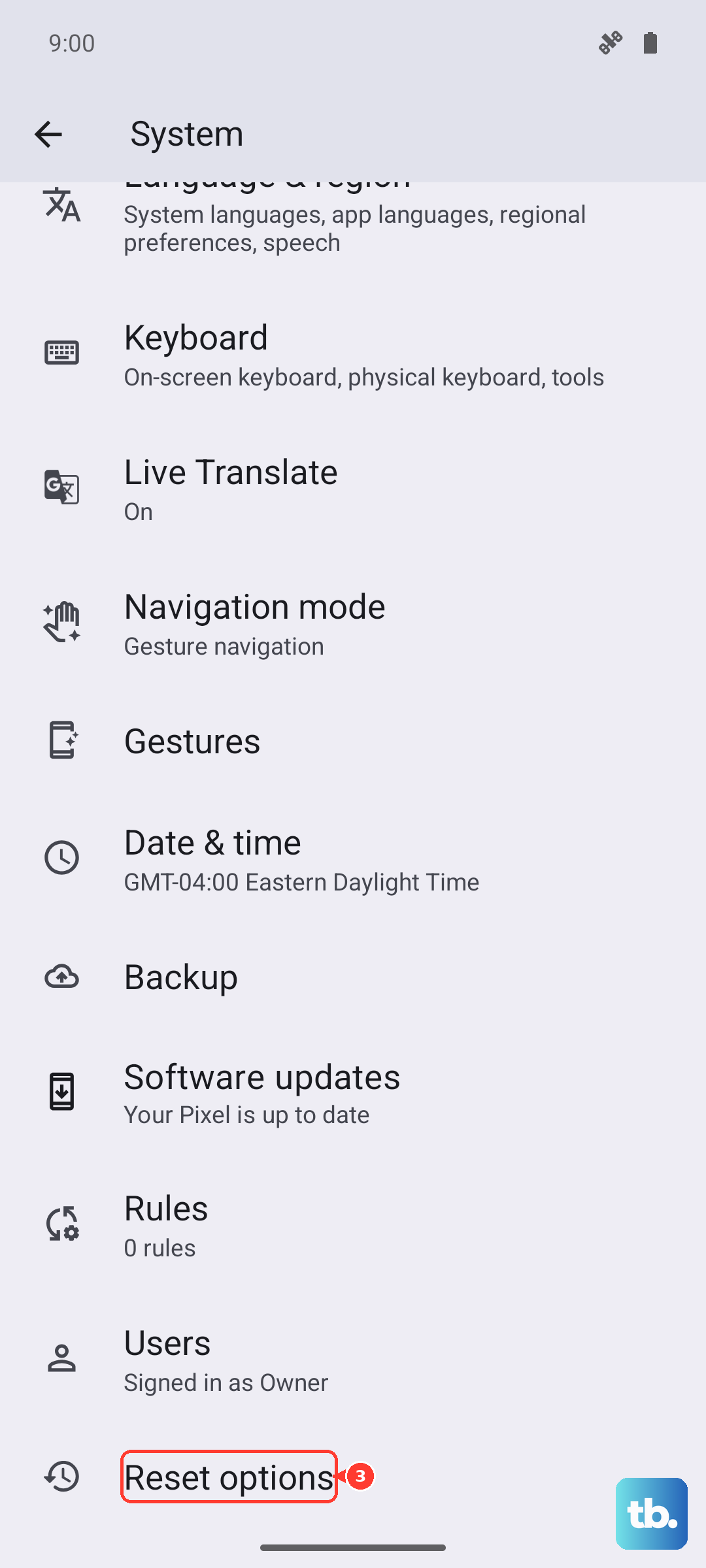
This is a last resort before more drastic measures. It will erase all your saved Wi-Fi networks, Bluetooth pairings, and mobile network settings. Go to Settings > System > Reset options. Tap Reset Wi-Fi, mobile & Bluetooth and confirm. After your phone reboots, you'll need to reconnect to your Wi-Fi.