
A blurry camera on your Pixel 9a can turn a great shot into a frustrating mess. The issue might be constant, only happen in low light, or affect just one of the lenses. Before you worry about a hardware problem, there are several software and simple fixes to try first.
Clean the Camera Lenses
Start with the simplest solution. Grab a soft, lint-free microfiber cloth and gently wipe the camera lenses on the back of your phone. Fingerprints, dust, or smudges are the most common cause of hazy or soft-focus photos. Avoid using your shirt or tissues, as they can leave tiny scratches on the Corning Gorilla Glass 3, which is known to scratch more easily than newer versions.
Remove Your Phone Case
Take your Pixel 9a out of its case. Some cases, particularly thicker or poorly designed ones, can partially obstruct the camera lenses or create a reflective glare that ruins focus. Snap a quick photo without the case to see if it's the culprit. Also, make sure you haven't accidentally left a plastic film or a separate camera lens protector on the glass.
Tap to Focus in the Camera App
Open the Google Camera app and tap directly on your subject on the screen. You'll see a focus ring appear where you tapped. If your phone is focusing on the background instead of your subject, this forces it to adjust. For more control, you can tap and hold on the screen to lock both the focus and exposure (AE/AF Lock).
Switch Between Camera Lenses
Your Pixel 9a has multiple lenses. Try switching between them in the Camera app to see if the blur is isolated. If the standard 1x lens is blurry but the ultrawide or other zoom levels are sharp, the issue is likely specific to that one lens module and may need cleaning or professional attention.
Force Close and Reopen the Camera App
Swipe up from the bottom of your screen and hold to enter the app overview. Find the Camera app and swipe it all the way up to close it. Then, reopen it and try taking a photo again. This clears any temporary glitch in the app that could be causing the autofocus to malfunction or the image processing to fail.
Restart Your Pixel 9a
Press and hold the Power button for about 30 seconds, or until you feel a vibration and see the Google logo. This force restart can resolve deeper software hiccups affecting the camera system. It's a more thorough reset than just closing the app and often fixes odd behavior.
Check for Software Updates
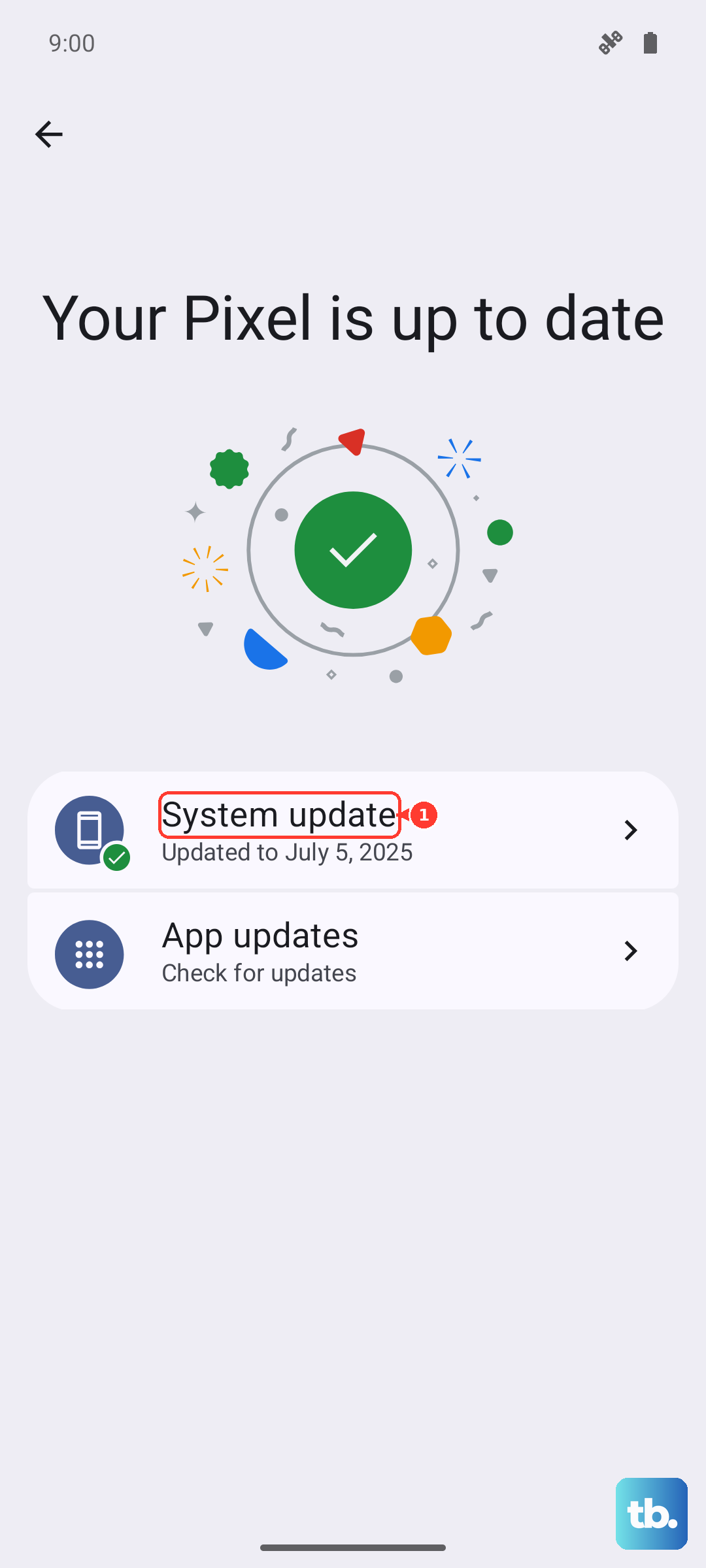
Go to Settings > System > System update. Google frequently releases updates that include camera improvements, bug fixes, and enhancements for the Tensor G4 chip's image processing. Installing the latest Android 15 update could resolve a focus issue introduced by a previous software version.
Clear the Camera App's Cache
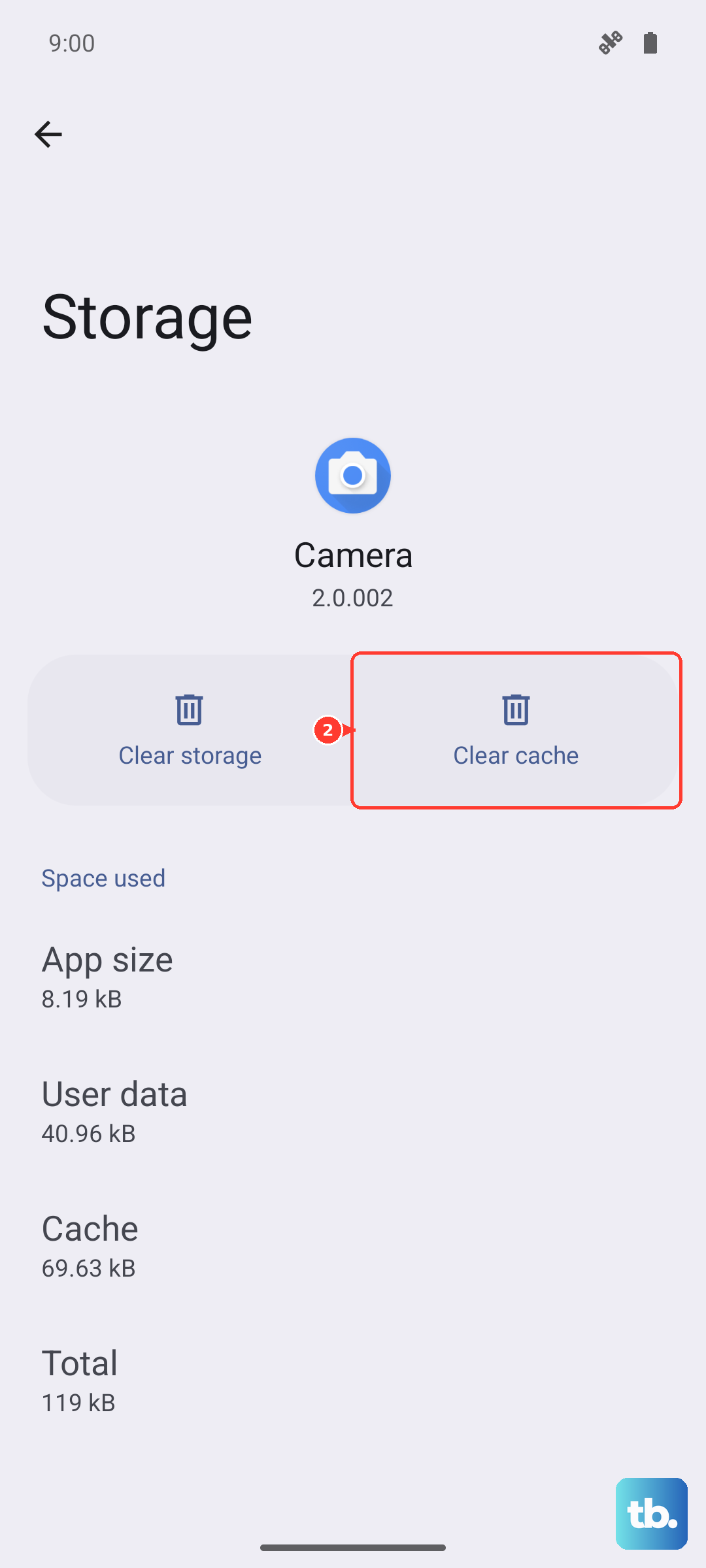
Go to Settings > Apps > See all apps. Find and tap on "Camera." Select Storage & cache and then tap Clear cache. This deletes temporary data that might be corrupted without affecting your personal settings or photos. It's a safe first step before clearing app data.
Reset the Camera App
If clearing the cache didn't help, you can take a stronger step. Go back to Settings > Apps > Camera > Storage & cache. This time, tap Clear storage or Manage space > Clear all data. This will reset the Camera app to its original factory settings, so you'll need to re-grant permissions and set your preferences again, but it can eliminate any problematic settings causing the blur.
Check for Physical Damage or Moisture
Inspect the camera lenses closely for any cracks or deep scratches. Also, if you've recently been in a humid environment or moved from a cold to a warm place, condensation could have formed inside the lens housing, causing a permanent foggy look. Let the phone sit at room temperature for a while to see if it clears. Avoid using a hairdryer, as excessive heat can cause damage.