
When your Google Pixel 9a won't connect to your wireless earbuds, car, or speaker, it can feel like you're suddenly cut off. Bluetooth issues are frustratingly common, but on the Pixel 9a, they're usually a quick software hiccup rather than a serious problem. I'd start with the simplest fix first, as that often does the trick.
Before anything else, pull down the Quick Settings shade from the top of your screen and make sure the Bluetooth tile is lit up blue. If it's gray, just tap it to turn Bluetooth on. It sounds obvious, but it's the most common oversight. Also, ensure the device you're trying to connect to is in pairing mode, which usually involves holding its power button for a few seconds until a light starts flashing.
Toggle Bluetooth and Restart
The digital equivalent of "turn it off and on again" works wonders here. Pull down your notification shade again and tap the Bluetooth icon to turn it off. Wait about ten seconds, then tap it again to turn it back on. Try pairing your device again.
If that doesn't stick, a full restart of both devices is the next logical step. For your Pixel 9a, press and hold the Power button until the power menu appears, then tap "Restart." Do the same for your headphones or speaker, power them down completely and then turn them back on. This clears out any temporary glitches in the connection process.
Forget and Re-Pair the Device
Sometimes the pairing information gets corrupted. The fix is to remove the device from your phone's memory and start fresh. Go to Settings > Connected devices > Previously connected devices.
Tap the settings icon next to the problematic device and select Forget. Once it's removed, put your accessory back into pairing mode and select it from the "Available devices" list on your Pixel to pair again. This clean slate approach resolves a lot of stubborn connection problems.
Clear the Bluetooth System Data
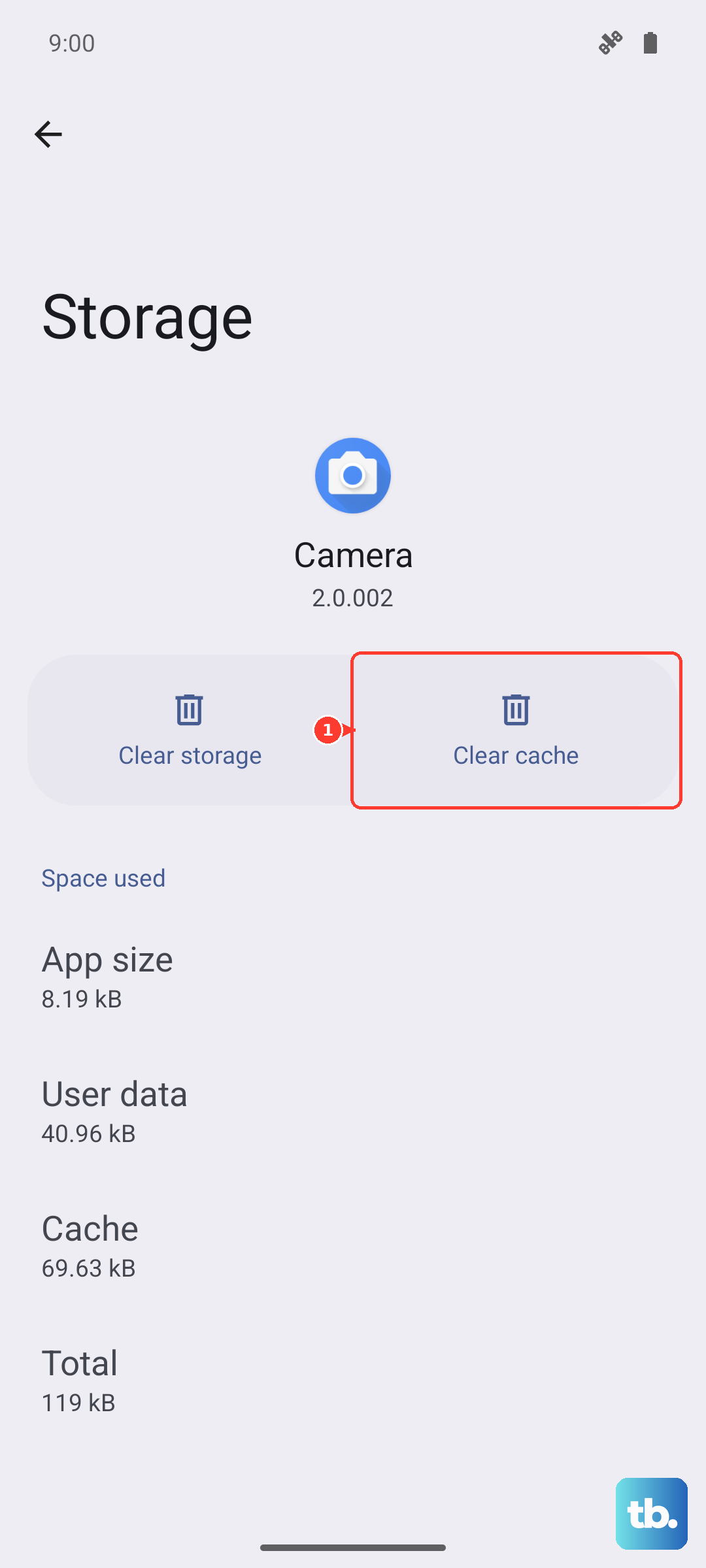
If Bluetooth was working yesterday but not today, cached system data might be to blame. Clearing it is safe and won't delete your personal files. Open Settings and go to Apps > See all apps.
Tap the three-dot menu in the top right and select Show system. Scroll down and find "Bluetooth," then tap on it. Select Storage & cache and tap Clear cache. If the issue persists, you can go back and tap Clear storage (this will forget all paired devices, so you'll need to re-pair everything).
Check for System Updates
Google frequently releases updates that fix bugs, including Bluetooth connectivity issues. It's always worth checking if you're running the latest software. Go to Settings > System > System update.
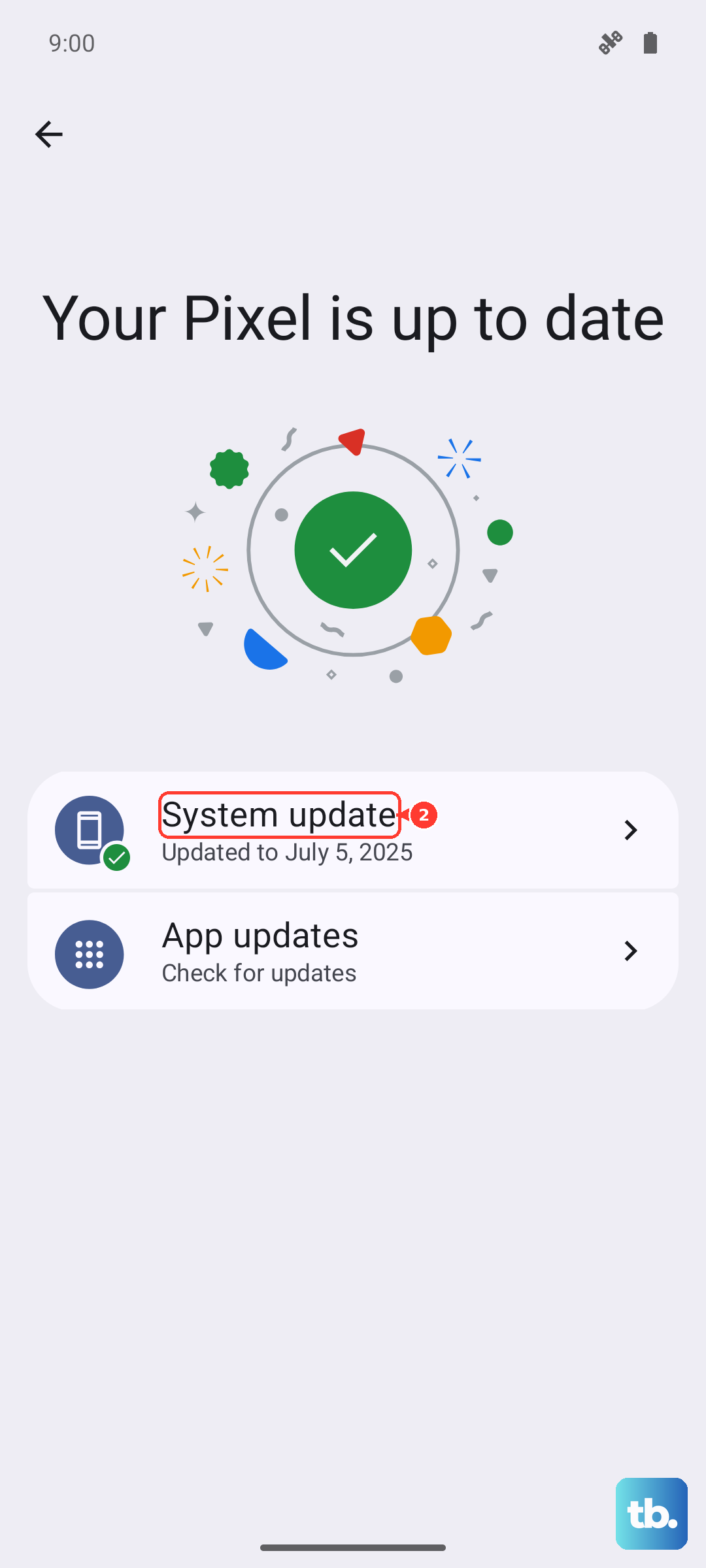
Tap "Check for update." If an update is available, install it. The Pixel 9a launched with Android 15 and has since been updated to Android 17, and updates can improve the stability of the Tensor G4 chip's components, including those handling wireless connections. Also, check if your Bluetooth accessory has a companion app that might offer a firmware update.
Reset Your Network Settings
This is a more comprehensive step that resets all wireless communications back to factory defaults, including Wi-Fi, mobile network, and Bluetooth. You'll need to re-enter Wi-Fi passwords afterward. Go to Settings > System > Reset options.
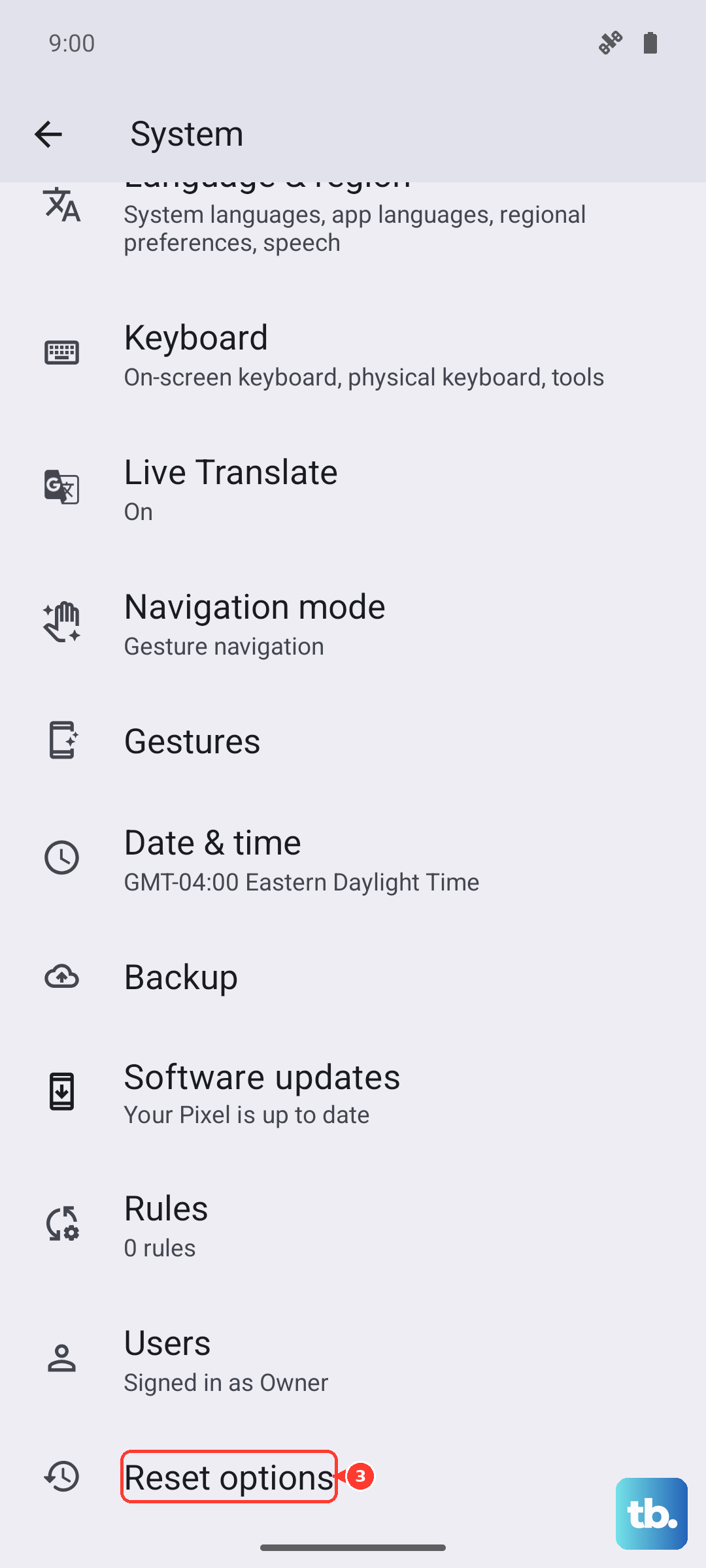
Tap Reset Wi-Fi, mobile & Bluetooth and confirm. Your phone will restart. After it boots up, try pairing your Bluetooth device from scratch. This often resolves deep-seated conflicts, especially if you've recently traveled or connected to many different networks.
Boot Into Safe Mode
If a recently installed third-party app is interfering with Bluetooth, Safe Mode will tell you. To enter Safe Mode on the Pixel 9a, press and hold the Power button until the power menu appears. Then, tap and hold the "Power off" option on your screen.
You'll see a prompt to reboot to Safe Mode. Tap "OK." Once your phone restarts, you'll see "Safe mode" in the bottom corner. Try connecting your Bluetooth device now. If it works, a downloaded app is the culprit. Restart normally and try uninstalling recent apps one by one to find the offender.
Address Specific Connection Scenarios
For car Bluetooth problems, the process is similar but sometimes requires patience. First, forget the car from your Pixel and forget your phone from your car's infotainment system. With the car running, try pairing again. Some older car systems have trouble with newer Bluetooth protocols.
If your Bluetooth won't turn on at all, even from Settings, try the force restart method. Press and hold the Power button for 30 seconds or more until the phone restarts on its own. This can clear a deeper system hang. If you're still having issues after trying all these steps, it may point to a less common hardware concern, but software fixes resolve the vast majority of Pixel 9a Bluetooth troubles.