When your Google Pixel 9a starts dropping apps left and right, it can feel like the phone is fighting you. The good news is, this is almost always a software hiccup you can fix yourself. I'd start with a simple restart, as that clears out the phone's temporary memory and stops any rogue processes.
Force Stop and Restart the App
If a single app is misbehaving, force stopping it is the quickest fix. Head to Settings > Apps, find the troublesome app in the list, and tap on it. On the app's info page, tap Force Stop. This completely shuts it down. Wait a few seconds, then open it fresh from your home screen.
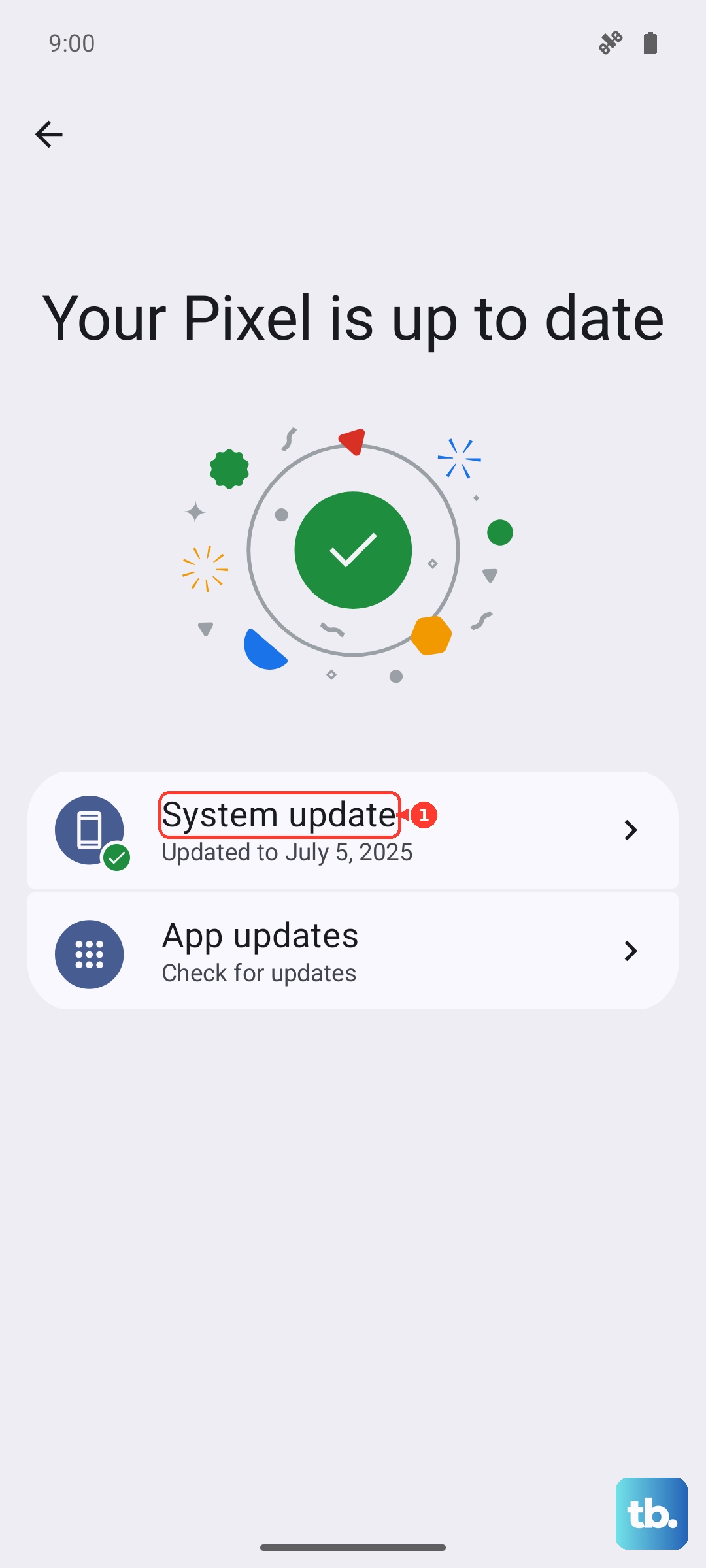
Update Everything
Outdated software is a prime suspect for crashes. First, check for app updates in the Google Play Store. Tap your profile icon, go to Manage apps & device, and see if updates are available. Next, check for a system update by going to Settings > System > Software update. Installing the latest available Pixel update can resolve conflicts causing apps to fail.
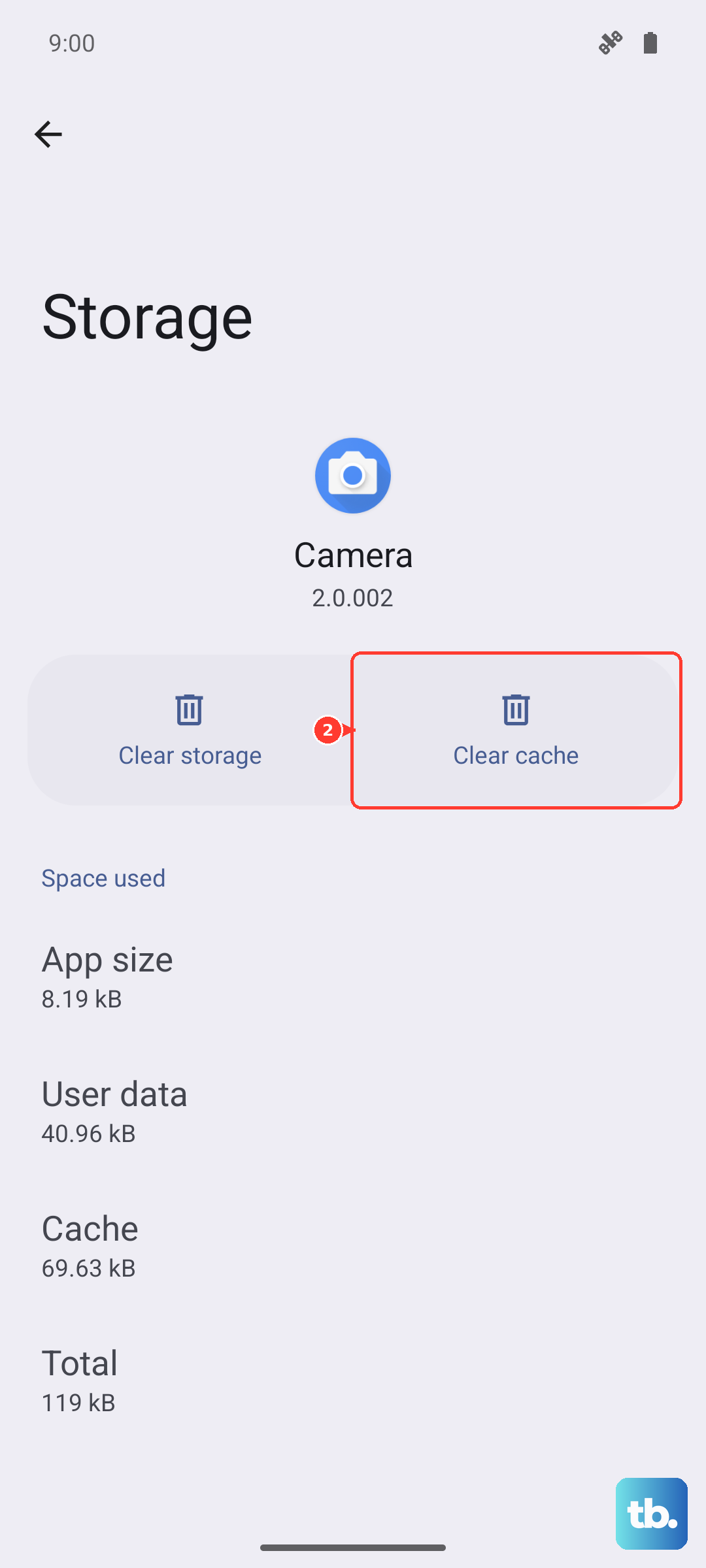
Clear the App's Cache and Data
Over time, an app's temporary cache files can become corrupted. Clearing them gives the app a clean slate without deleting your login info. Go back to Settings > Apps, select the app, and tap Storage & cache. Tap Clear cache first. If the app still crashes, you can try Clear storage or Clear data, but be warned this will erase any data saved in that app.
Check Your Internet Connection
Some web-based apps can stop working properly without a stable data connection. Toggle Airplane mode on and off from the Quick Settings panel to reconnect, then try switching between Wi-Fi and mobile data to see if one network is more stable than the other.
Free Up Storage Space
When your phone's storage is nearly full, apps have no room to breathe and operate. Android needs free space to function properly. Go to Settings > Storage to see what's taking up room. You can offload old photos to Google Photos, delete downloaded files you don't need, or uninstall apps you haven't used in months.
Reinstall the Problem App
If one specific app is the only culprit, a fresh install often does the trick. Uninstalling removes all its files and potential corruption. Press and hold the app icon on your home screen, tap Uninstall, and confirm. Then, head to the Play Store to download it again. This ensures you have the latest, clean version from the developer.
Perform a Force Restart
If multiple apps are crashing and nothing else has worked, try a force restart. Press and hold the Power button for up to 60 seconds. Once the phone begins to reboot and the screen shows the Google "G" logo, release the button. This restarts the phone without deleting your personal data.
Check for Conflicting Apps in Safe Mode
Booting into Safe Mode temporarily disables downloaded apps. If the crashing stops in Safe Mode, a downloaded app is likely causing the conflict. To enter Safe Mode, press and hold the Power button and Volume Up button together until the power menu appears. Then, press and hold either the "Power off" or "Restart" option on your screen until you see a prompt to reboot to Safe Mode. Tap OK. If Airplane mode turns on automatically, turn it off before testing apps that need Wi-Fi, GPS, or calls. Restart normally to exit.
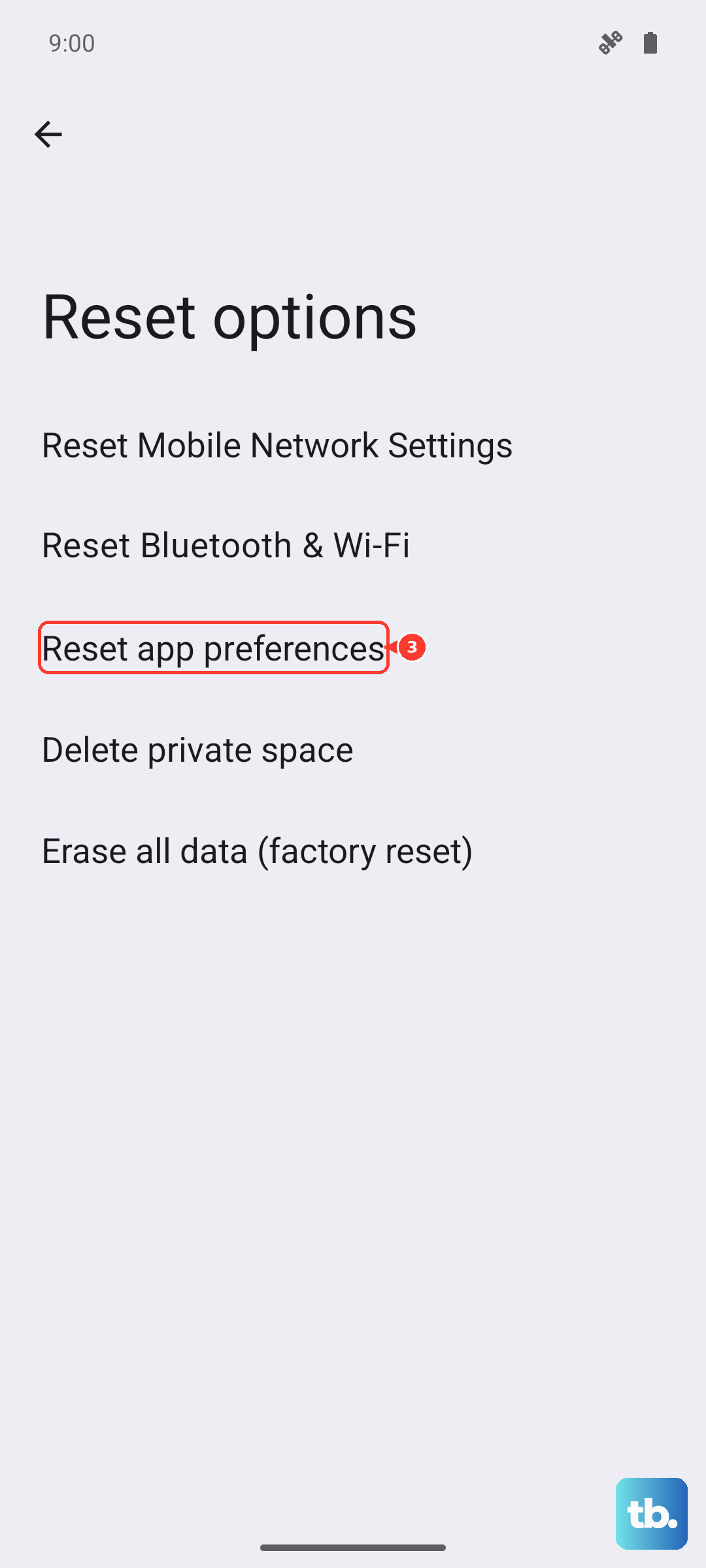
Reset All App Preferences
This is a less nuclear option that resets your app-related settings without deleting any app data. It will revert permissions, default apps, and background data restrictions back to their original states. Go to Settings > System > Reset options. Tap Reset app preferences and confirm. You'll need to re-grant permissions to apps the next time you use them.