
When your Pixel 9's volume buttons stop responding, it can be a real nuisance. You press them and nothing happens, whether you're trying to turn down a video or silence a call. The good news is that most of the time, this is a software hiccup or a simple obstruction that you can fix yourself without a trip to the repair shop.
Before you assume the worst, work through these solutions. I'd start with the first few, as they resolve the majority of these glitches.
Remove Your Phone Case
This is always the best place to begin. Take your Pixel 9 out of its case. Some cases, especially rugged ones or those that aren't perfectly aligned, can press against the buttons or restrict their movement just enough to make them feel unresponsive.
Once the case is off, press the volume rocker a few times. You might find it works perfectly, meaning you just need a different case or to adjust how your current one sits.
Perform a Force Restart
A force restart clears out temporary software glitches that can cause all sorts of odd behavior, including unresponsive buttons. This is a safe first step that won't delete any of your data or settings.
For the Google Pixel 9, press and hold the Power button for about 30 seconds. Keep holding it even after you see the Google logo or feel a vibration. Release the button only when you see the startup animation begin.
After the phone boots back up, test the volume buttons immediately. This simple reset fixes a surprising number of issues.
Check for Physical Debris
Dust, lint, or pocket gunk can easily get packed into the small gap around the volume rocker. This is one of the most common physical causes. Grab a can of compressed air and give the area around the buttons a few short bursts.
If you suspect something sticky is the culprit, you can dampen the corner of a microfiber cloth with a tiny bit of isopropyl alcohol. Gently wipe around the button's edges. Never pour liquid directly into the phone, and be sure it's completely dry before using it again.
Test the Buttons in Different Apps
Open a few different applications to see if the problem is universal. Try adjusting media volume in YouTube or Spotify, then try changing the ringer volume from the home screen. If the buttons work in one app but not another, the issue is likely with that specific app.
You can force close the problematic app by swiping it away from the recent apps view, then reopening it. If that doesn't help, check the Google Play Store for an update for that app.
Use the On-Screen Volume Slider
While you're troubleshooting, remember you can still control your volume. Press any volume button once to bring up the on-screen slider, then drag it with your finger. You can also pull down the Quick Settings panel twice and adjust the slider there.
This is a good workaround while you figure out the main issue, and sometimes using the software controls can help "wake up" the physical ones.
Check Accessibility Settings
Android has powerful accessibility features that can sometimes interfere. Go to Settings > Accessibility. Look for features like "Switch Access" or "Volume key shortcut" and make sure they are turned off for now.
Also, under Accessibility > Timing controls, check the "Time to take action" setting. If this is enabled, it can require a long press for buttons to register, which might make them seem broken.
Boot Into Safe Mode
Safe mode temporarily disables all third-party apps you've downloaded. If your volume buttons work perfectly in safe mode, then a recently installed app is likely causing the conflict.
To enter safe mode, press and hold the Power button and Volume Up button together until the power menu appears. Then, press and hold the "Power off" option on your screen. You'll see a prompt to reboot to safe mode. Tap "OK".
Test the buttons. To exit, just restart your phone normally.
Restart, update, and check app cache
Use Pixel's supported troubleshooting steps instead of a recovery-cache wipe. Restart the phone, check Settings > System > Software update, and update any app connected to the problem.
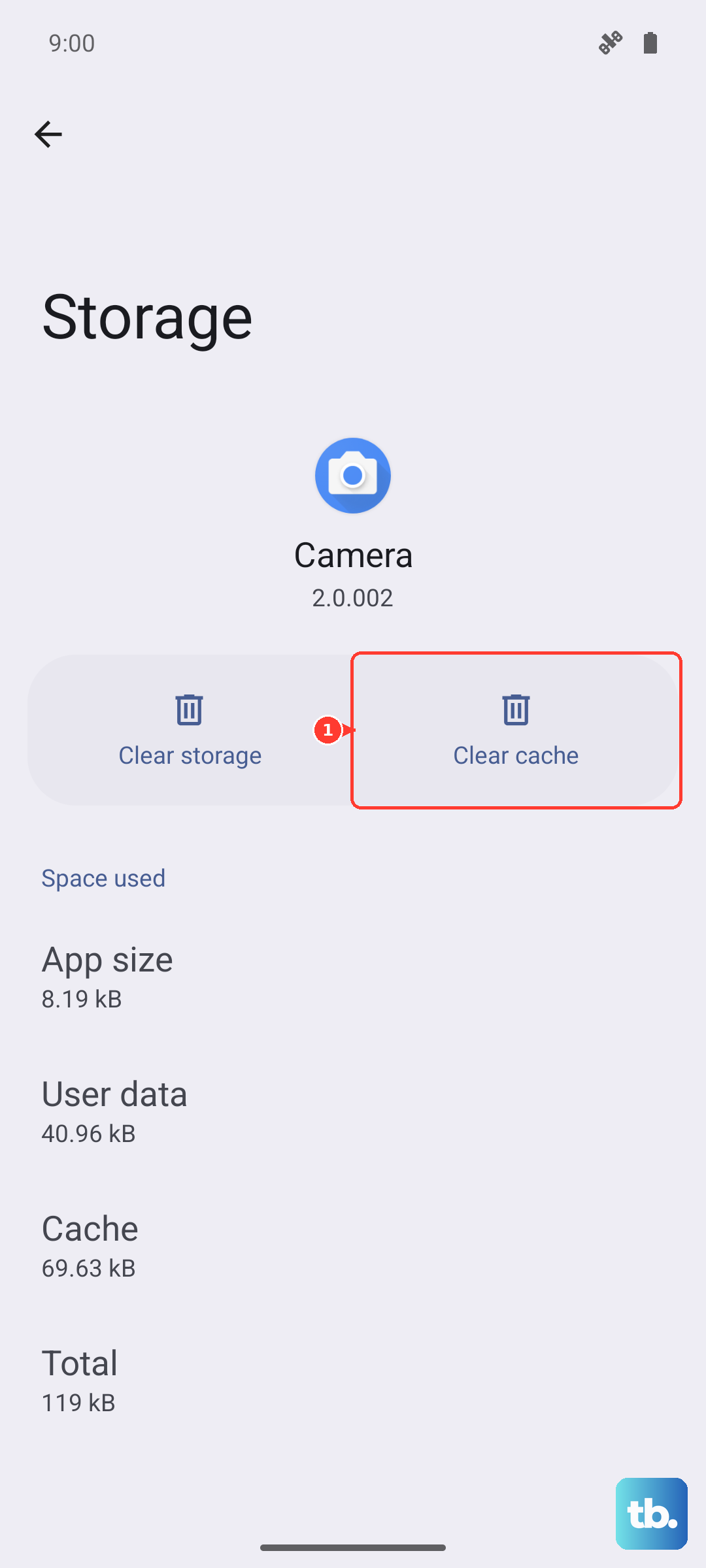
If the issue appears in one app, open Settings > Apps > See all apps, choose the app, then tap Storage & cache > Clear cache. If the issue continues, test in Safe mode to rule out a downloaded app conflict.
Update Your Android Software
Google regularly releases updates that fix bugs. A known issue with volume buttons could have been patched in a recent Feature Drop or security update. Connect to Wi-Fi and go to Settings > System > System update.
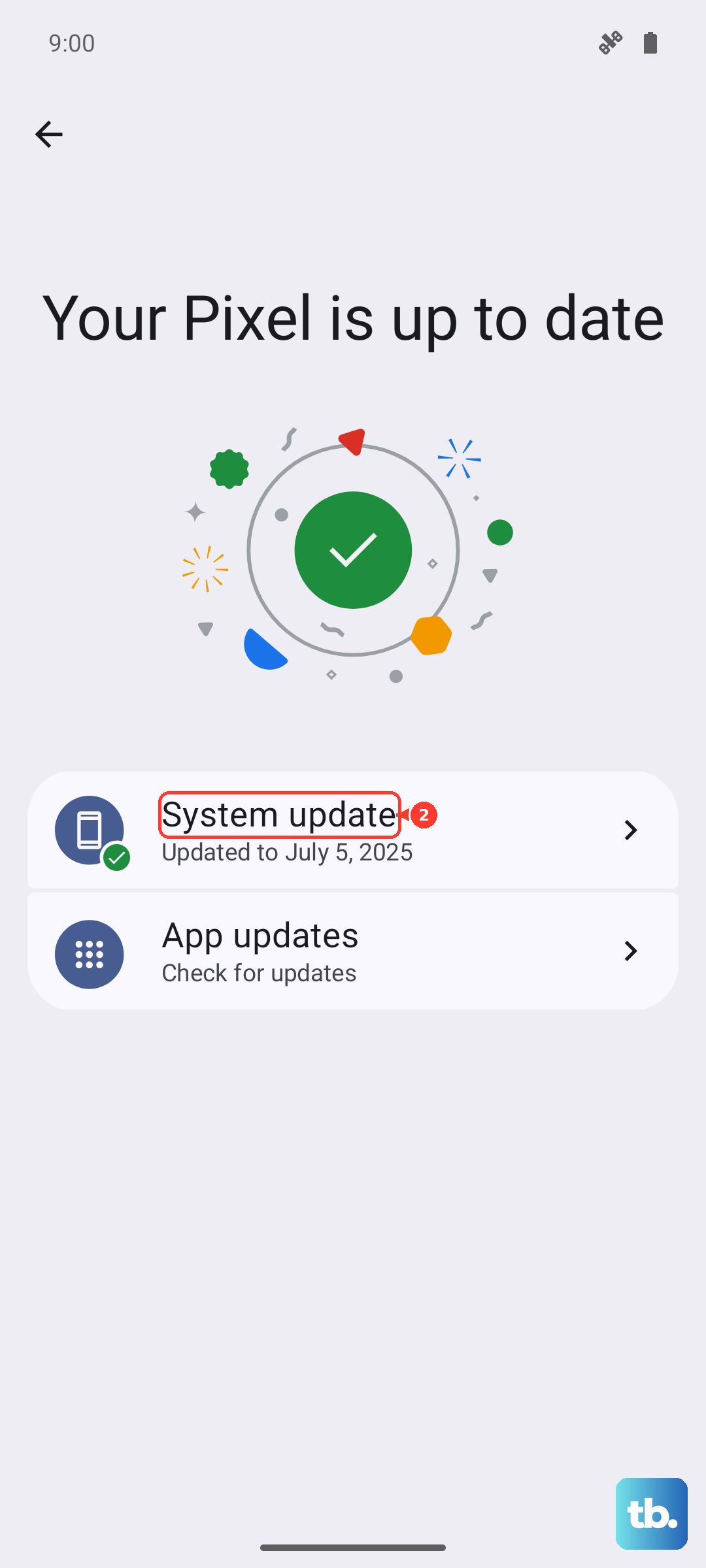
Tap "Check for update" and install anything available. After the update completes, see if the button functionality is restored. I've seen many quirky Pixel issues resolved with a simple update.
Check for Moisture or Physical Damage
Finally, consider if there's been any physical trauma. Has the phone been dropped recently, even in its case? Did it get exposed to water or significant moisture? The Pixel 9 is water-resistant, but a hard impact can damage the internal ribbon cable connecting the buttons.
Look closely at the frame around the buttons for any dents, cracks, or separation. If you see physical damage or suspect liquid exposure, the repair will likely require professional service to fix the hardware.