
If your Google Pixel 9 isn't buzzing for calls or notifications, it's a surprisingly common hiccup. The good news is that it's almost always a software or settings issue you can fix yourself in a few minutes.
Restart Your Pixel 9
Before you dive into settings, give your phone a fresh start. Press and hold the Power button for about 30 seconds until you see the Google logo appear and the phone restarts. This simple reboot clears out temporary glitches that can stop the vibration motor from responding.
Check Your Sound and Vibration Settings
Open the Settings app and go to Sound & vibration. First, look at the "Vibrate for calls" toggle and make sure it's switched on. If it's already on, try turning it off and back on again. This can sometimes kick a stuck setting back into gear.
While you're here, also check the "Default notification sound" section. Tap on it and ensure a vibration pattern is selected for your notifications, not just a silent option.
Verify Your Sound Mode
Your Pixel might be set to a mode that disables vibration entirely. Pull down the quick settings panel from the top of your screen twice to see all the tiles. Look for the tile labeled "Sound".
If it says "Vibrate" or "Silent," tap it to cycle back to the full "Sound" mode. You can also check this in Settings > Sound & vibration, where you'll see the current mode displayed at the top.
Test and Adjust Vibration Strength
Android 15 on the Pixel 9 gives you good control over how strong vibrations feel. Go to Settings > Sound & vibration > Vibration & haptics. Here you'll find sliders for "Call vibration" and "Notification vibration."
Slide them up to a higher intensity. I'd recommend testing after each adjustment by using the "Test vibration" button right on that screen. If the test works but your apps don't vibrate, the issue is likely elsewhere.
Review App-Specific Notification Settings
If vibrations are missing only from specific apps like Messages or Gmail, the problem is in that app's notification channel. Go to Settings > Apps > [App Name] > Notifications.
Tap on the specific notification category (like "Messages" for your texting app). Make sure "Vibrate" is enabled here. Sometimes an app update can reset these preferences, so it's worth a quick look.
Check for a Software Update
Google releases monthly updates and larger Feature Drops that often include bug fixes. A known vibration issue could have been patched. Go to Settings > System > System update and tap "Check for update."
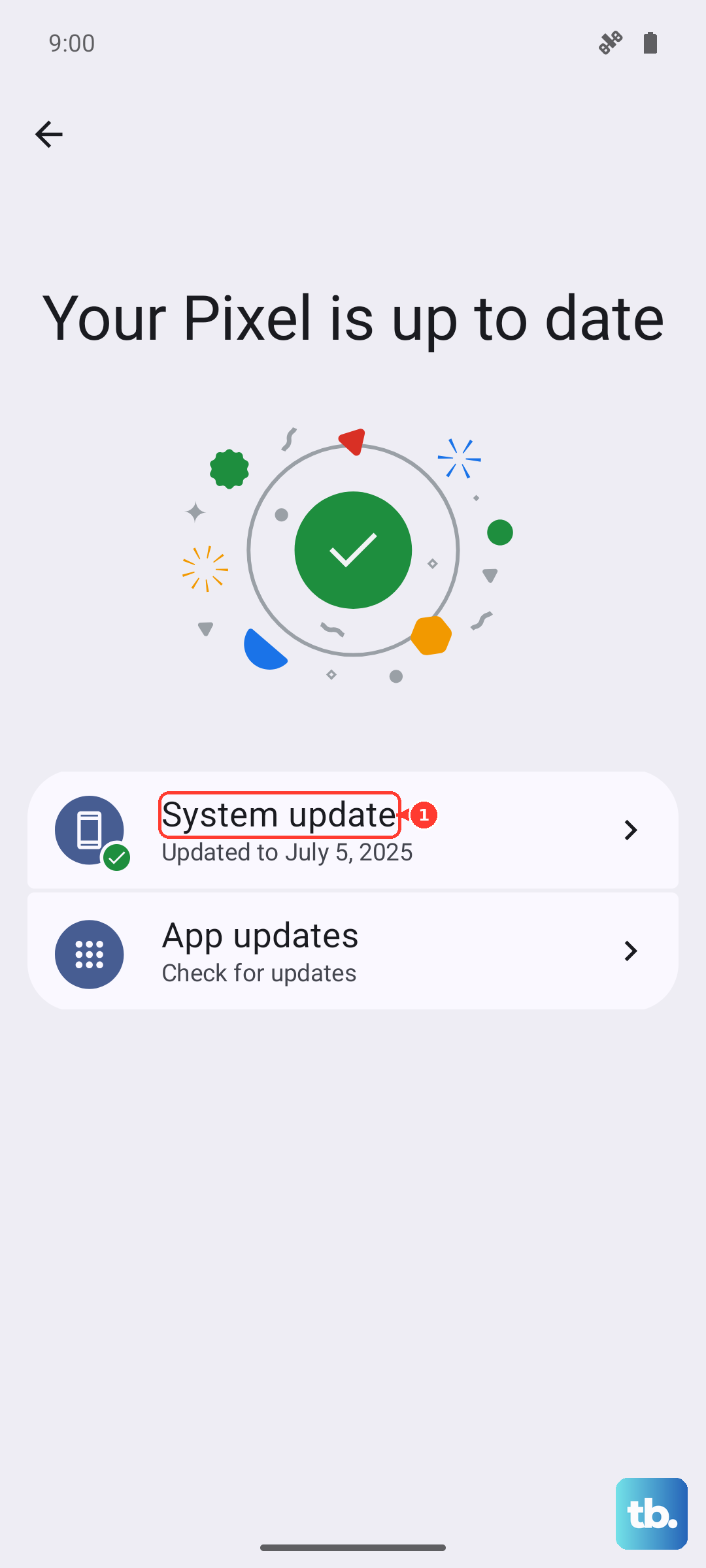
If an update is available, install it and restart your phone. I've seen Pixel issues after a Feature Drop get resolved by the next monthly patch.
Boot Into Safe Mode
This will tell you if a third-party app you installed is causing the conflict. To enter Safe Mode, press and hold the Power button on the screen until the power menu appears. Then, tap and hold the "Power off" option.
You'll see a prompt to reboot to Safe Mode. Tap "OK." If your vibration works normally in Safe Mode, you'll need to find and uninstall the problematic app. Restart normally to exit Safe Mode.
Reset App Preferences
This is a useful middle step that resets notification and permission settings for all your apps without deleting any personal data. Go to Settings > System > Reset options.
Tap "Reset app preferences" and confirm. This will revert all your app notification settings to their defaults, which often clears up weird conflicts causing the vibration to fail.
Test the Vibration Hardware
You can use a hidden diagnostic menu to test the motor directly. Open your Phone app and dial *#*#2486#*#* (which spells *#*#CIT#*#*). This opens the Component Information Test menu.
Look for a "Vibrator" test option. If you select it and the phone doesn't vibrate at all during the test, there may be a hardware issue with the motor itself. If it does vibrate here, the hardware is fine and it's definitely a software problem.
Consider a Factory Reset
If you've tried everything else and the vibration hardware test passes, a factory reset is the last software step. Make sure you back up all your important data first. Go to Settings > System > Reset options > Erase all data (factory reset).
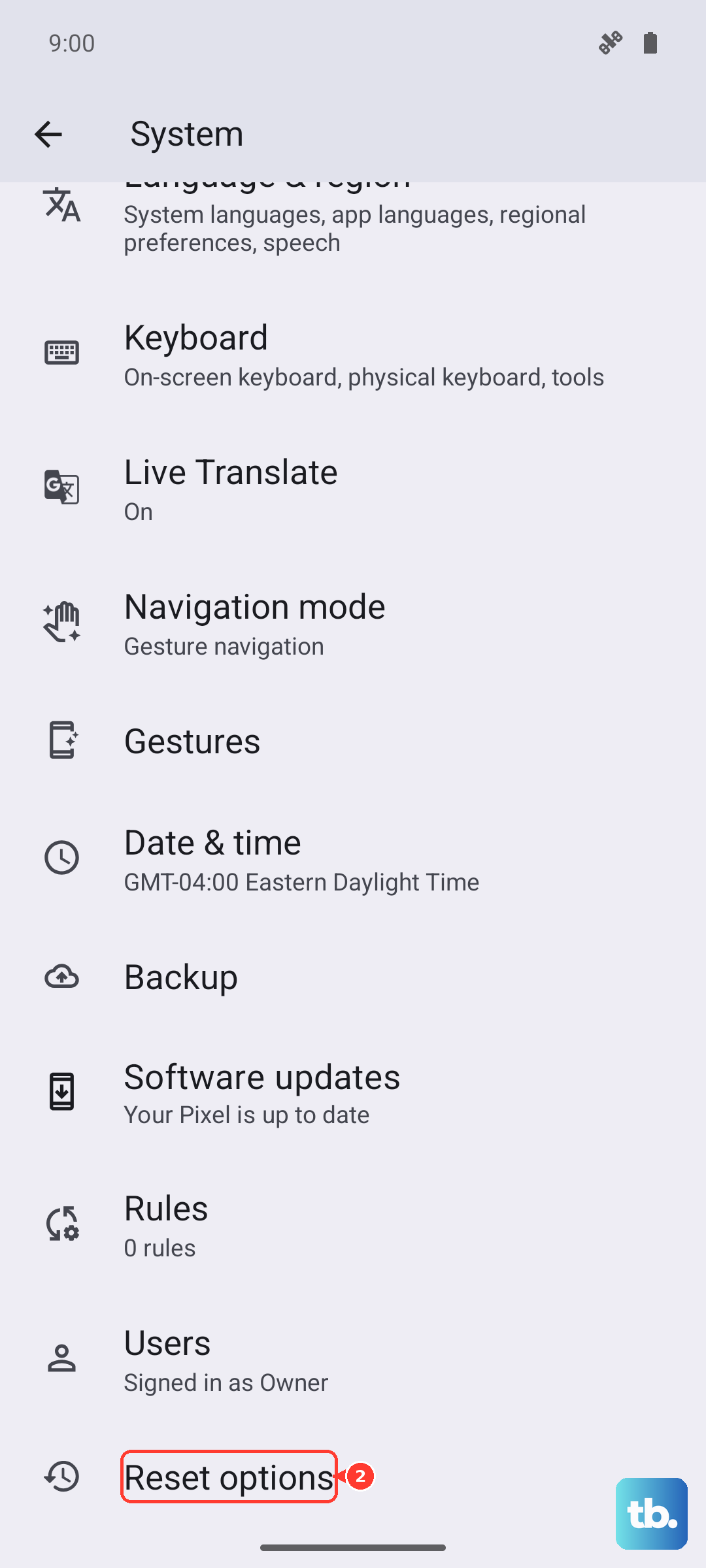
After the reset, set up your phone as new without restoring a backup immediately. Test the vibration right away. If it works, you can slowly restore your apps. If it still doesn't work after a clean reset, the vibration motor may need professional repair.