
When your Google Pixel 9's Settings app keeps closing or you see a "Settings keeps stopping" message, it's usually a temporary software hiccup. This can happen after a system update or when an app's cached data gets corrupted. The good news is, you can almost always fix it yourself without losing any data.
Restart Your Pixel 9
This is the quickest thing to try and it works surprisingly often. A simple restart clears out the phone's temporary memory, which can stop the Settings app from crashing.
Just press and hold the power button, then tap "Restart" on the screen. If your screen is unresponsive, you can force a restart by holding the power button for about 30 seconds until you feel the phone vibrate and the Google logo appears.
Clear the Settings App Cache
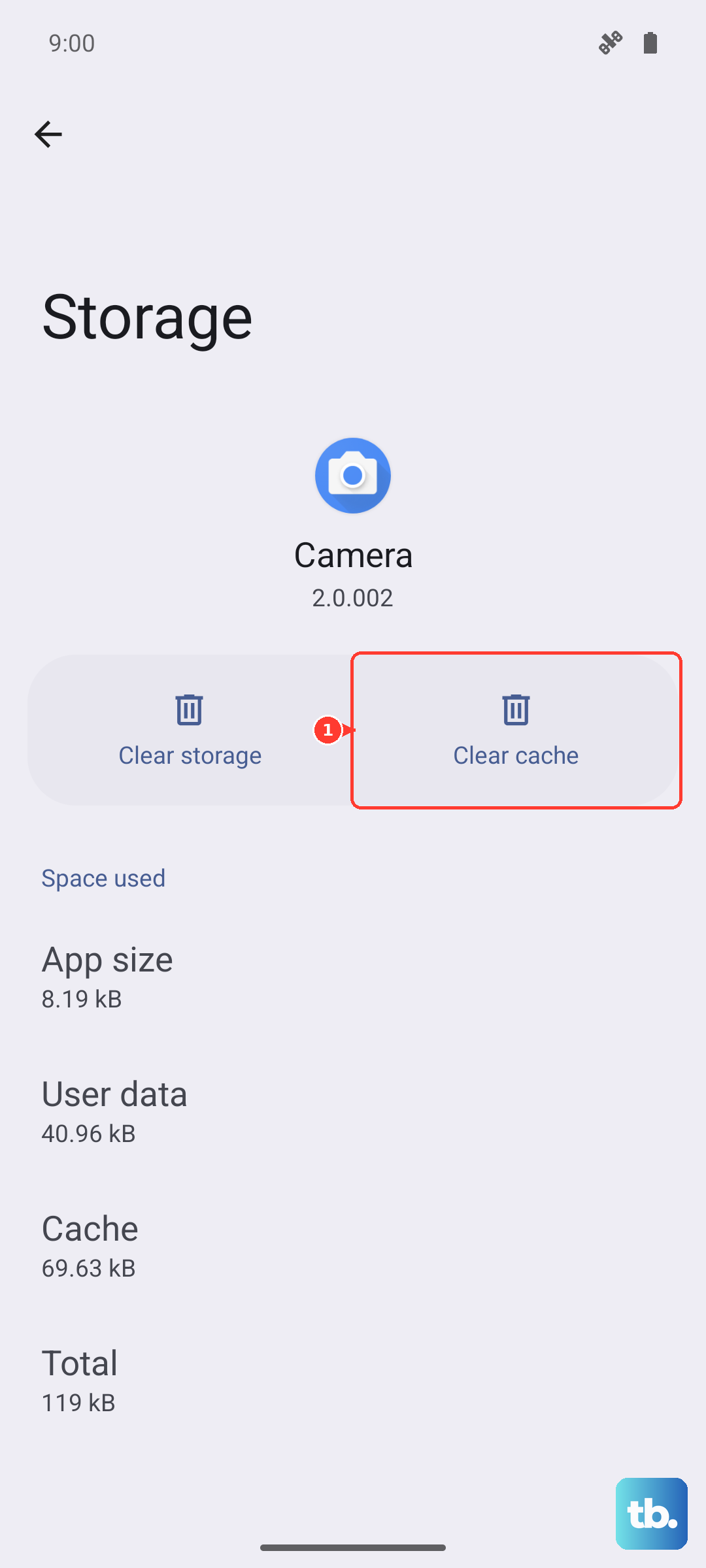
Your phone stores temporary data, called cache, to help apps like Settings load faster. Sometimes this data gets messed up and causes the app to close. Clearing it is safe and won't delete your personal settings.
Go to Settings > Apps > See all apps. Find and tap on "Settings" in the list. Then, tap Storage & cache and hit "Clear cache." Try opening the Settings app again to see if it's stable.
Update Android and Apps
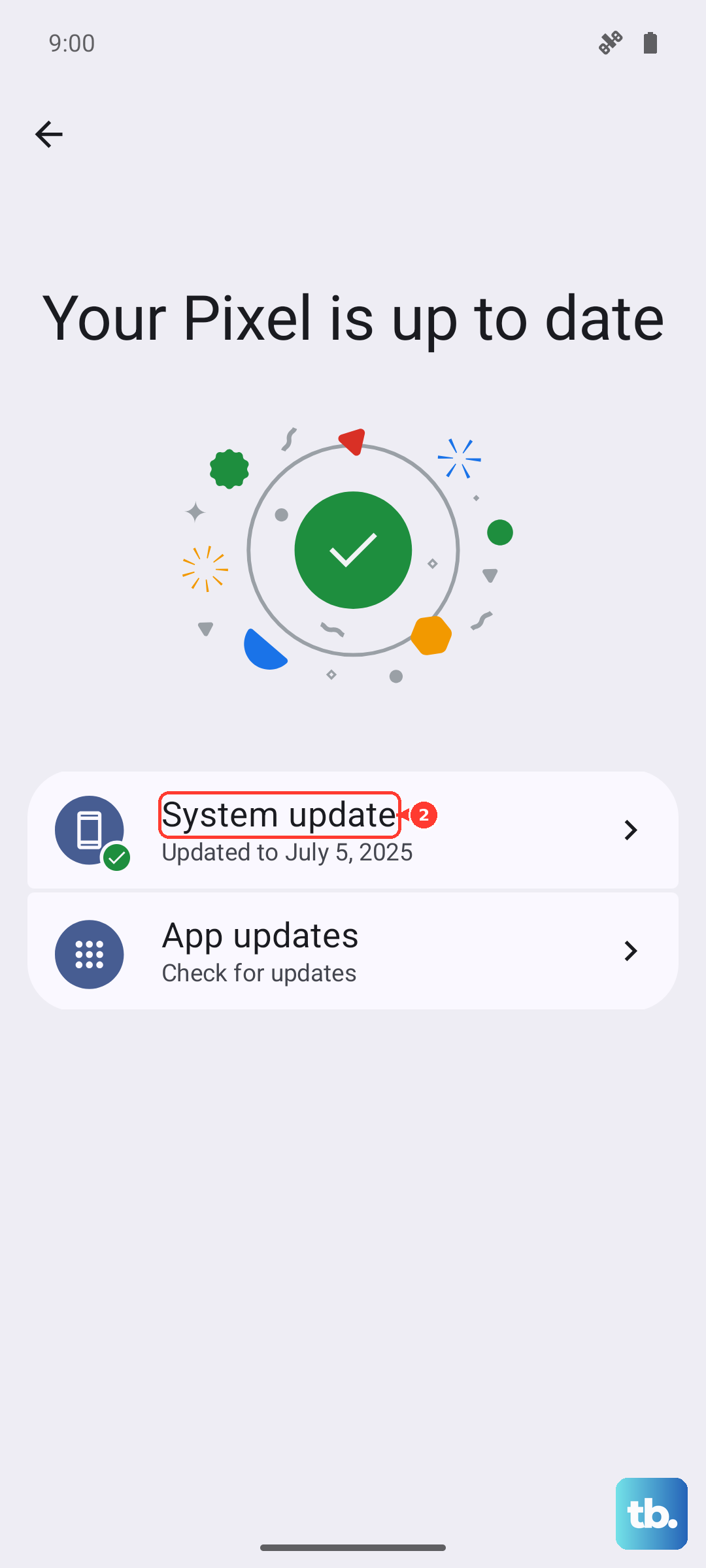
If this started happening after a recent Feature Drop or app update, there might be a small bug. Google often releases fixes quickly. First, check for a system update by going to Settings > System > System update.
Next, open the Google Play Store, tap your profile icon, and go to Manage apps & device > Updates available. Install all updates, especially for Google Play Services and the Android System Intelligence app, as they are core to how system apps run.
Check for Problematic Apps in Safe Mode
Sometimes a recently installed third-party app can conflict with system functions. Booting into Safe Mode temporarily disables all apps you downloaded, letting you see if one of them is the culprit.
Press and hold the power button. On the power menu, touch and hold "Power off" until you see "Reboot to safe mode." Tap it to confirm. If Settings works fine in Safe Mode, a downloaded app is likely causing the issue. Restart normally to exit Safe Mode, then try uninstalling apps you added just before the problem started.
Reset App Preferences
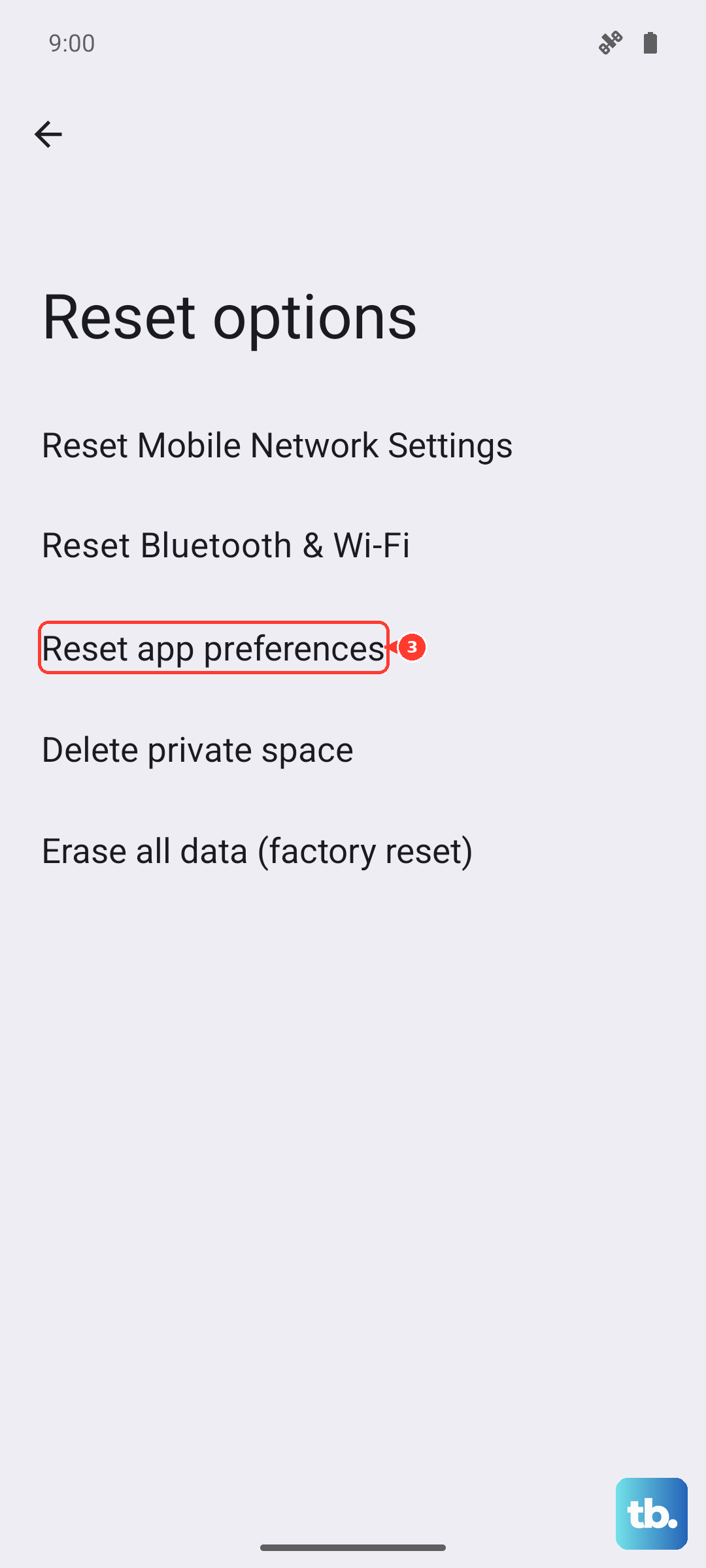
This is a useful middle step before considering more drastic measures. It resets all your app permissions, default apps, and background data restrictions back to their original settings without deleting any app data.
Navigate to Settings > System > Reset options. Tap "Reset app preferences" and confirm. You'll need to re-grant permissions to apps when you use them next, but it can clear up conflicts that make system apps unstable.
Reinstall Updates for Core Google Apps
On a Pixel, core system apps like Android System WebView or Google Play Services can be updated through the Play Store. If an update went wrong, you can roll it back.
Go to Settings > Apps > See all apps. Tap the three-dot menu and select "Show system." Find "Android System WebView," tap it, then tap the three dots in the top right and select "Uninstall updates." Do the same for "Google Play Services." Your phone will reinstall the stable factory versions.
Consider a Factory Reset
If nothing else has worked and the Settings app is still unusable, a factory reset is the final step. This will erase everything on your phone, so you must back up your photos, messages, and files to Google Drive first.
Since you can't access Settings, you can trigger the reset from the recovery menu. Turn off your phone. Then, press and hold the power and volume down buttons together until the bootloader screen appears. Use the volume buttons to highlight "Recovery mode" and press the power button to select it. When you see the Android robot with an exclamation mark, hold power and press volume up once. Use the volume buttons to navigate to "Wipe data/factory reset" and select it with the power button.