When your Pixel 9 Pro XL's volume buttons stop responding, you might feel stuck, especially if you're in the middle of a call or watching a video. The buttons can freeze up for a few reasons, but most of the fixes are quick and don't require any tools. Here's what to try.
Start with the phone case
A case that's too tight or slightly misaligned can press against the volume rocker, making it feel stuck or unresponsive. Pop the case off and test the buttons. If they work fine without it, the case is the culprit, try a different one or adjust the fit.
Force restart your Pixel 9 Pro XL
A simple restart often clears temporary software glitches that mess with the volume buttons. On the Pixel 9 Pro XL, press and hold the Power button and Volume Up button simultaneously, then select Restart from the menu. Once it boots back up, check if the volume buttons respond normally.
Check if Do Not Disturb is turned on
When Do Not Disturb is active, your phone might suppress volume changes for calls and notifications. Swipe down twice from the top of the screen to open the quick settings panel, and tap the Do Not Disturb icon to turn it off if it's highlighted. Then try the volume buttons again.
Use the on-screen volume slider
While you're troubleshooting, you can still adjust volume through the software. Press either volume button to bring up the slider, then drag it with your finger. Or go to Settings > Sound & vibration and use the sliders for media, ringtone, and alarm volume.
Clean the volume buttons
Dust and pocket lint can get packed around the volume rocker, making it stiff or unresponsive. Try blowing compressed air around the buttons. If there's sticky residue, lightly dampen a cotton swab with rubbing alcohol and gently clean the edges. Avoid pushing debris deeper inside.
Test the buttons in different apps
Sometimes the problem is app-specific. Open a few different apps, YouTube, a game, the Phone app, and try adjusting the volume in each. If the buttons work everywhere except one app, that app might have a bug. Try updating or reinstalling it.
Toggle Adaptive Sound and other audio settings
The Pixel 9 Pro XL includes Adaptive Sound, which adjusts audio based on your environment. Occasionally this feature can interfere with button behavior. Go to Settings > Sound & vibration > Adaptive Sound and turn it off temporarily. Also check that the volume buttons aren't accidentally remapped in Accessibility > Volume key shortcut or similar options.
Try Safe Mode
If a third-party app is hijacking the volume buttons, Safe Mode can help you figure it out. Press and hold the Power button, then tap and hold the Power off option until you see the Safe Mode prompt. Tap OK. In Safe Mode, only pre-installed apps run. If the volume buttons work fine here, a downloaded app is the cause, start uninstalling recent apps until you find the one.
Enable the accessibility button
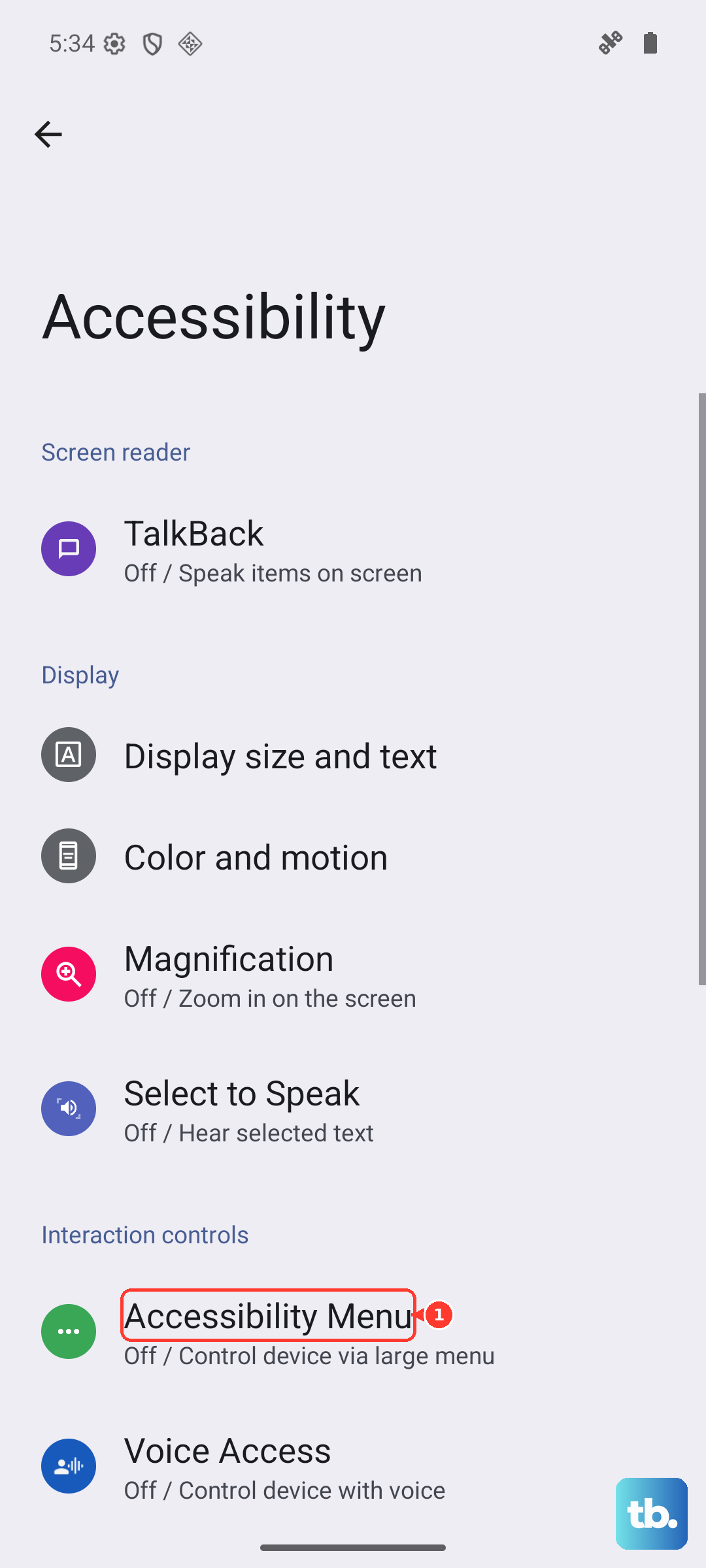
If the physical buttons are truly stuck, you can use an on-screen control. Go to Settings > Accessibility > Accessibility Menu and turn it on. A small icon will appear on your screen. Tap it, then choose Volume up or Volume down. This won't fix the hardware, but it gives you a workaround while you decide on a repair.
Update Android and Pixel software
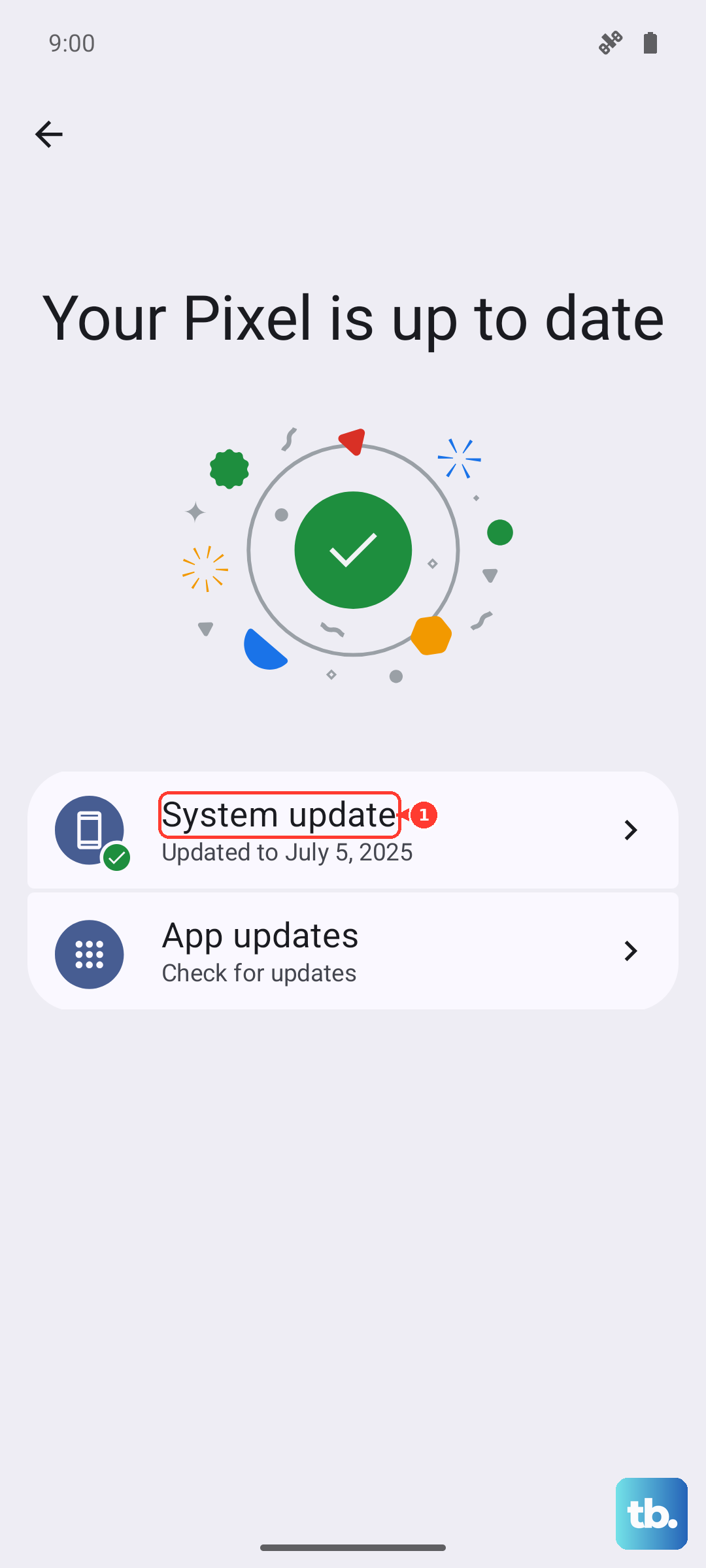
Google frequently pushes software updates that fix bugs, including issues with hardware buttons. Go to Settings > System > System update and check for any available updates. If there's one waiting, download and install it, then restart your phone.