
When your Pixel 9 Pro XL suddenly throws up "Settings has stopped" right in the middle of something, it's annoying. You can't tweak anything, can't check your battery, can't even change your wallpaper. The good news is this is almost always a software hiccup, not a hardware problem. Let's get it sorted.
Start with a force restart
Before you dig into menus or mess with app data, try a force restart. This clears out whatever temporary glitch might be hanging around in the system memory.
Press and hold the Power button and the Volume up button together. After a second or two, you'll see a Restart option on screen. Tap it and wait for the phone to come back. That alone fixes the error more often than you'd think.
Clear the Settings app cache
If a restart didn't help, the Settings app itself might be holding onto corrupted cache files. Clearing those is quick and won't delete any of your settings or personal data.
You'll need to navigate blind at first since the Settings app is what's crashing. Use the quick settings shade (swipe down twice from the top) and tap the gear icon. If that works, go to Apps, scroll down to Settings, tap Storage & cache, then hit Clear cache.
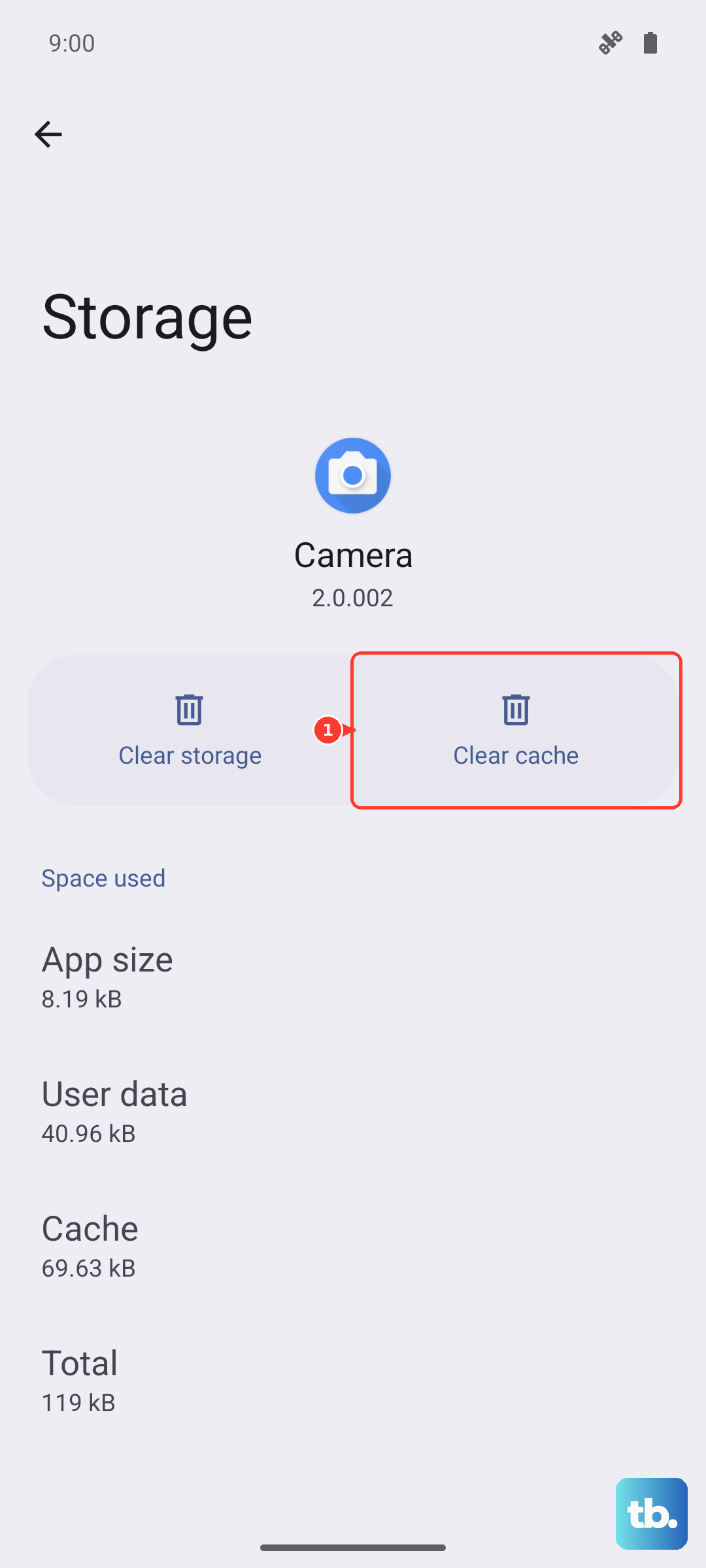
If tapping the gear icon crashes again, you can still reach app info by holding down the Settings app icon from your app drawer and tapping "App info." Same result, just a different path.
Force stop the Settings app
Sometimes Settings gets stuck in a bad state. Force stopping it forces the system to launch a fresh copy the next time you open it.
Head to Apps in your phone's settings (same blind navigation or the long-press trick from above), find Settings again, and tap Force stop. Confirm the prompt. Now open the Settings app normally and see if the error pops up again.
Check Google Play Services
Google Play Services acts as a bridge between system apps and Google's backend. If it's acting up, Settings tends to crash too. The fix involves stopping it and clearing its cache.
Go to Apps > Google Play Services. Tap Force stop first, then go to Storage & cache and hit Clear cache. While you're in there, tap Manage storage and Clear all data. Don't worry, this doesn't delete your Google account or anything important, it just resets Play Services' internal data.
Restart your Pixel after this step, then test the Settings app again.
Uninstall recent Play Store updates
This is a weird one, but I've seen it work. A recent Google Play Store update can sometimes conflict with the Settings app, especially around account and permission management.
Navigate to Apps and find Google Play Store. Tap the three-dot menu in the top right and choose Uninstall updates. Confirm the prompt, and the Play Store will roll back to its factory version. Restart your phone, then open the Play Store and let it update itself again.
If the error was caused by a bad Play Store update, this usually clears it.
Install any available system updates
Google regularly pushes Android updates for the Pixel 9 Pro XL that fix exactly these kinds of app crashes. If you're behind on updates, you might be running a known bug that's already been patched.
Since Settings might keep crashing, pull down the quick settings shade and long-press the gear icon. That sometimes opens the system settings bypassing the normal app. From there, go to System > System update and tap Check for update. Install anything that shows up and restart the phone.
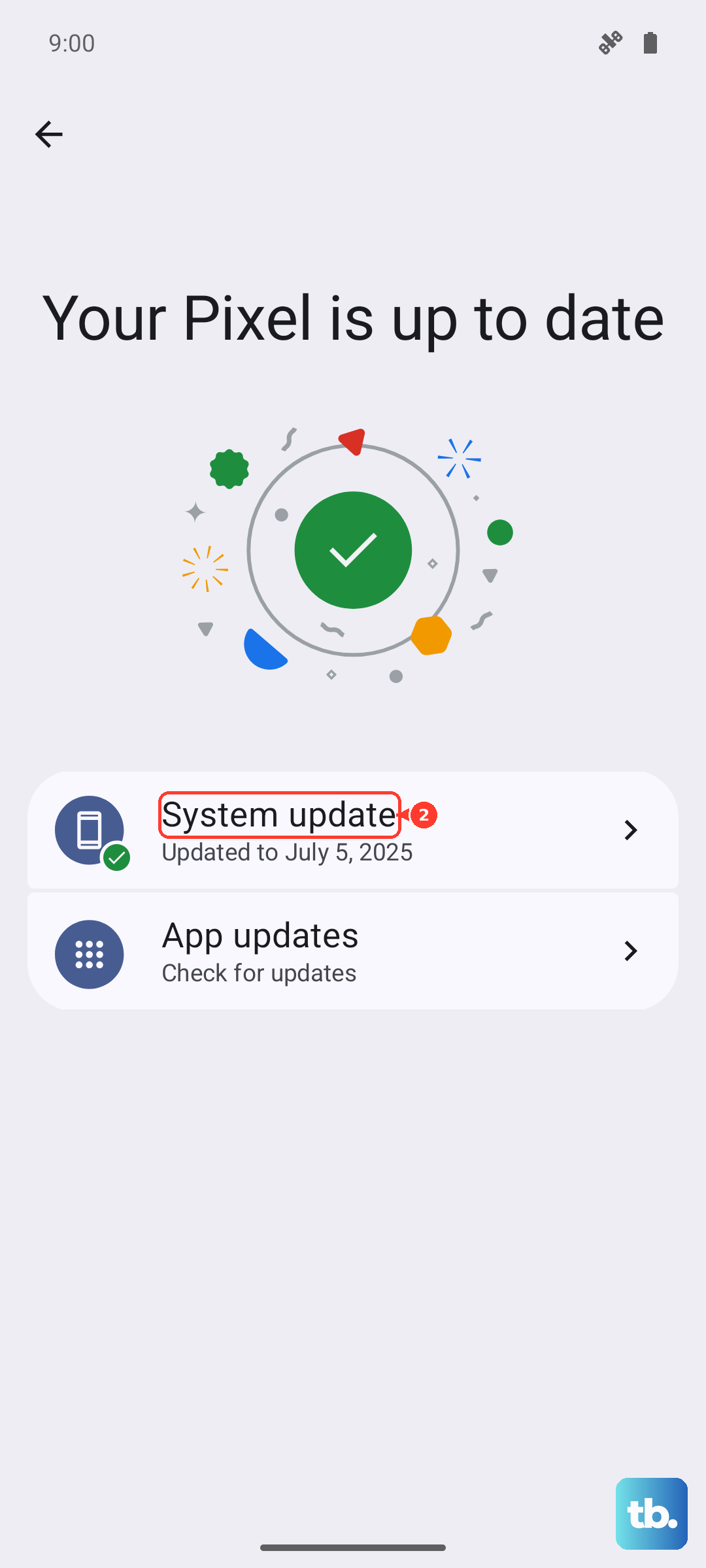
Pixel devices get monthly security patches and sometimes feature drops, so staying current is worth doing anyway.
Reset your phone as a last resort
If you've tried everything above and the Settings app still crashes, a factory reset will almost certainly fix it. This wipes everything on your phone, so back up your photos, messages, and anything else you don't want to lose first.
You can start a factory reset even with a crashing Settings app by holding the Power and Volume up buttons together until you see the bootloader menu. Use the volume keys to navigate to Recovery mode and press the Power button. From there, select Wipe data/factory reset using the volume keys and confirm with Power.
After the reset, your Pixel 9 Pro XL will boot up like new. The Settings app will work perfectly again. You'll just need to set everything back up the way you like it.