Screen flickering on your Pixel 9 Pro XL can turn a premium experience into a frustrating one. The display might pulse, flash, or show lines that come and go. Let's run through the most common fixes to get the screen stable again.
Before adjusting cables and settings, run a quick screen test in your browser. Its fullscreen patterns make problems like flicker, banding, and uniformity issues much easier to spot and describe.
Restart, Then Force Restart If Needed
First try a normal restart. On Pixel 6 and later phones, press and hold the Power button and Volume up button for a few seconds, then tap Restart.
If the screen is frozen or the power menu does not respond, force restart instead by pressing and holding only the Power button for up to 60 seconds. Release it when the phone begins to reboot and the Google "G" logo appears.
Turn Off Adaptive Brightness
Adaptive brightness automatically fits your screen brightness to the light around you, and Google says it is on by default. If the flickering looks like brightness pulsing, turn it off temporarily while testing.
Go to Settings > Display & touch > Adaptive brightness and toggle it off. Set your brightness manually for a while to see if the flickering stops. If it stops, leave the setting off while you continue troubleshooting, then turn it back on later if you prefer it.
Disable Smooth Display
Smooth Display can automatically raise the refresh rate for some content. To test whether refresh-rate changes are tied to the flicker, go to Settings > Display & touch > Smooth Display and turn it off.
If the flickering stops, keep Smooth Display off while troubleshooting and try it again after installing available system updates.
Check for App Conflicts in Safe Mode
If the flickering only happens in certain apps or started after a recent install, a downloaded app could be to blame. On Pixel 6 and later phones, press and hold the Power button and Volume up button for a few seconds, then touch and hold either Power off or Restart until the safe mode prompt appears. Tap OK.
Safe mode temporarily turns off downloaded apps. Google says Airplane mode turns on automatically when you enter safe mode, so turn Airplane mode off if you need Wi-Fi, GPS, or calls while testing. If the screen stops flickering, uninstall recently added apps one by one until you find the problem.
Update the System
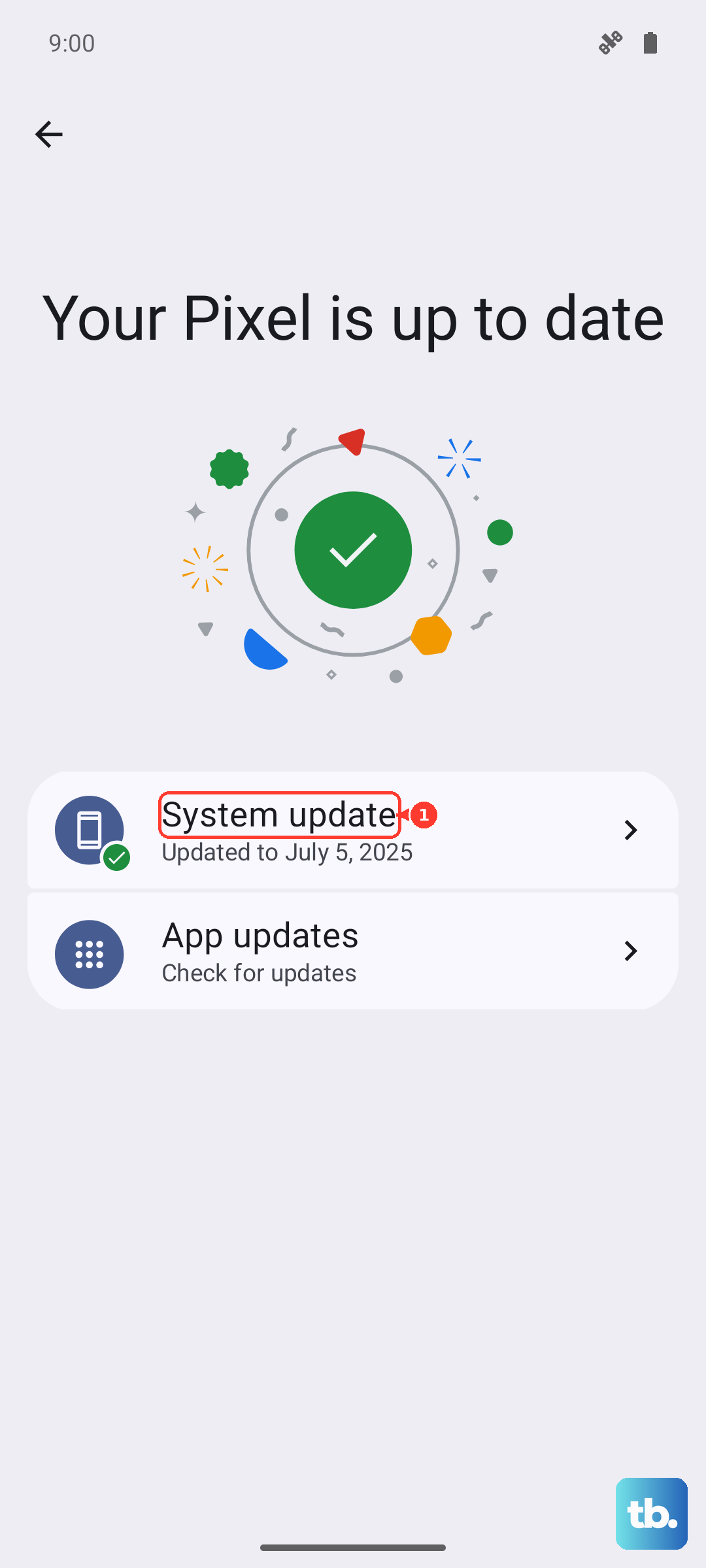
Open Settings > System > Software updates. You can find your update status there; follow the on-screen instructions for any available update.
Keeping the phone's software current is a supported troubleshooting step, but do not assume a specific display fix unless Google's update notes say so.
Disable Extra Dim
Extra dim lets you dim the screen beyond the phone's minimum brightness so it is more comfortable to read. For Pixel 9 and earlier, check it while troubleshooting by opening Settings > Accessibility and turning Extra dim off.
If you only need to test the setting, you can also search Settings for Extra dim. Leave it off while troubleshooting so the screen is not being dimmed below the normal brightness range.
Reset App Preferences
Sometimes a background app takes control of the display settings. Resetting app preferences won't delete your data, but it will reset all disabled apps, notification restrictions, and default apps.
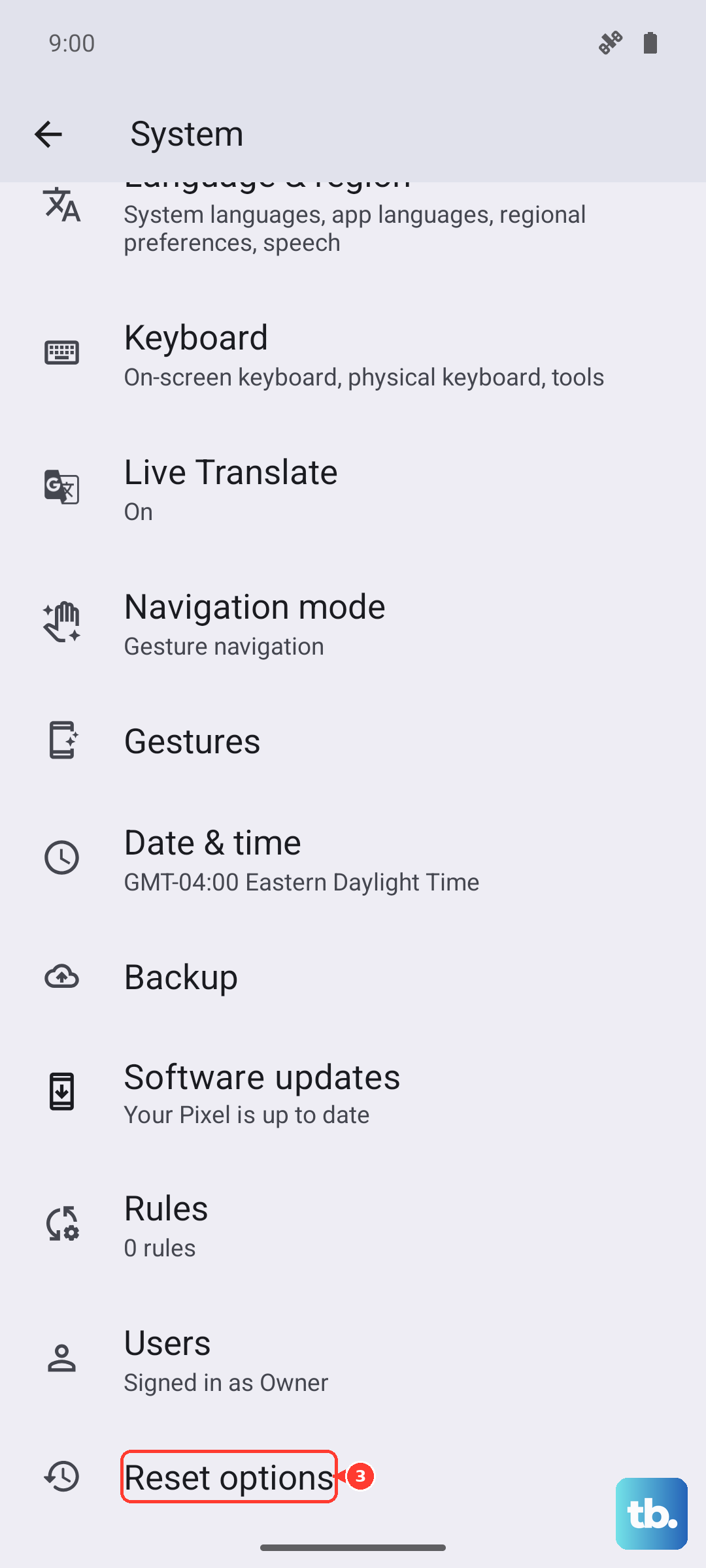
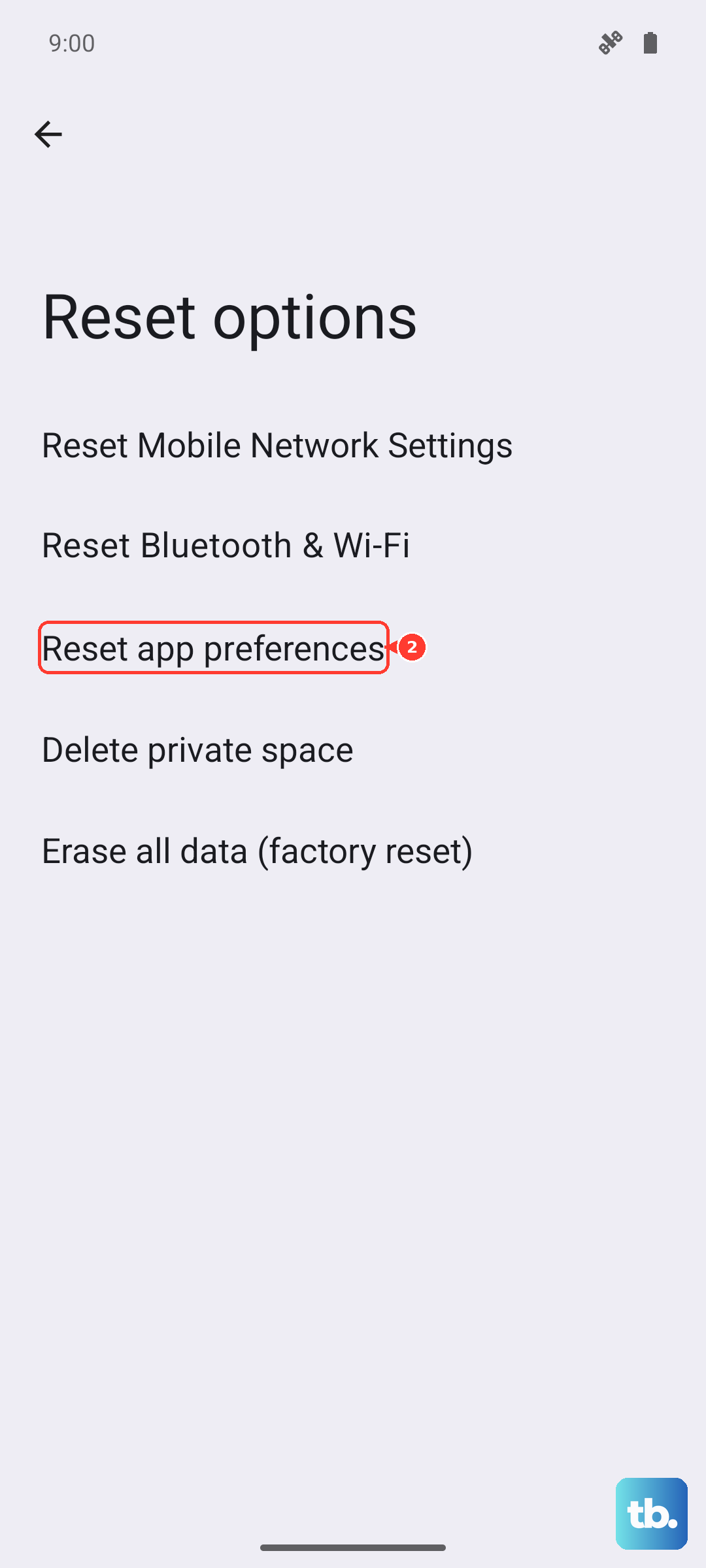
Go to Settings > System > Reset options > Reset app preferences. Tap the button and confirm. It takes two seconds and can clear up weird display conflicts that a restart won't fix.
Check for Physical Damage or Overheating
If the flickering started after a drop, or if the enclosure or screen is cracked, stop using the phone and contact customer service. Google says not to use a phone with a damaged enclosure, cracked screen, or other physical damage because it may cause overheating or injury.
If your Pixel is too hot, disconnect it from power if it is plugged in, move it to a cooler place, and do not use it until it has cooled. Then test the screen again. If the flickering returns after the phone cools down, contact customer service instead of assuming overheating was the trigger.
Factory Reset as a Last Resort
If the screen is still flickering after the safer checks, use Google's Update and Software Repair tool first if you can connect the phone to a computer. Google says it may update software without a factory reset, and a reset through that tool still requires you to back up, delete, and restore your data.
If you choose a factory reset from the phone, back up your data first because a factory reset erases all data from the phone and uninstalls apps and their data. Go to Settings > System > Reset options > Erase all data (factory reset), then tap Erase all data and follow the prompts. If flickering continues after setup, continue troubleshooting instead of presenting the reset as proof of a specific hardware failure.