
You're expecting a notification on your Pixel 9 Pro XL, but nothing pops up. Maybe emails arrive silently, or text messages only show up when you open the app. Missing notifications on a Google Pixel 9 Pro XL can stem from a handful of causes, and most of them are easy to fix yourself.
Below are 11 solutions to try, starting with the quickest checks and moving toward more thorough resets. You don't need to do all of them just work through until your notifications start behaving again.
Check if Do Not Disturb is On
This one's obvious but easy to overlook. Swipe down from the top of the screen with two fingers to open Quick Settings. Look for the Do Not Disturb icon if it's highlighted, tap it to turn it off. You can also check in Settings > Notifications > Do Not Disturb to see if any schedules or rules are active. I've seen people accidentally flip it on while adjusting volume and then wonder why their phone went silent for hours.
Restart Your Pixel 9 Pro XL
A simple restart clears temporary glitches that can block notifications. On the Pixel 9 Pro XL, press and hold the Power button and Volume Up button simultaneously until the Restart option appears, then tap Restart. That's the official force restart method for this phone. Once it boots back up, test notifications from a friend or send yourself a test email.
Check App Notification Settings Per App
Android lets you control notifications individually for every app. It's possible a specific app got silenced without you realizing it. Go to Settings > Notifications > App notifications. Tap the app that's missing notifications (like Messages or Gmail) and make sure All notifications is toggled on. While you're there, check that the individual categories (like "Messages" or "Email") aren't set to silent or minimized.
Disable Battery Optimization for Important Apps
Pixel phones aggressively manage battery for apps you don't use often. That can delay or block notifications from those apps. Open Settings > Apps > tap the app in question > App battery usage. Change it from Optimized to Unrestricted. This tells the system to never put that app to sleep, so notifications come through immediately. I'd reserve this for messaging and email apps you don't need it for a weather widget.
Clear the Messages or Email App Cache
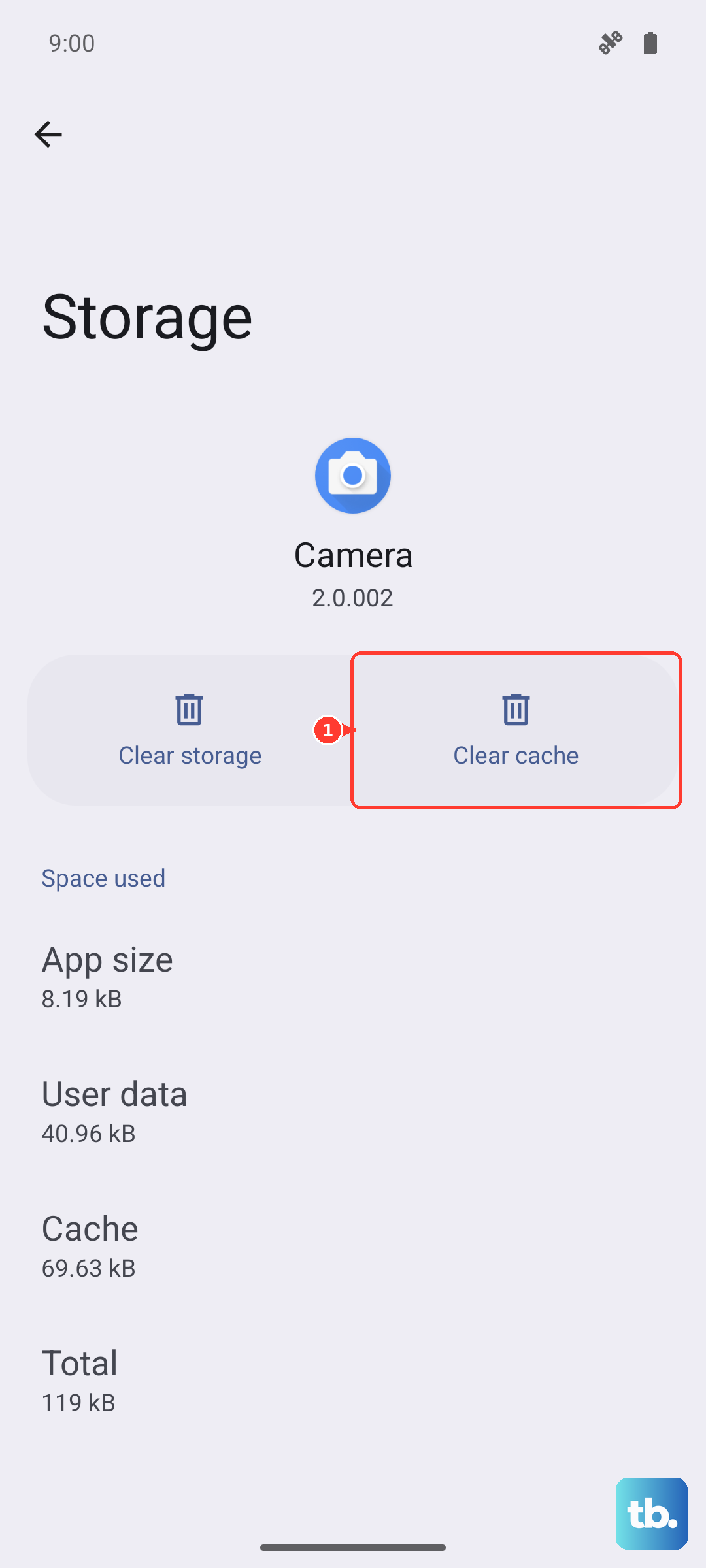
Corrupted cache files inside an app can cause notifications to stall. Go to Settings > Apps > tap the app > Storage & cache > Clear cache. Don't tap Clear storage that would delete your app data and log you out. Clearing just the cache is safe and often fixes stuck notification states. Restart the phone afterward.
Force Stop and Relaunch the App
If an app is misbehaving in the background, force-stopping it gives it a fresh start. Go to Settings > Apps, find the problematic app, tap Force stop. Then reopen the app normally. This is quicker than a full restart and often resolves transient notification issues.
Update Your Pixel's Software
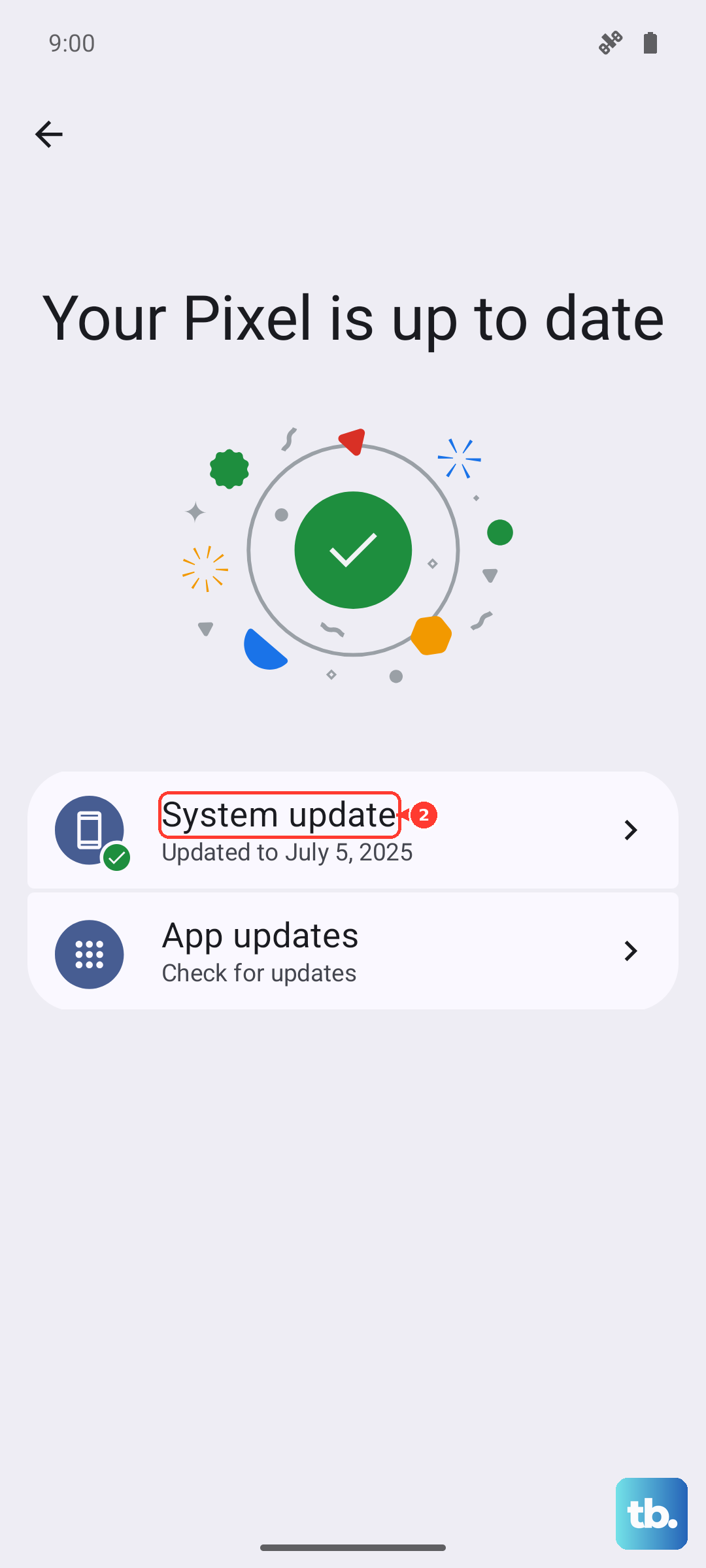
Google regularly pushes updates that fix notification bugs for the Pixel 9 Pro XL. Go to Settings > System > System update and check if a new version is available. Install it if so. Also update your apps via the Play Store outdated apps sometimes have compatibility issues with Android 14 that can break notifications.
Check Notification History
If you suspect notifications are coming in but you're missing them, Android keeps a log. Go to Settings > Notifications > Notification history (you may need to turn it on first if it's off). This shows recent notifications even if you dismissed them. It's a good way to confirm whether the app is actually sending notifications or if the problem is on the phone's side.
Turn Off Adaptive Battery and Adaptive Notifications
Pixel's Adaptive Battery learns your usage patterns and may delay notifications from apps you don't open often. Similar for Adaptive Notifications. Go to Settings > Battery > Adaptive Battery and toggle it off temporarily to test. Also check Settings > Notifications > Adaptive notifications and turn that off too. See if notifications start appearing normally. If yes, you can leave those features off or re-enable them later with better behavior.
Reset All Settings (Without Losing Data)
This option resets system settings like Wi-Fi, Bluetooth, and notification preferences to factory defaults, but it doesn't delete your photos, contacts, or apps. Go to Settings > System > Reset Options > Reset all settings. You'll need to re-enter Wi-Fi passwords and re-pair Bluetooth devices, but it's much less drastic than a factory reset. I've used this on several Pixels to fix stubborn notification issues that nothing else touched.
Boot into Safe Mode to Isolate Third-Party Apps
If no notification appears from any app, a third-party app could be causing interference. Boot into Safe Mode to disable all downloaded apps temporarily. Press and hold the Power button, then tap and hold Restart on the screen until you see the Safe Mode prompt confirm it. In Safe Mode, test notifications from a built-in app like Phone or Messages. If they work, a downloaded app is the culprit. Restart normally, then uninstall recently installed apps one by one until notifications return.