
Missing calls because your Google Pixel 9 Pro XL isn't ringing is annoying. You see the missed call notification, but the phone stayed silent even though the ringer is on and it's not on vibrate. Here are the most common reasons and how to fix them.
Check if Do Not Disturb Is Turned On
Do Not Disturb silences calls but still logs them. On the Pixel 9 Pro XL, you can check this quickly. Swipe down from the top of the screen to open Quick Settings, then look for the crescent moon icon. If it's highlighted, tap it to turn DND off.
You can also go to Settings > Sound & vibration > Do Not Disturb and make sure it's not scheduled to turn on automatically. Check any active schedules and make sure they're turned off.
Make Sure the Ringer Volume Isn't Too Low
This one's obvious but easy to overlook. Press the volume up button on the side of your Pixel 9 Pro XL a few times when you're not on a call or listening to music. If the media volume slider shows up instead of the ringer volume, tap the three-dot menu on the slider and choose the ringer.
You can also go to Settings > Sound & vibration and slide the Ring volume up to max. Test by calling yourself from another phone.
Turn Off Silence Unknown Callers
Pixel phones have a feature that sends calls from unknown numbers straight to voicemail without ringing. If you're missing calls from people not in your contacts, this might be the culprit.
Go to Phone app > three-dot menu > Settings > Caller ID & spam and turn off Filter spam calls (or disable "Silence unknown callers" depending on your Android version). On Android 14, it's usually under Settings > Phone > Blocked numbers > Unknown.
Disable Blocked Numbers and Spam Protection
Check that you haven't accidentally blocked a contact. Open the Phone app, tap the three-dot menu, go to Settings > Blocked numbers. Remove any numbers that shouldn't be blocked.
Also check the spam protection setting: in Phone app settings, look for Caller ID & spam and make sure See caller & spam ID is on, but be aware that aggressive spam filtering can also silence legitimate calls. If you're missing calls, try turning it off temporarily.
Check Call Forwarding Settings
If call forwarding is active, incoming calls get redirected elsewhere and your phone won't ring. Open the Phone app, tap the three-dot menu, go to Settings > Calling accounts > your SIM > Call forwarding. Make sure all forwarding options (when busy, unanswered, unreachable) are set to off.
You can also dial *#21# to check current forwarding status and ##21# to disable all forwarding.
Disconnect Bluetooth Devices
If your Pixel 9 Pro XL is connected to a Bluetooth speaker, headphones, or car, calls might ring through those devices instead of the phone speaker. Turn off Bluetooth quickly from Quick Settings, or go to Settings > Connected devices and disconnect any paired audio devices.
Test with a call after turning Bluetooth off to see if the phone rings normally.
Restart Your Pixel 9 Pro XL
A simple restart clears temporary glitches that can cause ringing issues. Press and hold the Power button and Volume up button together until the menu appears, then tap Restart. Wait for the phone to reboot and test again.
I've seen this fix work for odd audio problems after app updates or system changes.
Update Your Phone's Software
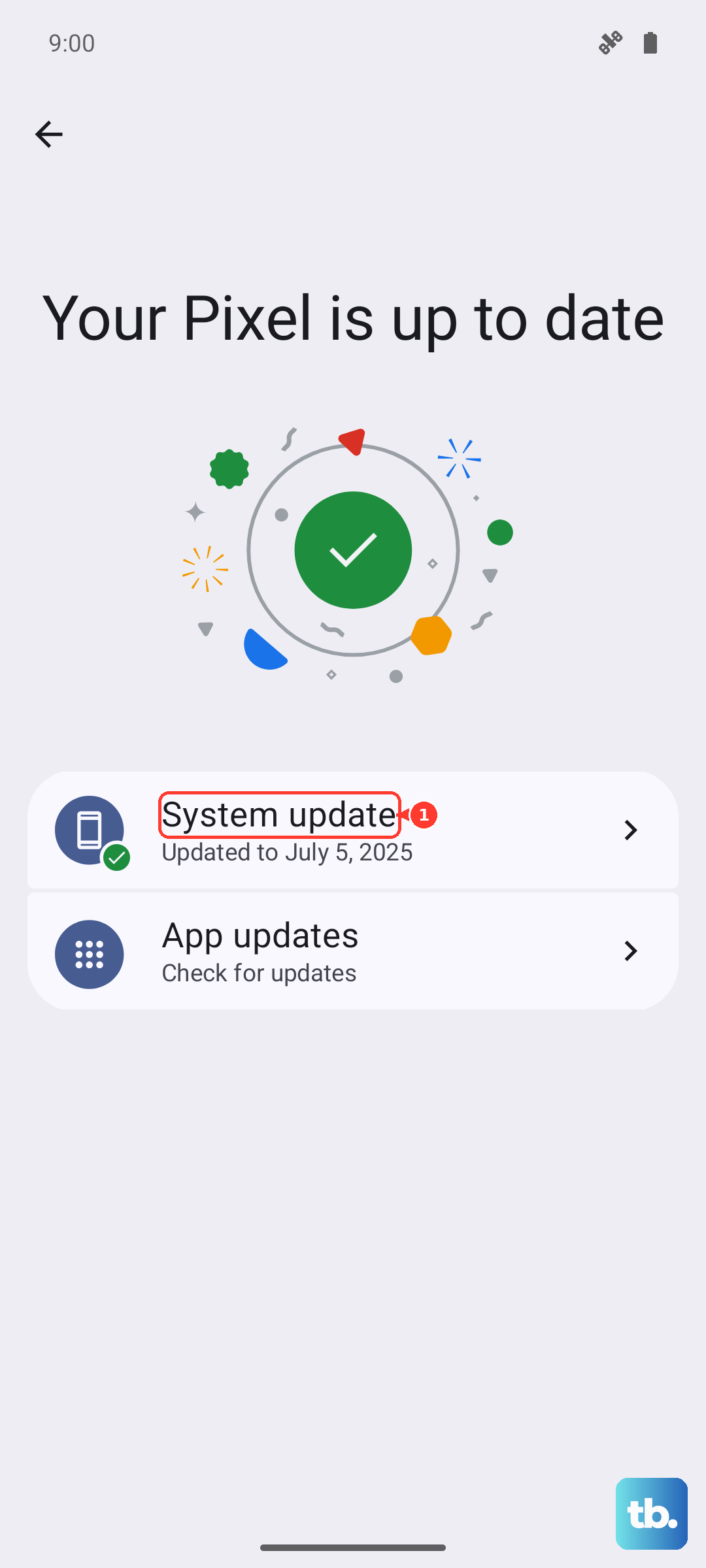
Google regularly pushes updates to fix bugs, including call-related issues. Go to Settings > System > System update. If an update is available, download and install it. Make sure you have at least 50% battery and a good Wi-Fi connection before starting.
Check App-Specific Notification Settings
If only calls from apps like WhatsApp, Telegram, or Skype aren't ringing, the issue might be with those apps' notifications. Open Settings > Notifications > App notifications, find the app, and make sure Incoming calls or Call notifications are allowed. Also check within each app's own settings for call rings.
For WhatsApp specifically: open WhatsApp, tap the three-dot menu, Settings > Notifications > Call notification, and choose a sound.
Reset All Settings (Without Losing Data)
If nothing else works, resetting all settings can fix deeper configuration issues without deleting your photos, apps, or accounts. Go to Settings > System > Reset options > Reset Wi-Fi, mobile & Bluetooth (or Reset app preferences for a less aggressive option). You'll need to re-enter Wi-Fi passwords and re-pair Bluetooth devices afterward.
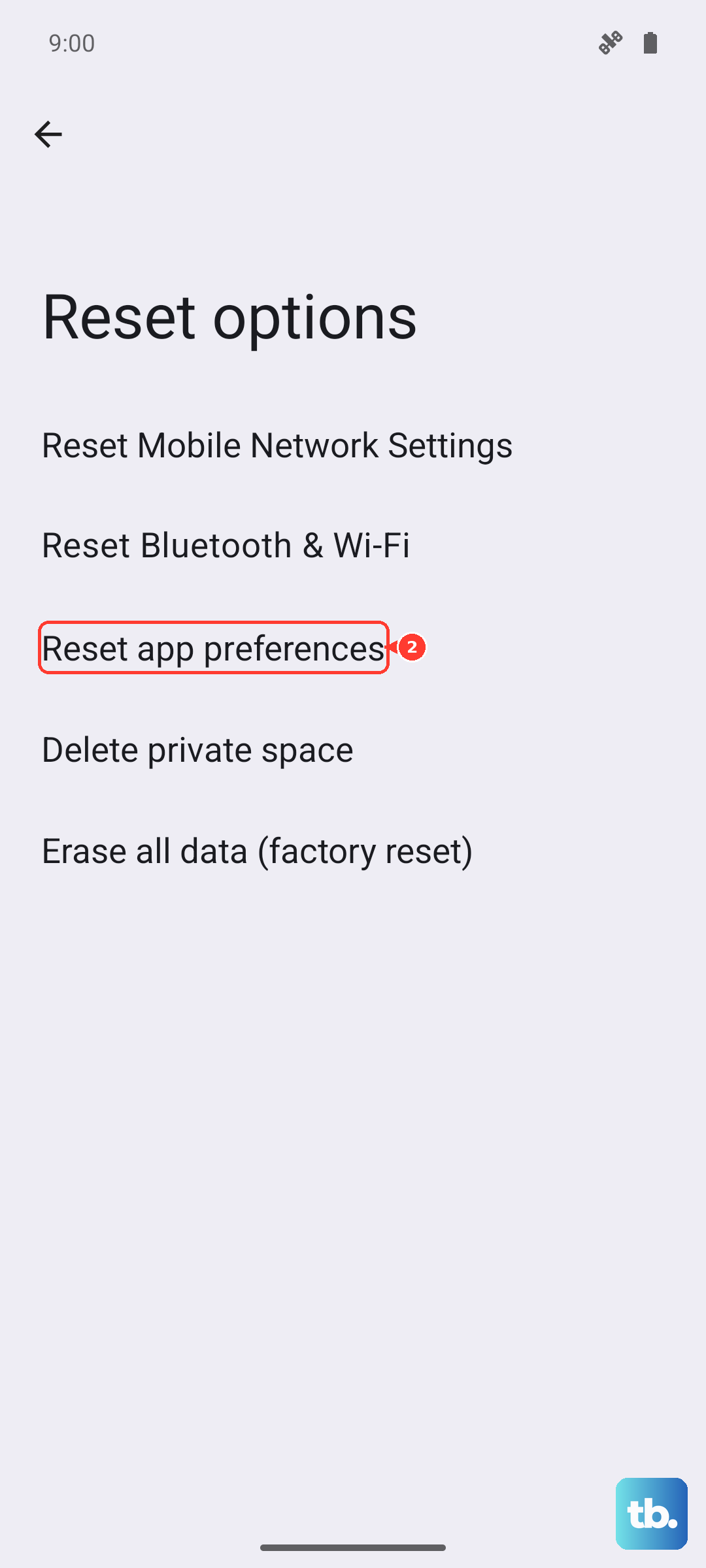
For a full settings reset, use Erase all data (factory reset) only as a last resort, back up everything first.
Try these steps one at a time, testing after each one. Most ringing issues on the Pixel 9 Pro XL come down to Do Not Disturb, unknown caller filtering, or a simple restart. If you've tried all of them and the phone still won't ring, it could be a hardware issue with the speaker, but that's rare on a brand-new 2024 model.