
When your Google Pixel 9 Pro XL suddenly drops its cellular signal, you're stuck without calls, texts, or mobile data. It usually happens at the worst moment too. Most signal loss issues on the Pixel 9 Pro XL are fixable with a few targeted steps, and you don't need to be a tech pro to get back online.
Start with the simplest fix first. Press and hold the Power button and Volume up button at the same time. When the menu pops up, select Restart. This clears out temporary software bugs that often mess with cellular radios. Give the phone a minute to come back and see if your signal bars return.
Check Airplane Mode
Swipe down twice from the top of the screen to open Quick Settings. Look for the Airplane Mode icon. If it's highlighted, tap it to turn it off. Sometimes Airplane Mode gets accidentally enabled, which completely kills all wireless connections. Toggle it off and on again even if it looks off, this forces the radio to reinitialize.
Reinsert the SIM Card
A loose or slightly misaligned SIM card is a common cause of lost signal. Pop out the SIM tray using the tool that came with your Pixel 9 Pro XL (or a paperclip). Remove the SIM, check for any dirt or damage, then firmly reseat it. Push the tray back in until it clicks flush with the frame. The phone should reconnect to the network within a few seconds.
Turn Data Roaming On or Off
If you're near a coverage boundary, your Pixel might need data roaming enabled. Go to Settings > Network & internet > Mobile network. Tap Data roaming and switch it on. This allows the phone to connect to partner towers when your carrier's signal is weak. If roaming is already on and you're not traveling, try turning it off, sometimes it gets stuck in the wrong mode.
Manually Select Your Network Operator
Your Pixel 9 Pro XL might be trying to latch onto the wrong carrier. In Settings > Network & internet > Mobile network, tap Network operators. Choose Select automatically and let the phone scan. If that doesn't work, tap your carrier's name from the list. This forces a fresh registration with the proper network.
Change the Preferred Network Type
A mismatch in preferred network mode can cause signal drops. Go to Settings > Network & internet > Mobile network and tap Preferred network type. On Android 14, this usually defaults to 5G/LTE/3G/2G. If you're in a spotty 5G area, switching to LTE only often brings back a stable connection. You can always switch back later.
Reset Network Settings
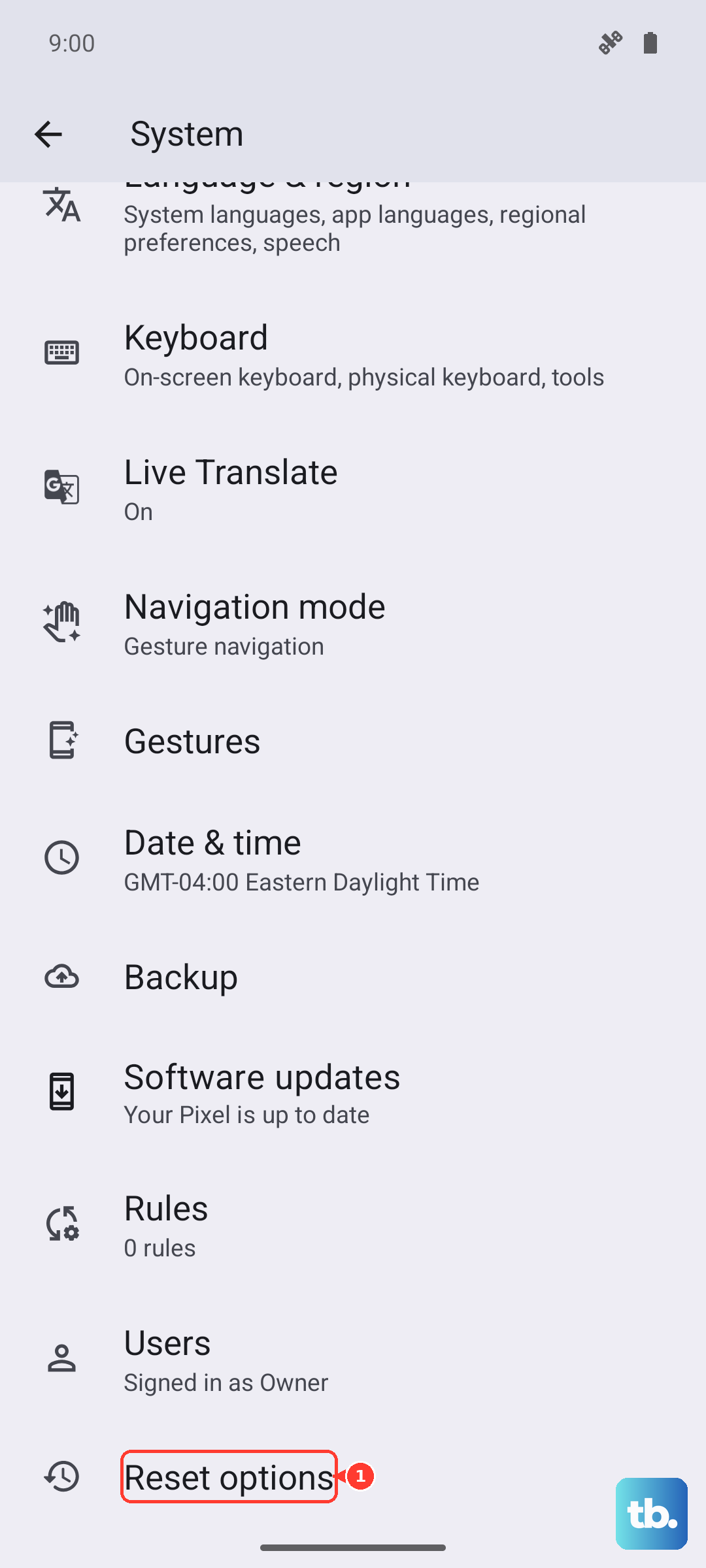
Corrupted network configurations are a known cause of signal loss on the Pixel 9 Pro XL. Go to Settings > System > Reset options > Reset Wi-Fi, mobile & Bluetooth. Confirm the reset. This will erase saved Wi-Fi networks and paired Bluetooth devices, but it wipes out any bad APN or network cache settings that could be blocking service. Your personal data stays safe.
Update APN Settings
If your Access Point Name (APN) settings are wrong, the phone won't connect to mobile data. Head to Settings > Network & internet > Mobile network > Access Point Names. Tap the three-dot menu and select Reset to default. If that doesn't help, contact your carrier for the exact APN values to enter manually. The Pixel 9 Pro XL usually pulls these automatically, but manual entry can fix stubborn cases.
Use the Hidden Testing Menu
Android has a diagnostic menu that gives you more control over the cellular radio. Open the phone dialer and enter *#*#4636#*#*. Tap Phone Information. From the dropdown at the top, try setting the network type to GSM auto (PRL) or LTE/UMTS auto. Then tap Turn off radio, wait a few seconds, and tap Turn on radio. This often kicks the modem back into service.
Check for System Updates
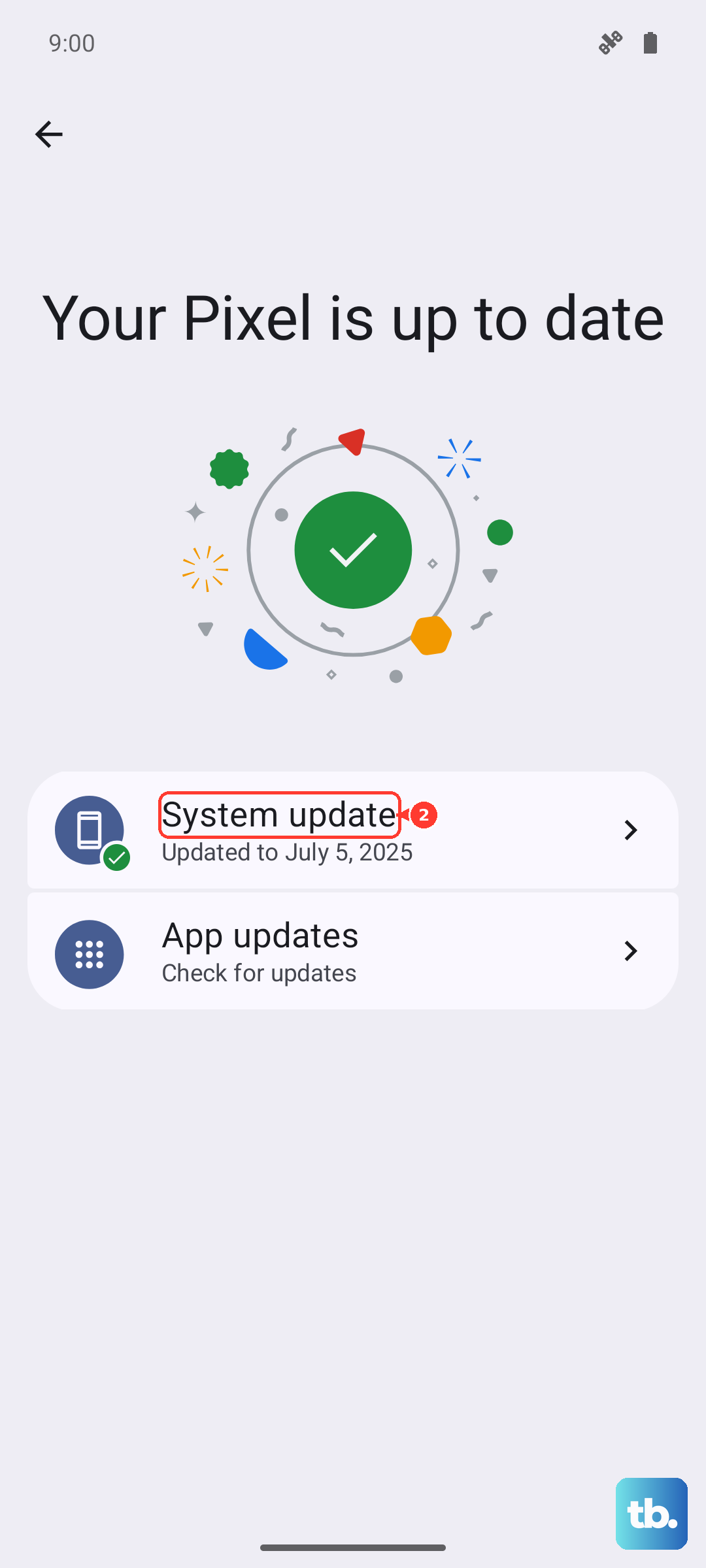
Google regularly pushes updates that fix cellular modem issues. Go to Settings > System > System update and check for any pending updates. If one is available, download and install it. The Pixel 9 Pro XL runs stock Android 14, and Google's monthly security patches often include radio firmware improvements that can stabilize your signal.
Factory Reset as a Last Resort
If you've tried everything and the signal is still gone, a factory reset may wipe out a deep software glitch. Back up your photos, contacts, and files first, this erases everything. Go to Settings > System > Reset options > Erase all data (factory reset). Follow the prompts. After the phone restarts, set it up again and check if the signal returns. This should only be done after all other steps fail.