Is your Google Pixel 9 Pro XL feeling sluggish lately? You're not imagining it, even the Tensor G4 chip can start lagging when storage fills up or too many processes run in the background. The good news is you don't need to factory reset to get it back to that snappy feel.
Most slowdowns on the Pixel 9 Pro XL come from just a handful of causes: low storage space, outdated apps, background processes, or battery optimization settings that get in the way. Let's run through the fixes that actually work.
Force Restart the Pixel 9 Pro XL
Before diving into settings, a simple force restart clears cached junk in system memory. Hold down the Power button and the Volume up button at the same time, keep holding until the Restart option pops up. Tap Restart and give your phone a minute to come back.
This is different from a normal power-off. It fully resets the system processes without wiping any data. I usually try this first, and it fixes minor lag about half the time.
Free Up Storage Space
A phone that's 90% full or more will chug on basic tasks. The Pixel 9 Pro XL starts showing performance issues once you're under 10GB of free space. Check yours by going to Settings > Storage.
Tap "Free up space" to see the biggest culprits, old photos, downloaded videos, and apps you haven't touched in months. The Files by Google app can auto-delete blurry photos and old screenshots, which frees up gigabytes without losing anything important.
If you store a lot of photos, turn on Google Photos backup and then use the "Free up space" option inside that app. It removes local copies of photos you've already backed up to the cloud.
Update Apps and Android System
Outdated apps can fight with Android 14's memory management. Open the Play Store, tap your profile icon, then tap "Manage apps and device." Hit "Update all" to bring everything current.
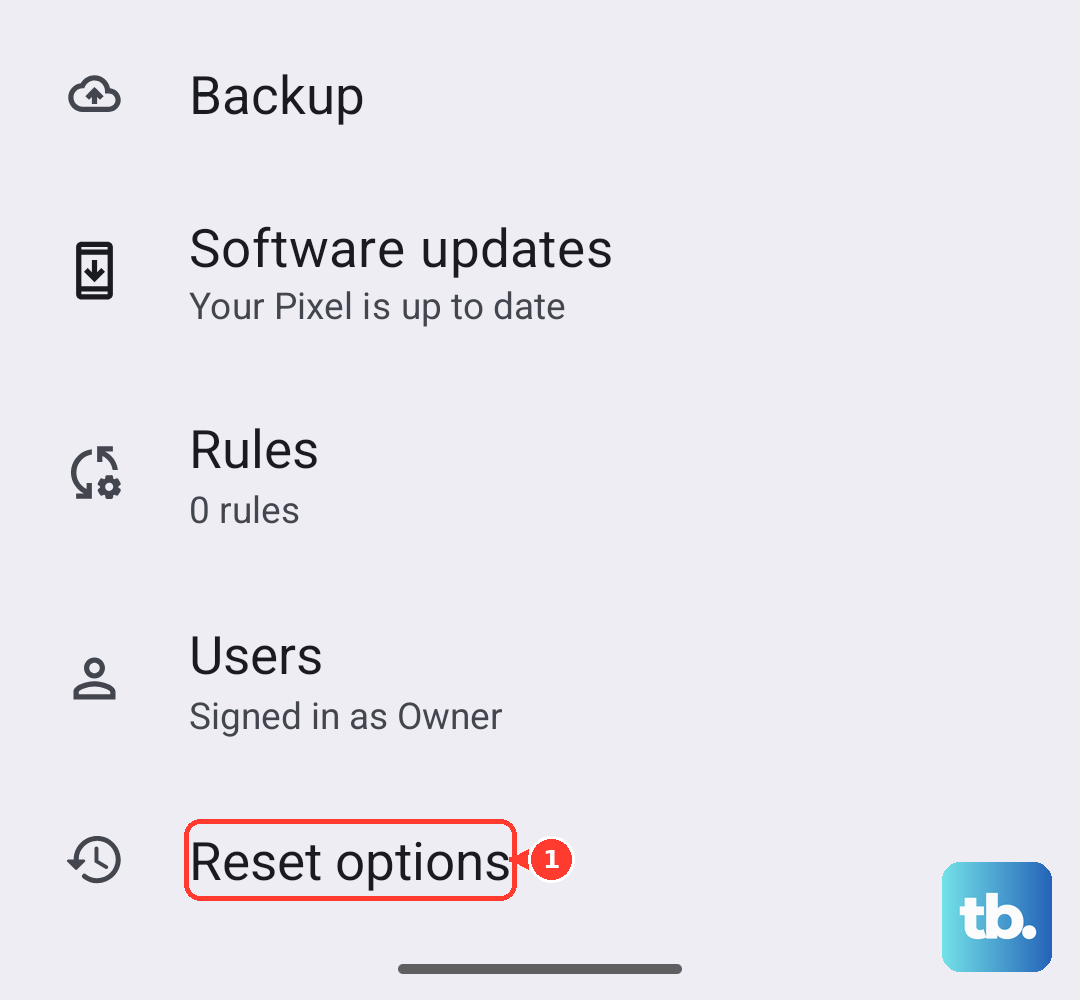
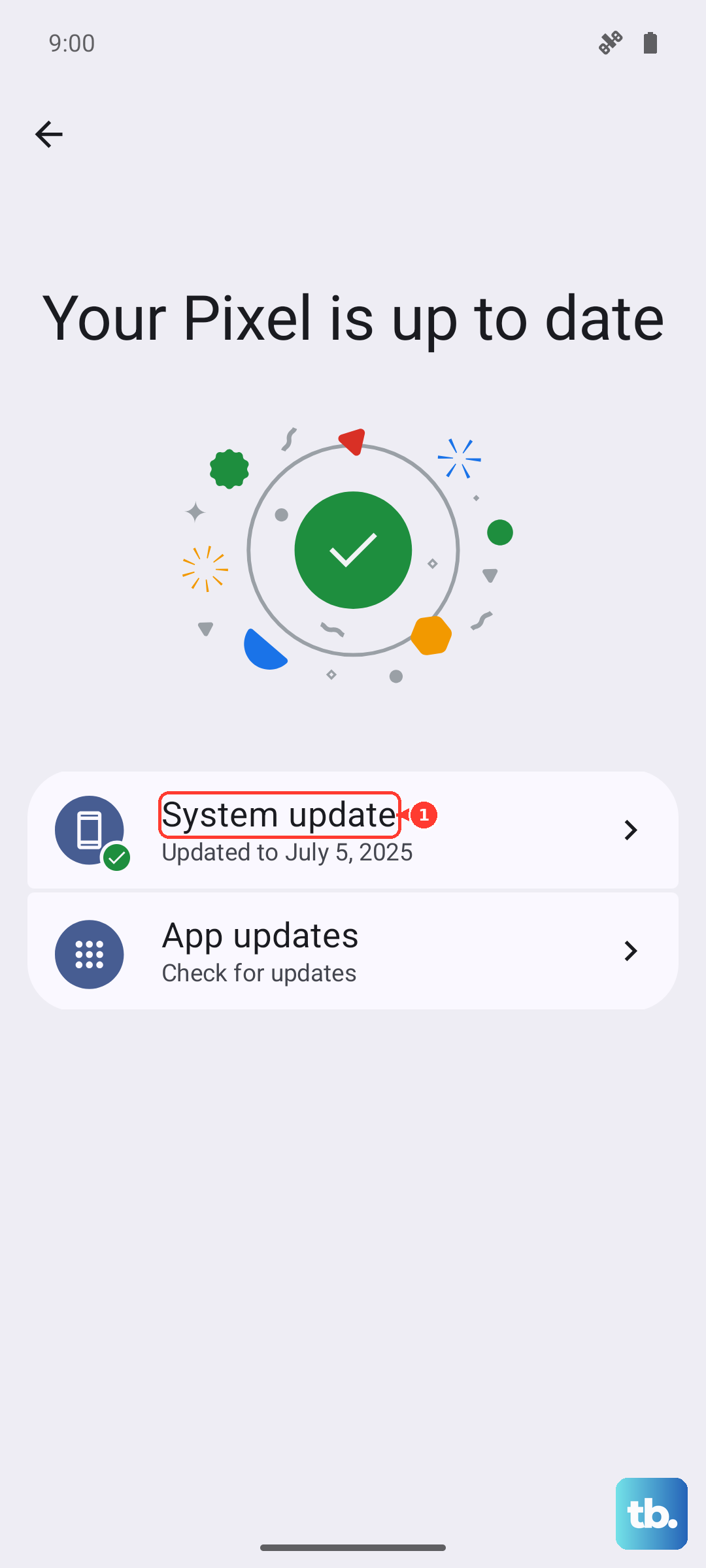
It's also worth checking for a system update. Go to Settings > System > System update. If there's a newer version of Android 14, or a security patch, install it. These updates often include performance fixes for the Tensor G4 chip.
Clear App Cache for Problem Apps
Some apps cache absurd amounts of data over time. I've seen Instagram and Chrome store over a gigabyte each. Go to Settings > Apps > See all apps, pick an app that feels slow, then tap "Storage & cache" and hit "Clear cache."
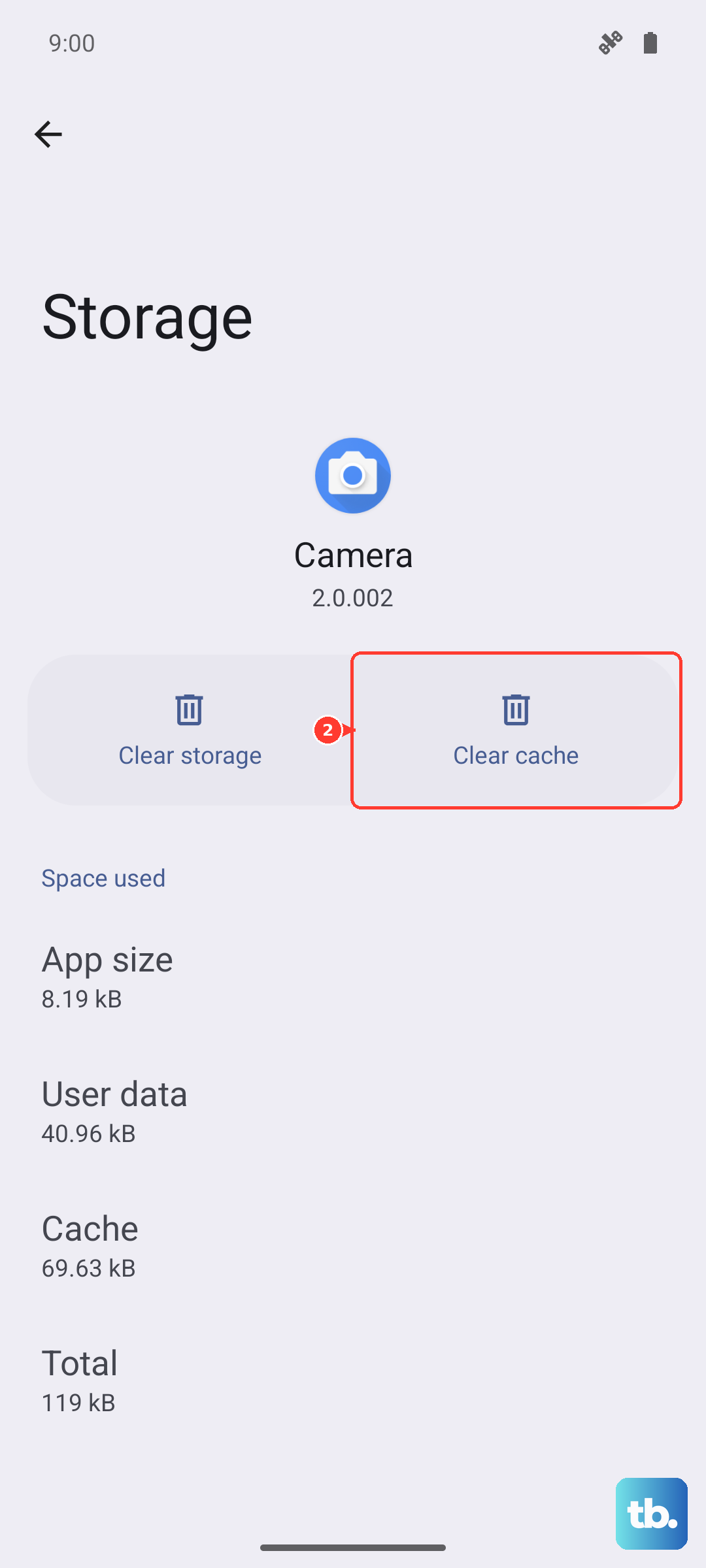
Don't tap "Clear storage" unless you want to log in again, that one wipes login data and app settings. Clearing cache is the safe middle ground and you won't lose anything.
Close Background Apps the Right Way
Android handles background apps pretty well on its own, but if you've got 20+ apps hanging out in memory, it can slow things down. Swipe up from the bottom of the screen and hold to open the recent apps view.
Swipe left or right to find apps you don't need, then swipe them up to close them. Focus on games, video apps, and navigation tools, those are the heavy hitters. You can also tap "Close all" at the bottom of the recent apps screen.
Check Battery Health and Charging
The Pixel 9 Pro XL supports 37W wired charging and 23W wireless charging, but not all chargers hit those speeds. If you've been using a random USB-C charger, you may be getting much slower charging. That can lead to battery drain issues that feel like slowdowns.
Go to Settings > Battery > Charging optimization. If you see the "Check charging accessory" notification, it means your cable or charger isn't fully compatible. Try the official Google 45W USB-C charger, or a certified USB-C PD charger, and a high-quality cable.
Some users find that disabling "Adaptive charging" in the same menu helps with inconsistent charging behavior. This setting learns your routine and can hold charge at 80% until just before you wake up, which sometimes plays weirdly with third-party accessories.
Reduce Animations in Developer Options
Android's system animations look nice, but they add a tiny delay to every action you take. Turning them down or off makes the Pixel 9 Pro XL feel instantly faster. Here's how to get to developer options if you haven't unlocked them yet.
Go to Settings > About phone > Build number. Tap "Build number" seven times until you see the "You are now a developer" message. Then go back to Settings > System > Developer options.
Scroll down to "Window animation scale," "Transition animation scale," and "Animator duration scale." Tap each one and set it to 0.5x instead of 1x. If you want zero lag, set all of them to "Animation off." Your phone will feel snappier immediately.
Limit Background App Refresh
Some apps refresh their content in the background even when you haven't opened them in days. Go to Settings > Apps > See all apps, pick an app, then tap "App battery usage" and select "Restricted." This stops it from running in the background.
For a broader approach, go to Settings > Battery > Adaptive preferences and turn off "Adaptive battery" temporarily. This prevents the system from keeping apps cached and ready. You'll lose a little battery life but gain responsiveness.
Remove Cluttered Widgets and Home Screen Shortcuts
Widgets constantly update in the background. Each weather, calendar, or news widget you've added pings the system periodically for fresh data. If your home screen has more than four or five widgets, that adds up.
Long-press any widget and tap "Remove." Keep only the ones you actually glance at during the day. While you're at it, clean up your app drawer, unused shortcuts on the home screen don't slow things down much, but it makes the phone feel less messy.
Reset App Preferences (Not Your Data)
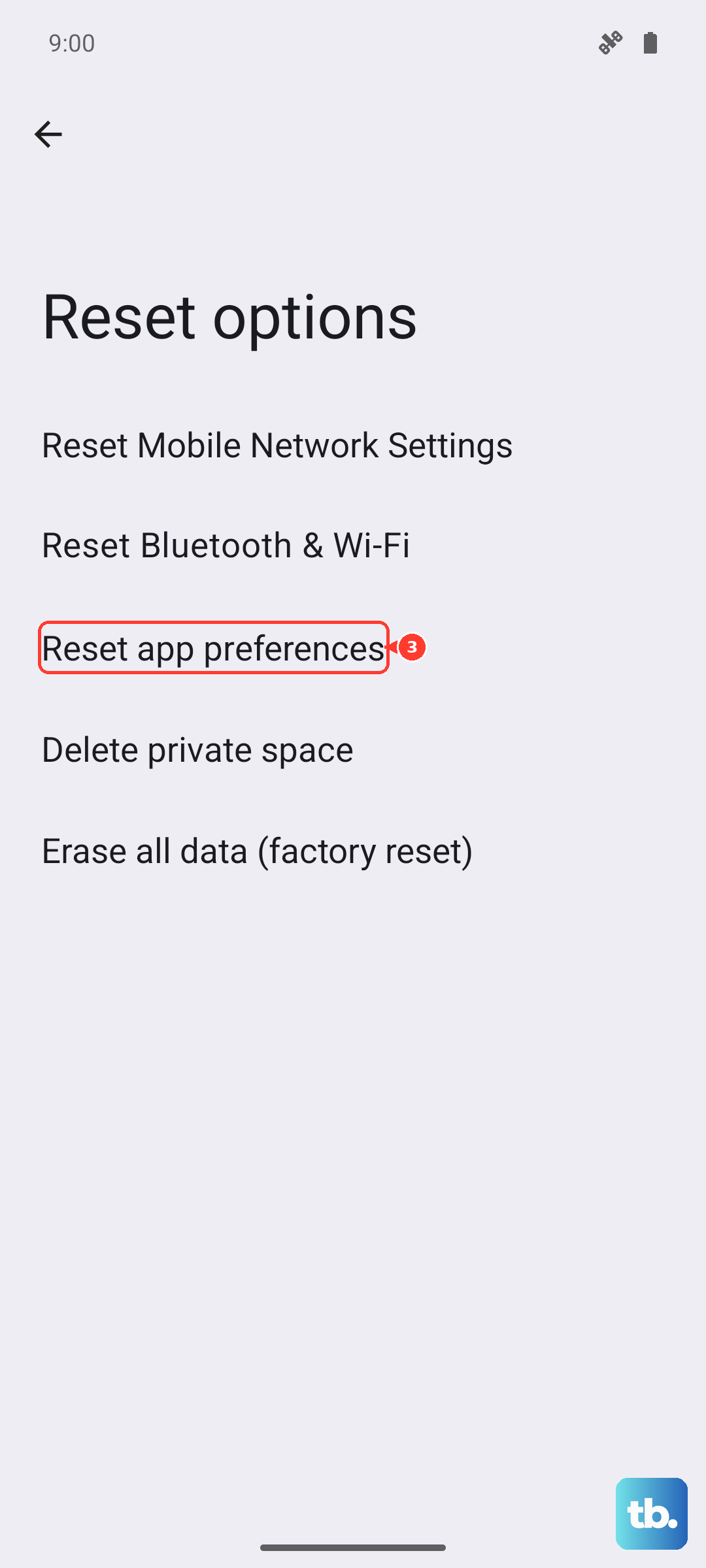
If you've been disabling apps or changing default app permissions, the system can end up in a confused state. Resetting app preferences restores all disabled apps and default permissions without deleting any data.
Go to Settings > System > Reset options > Reset app preferences. This won't delete photos, messages, or accounts, it just resets which apps handle which tasks. You'll have to re-set your default browser or launcher, but it's worth the fresh start.
Start with the force restart and the storage cleanup, those two fix the majority of Pixel 9 Pro XL slowdowns. Work through the rest in order if the lag is stubborn. Most issues clear up before you reach the reset options.