
Your Pixel 9 Pro XL has a solid hotspot feature, but it can still act up sometimes. If your other devices can't find the hotspot, won't connect, or keep dropping out, here's how to get it working again.
Turn the Hotspot Off and Back On
Pull down the notification shade twice and tap the Hotspot tile to turn it off. Wait about 10 seconds, then tap it again to re-enable it. You'll see a notification saying "Hotspot is active" when it's on. This quick toggle clears minor glitches in the sharing service and fixes most transient issues.
Restart the Phone Properly
Press and hold the Power button and Volume up button at the same time until the power menu appears. Tap Restart and wait for the phone to boot back up. A restart flushes cached network processes and re-establishes your cellular connection from scratch. On the Pixel 9 Pro XL, this is the safest way to do a full reset without losing anything.
Check Mobile Data and APN Settings
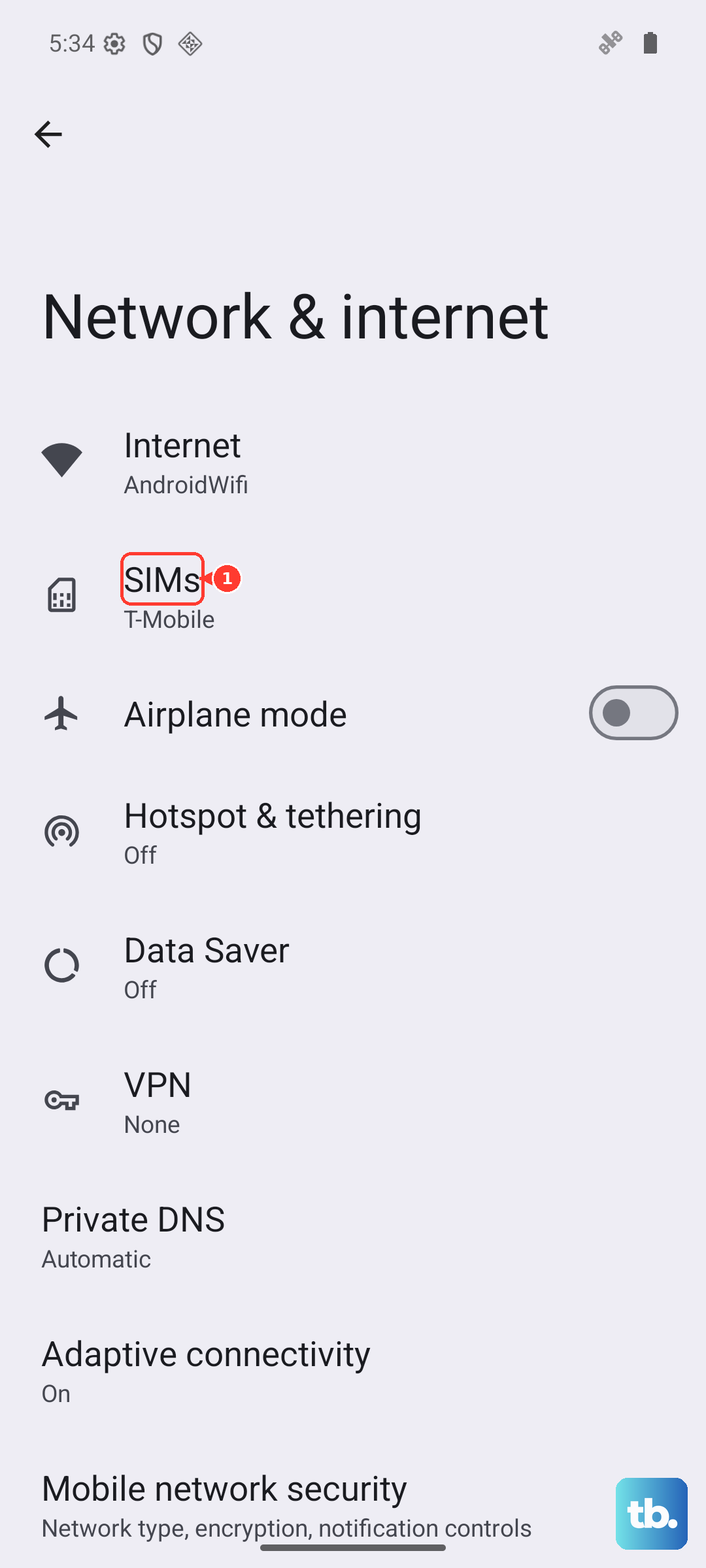
Your hotspot won't work without an active mobile data connection. Go to Settings > Network & internet > SIMs and make sure mobile data is switched on. While you're there, tap Access Point Names and verify that the APN matches what your carrier provides. If the APN is wrong or missing, the hotspot may appear to be on but won't pass any data through.
Reset Network Settings
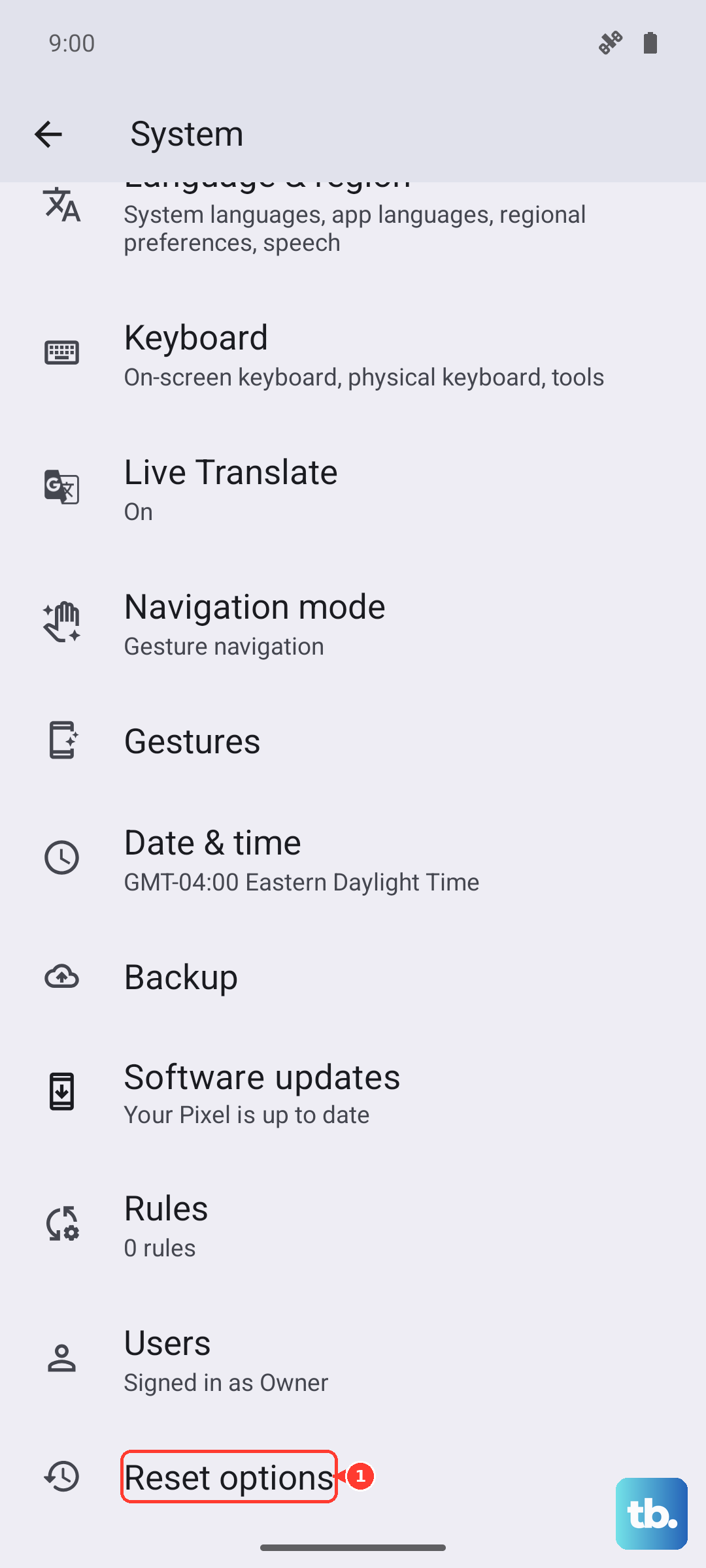
Go to Settings > System > Reset options > Reset Wi-Fi, mobile & Bluetooth. This wipes all saved Wi-Fi networks, paired Bluetooth devices, and cellular data settings. It's a nuclear option, but it resolves stubborn hotspot problems that nothing else touches. You'll need to reconnect to Wi-Fi and re-pair Bluetooth devices afterward.
Forget and Reconnect on the Other Device
On the laptop, tablet, or phone that's trying to use your hotspot, go into its Wi-Fi settings and tell it to forget your Pixel's hotspot network. Then scan for available networks again and re-enter the password. The old saved profile might have become corrupted or stale, so a fresh connection often does the trick.
Change the Hotspot Password
Open Settings > Network & internet > Hotspot & tethering > Wi-Fi hotspot. Tap the current password field and enter something completely new, then tap Save. Reconnect your other devices using the new password. A new password forces a clean authentication handshake, which can fix both "wrong password" errors and devices that get stuck during connection.
Try USB Tethering Instead
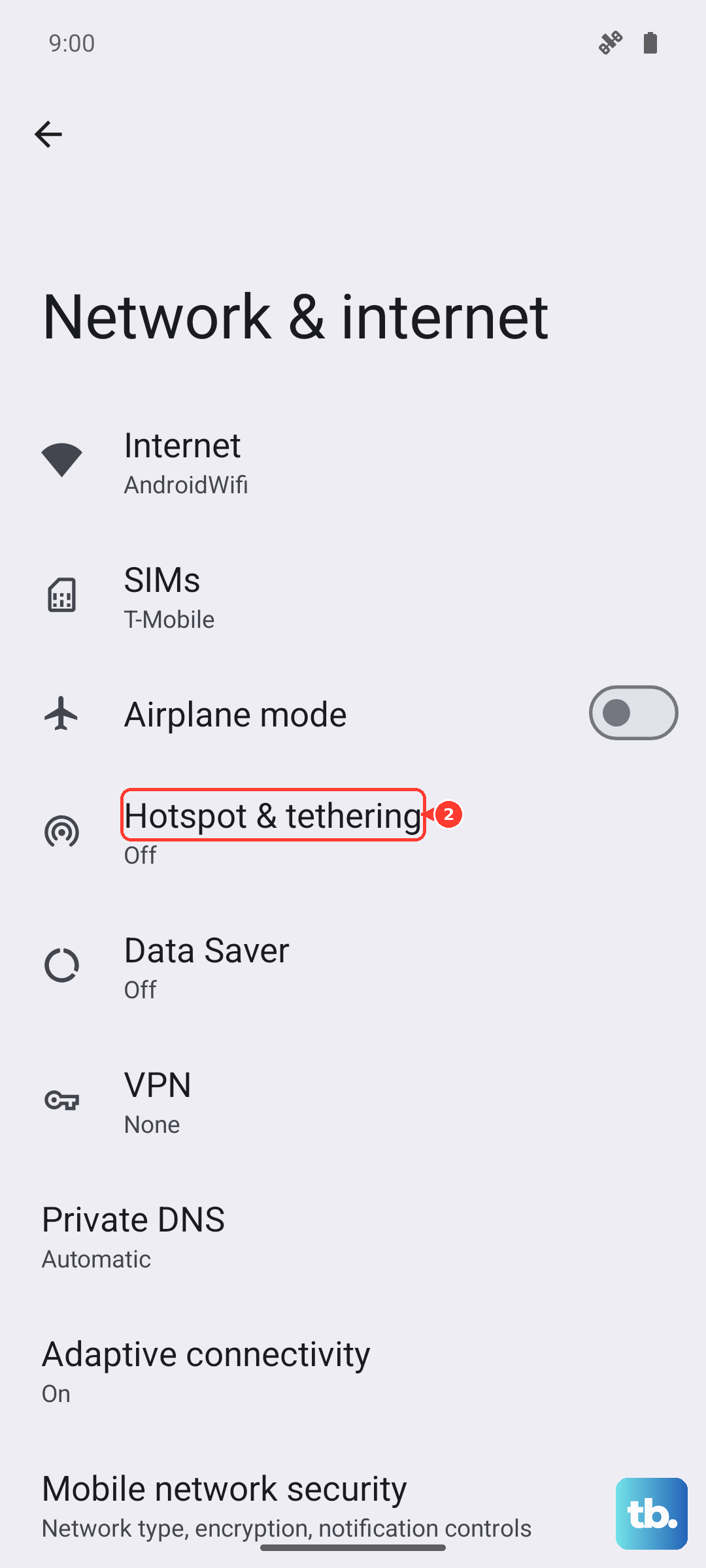
If the Wi-Fi hotspot keeps failing, plug your Pixel 9 Pro XL into your computer using a USB-C cable. Then go to Settings > Network & internet > Hotspot & tethering and toggle on USB tethering. Your computer should recognize it as a wired network connection immediately. USB tethering bypasses Wi-Fi radio issues entirely and often works when the wireless hotspot won't.
Disable Battery Optimization for Hotspot
Android 14 can be aggressive about putting background services to sleep, including the hotspot. Go to Settings > Apps > See all apps > Tap the three-dot menu > Show system > Wi-Fi Sharing Service. Tap App battery usage and select Unrestricted. This tells the system not to kill the hotspot service when it thinks the phone is idle.
Update System Software
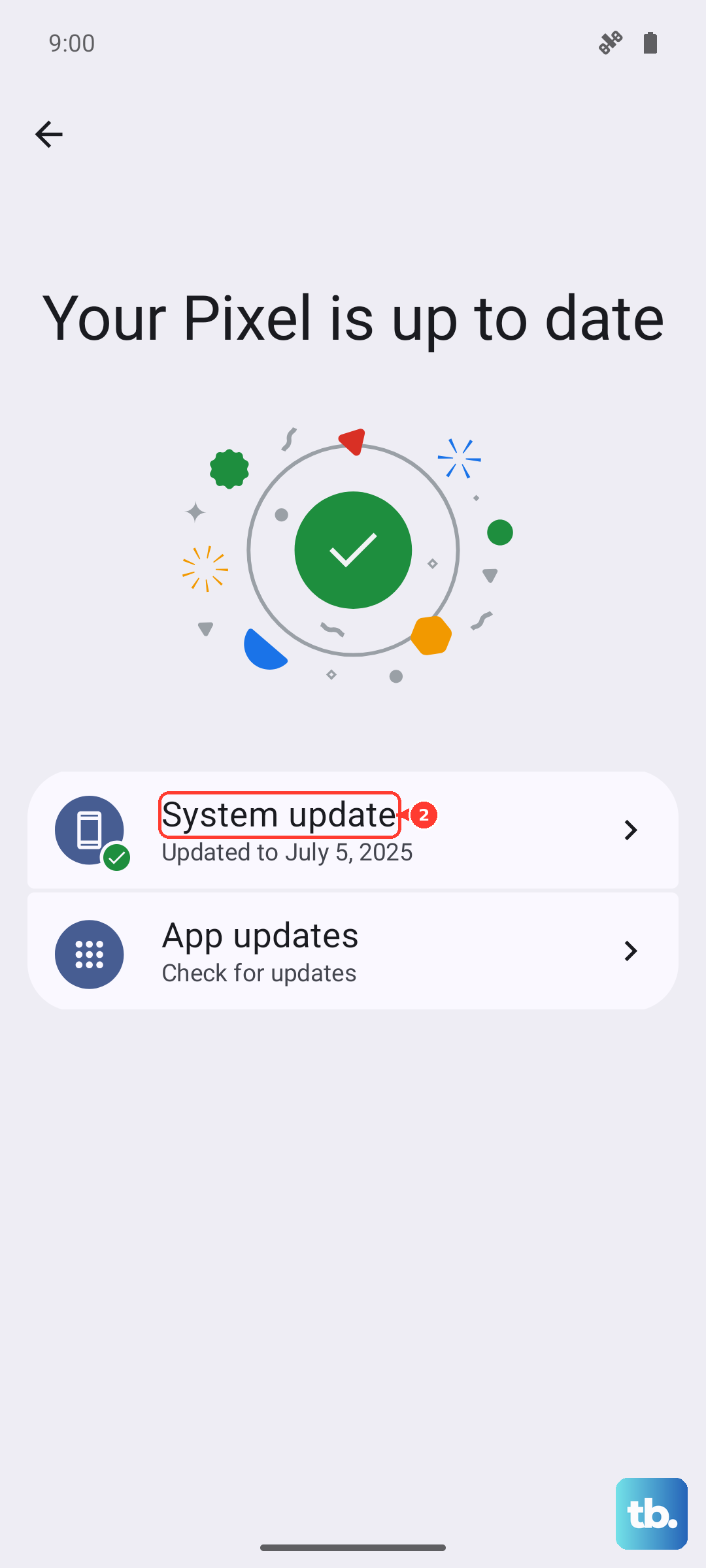
Go to Settings > System > System update and check for any available updates. Hotspot bugs are a common fix in Android security patches and feature drops. If an update is waiting, install it and test the hotspot afterward. Google has addressed several tethering issues through software updates on the Pixel 9 Pro XL.
Check with Your Carrier
Some carriers restrict hotspot usage on certain plans or impose data caps on tethering. If you've tried everything and the hotspot still won't work, call your carrier or log into your account online. Confirm that hotspot is included in your plan and that there are no blocks or throttles on your line. It's rare, but sometimes the block is on their end and a quick call clears it up.