
Getting a grayed-out flashlight button on the Google Pixel 9 Pro XL is one of those weird glitches that makes no sense until you know what causes it. The button sits there, completely unresponsive, even though you know the phone has a perfectly functional LED. Most of the time this is a software hiccup, not a hardware failure. Here's how to get it working again.
Force Kill the Camera App
The flashlight and camera flash share the same physical LED on the Pixel 9 Pro XL. If the camera app is open in the background or stuck in a weird state, it can reserve control of the LED and gray out the flashlight toggle. Tap the recent apps button (the square) and swipe the Camera card away completely.
If you don't see the Camera app in recent apps, go to Settings > Apps > See all apps > Camera and tap Force Stop. This kills every background process tied to the camera and should free up the flashlight immediately.
Restart the Phone (Not Just a Screen Off)
A regular screen-off and unlock doesn't clear the kind of software snag that freezes the flashlight control. You need a proper restart. Press and hold the Power button and Volume up button together until the power menu appears, then select Restart.
This specific key combo is the official force restart method for the Pixel 9 Pro XL, and it's the first thing I'd try if the flashlight has been grayed out for more than a few minutes.
Check if Battery Saver Is Interfering
Battery Saver on the Pixel 9 Pro XL doesn't straight-up disable the flashlight, but it can make the toggle laggy or unresponsive in certain situations. Pull down the Quick Settings panel and tap the Battery Saver icon to turn it off if it's active. Try the flashlight again.
If you have Extreme Battery Saver enabled, that's a different story, it actively restricts hardware features. Tap the battery percentage in Quick Settings and switch back to Regular Battery Saver or turn it off entirely.
Give the Phone a Minute to Cool Down
The Pixel 9 Pro XL has thermal safeguards that disable high-power features like the flashlight when internal temperatures get too high. This is more common than you'd think if you've been using the camera for a while, gaming, or wireless charging in a warm room. If the back of the phone feels hot, set it down somewhere cool for 10 minutes.
The flashlight will become available again automatically once the phone cools down. You don't need to do anything special, just let it sit.
Ask Google Assistant to Toggle It
Say "Hey Google, turn on the flashlight". If the Assistant can activate it but the Quick Settings button stays grayed out, you're looking at a UI glitch rather than a hardware problem. Say "Turn off the flashlight" afterward to reset the state.
This works because Assistant talks to the flashlight through a different system pathway than the Quick Settings toggle. It's a good diagnostic trick, if Assistant can control it, the LED is fine and you're dealing with a software bug.
Adjust the Flashlight Brightness
Long-press the flashlight icon in Quick Settings instead of just tapping it. A brightness slider will pop up showing four levels. If it was accidentally set to the lowest level, the flashlight might be emitting light that's barely visible in a bright room. Drag it to the highest setting and test it.
The brightness slider on the Pixel 9 Pro XL is a per-session setting, so a low brightness from a previous use can carry over and make the flashlight seem broken when it's actually working fine.
Clear the System UI Cache
The Quick Settings panel is managed by the System UI app on the Pixel 9 Pro XL. If that app's cache gets corrupted, flashlight controls can become unresponsive. Go to Settings > Apps > See all apps > tap the three-dot menu > Show system > System UI > Storage & cache. Tap Clear cache (not Clear storage).
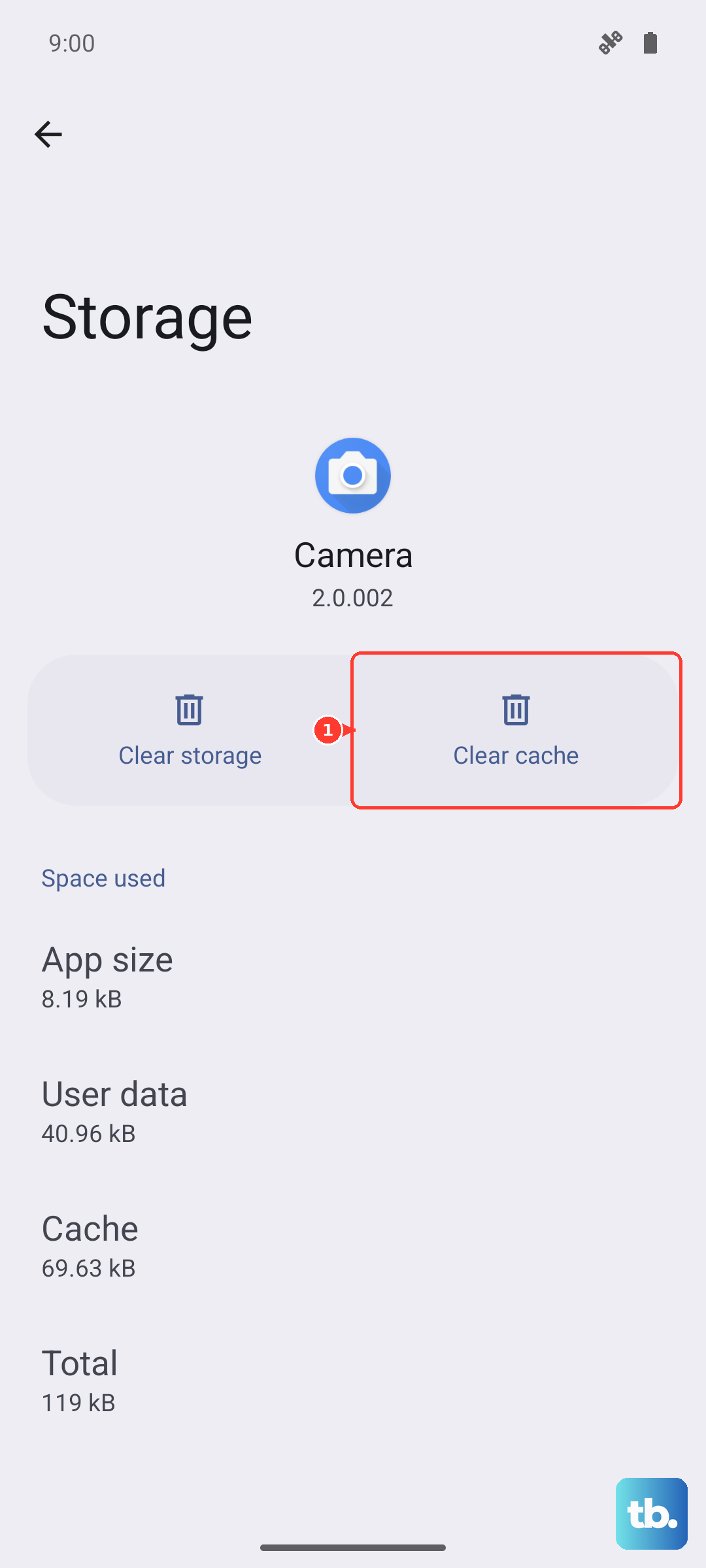
This won't delete any personal data or change your settings. It just clears temporary files that might be causing the grayed-out flashlight. Restart the phone afterward for good measure.
Update Android and Google Play System
Google has patched flashlight-related bugs in past Android updates, including issues where the toggle becomes permanently grayed out. Go to Settings > System > Software Update and install any available system update. Then go to Settings > Security & Privacy > System & Updates > Google Play System Update and check for updates there too.
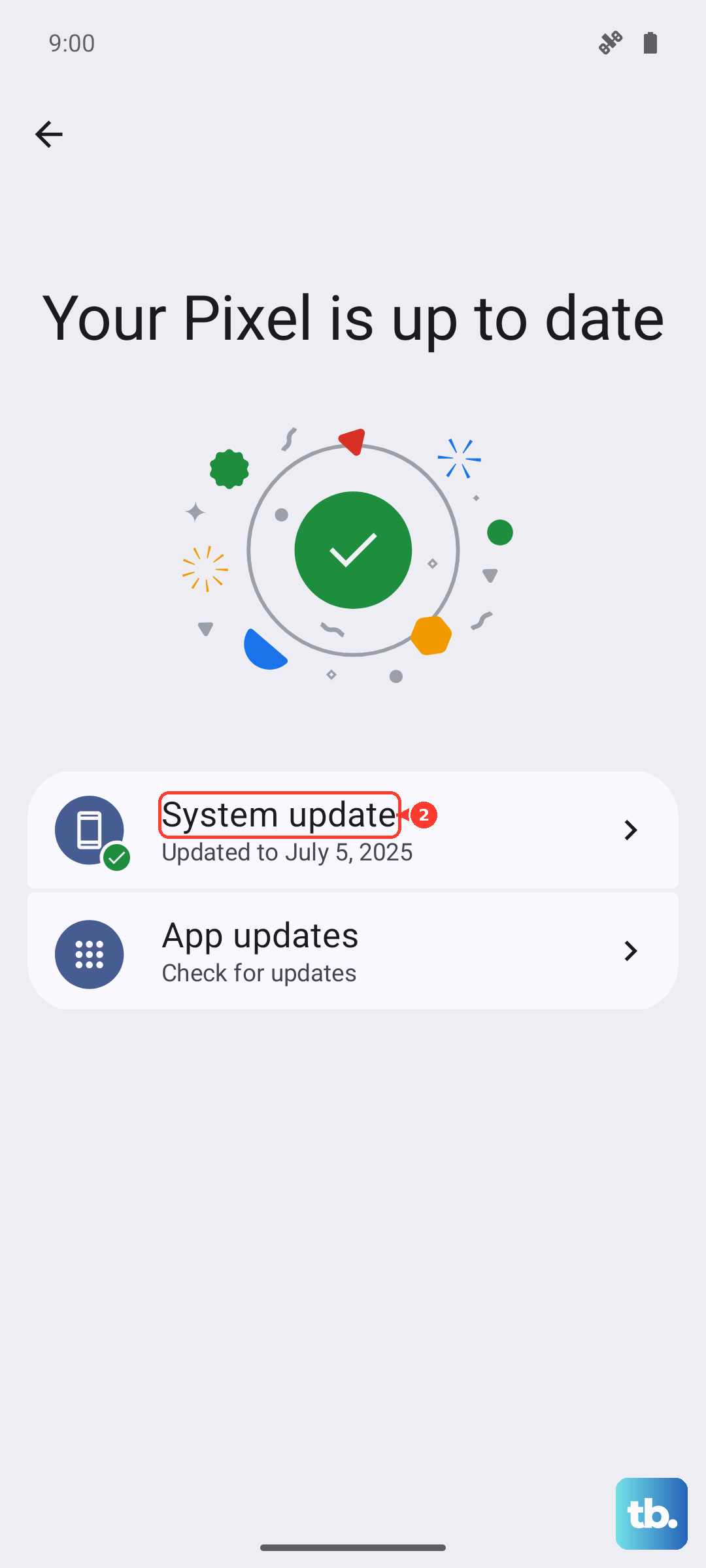
Both update channels matter. I've seen a Google Play System update fix a Quick Settings glitch that a full Android update did not address.
Test the Flash in Camera Mode
Open the Camera app and tap the flash icon in the top-left corner. Switch it to On (not Auto or Off) and take a photo. If the flash fires, the LED hardware is working. If it doesn't fire and the flashlight was also grayed out, you're looking at a hardware issue with the LED itself.
For a Pixel 9 Pro XL still under warranty, contact Google Support or visit an authorized repair center. The LED module can fail, but it's much less common than the software quirks listed above.