
The "Call Failed" error on a Google Pixel 9 Pro XL usually means the phone is struggling to hold a solid connection to the mobile network. It can happen because of a weak signal, a temporary software glitch, or a setting that got bumped the wrong way. Here's how to get your calls working again, starting with the quickest fixes.
Toggle Airplane Mode
Swipe down twice from the top of the screen to open Quick Settings and tap the Airplane icon. Wait about 15 seconds, then tap it again to turn it off. This forces your Pixel to re-register with the nearest cell tower.
Check your signal bars
Take a look at the signal bars in the top-right corner. One or two bars can cause calls to drop or fail entirely, especially indoors. Try stepping closer to a window or going outside to see if the signal improves.
Force restart your Pixel 9 Pro XL
A quick restart clears up minor software hiccups that can interfere with calls. Press and hold the Power button and Volume up button simultaneously, then select Restart from the menu. This is the proper way to force a refresh on the 9 Pro XL.
Turn off Do Not Disturb and Call Screen
Do Not Disturb can silently block incoming calls, while Pixel's Call Screen feature might be filtering out legitimate callers. Swipe down twice and tap the Do Not Disturb icon to turn it off. Open the Phone app, tap the three-dot menu, go to Settings, and check Call Screen to make sure it isn't set to automatically decline calls from unknown numbers.
Review blocked numbers
It's easy to accidentally block a contact on a Pixel. In the Phone app, tap the three-dot menu and go to Settings > Blocked numbers. If someone you're trying to call is listed here, tap the X next to their name to unblock them.
Update your carrier settings
Carrier updates are usually pushed automatically, but you can check manually. Go to Settings > About phone > Updates > Carrier settings. If an update is available, follow the on-screen prompts to apply it.
Switch your preferred network type
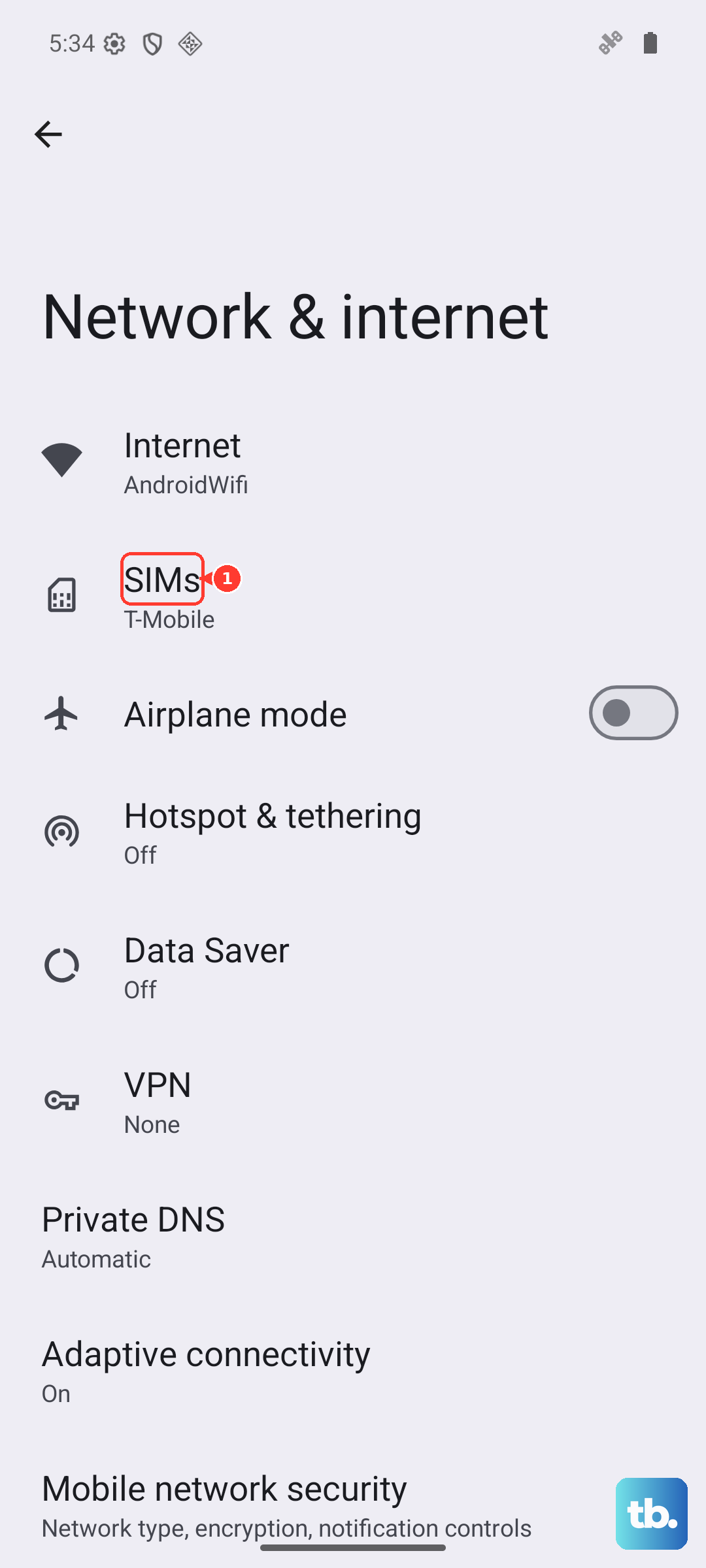
Sometimes the Pixel 9 Pro XL gets stuck trying to connect to a specific network band. Go to Settings > Network & Internet > SIMs > Preferred network type and try switching from 5G to LTE. If calls start working, you can leave it on LTE or switch back to 5G later.
Reseat your physical SIM
A SIM card that's slightly out of place can cause intermittent call failures. Eject the SIM tray with the tool that came in the box (or a paperclip). Check the card for any visible damage, then reinsert it firmly into the tray.
Install the latest system update
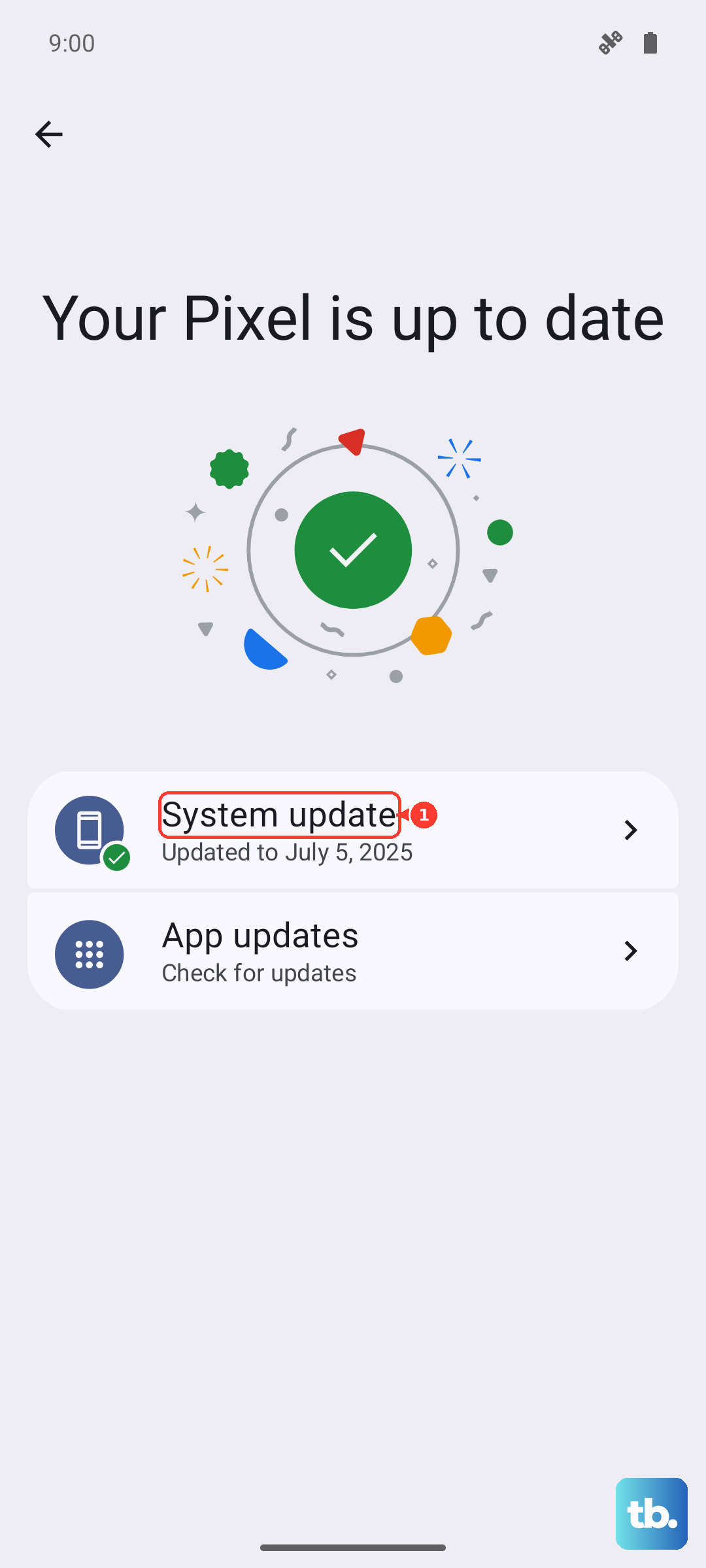
Software updates often include fixes for modem and calling bugs. Make sure your Pixel is up to date by going to Settings > System > System update. If a patch is waiting, download and install it over Wi-Fi.
Reset your network settings
This step clears out all your saved Wi-Fi networks, Bluetooth pairings, and mobile data settings without erasing your apps or photos. Go to Settings > System > Reset options > Reset Wi-Fi, mobile & Bluetooth. You'll need to reconnect to Wi-Fi after, but this often fixes stubborn call failure issues caused by corrupted network data.
Check for a carrier outage
A "Call Failed" error on every number you dial usually points to a network problem on your carrier's end. Check your carrier's support page or app for any reported outages in your area. Sometimes the problem isn't with your Pixel at all.