
Bluetooth dropping connections or refusing to pair on your Google Pixel 9 Pro XL? It's a common headache, but usually fixable without a trip to the service center. Let's run through what actually works on Android 14 for this specific phone.
First, the Quick Check
Before diving into settings, make sure both devices are ready. Keep the Pixel within 30 feet of the Bluetooth accessory. Check that the accessory is in pairing mode, look for a blinking light or a voice prompt. Also verify your Pixel's Bluetooth is actually on by pulling down the notification shade and confirming the icon is blue.
Try connecting to another Bluetooth device to see if the problem is with the accessory or the phone itself. If the other device works, the issue is likely with the first accessory.
Restart Both Devices (Including the Pixel Properly)
A simple restart clears temporary glitches. Turn off your Bluetooth accessory completely. On the Pixel 9 Pro XL, a quick restart is better than a full power cycle:
Press and hold the Power button and Volume up button simultaneously until the menu appears. Tap Restart. This soft reboot clears memory without losing data. Once the phone is back on, restart the accessory and try pairing again.
Forget All Previously Paired Devices
If you've paired with many devices over time, the Bluetooth list can get cluttered and cause conflicts. Clearing it out is a good next step:
- 1.Open Settings > Connected devices
- 2.Tap the gear icon next to each saved device
- 3.Select Forget or Unpair for every device listed
- 4.Repeat until the list is empty
Once done, put your accessory back into pairing mode and search for it on the Pixel. It should appear in the Available devices list.
Toggle Bluetooth Off and On
Sometimes the Bluetooth radio just needs a kick. Swipe down from the top of the screen twice to open Quick Settings. Tap the Bluetooth icon to turn it off, wait 10 seconds, then tap again to turn it back on. Attempt pairing immediately.
If that doesn't help, you can also disable and re-enable the phone's Wi-Fi as well, both radios share the same antenna on some Android devices, and toggling both can reset the connection path.
Clear Bluetooth Cache and Data
Corrupted cache files are a frequent culprit on Android 14. Clearing them doesn't affect your personal data, but it will wipe all paired devices (so you'll need to pair again afterward).
- 1.Go to Settings > Apps > See all apps
- 2.Tap the three-dot menu in the top right and select Show system
- 3.Find and tap Bluetooth from the list
- 4.Tap Storage & cache
- 5.Tap Clear cache first
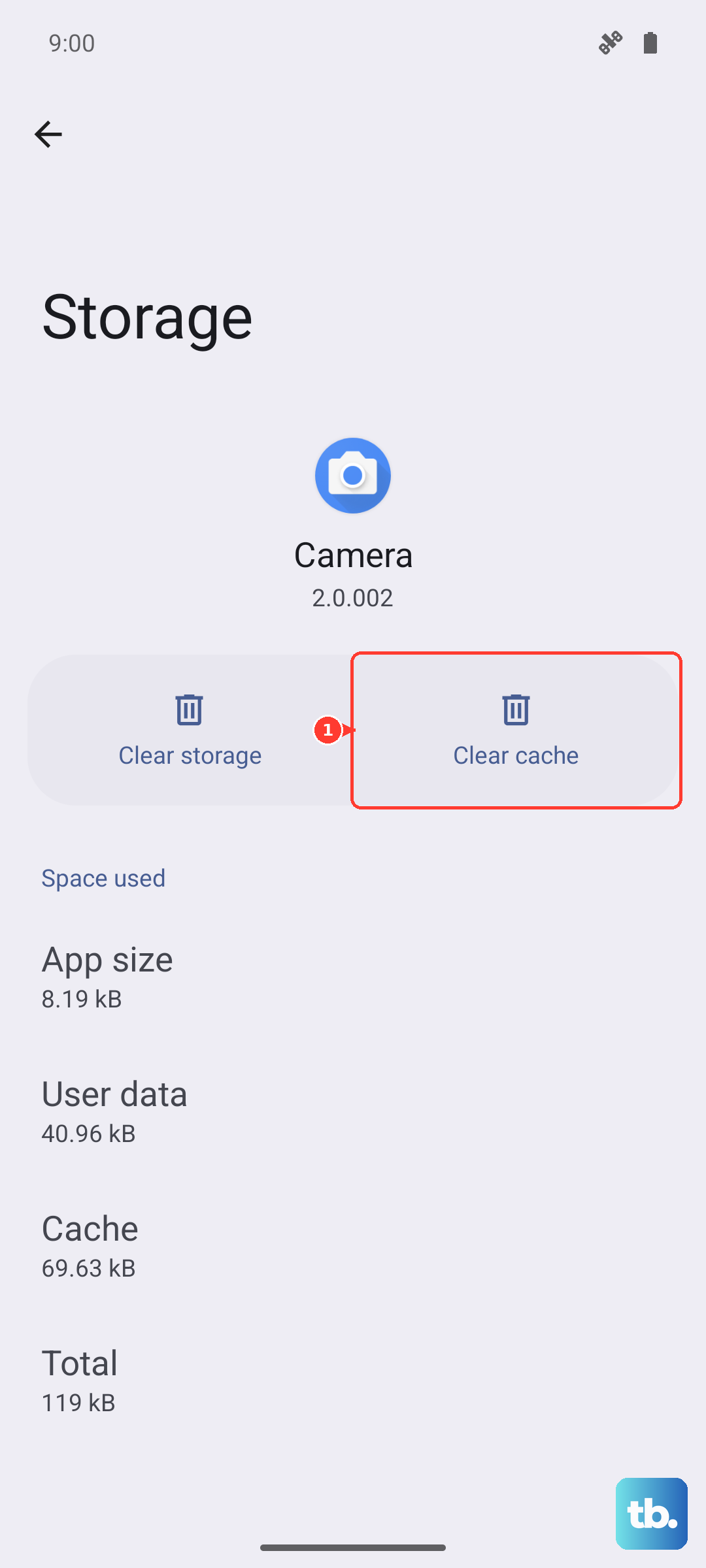
If the problem persists, go back and tap Clear storage (or Clear data). This resets the Bluetooth service entirely. After that, restart your Pixel 9 Pro XL and re-pair your devices fresh.
Check for Android 14 Bluetooth Bugs
The Pixel 9 Pro XL launched with Android 14, and like any new OS version, it can have its share of Bluetooth quirks. Google has pushed several updates to address connection drops and audio stuttering. Make sure you're running the latest software:
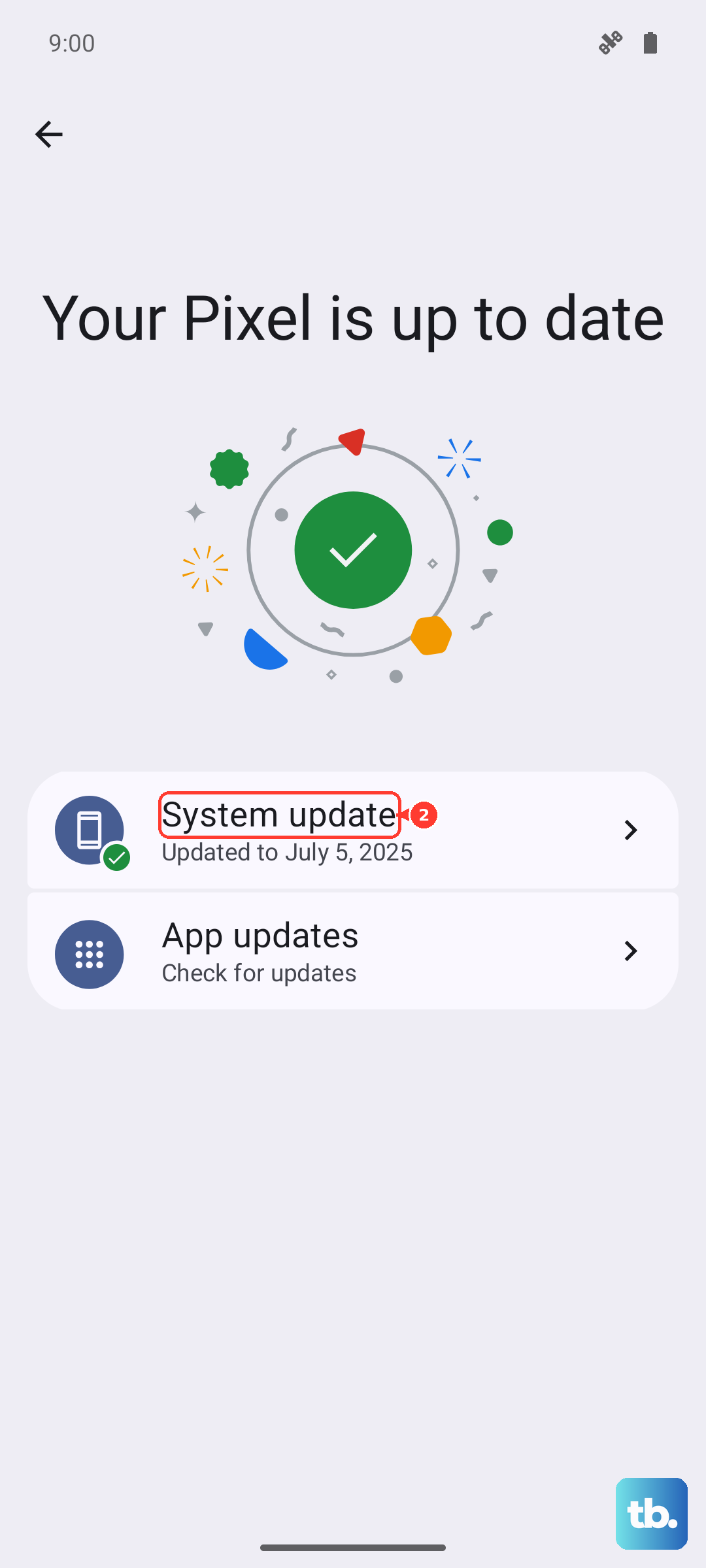
Open Settings > System > Software update > System update. If any update is available, install it. Reboot afterward. Also check if your Bluetooth accessory has a firmware update available through its companion app, many headphones, earbuds, and speakers regularly receive fixes for compatibility.
Test in Safe Mode
An app you installed might be interfering with Bluetooth. Safe Mode disables all third-party apps, letting you see if the problem goes away.
To enter Safe Mode on the Pixel 9 Pro XL: Press and hold the Power button and Volume Up button together until the power menu appears. Tap and hold the Restart option (it may show as a power icon on the screen) until a Reboot to safe mode prompt appears. Tap OK.
Once in Safe Mode, try pairing your Bluetooth device. If it works, a third-party app is the cause. Restart normally and uninstall recently installed apps one at a time until the issue stops.
Reset Network Settings (Without Wiping Data)
This step resets Wi‑Fi, mobile data, and Bluetooth settings to factory defaults, but leaves your photos, contacts, and apps untouched. It's a good middle ground before a full factory reset.
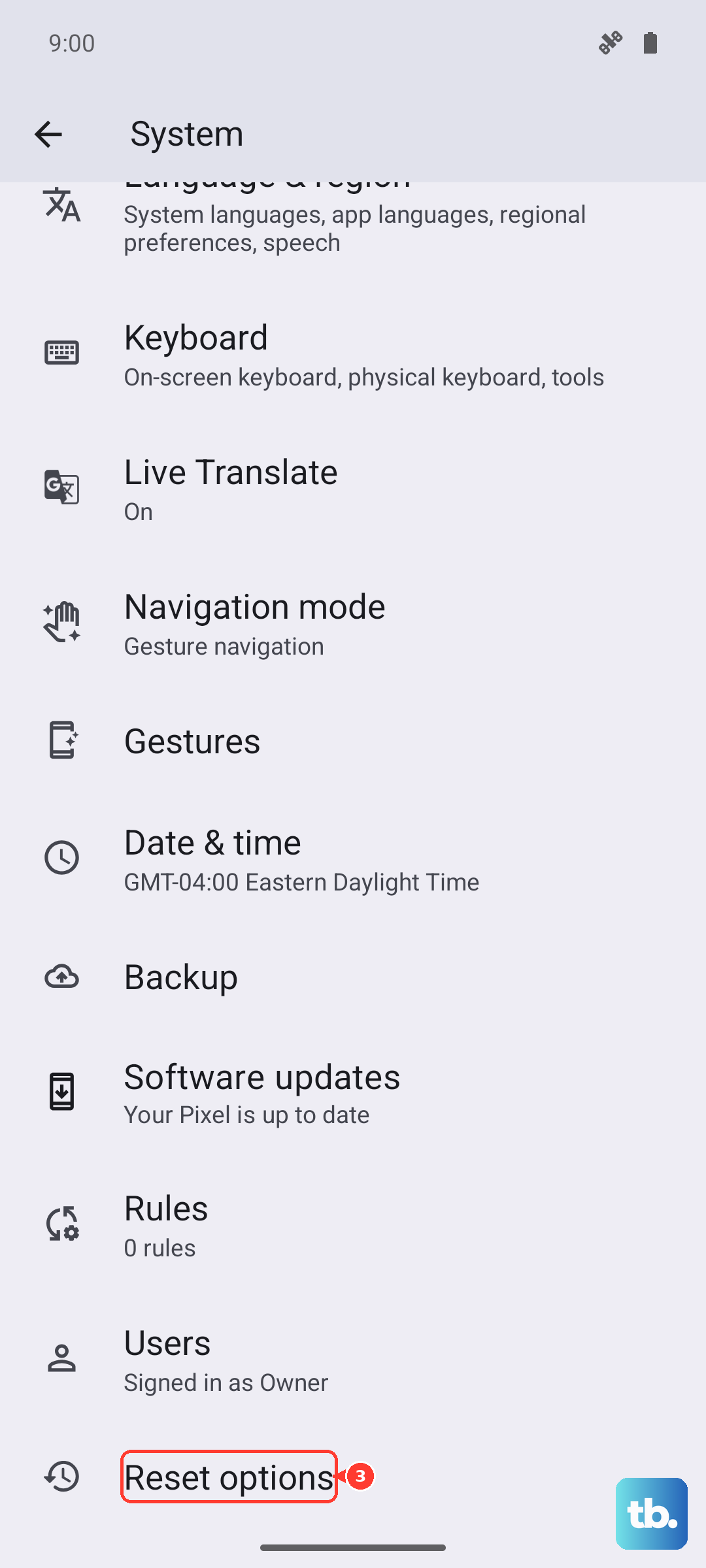
- 1.Go to Settings > System > Reset options
- 2.Tap Reset Wi‑Fi, mobile & Bluetooth
- 3.Confirm the action (you may need to enter your PIN or pattern)
- 4.The phone will restart with all network settings cleared
After the reset, you'll need to re-enter Wi‑Fi passwords and re-pair Bluetooth devices. This usually clears stubborn connection problems.
Factory Reset (Last Resort)
If none of the above fixes work and Bluetooth is still broken, a factory reset might be necessary. Back up everything first, this wipes all data on the phone.
Go to Settings > System > Reset options > Erase all data (factory reset). Follow the prompts to complete the reset. After the phone restarts, set it up fresh and test Bluetooth without restoring any backups yet. If it works, the issue was software‑related. If not, there may be a hardware problem.
When It Might Be Hardware
If Bluetooth still doesn't work after a factory reset, especially if it won't even turn on, it's likely a hardware fault on the Pixel 9 Pro XL. Since this phone was released in 2024, it should still be under warranty. Contact Google Support for a repair or replacement.
Most Bluetooth issues on the Pixel 9 Pro XL are software-related and clear up with a cache wipe, a network reset, or a software update. Start with the quick steps and work your way down the list.