You set your Google Pixel 9 Pro down on its charging pad expecting that familiar buzz, but nothing happens. No vibration, no charging light, just a battery that keeps draining while the phone sits where it should be powering up. The good news is that the Pixel 9 Pro absolutely supports wireless charging over the Qi standard, so a dead pad almost always points to alignment, a case, or the charger itself rather than a broken phone. Work through the fixes below in order, starting with the quickest and safest, and you will likely have it charging again before you reach the harder steps.
First, confirm this is a wireless-only problem
Before you blame the pad, rule out a wider charging fault. The Pixel 9 Pro charges both over a wired USB-C connection and wirelessly using the Qi standard, so testing one against the other tells you where the problem lives.
Plug in a wired USB-C charger and watch for a normal charge. If wired charging works but the wireless pad does nothing, the issue is wireless-specific, meaning alignment, your case, or the charger, and not the phone's battery or USB-C port.
It is worth confirming your model is expected to charge wirelessly at all. Google states that wireless charging is available on "Pixel 3 and later," which includes the Pixel 9 Pro, so this phone should charge on a compatible pad once the basics are right.
Line the phone up dead-center on the pad
Wireless charging only happens when the phone's charging coil sits directly over the charger's coil. A phone that looks centered to the eye can still be just far enough off to break contact, so small placement errors are one of the most common reasons a pad seems dead.
Lift the phone off and set it back down, centered on the pad. On a Google Pixel Stand, Google's guidance is to "Center your phone on the Pixel Stand" and to "Try charging both with your phone upright and on its side," since the right orientation can make the difference.
You will know it worked the moment it connects. Google says that when charging begins, "the charging indicator lights up and your phone vibrates," so wait for that buzz and light as your confirmation before walking away.
Take off the case and any metal or magnetic add-ons
A case that is too thick, or one built with metal or magnets, can weaken wireless charging or stop it entirely. This is one of the easiest things to overlook because the case has probably been on the phone since day one.
Google is direct on this point, "If you experience slow or unsteady charging, take off your phone case." It adds that "Thick or metallic cases like those with magnets or ring holders can affect charging or stop it completely."
If you use a Pixel Stand, there are firm limits. It "can charge your phone through most phone cases that are up to 3 millimeters thick," but it "can't charge phones through cases that have metal, batteries, or attachments." Remove the case along with any mounts, grips, or ring holders, and "Remove any metallic stickers from your phone" as well.
Mind the surface, the heat, and how much you handle the phone
The environment around the pad matters more than people expect. Metal and magnets nearby, excess heat, and constant handling can all interrupt a wireless charge even when alignment and the case are fine.
Google advises that you "Put the charger on a stable surface. Keep it away from metal or magnets as these can affect charging." A wobbly table or a magnetic stand can nudge the coils out of contact without you noticing.
Heat and motion are the other culprits. Google recommends that you "Try not to move or use your phone too much while charging wirelessly" and that you "Avoid charging in very hot places like under direct sunlight," since both can interrupt the charge.
Make sure the charger is Qi-certified and properly powered
Not every pad sold as a wireless charger meets the standard the Pixel 9 Pro needs. On this phone, third-party wireless charging tops out at 12W with Qi-certified EPP chargers, while the Google Pixel Stand (2nd gen) reaches up to 21W.
To verify your charger qualifies, Google says, "To confirm that your charger is officially Qi-certified, search for it in the Wireless Power Consortium Product Database." An uncertified pad may not power your phone reliably, if at all.
The power adapter feeding the charger matters too. For a Pixel Stand (2nd gen), the adapter must be "rated 12W or higher," and high-power charging "requires a 30W USB PD power adapter that supports a minimum of 14V." An underpowered adapter can leave the stand unable to charge at full speed or to start charging at all.
Do not ignore the "Check charging accessory" alert
If your Pixel 9 Pro shows a "Check charging accessory" notification, it is telling you something specific about the hardware you are using. This is a clear signal to swap gear rather than keep retrying the same setup.
Google explains the message means "your cable or USB power adapter may not be supported by your phone or it might be broken," which can lead to very slow or failed charging. Move to a compatible, properly rated charger paired with a known-good power adapter and cable, then test again.
Restart the phone to clear a temporary glitch
Sometimes the phone software, not the hardware, is what is stalling the charge. A quick restart clears temporary glitches and is a safe step to try before anything more involved.
On Pixel 6 and later, which includes the Pixel 9 Pro, "Press and hold the Power button + Volume up button for a few seconds," then tap Restart. Set the phone back on the pad once it boots and watch for the charging light and vibration.
If the phone has frozen and will not respond, there is a separate path. Google's guidance is, "If your phone is frozen with the screen on, hold down the power button for about 30 seconds to restart."
Check for a software update
Charging behavior can depend on the software your phone is running, so an out-of-date system is worth ruling out. Updates can carry fixes that affect how charging is managed.
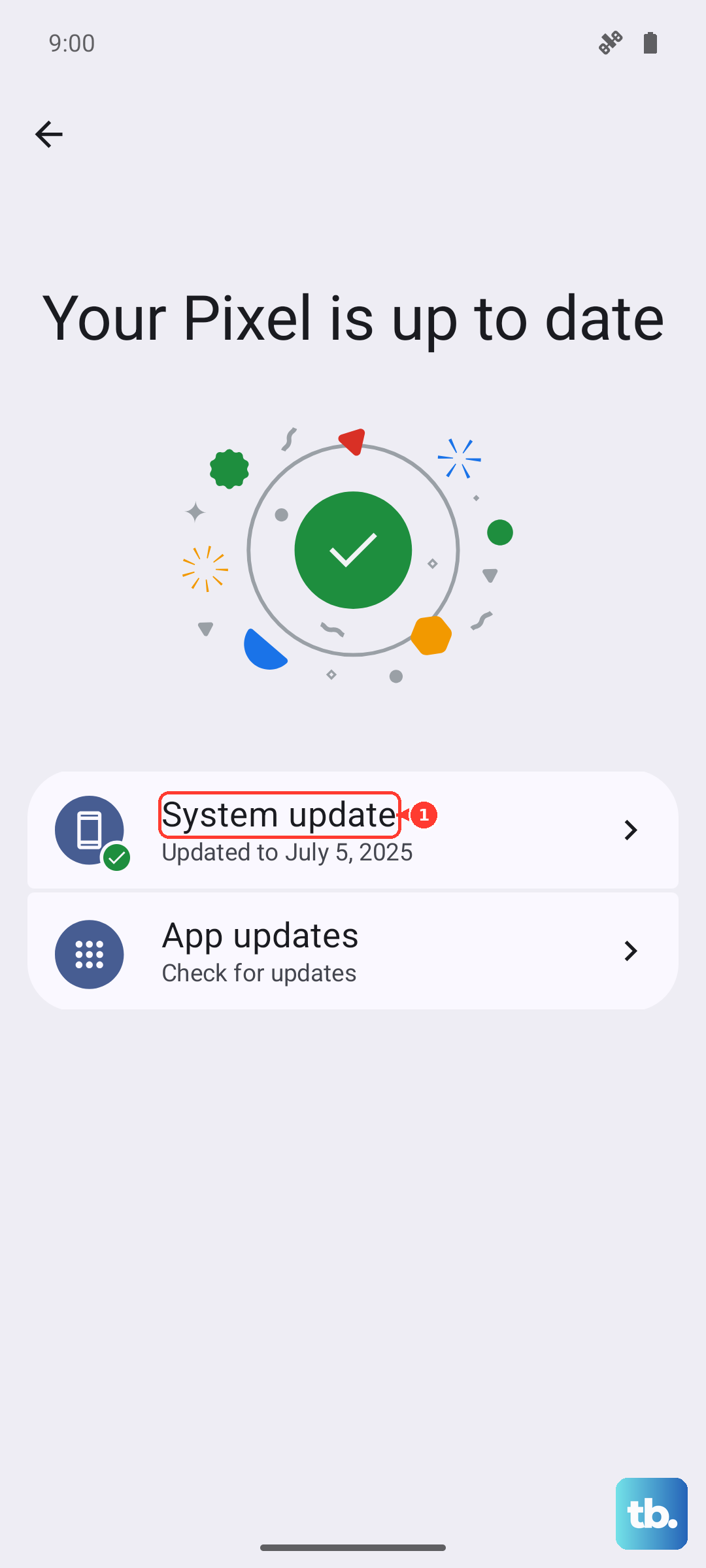
To check, follow Google's path. Open your device's Settings app, tap "System," then "Software updates" (shown as "System update" on some models), and follow the on-screen instructions. Install anything available, then test wireless charging once more.
Factory reset as a last resort, then contact support
If none of the above brings wireless charging back, a factory reset is the final software step before treating the issue as hardware. This is a serious action, so prepare for it carefully.
Back up your data first, because Google warns plainly that "A factory reset erases all your data from your phone." Before starting, charge the phone to at least 70% and connect to Wi-Fi or a mobile network, and expect the process to take time, since it "can take up to an hour."
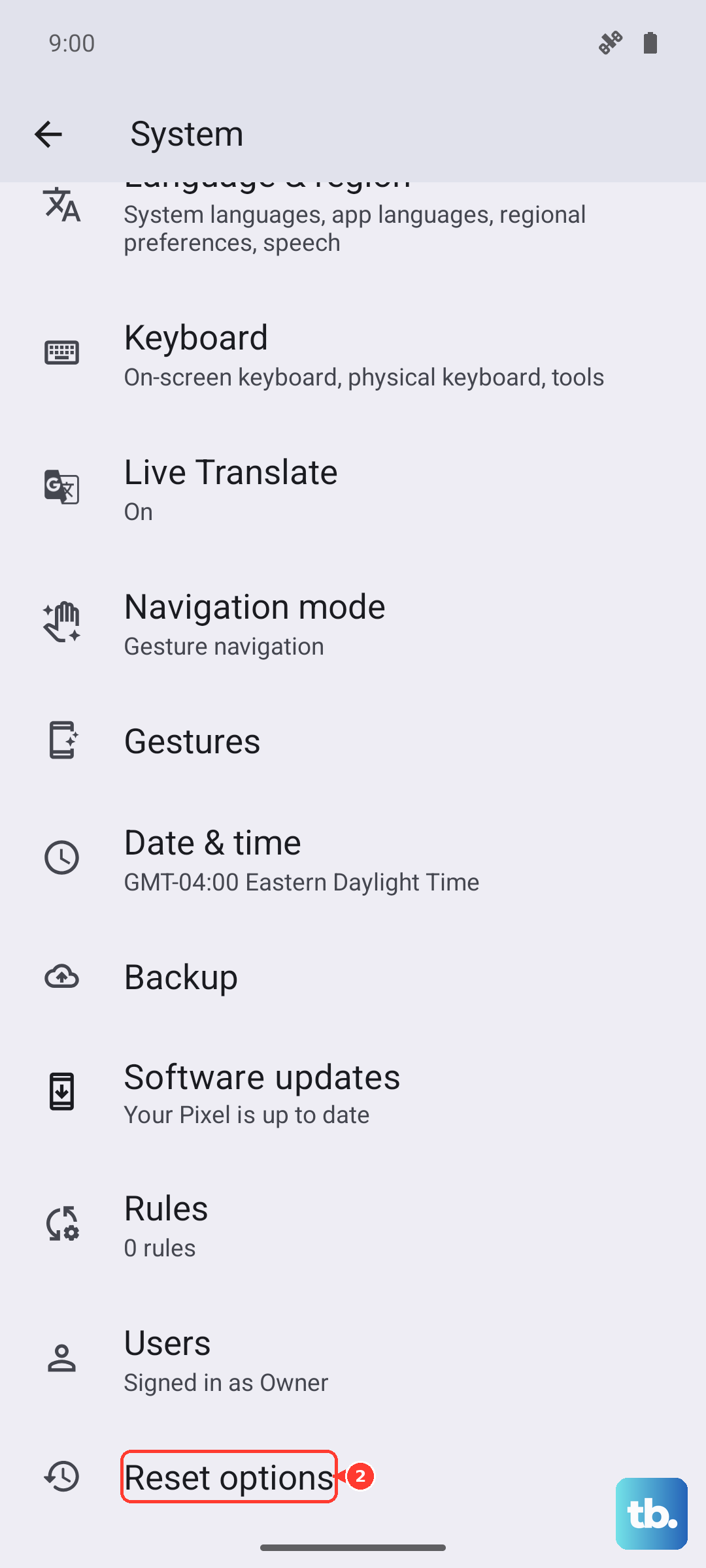
- 1.Open the Settings app.
- 2.Tap System.
- 3.Tap Reset options.
- 4.Tap Erase all data (factory reset) and follow the prompts.
If wireless charging still fails after a reset, the problem is most likely hardware. At that point, reach out to Google Pixel support for repair or service rather than continuing to troubleshoot on your own.
A note on Battery Share if reverse charging is failing instead
If your trouble is the other direction, meaning your Pixel 9 Pro will not charge another device placed on its back, that feature is Battery Share, the phone's reverse wireless charging. The Pixel 9 Pro supports it, and it is controlled entirely on the phone.
Turn it on by opening your phone's Settings app, tapping "Battery," then "Battery Share." The other device "must support Qi wireless charging and sit on the right spot" on the back of your phone for it to work.
As with charging your own phone, attachments get in the way. Google advises that you "remove any metallic or magnetic attachments from the back of the phone, like Apple MagSafe, PopSockets, or ring holders" before placing the second device.
Frequently Asked Questions
How fast does the Pixel 9 Pro charge wirelessly?
Per Google's official specs, the Pixel 9 Pro charges at wireless rates up to 21W with the Google Pixel Stand (2nd gen) and up to 12W with Qi-certified EPP chargers, which are sold separately. The higher 21W rate is tied specifically to the Pixel Stand (2nd gen).
Will my case stop the Pixel 9 Pro from charging wirelessly?
It can. Thick, metallic, or magnetic cases, including those with ring holders, can affect charging or stop it completely. A Pixel Stand can only charge through cases up to 3 millimeters thick and cannot charge through cases with metal, batteries, or attachments, so removing the case is one of the first things to try.
How do I know the charge actually started?
When wireless charging begins correctly, "the charging indicator lights up and your phone vibrates." If you do not see the light or feel the vibration, the phone is likely off-center or blocked by a case, so re-center it on the pad and try again.
How can I tell if my wireless charger is genuinely Qi-certified?
Google directs users to search for the charger in the Wireless Power Consortium Product Database to confirm it is officially Qi-certified. The Pixel 9 Pro is confirmed to work with Qi-certified EPP chargers at up to 12W and with the Pixel Stand (2nd gen) at up to 21W.
What should I do if wireless charging still fails after a factory reset?
A factory reset is the last software step, and it erases all data on your phone, so back up first and connect to Wi-Fi or a mobile network with the battery at 70% or more before starting. If charging still does not work afterward, the issue is most likely hardware, and you should contact Google Pixel support for repair or service.