
When your Google Pixel 9 Pro's volume buttons suddenly stop responding, it can throw you off. You press them to adjust a call or a video, and nothing happens. The good news is that a lot of the time, this is a software hiccup or a simple obstruction that you can fix without a trip to the repair shop.
Before you assume the worst, work through these steps. I'd start with the force restart, as it's often the quickest fix for a Tensor G4 phone acting up.
Remove Your Phone Case
This is the easiest thing to check. Take your Pixel 9 Pro out of its case. Sometimes, a case can be misaligned or have debris inside that physically blocks the button from being pressed all the way down. It's a simple fix, but it works more often than you'd think.
Perform a Force Restart
A force restart clears out temporary software glitches that can cause all sorts of weird behavior, including unresponsive buttons. This won't delete any of your photos, messages, or apps.
For the Pixel 9 Pro, press and hold the Power button for about 30 seconds. Keep holding it even after you see the Google logo or feel a vibration. Let go only when you see the boot animation start. This is the standard method for all recent Pixel models and is your best first software fix.
Clean the Volume Buttons
Dust, lint, or pocket debris can easily get lodged around the buttons on any phone. The Pixel's buttons are fairly tight, so even a small amount of grit can prevent them from making proper contact.
Grab a can of compressed air and give the area around the volume rocker a few short bursts. If you suspect something sticky is the culprit, you can dip a cotton swab in a tiny amount of isopropyl alcohol (90% or higher is best), wring it out so it's just damp, and gently clean around the button seam. Let it dry completely before testing.
Check Your Sound Settings
It's worth a quick look in your settings to make sure nothing got changed accidentally. Open the Settings app and go to Sound & vibration. Scroll down and look for the "Physical buttons" section.
Make sure the option for "Use volume keys for media" is toggled on. If it's off, your volume buttons will only control ringtone volume, not media, which can make them seem broken when you're watching videos or listening to music.
Use the On-Screen Volume Slider
While you're figuring this out, remember you can still control your volume. Just press the volume up or down button once, and a larger slider will appear on your screen. You can drag that slider up or down with your finger.
You can also pull down your Quick Settings panel (swipe down twice from the top of the screen) and adjust the volume slider there. This is a good workaround for the time being.
Test Across Different Apps
Open a few different apps and try the buttons. Play a song in YouTube Music, then try a video on YouTube, and then make a test call. If the buttons work in one app but not another, the problem is likely with that specific app, not your phone's hardware.
Try force-stopping the problematic app. Go to Settings > Apps, find the app, tap it, and select "Force stop." Then open it again and test.
Toggle the Alert Slider
The Pixel 9 Pro has an alert slider above the volume buttons. Flick it back and forth a few times between ring and vibrate modes. Some users have found that cycling this hardware switch can help reset the state of the volume buttons if they're in a software lock.
Enable and Use Accessibility Menu
Android has a feature similar to iPhone's AssistiveTouch that can give you virtual buttons. Enabling and using it can sometimes jog the system back to recognizing the physical ones.
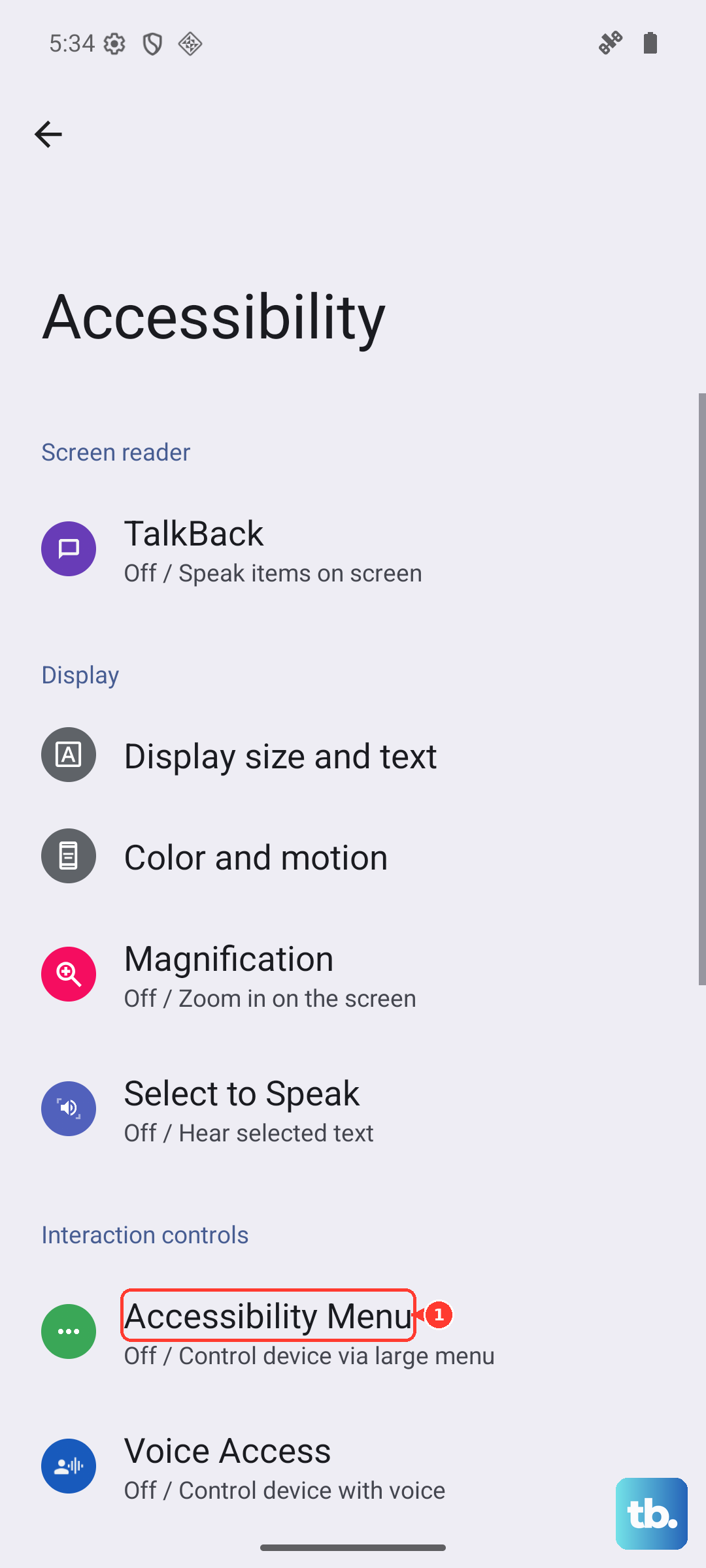
Go to Settings > Accessibility > Accessibility Menu and turn it on. A small person icon will appear on your screen. Tap it, then tap the volume icon to get on-screen volume up/down buttons. Use these virtual buttons a few times, then try your physical buttons again.
Update Your Android Software
Since you're on Android 15, Google is still pushing regular updates and bug fixes. A software bug could absolutely be causing your button issues.
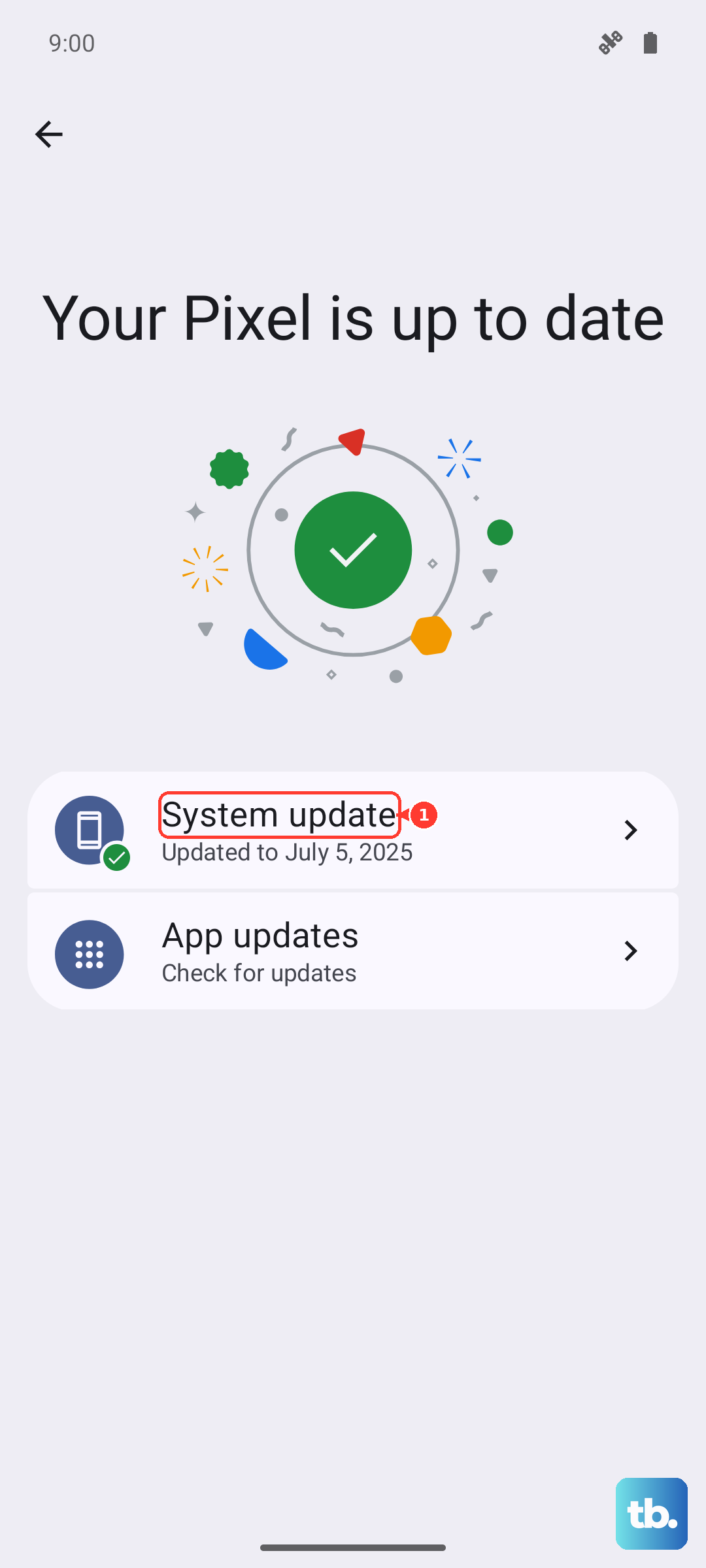
Connect to Wi-Fi, and if possible, plug in your charger. Go to Settings > System > System update. Download and install any available update. After the phone restarts, check if the volume buttons are working again.
Check for App-Specific Permissions
Some apps, especially those that control media or sound, might have permission issues. Go to Settings > Apps and look for any recently installed audio or media apps.
Tap on them and go to Permissions. Make sure they have permission to control media audio or change system settings if that's relevant. Revoking and re-granting permissions can sometimes clear up conflicts.
Boot Into Safe Mode
Safe mode temporarily disables all third-party apps you've downloaded. If your volume buttons work perfectly in Safe Mode, then a recently installed app is causing the conflict.
To enter Safe Mode, press and hold the Power button and Volume Up button together until the power menu appears. Then, press and hold the "Power off" option on your screen. A prompt will ask if you want to reboot to Safe Mode. Tap "OK." Test your buttons in this mode. To exit, just restart your phone normally.
Consider a Factory Reset (Last Resort)
If you've tried everything and the buttons are still dead, a factory reset can wipe out deep-seated software corruption. This will erase everything on your phone, so you must back up your data first.
Use Google One backup or connect to a computer to transfer your files. To reset, go to Settings > System > Reset options > Erase all data (factory reset). Follow the prompts. After the phone sets up again, test the buttons before you start restoring your apps, as that will tell you if it was truly a software issue.