
When your Google Assistant stops responding on your Pixel 9 Pro, it feels like losing your right hand. The AI that's supposed to help just goes quiet. Here's how to get it talking again when "Hey Google" doesn't work or the assistant button fails.
Check Your Assistant Settings First
Open the Google app on your phone and tap your profile picture in the top right corner. Go to Settings > Google Assistant.
Make sure "Hey Google" is toggled on. Right below that, tap Voice Match and ensure your voice model is trained and active. I'd start here, as a simple toggle off is the most common culprit.
Restart Your Pixel 9 Pro
A quick reboot clears out temporary software glitches that can mute the Assistant. Just press and hold the Power button for about 30 seconds until you feel the phone vibrate and the Google logo appears.
This force restart is a bit different from older Pixels, but it's the go-to move for any odd behavior on the 9 Pro. Give it a minute to fully boot up, then try "Hey Google" again.
Retrain Your Voice Model
If the Assistant hears you but doesn't recognize you, or responds inconsistently, retraining your voice can help. Go back to Google Assistant settings > Voice Match and tap "Retrain voice model."
Follow the prompts, speaking clearly in your normal voice. This helps the Tensor G4 chip's on-device processing get a better lock on your vocal patterns, especially useful if you've been in a noisy environment lately.
Check for Microphone Blockages
The Pixel 9 Pro has multiple microphones. If they're covered, the phone can't hear you. Check the tiny pinhole at the top of the frame and the ones near the bottom USB-C port.
Look for lint, dust, or a case that might be misaligned and covering the openings. A quick blast of compressed air can clear out debris. Be gentle, as the microphones are sensitive.
Update Your Apps and System
Outdated software is a common cause. Head to the Play Store, tap your profile icon, and go to Manage apps & device > Updates available. Update the Google app and Google Assistant if listed.
Next, check for a system update. Go to Settings > System > System update. Android 15 updates often include fixes for the Assistant and other AI features.
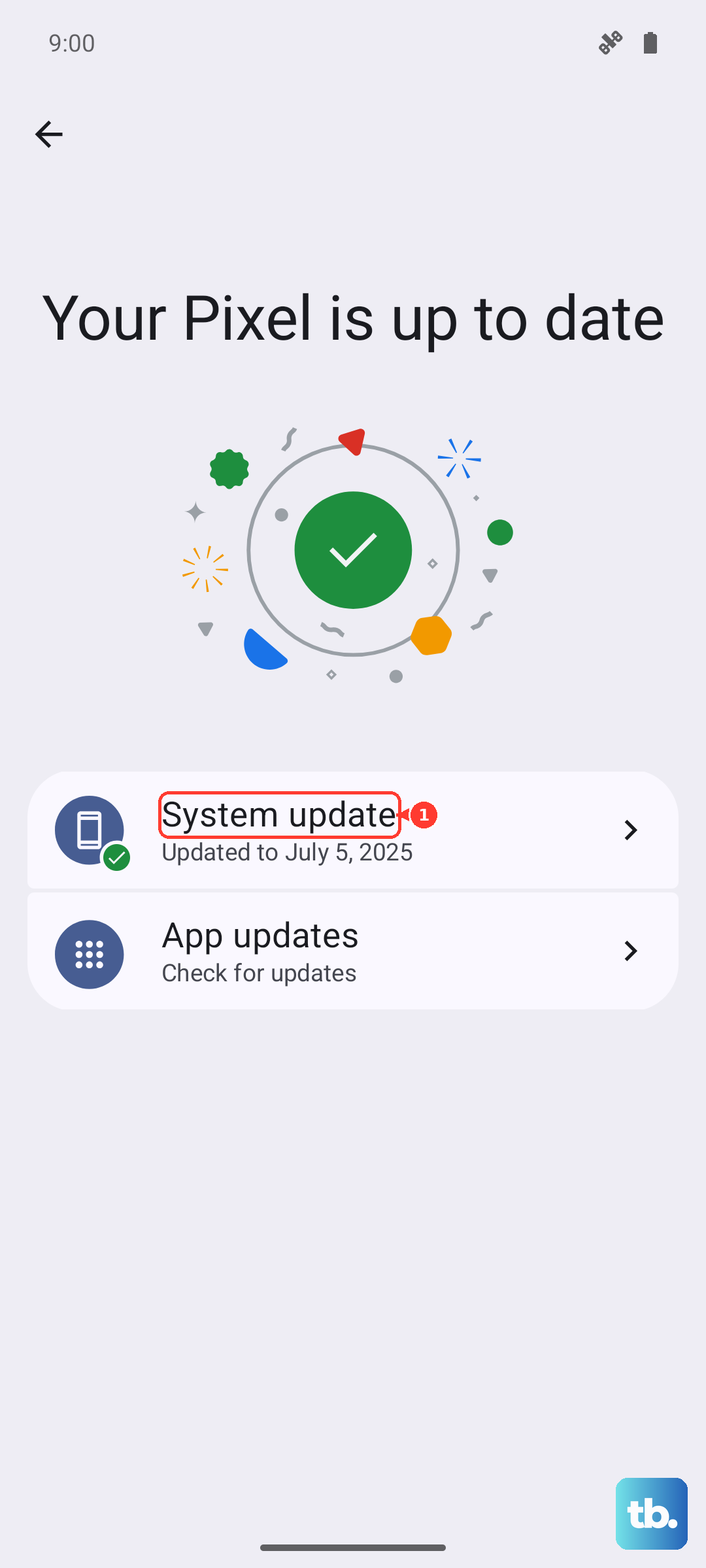
Review Your Audio and Accessibility Settings
Certain modes can interfere. First, make sure your phone isn't on silent or Do Not Disturb. Pull down the quick settings shade from the top of the screen to check.
Then, go to Settings > Accessibility. Look for features like "Sound Notifications" or "Live Transcribe" and try turning them off temporarily. These can sometimes take priority over the "Hey Google" hotword.
Clear the Google App Cache and Data
Corrupted app data can break the Assistant. Go to Settings > Apps > See all apps. Find and tap on "Google" in the list.
Tap Storage & cache. Hit "Clear cache" first and test the Assistant. If it's still broken, tap "Clear storage" or "Manage space" > "Clear all data." This will reset the app, so you'll need to retrain Voice Match afterward.
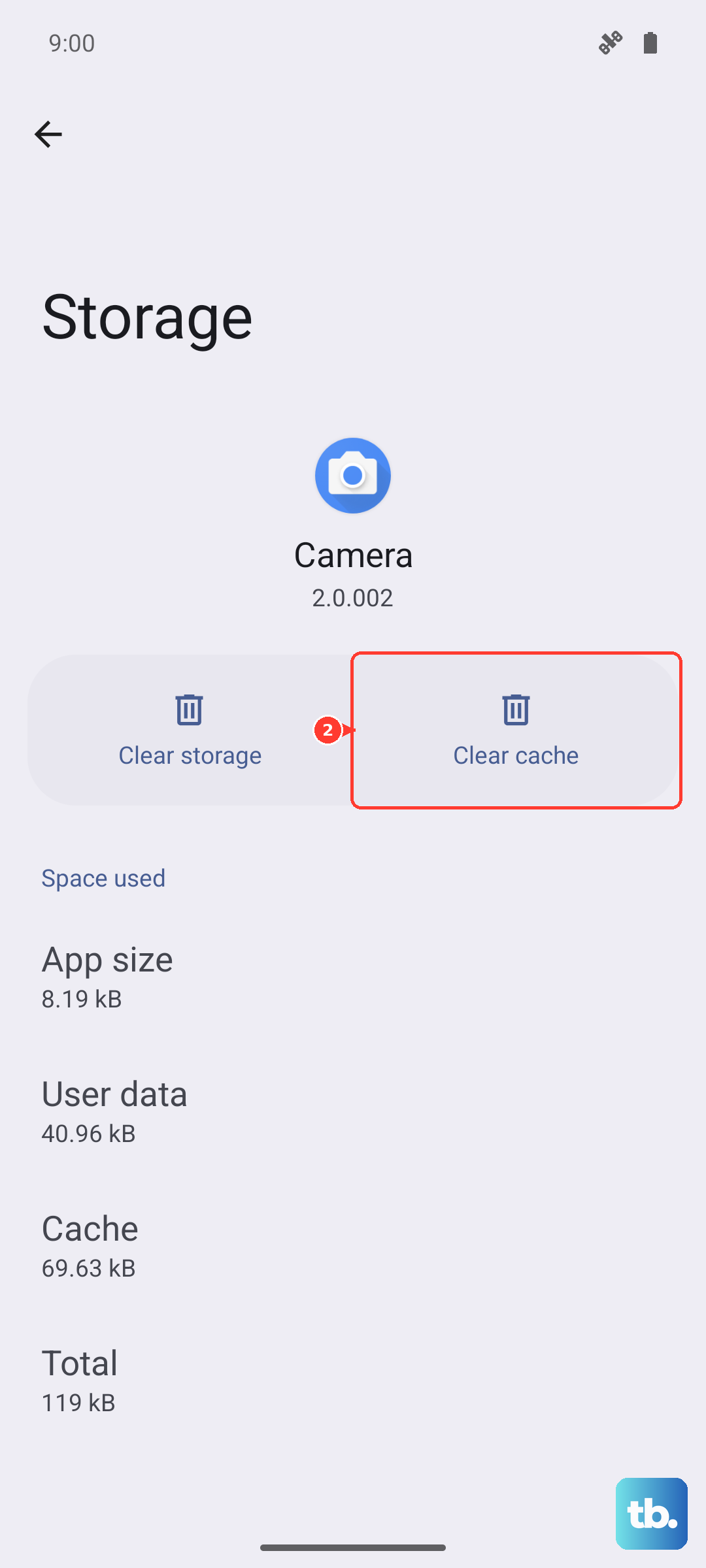
Check Your Network Connection
While many Assistant commands process on the device thanks to the Tensor G4, some still need the internet. A weak mobile signal or a Wi-Fi issue can cause delays or failures.
Try toggling Airplane mode on and off from the quick settings. If you're on Wi-Fi, try switching to mobile data to see if the problem is network-specific. The Pixel 9 Pro's modem can be less robust in weak signal areas.
Disable Other Voice Assistants
If you've installed other assistant apps like Bixby or Alexa, they might be conflicting. Check your default assistant app by going to Settings > Apps > Default apps.
Make sure "Digital assistant app" is set to Google. Also, check within the settings of any other voice app to ensure they aren't set to listen for a wake word.
Reset All App Preferences (Not Your Data)
This is a stronger step that resets app permissions and defaults without touching your personal files. Go to Settings > System > Reset options.
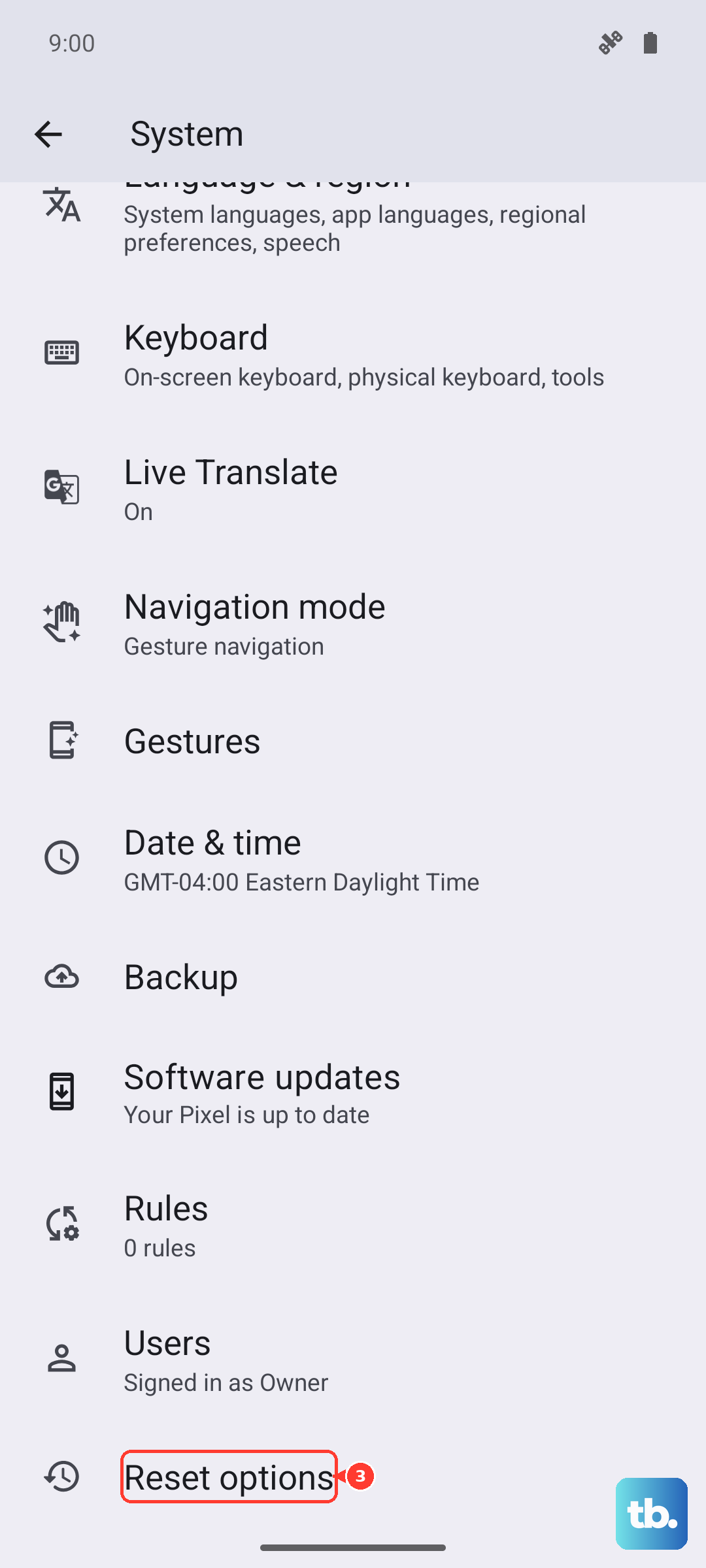
Tap "Reset app preferences." This will reset disabled apps, notification settings, and background data restrictions. You'll need to re-grant microphone permission to the Google app when you next use it, which often kicks the Assistant back into gear.