If your Google Pixel 9 Pro videos are stuttering, freezing, or dropping frames, it can be incredibly annoying. This is a common problem that pops up for a few different reasons, but the good news is you can usually fix it yourself without too much hassle.
Check Your Internet Connection First
For streaming videos, a weak connection is the most likely culprit. The Pixel 9 Pro's Samsung Exynos 5400 modem can sometimes struggle with maintaining a strong signal in areas with poor coverage compared to some other phones. If you're watching something on YouTube, Netflix, or another streaming app, start here.
Try toggling Airplane mode on and off to reset your network connections. You can also try switching between Wi-Fi and your cellular data to see if the problem is isolated to one network. If you're on Wi-Fi, a simple router restart can often clear up temporary congestion.
Free Up Storage Space on Your Pixel
When your phone's storage is nearly full, it can't process video files smoothly, whether you're recording, editing, or playing them back. Android needs free space to work efficiently. Head to Settings > Storage to see how much room you have left.
If you're running low, I'd start by clearing the cache of your video apps like Google Photos, YouTube, and your camera app. You can also use the Files app to delete downloaded files you no longer need. For the long term, consider backing up your photos and videos to Google One cloud storage to keep your local storage free.
Update Your Apps and Android Version
Outdated software is a frequent cause of playback issues. App developers and Google regularly release updates that fix bugs and improve performance, especially for video encoding and decoding. Open the Google Play Store, tap your profile icon, and go to Manage apps & device > Updates available.
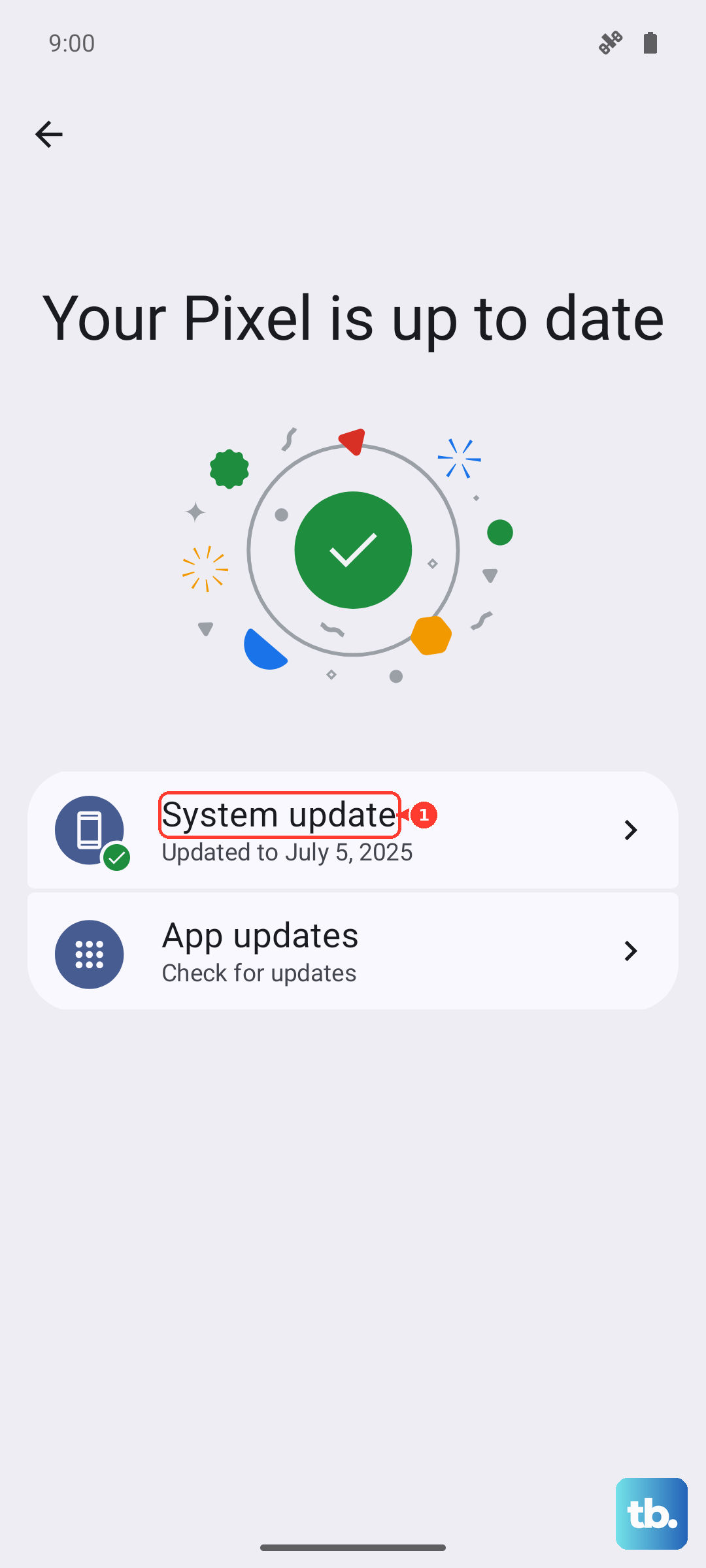
Also, check for a system update. Since your Pixel 9 Pro runs Android 15, make sure you have the latest security patch and feature drop. Go to Settings > System > System update to see if anything is pending. Installing updates can resolve compatibility problems that cause lag.
Force Close and Reopen the Problem App
Sometimes, a single app just gets stuck. If videos are only lagging in YouTube or Instagram Reels, for example, force closing that specific app can clear its temporary data and restart it fresh. Swipe up from the bottom of your screen and hold to enter the app overview screen.
Find the problematic app and swipe it all the way up to close it. Then, tap its icon again to reopen it. This is a much quicker step than restarting your whole phone and often does the trick for app-specific glitches.
Restart Your Google Pixel 9 Pro
When in doubt, reboot. This clears out the phone's RAM and stops any background processes that might be interfering with smooth video playback. Just press and hold the power button until the power menu appears, then tap "Restart."
If your screen is completely unresponsive and you can't access the menu, you can perform a force restart. Press and hold the power button for about 30 seconds until you feel the phone vibrate and see the Google logo appear on screen. This is a hard reset that can knock loose deeper software hiccups.
Disable Battery Saver and Adaptive Battery
While these features are great for longevity, they can sometimes limit performance to save power. Battery Saver, in particular, throttles your phone's processor and can make video playback choppy. Swipe down twice from the top of your screen to see if the Battery Saver icon is active.
You can also check Adaptive Battery settings. Go to Settings > Battery > Adaptive preferences and temporarily turn off "Adaptive Battery." See if your videos play smoothly afterward. You can always turn it back on later.
Check for Phone Overheating
The Pixel 9 Pro is known to get warm during extended camera use or gaming, which can trigger thermal throttling. When the phone gets too hot, it slows down the processor to cool off, and this can definitely cause video lag. If your phone feels hot to the touch, set it down in a cool place for a few minutes.
Avoid using it while it's charging, especially with a fast charger, as this generates additional heat. Once it cools down, try playing your video again. Performance should return to normal.
Clear the App Cache and Data
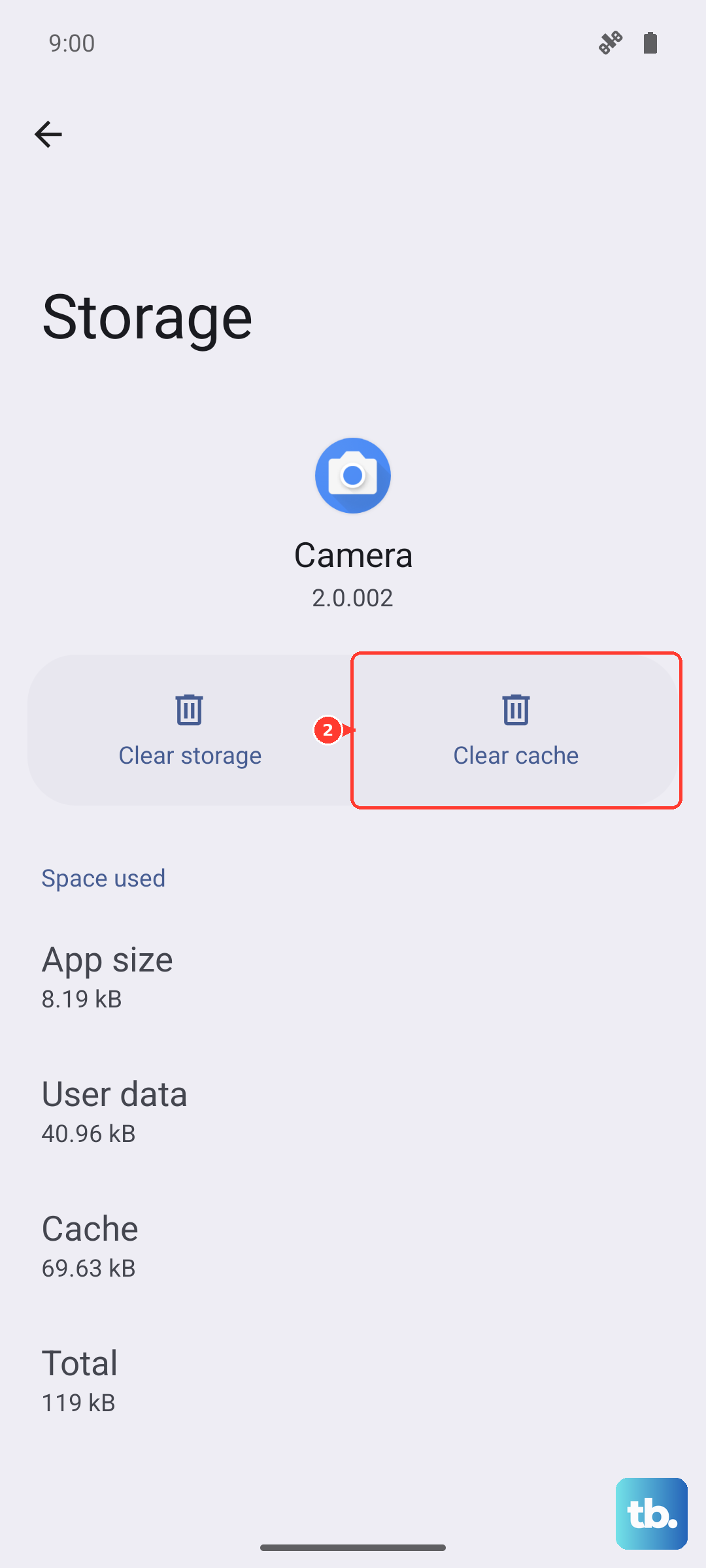
If the issue is with a specific app like Google Photos or your gallery, corrupted cache files might be to blame. Clearing the cache won't delete your personal videos or settings. Go to Settings > Apps, select the app giving you trouble, then tap Storage & cache.
Tap "Clear cache." If that doesn't work, you can try "Clear storage" or "Manage space," but be warned this will reset the app to its default state and you may lose in-app preferences. It won't delete your actual video files stored on the device or in the cloud.
Try a Different Video Player
This can help you figure out if the problem is with the video file itself or with the app you're using to play it. If a video lags in Google Photos but plays perfectly in VLC Player from the Play Store, then you know the issue is app-specific. This is a quick diagnostic step that points you in the right direction.
Reset App Preferences or Network Settings
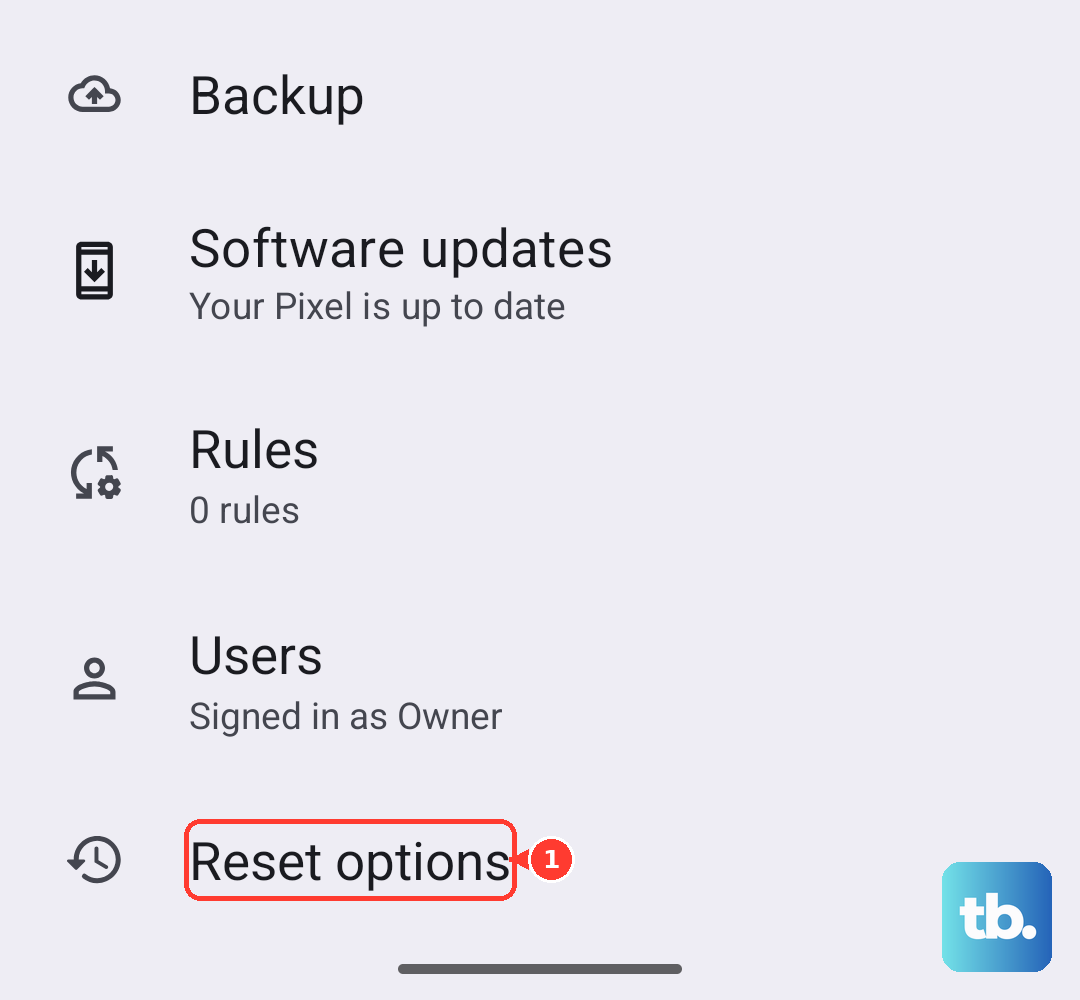
This is a more involved step that resets certain system settings without erasing your personal data. Resetting app preferences will revert all your app permissions, default apps, and background restrictions back to factory defaults. You can find this in Settings > System > Reset options > Reset app preferences.
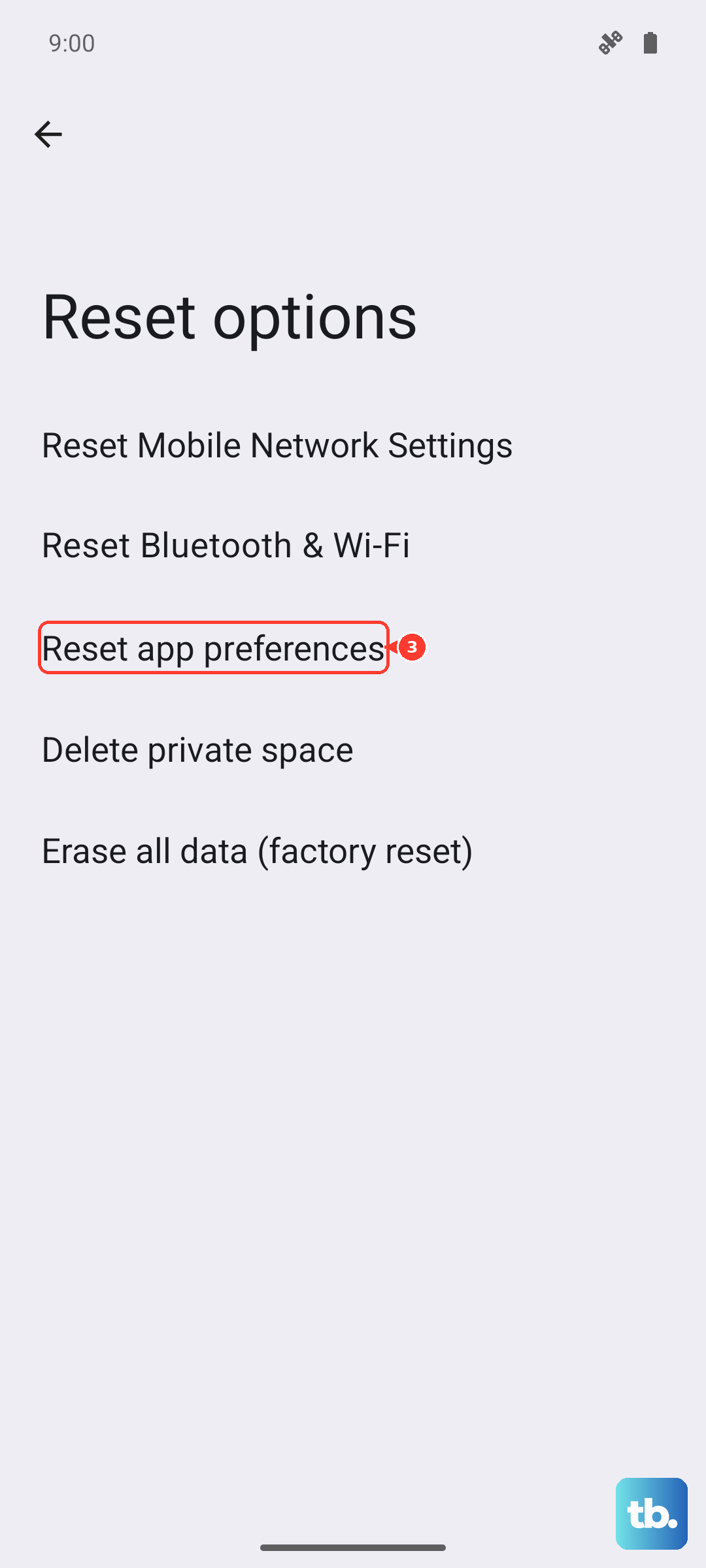
If you suspect a network issue, you can also reset your Wi-Fi, mobile data, and Bluetooth settings from the same "Reset options" menu. You'll have to reconnect to your Wi-Fi networks afterward, but it can fix persistent connection problems that affect streaming.