When your Google Pixel 9 Pro goes silent, it can pull you right out of your day. Whether you're missing notifications, can't hear calls, or your videos are playing without a peep, the sudden lack of sound is a jarring experience. The good news is that most audio problems on the Pixel 9 Pro are caused by simple software glitches or settings that can be fixed in a minute.
To separate hardware from software, open a online speaker test and play the channel tones. What you hear, or do not hear, tells you which fixes below matter most.
Check Your Volume and Sound Mode
This is the absolute first thing to check. Press the volume up button on the side of your Pixel 9 Pro a few times. If you see a volume slider on screen, tap the settings icon (it looks like a gear) next to it. This opens the detailed volume panel where you can adjust the media, call, alarm, and notification volumes independently.
Also, pull down the Quick Settings shade from the top of your screen twice. Look for the "Sound" tile. If it says "Vibrate" or "Silent," tap it to switch back to "Sound" mode. Sometimes a pocket press can accidentally toggle this.
Disconnect Bluetooth and Accessories
Your Pixel might be trying to send audio to a paired device. Swipe down and check the Quick Settings for the Bluetooth icon. If it's blue, your phone is connected to something like headphones, a speaker, or your car.
Tap the Bluetooth icon to turn it off completely, or go to Settings > Connected devices to see a list and manually disconnect. Also, remove any USB-C headphones or dongles. I've seen cases where the phone thinks a simple charging cable is an audio accessory.
Review Do Not Disturb and App-Specific Settings
Do Not Disturb can silence everything if set up strictly. Go to Settings > Sound & vibration > Do Not Disturb. Make sure it's toggled off, or check the rules underneath to see if a schedule is active.
Sometimes, the issue is with just one app. Open the app that's not producing sound, like YouTube or Spotify, and check its in-app volume slider. Also, go to Settings > Apps, select the problematic app, then tap Notifications. Ensure notifications are allowed and set to make a sound.
Clean the Speaker Grilles
The Pixel 9 Pro's bottom-firing speaker grille is a magnet for lint from your pocket. Take a close look at the long, thin slit along the bottom edge of the phone. Use a soft, clean, dry toothbrush or a brand-new soft-bristled paintbrush to gently sweep across the grille.
You can also use a can of compressed air, but hold it upright and use very short bursts from a few inches away. Never use a paperclip or SIM eject tool, as you'll easily damage the speaker diaphragm behind the grille.
Perform a Force Restart
A simple reboot clears out temporary glitches that can affect the audio system. For the Pixel 9 Pro, press and hold the Power button for about 30 seconds. Don't let go when you see the power menu or the screen goes black.
Keep holding until you see the Google logo appear, then release. The phone will restart normally. This is different from a standard restart and often resolves deeper system hiccups.
Check for Android Updates
Google is consistently pushing updates for Pixel phones. A bug affecting audio could have been fixed in a recent patch. Go to Settings > System > System update and tap "Check for update."
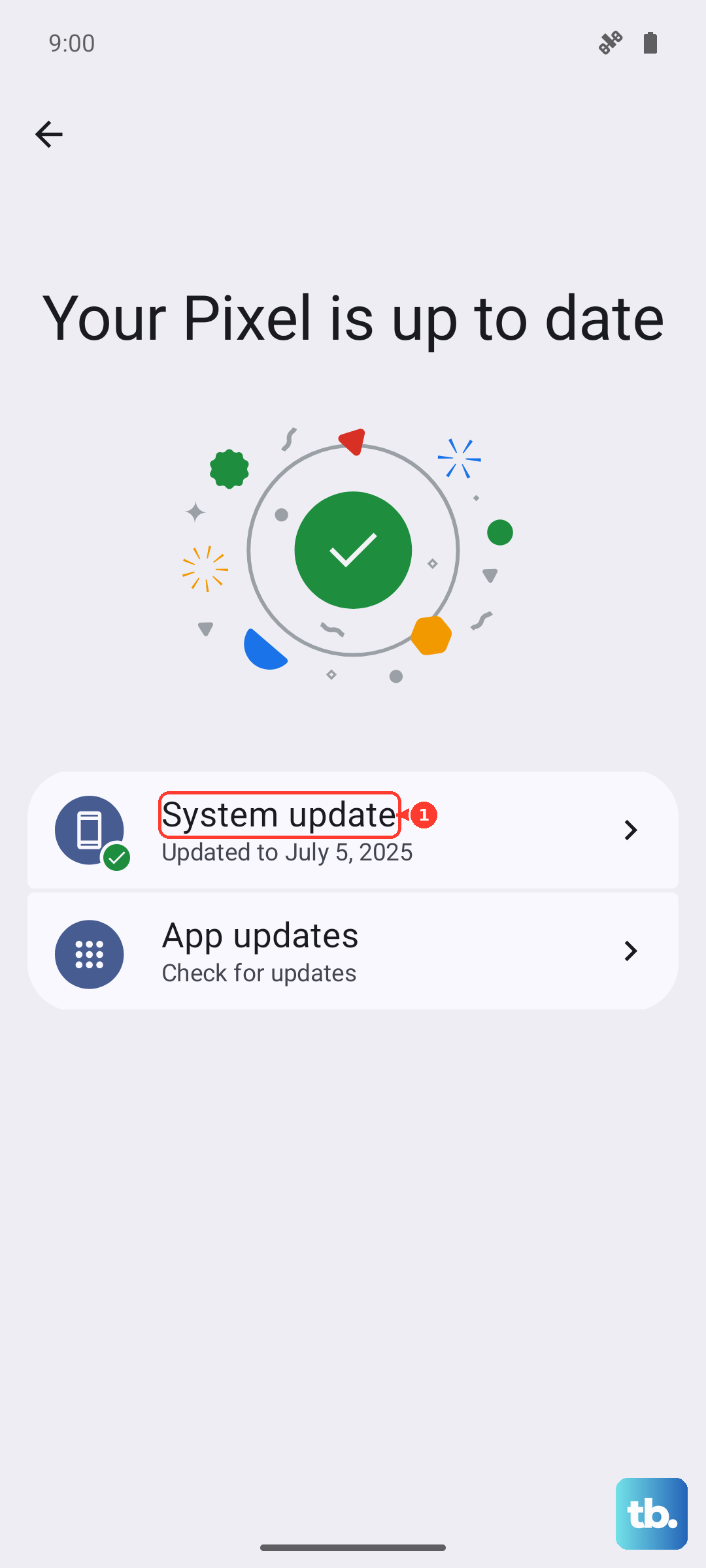
If an update is available, install it. It's a good idea to plug your phone into its 27W charger during this process, as the Tensor G4 chip can get warm during updates and you don't want the battery to die mid-install.
Boot Into Safe Mode
This starts your phone with all third-party apps disabled. If sound works in Safe Mode, you know a recently downloaded app is the culprit. To enter Safe Mode, press and hold the Power button and Volume Up button together until the power menu appears.
Then, tap and hold the "Power off" option on your screen. A prompt will ask if you want to reboot to Safe Mode. Tap "OK." Your phone will restart, and "Safe mode" will appear in the bottom corner. Test your sound with a YouTube video or a ringtone.
To exit, just perform a normal restart by holding the Power button and tapping "Restart."
Reset App Preferences or Network Settings
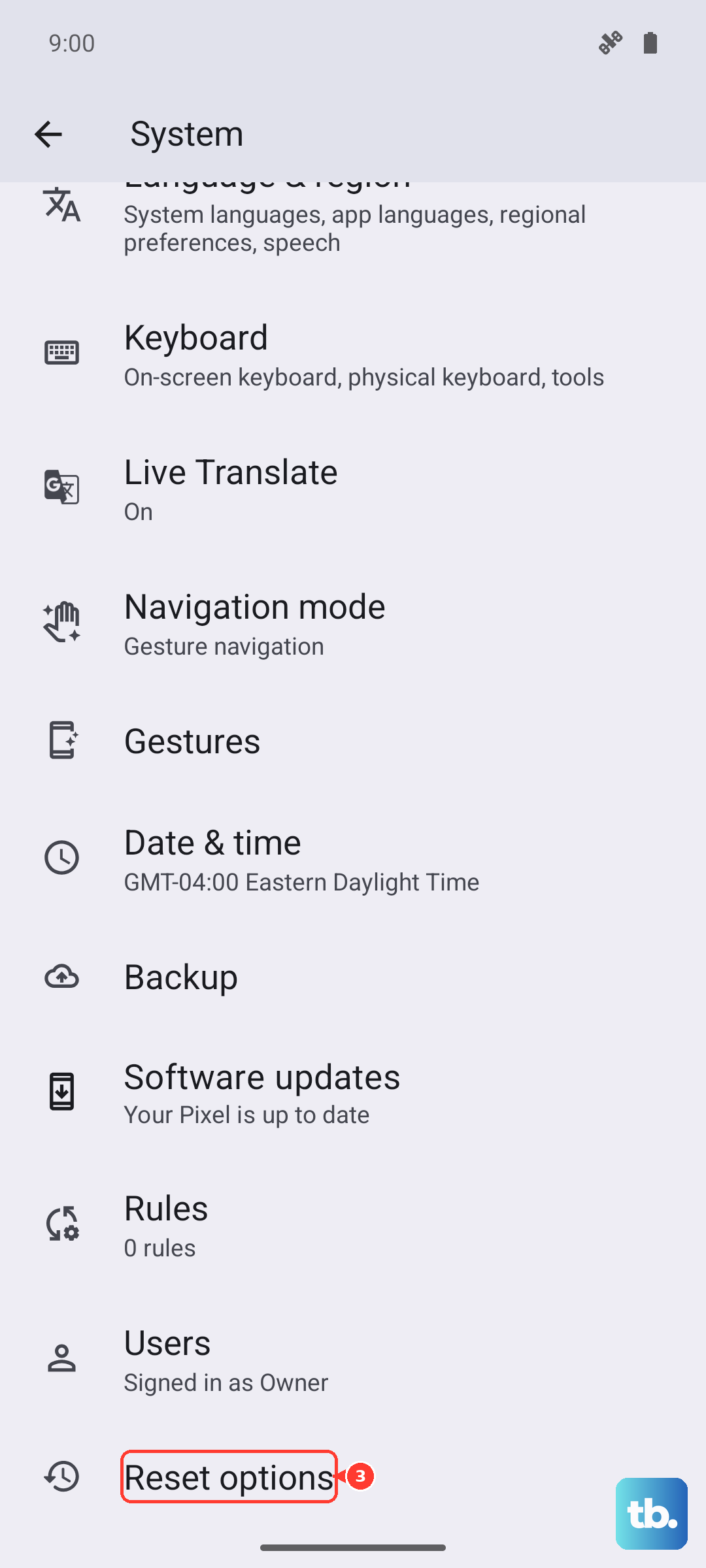
This is less drastic than a full reset. Go to Settings > System > Reset options. Tap "Reset app preferences." This resets permissions, notification settings, and background data restrictions for all apps back to their defaults, but it won't delete any app data.
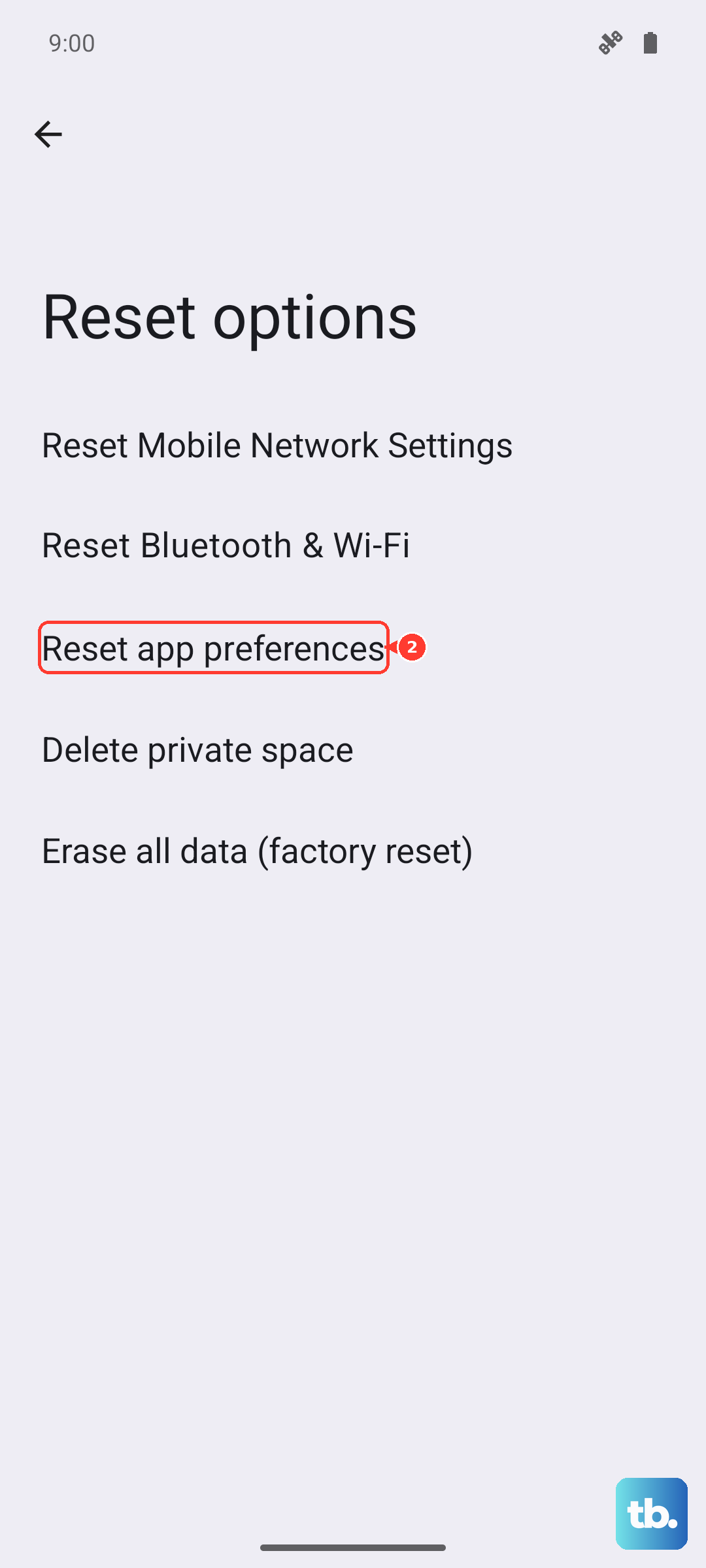
If your sound issue is specifically with phone calls, also try "Reset Wi-Fi, mobile & Bluetooth" from the same menu. You'll have to reconnect to your networks and re-pair Bluetooth devices afterward.
Consider a Factory Reset
If you've tried everything else and the speaker is still silent, a factory reset is the final software step. This will erase all data on your phone, so you must back up everything important first using Google One or by manually transferring files to a computer.
Once backed up, go to Settings > System > Reset options > Erase all data (factory reset). Follow the prompts to confirm. After the reset, set up the phone as new without restoring a backup immediately to see if the sound works on a clean system.